Container Service for Kubernetes (ACK) supports GPU scheduling and operations. Its default GPU usage mode aligns with the upstream Kubernetes community pattern. This topic walks through deploying a sample TensorFlow workload to validate GPU scheduling.
Prerequisites
Ensure you have:
-
An ACK cluster with at least one GPU node
-
kubectl configured to connect to the cluster
-
Access to the ACK console
Avoid bypassing standard GPU resource requests
For ACK-managed GPU nodes, request GPU resources only through the standard Kubernetes extended resource mechanism (nvidia.com/gpu in resources.limits). The following actions bypass this mechanism and pose security risks:
-
Running GPU applications directly on nodes
-
Using
docker,podman, ornerdctlto create containers or request GPU resources (for example,docker run --gpus allordocker run -e NVIDIA_VISIBLE_DEVICES=all) -
Adding
NVIDIA_VISIBLE_DEVICES=allorNVIDIA_VISIBLE_DEVICES=<GPU ID>to theenvsection of a pod's YAML file -
Using the
NVIDIA_VISIBLE_DEVICESenvironment variable to request GPU resources for a pod -
Defaulting
NVIDIA_VISIBLE_DEVICEStoallin a container image when not set in the pod YAML -
Setting
privileged: truein the pod'ssecurityContextand running a GPU program
Why it matters: Non-standard GPU requests are invisible to the scheduler's resource tracking. This mismatch can cause the scheduler to over-allocate GPUs on a node, leading to multiple pods contending for the same GPU card (for example, competing for GPU memory) and causing workload failures. These methods may also trigger known errors reported by the NVIDIA community.
Verify GPU availability
Before deploying a workload, confirm that your GPU node exposes GPU capacity to the Kubernetes scheduler.
-
List nodes in the cluster:
kubectl get nodes -
Describe a GPU node to check its capacity:
kubectl describe node <gpu-node-name>In the Capacity section,
nvidia.com/gpumust show a non-zero value:Capacity: nvidia.com/gpu: 1If
nvidia.com/gpuis missing or shows0, the NVIDIA device plugin may not be running on the node. Check the plugin DaemonSet deployment, GPU drivers, and node configuration before proceeding.
Deploy a GPU application
-
Log on to the ACK console. In the left navigation pane, click Clusters.
-
On the Clusters page, click the target cluster. In the left navigation pane, choose Workloads > Deployments.
-
On the Deployments page, click Create from YAML and paste this manifest:
apiVersion: v1
kind: Pod
metadata:
  name: tensorflow-mnist
  namespace: default
spec:
  containers:
  - image: registry.cn-beijing.aliyuncs.com/acs/tensorflow-mnist-sample:v1.5
    name: tensorflow-mnist
    command:
    - python
    - tensorflow-sample-code/tfjob/docker/mnist/main.py
    - --max_steps=100000
    - --data_dir=tensorflow-sample-code/data
    resources:
      limits:
        nvidia.com/gpu: 1  # Request one GPU card for this container.
    workingDir: /root
  restartPolicy: Always
GPU extended resources require
limitsonly, notrequests. Kubernetes does not allowrequestswithout a matchinglimitsfor extended resources. The scheduler uses thelimitsvalue as the effective request. -
In the left navigation pane, choose Workloads > Pods. Find and click the pod.
-
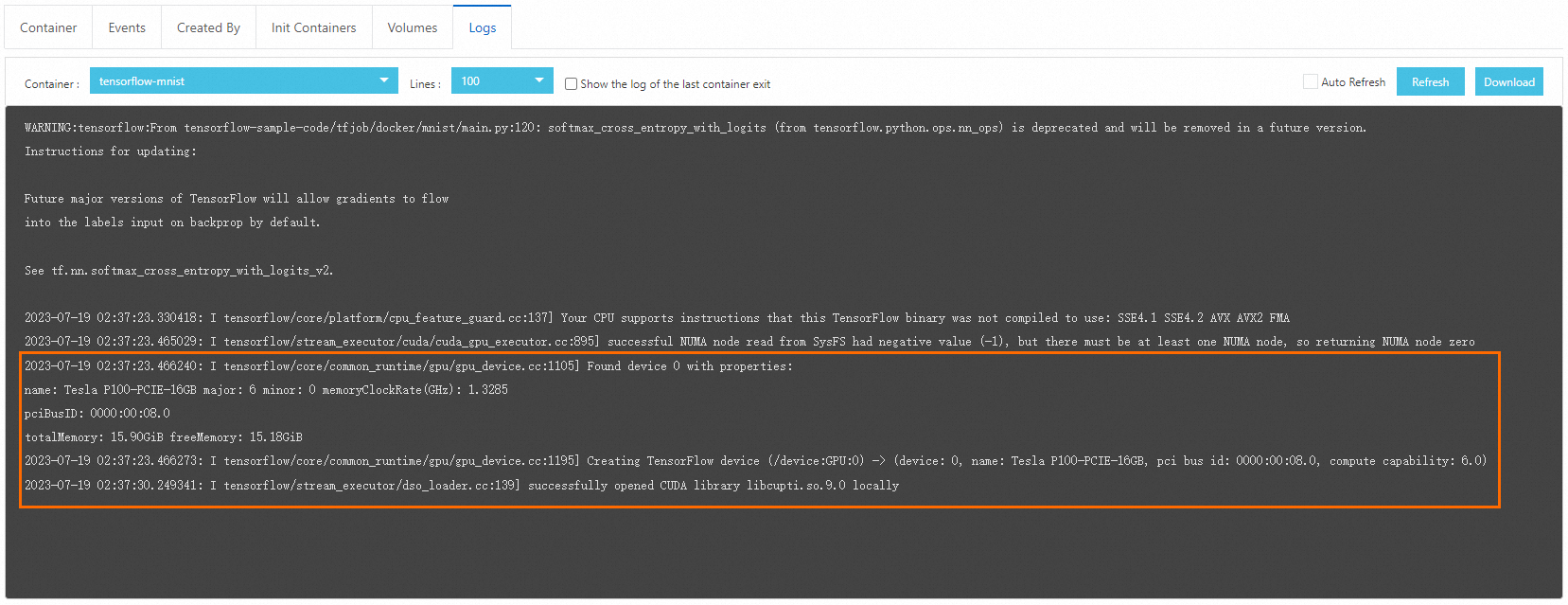
Click the Logs tab. Image pull and pod startup may take a few minutes. Once running, the log output confirms that GPU scheduling works correctly.
Next steps
-
To target specific GPU types in a heterogeneous cluster, use node labels and selectors. Label GPU nodes by accelerator type (for example,
kubectl label nodes <node-name> accelerator=<gpu-model>), then add anodeSelectorto your pod spec. -
For advanced GPU scheduling options such as GPU sharing and isolation, see the ACK GPU scheduling documentation.