Create a JVS Mobile node, send your first instruction to an agent, and track task execution. JVS Mobile is in public preview and under active development.
Prerequisites
Before you begin, ensure that you have:
An Alibaba Cloud account with individual verification or enterprise verification completed
The
AliyunAgentBayFullAccesspermission on your account or RAM user
Create a node
A node is a JVS Mobile instance that runs agent tasks. Each plan includes a fixed number of agent nodes and credits.
Sign in to the JVS Mobile console.
In the left-side navigation pane, choose Node, and then click Create Node.
-
Select a Plan and specify the Quantity.
NoteJVS Mobile is billed monthly and supports auto-renewal.
Credits are the billing unit for built-in AI services in JVS Mobile, calculated based on model token consumption. For details, see credits package.
Each plan includes:
Advanced: 1 agent node, 1,000 credits, standard app support.
Ultimate: 60 agent nodes, 40,000 credits, video app support.
-
Configure the remaining parameters and click Buy Now.
-
Bandwidth package: Ranges from 5 Mbps to 3,072 Mbps.
NoteThe Advanced plan includes 5 Mbps at no extra cost; the Ultimate plan includes 20 Mbps.
All nodes share the configured bandwidth.
Credit Top-up Package: Purchase additional credits when your plan's credits run out. The package is valid for 6 months, is shared across all nodes, and takes effect immediately. Unused credits expire when the package does.
-
Chat with JVS Mobile
After creating a node, send instructions to JVS Mobile from the Chat page. Each chat message consumes credits.
To track credit usage, click Credits > View Details in the upper-right corner of the console.
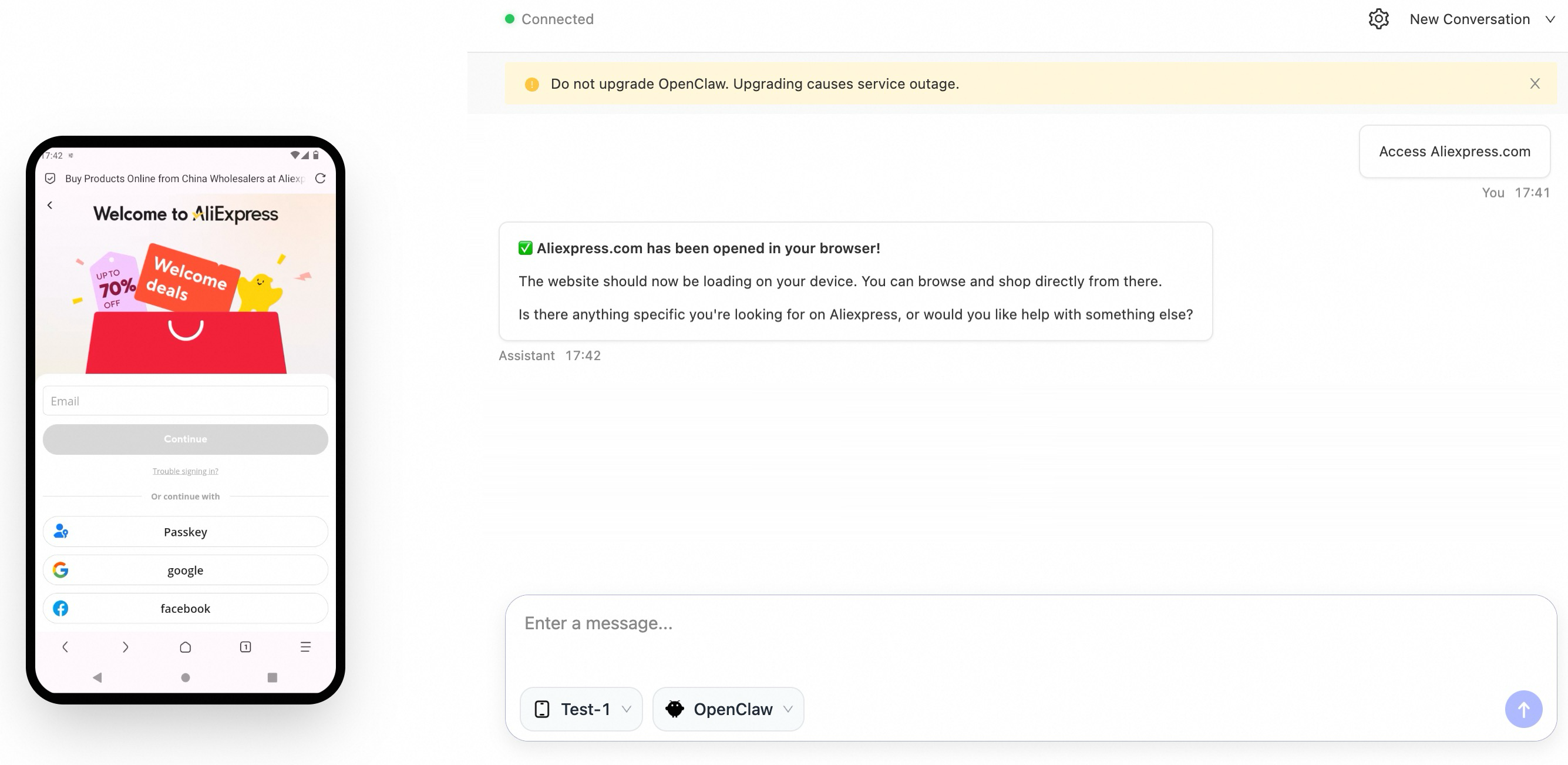
In the left-side navigation pane, choose Chat.
In the lower-left corner of the message box, select a Node.
-
From the dropdown menu on the right, select the OpenClaw agent and send an instruction or task.
View tasks
JVS Mobile automatically breaks down each chat request into executable tasks. Go to the Tasks page to monitor progress.
Each task entry shows:
Status: Running, Completed, or Failed.
Click a task to view its full execution details.
If a task fails, check the failure reason and resend the instruction from the chat.
What's next
Channel integration
Connect your instant messaging (IM) platform to OpenClaw so team members can send tasks and instructions without opening the console. See Integrate JVS Mobile with IM platforms.
OpenClaw settings
On the OpenClaw chat page, click the gear icon in the upper-right corner to open OpenClaw Control and configure agent behavior. For all available options, see the OpenClaw documentation.
View skills
Go to the Skills page to see which skills JVS Mobile has loaded and enabled. Each skill includes a description of how to trigger it. Send the corresponding instruction in a chat to invoke it.
Change bandwidth
If bandwidth is insufficient for network access, uploads, or downloads, hover over the Bandwidth card and click Change Bandwidth.
Bandwidth changes only affect peak bandwidth. The expiration date of your bandwidth package remains unchanged.