If you plan to sign online contracts, apply for credit limits, join the Alibaba Cloud Partner Network (ACPN), or purchase cloud products and services specifically deployed in the Chinese mainland, you need to complete enterprise identity verification in accordance with applicable local laws and regulations. This guide walks you through the enterprise identity verification process.For more information, see Identity verification overview.
Process overview of enterprise identity verification
The verification process consists of submitting your information for manual review. Manual review typically takes 3 business days. You receive the verification result by email.
Both individual and organization accounts can initiate enterprise identity verification. After an account is verified as an enterprise, the account type cannot be changed back to individual. We recommend that you confirm this before proceeding. For more information, see Identity verification overview.
Prerequisites
Before you begin, prepare a valid business certificate issued by local government that matches your account's Country/Region, and provide a clear, complete color scan or digital photo of the certificate. You can check your Country/Region in Basic Information under Account Center.
This guide applies to the Alibaba Cloud International Website (alibabacloud.com). If your enterprise is registered in the Chinese mainland, go to the Alibaba Cloud China Website (aliyun.com) to register and purchase. For more information, see Alibaba Cloud China Website vs. International Website.
Tips for successful submission
Recommended practices:
Before submitting, cross-check each field to ensure the company's full legal name, registered address, and certificate number exactly match the uploaded document (including parentheses, punctuation, and formatting).
Phone number binding: Your account's registered country must match the country code of the phone number you bind. You cannot bind a phone number with a different country code during the verification process. If you need to bind a phone number from another region, submit enterprise verification first and bind the phone number after the verification is approved.
Behaviors to avoid:
Uploading documents that do not belong to your organization.
Submitting documents from a different region than where the organization is registered.
Modifying or forging document information.
Submitting expired or invalid documents.
Submit verification information
Log on to Alibaba Cloud Account Center and go to the Identity Verification page. Perform the following operations based on your Account Type. You can view your Account Type on the Basic Information page. For more information, see Manage basic account information.
If your Account Type is Enterprise/Government (includes enterprises, governments, public institutions, groups, and organizations), click Verify Now in the Verify Your Identity - Enterprise Account section.
If your Account Type is Personal, click Verify Now in the Upgrade to an Enterprise Account section.
Submit the following information:
Business Registration Document: Upload clear photos of the front and back of your business registration document. For document requirements, see Tips for successful submission.
Company Name: Enter your company name exactly as it appears on the registration document. If multiple languages are available, use the English version.
NoteThe company name field supports search. Search results can auto-populate the registration number.
Business Registration Number: Enter the official registration number from your document.
State/Province: Select the state or province of your organization's registered address.
City: Enter the city of your organization's registered address.
Address Line 1: Enter the street, P.O. box, or company name for your registered address.
(Optional) Address Line 2: Enter apartment, suite, unit, building, or floor number.
-
Purchase cloud resources in Chinese mainland or use acceleration regions that include Chinese mainland: Select an option based on your business needs.
-
Yes: The system will initiate a separate compliance review. The status of this review will be displayed separately from your account verification status.
-
No: You do not plan to purchase resources in the Chinese mainland. After your account is verified, you can still change this selection on the Identity Verification page under Purchase cloud resources in the Chinese mainland or use acceleration regions that include it.
-
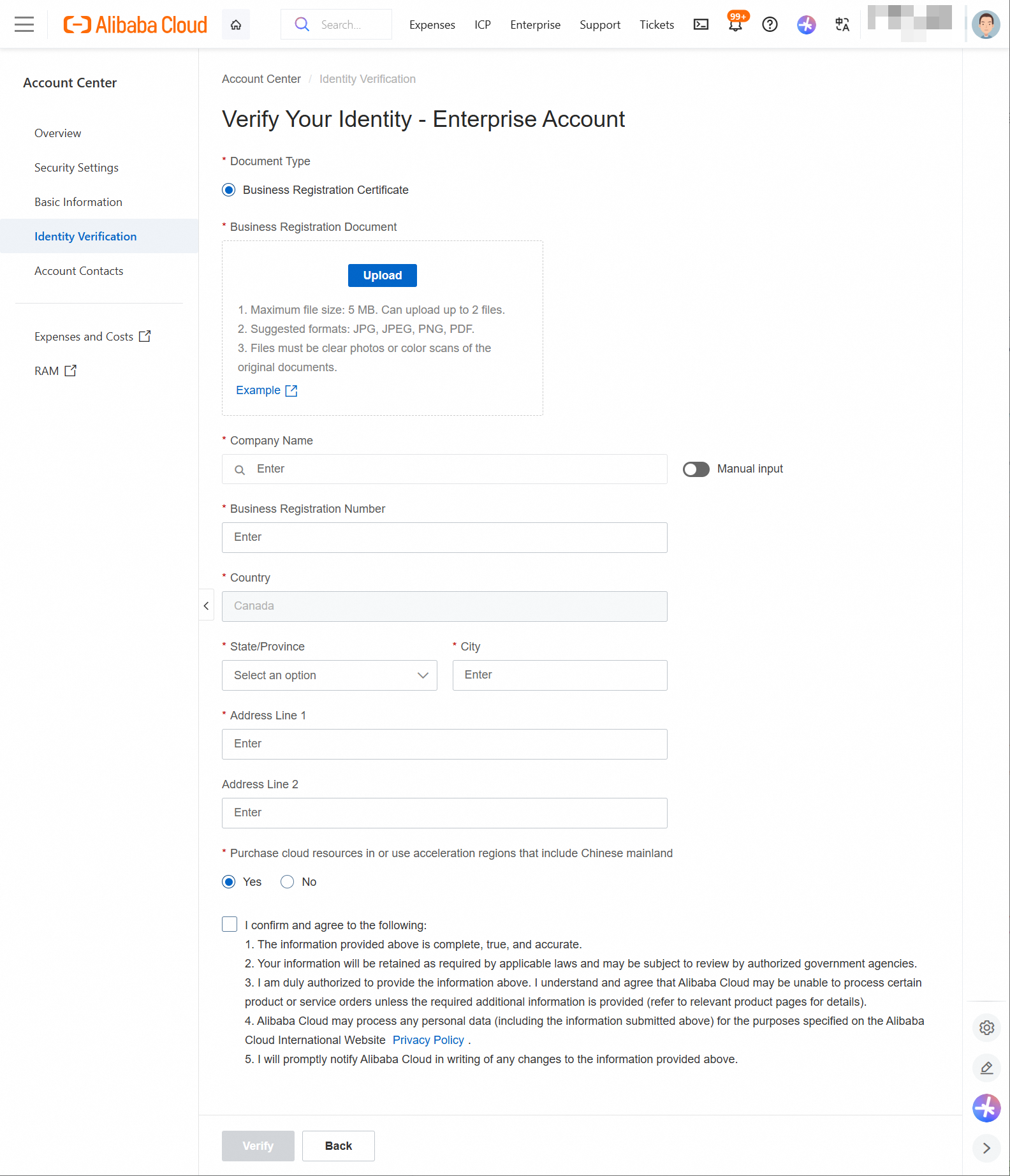
Review your information and click Verify.
Verification status
After you submit your information, your application enters manual review. You can check the progress on the Identity Verification page:
-
Under Review: Your application has been submitted and is being processed. The review typically takes about 3 business days.
-
Verification Successful: Your identity information has been verified. You can now purchase eligible products and services.
-
Failed: Your application was not approved. Check the reason provided on the page, correct your information, and resubmit.
-
If you do not receive a response within 3 business days, check your spam or junk mail folder. If you still cannot find the email, contact technical support.
-
If you have questions about a Failed result or believe there was an error, contact technical support.
Troubleshooting common review failure reasons (enterprise accounts)
Information mismatch: Verify that your company's full legal name (including any parentheses, punctuation, and Chinese/English variations), registered address, and certificate number exactly match those on your uploaded business license or commercial registration certificate.
Bank statement rejected: Provide bank statements that cover at least 1 month and contain no fewer than 5 transaction records.
Insufficient documents or no tax certificate (new company): The following alternative documents are acceptable:
Tax certificates or tax records
Bank account statements or reconciliation statements (for example, Aspire account statements)
Screenshots of your enterprise registration page from the government's official website
ACRA BizFile or an equivalent official registration document
Hong Kong (China) enterprises purchasing mainland China resources: You must upload a Business Registration Certificate.
If your review failed for a reason not listed above, or if you believe the rejection was in error, submit a ticket or contact technical support for further assistance.
Verification status
After you submit your information, your application enters manual review. You can check the progress on the Identity Verification page:
-
Under Review: Your application has been submitted and is being processed. The review typically takes about 3 business days.
-
Verification Successful: Your identity information has been verified. You can now purchase eligible products and services.
-
Failed: Your application was not approved. Check the reason provided on the page, correct your information, and resubmit.
-
If you do not receive a response within 3 business days, check your spam or junk mail folder. If you still cannot find the email, contact technical support.
-
If you have questions about a Failed result or believe there was an error, contact technical support.
FAQ
Serving mainland China users without verification
Q: If I cannot complete identity verification, how can I serve users in the Chinese mainland?
A: We recommend using the China (Hong Kong) region. This region:
-
Does not require identity verification.
-
Provides a low-latency access experience for users in the Chinese mainland.
Purchasing mainland China resources after verification
Q: After my account is successfully verified, what should I do if I later decide I need to purchase resources in the Chinese mainland?
A: You can update your purchasing intentions at any time:
-
Go to the Identity Verification results page and ensure your status is Verification Successful.
-
In the section for Purchase cloud resources in the Chinese mainland or use acceleration regions that include it, read and accept the terms, then click Confirm.
-
The system will automatically start a separate compliance review for accessing resources in the Chinese mainland.
Can I change my verification information after approval?
No, you cannot modify verified information directly in the console. To update your verification details, submit a ticket to contact customer support. For step-by-step instructions, see [Change identity verification information] in the Identity verification overview.
If your account has resources associated with the Chinese mainland (such as .cn domain names), you must release or transfer these resources before changing your verification information.