This topic answers frequently asked questions about listeners for Classic Load Balancer (CLB).
Listener port configuration
Does CLB support port forwarding?
Yes.
CLB supports port redirection. For example, see Redirect requests from HTTP to HTTPS.
Can Layer 4 listeners listen on a port range?
No. If you need to configure a TCP or UDP listener to listen on a port range, create a Network Load Balancer (NLB) instance and enable the multi-port feature for its TCP or UDP listener. For more information, see Enable multi-port listening and forwarding for NLB.
Listener port considerations
Some carriers mark ports such as 25, 135, 139, 444, 445, 5800, and 5900 as high-risk and block them by default. Even if you allow traffic on these ports in security group rules, users in restricted regions cannot access them. We recommend that you use other ports for your services.
For information about ports used by applications on Windows Server systems, see Service overview and network port requirements for Windows in the Microsoft documentation.
For more information about common ports, see Common ports.
How to configure listeners for WebSocket and WSS
For backend servers that use WebSocket, you can configure a TCP listener or an HTTP listener.
For backend servers that use WebSocket Secure, you can configure a TCP listener or an HTTPS listener.
Effect and impact of listener configuration changes
The changes take effect immediately and apply only to new requests. Existing connections are not affected.
Performance and bandwidth
Why does traffic loss occur when bandwidth is not exceeded?
This issue has the following causes:
Bandwidth monitoring data from Alibaba Cloud is averaged per minute. Instantaneous traffic might exceed the bandwidth limit within a single second, but if the average for that minute remains below the limit, the monitoring chart will not show an overage.
The load balancing system uses a cluster to serve CLB instances, distributing requests and the configured peak bandwidth across multiple system servers. Traffic loss occurs if a single client connection's data transfer exceeds the bandwidth allocated to one of these servers. For more information, see the calculation method for the maximum download traffic per connection in Why do connections fail to reach the peak bandwidth?.
Why is monitored traffic greater than the rate limit?
The load balancing system uses a cluster deployment to serve CLB instances and employs distributed rate limiting. The peak rate limit for a single node = Total configured load balancer bandwidth / (N-1), where N is the number of nodes in the cluster. Therefore, the overall rate limit may be slightly higher than the configured value.
Why do connections fail to reach the peak bandwidth?
Description: If you purchase a public-facing CLB instance with a pay-by-bandwidth billing method, connections may fail to reach the peak bandwidth in specific scenarios, such as single-client stress tests or transfers of very large data packets.
Cause:
The load balancing system uses a cluster deployment, which distributes all external requests and the configured peak bandwidth across multiple system servers.
The maximum download traffic per connection is calculated as follows:
Peak download per connection = Total configured load balancer bandwidth / (N-1), where N is the number of nodes in the cluster. N is 4 for Layer 4 listeners and 8 for Layer 7 listeners. For example, if you set a 10 Mbps bandwidth limit in the console, the total bandwidth can reach 10 Mbps when multiple clients are active. The maximum download bandwidth for a single client is10 / (4-1) = 3.33 Mbps.Recommended solution:
Use the pay-by-data-transfer billing method for the CLB instance's public network usage.
Use an NLB or ALB instance with an EIP and a bandwidth package. This solution provides sufficient elasticity for the load balancer instance and avoids such limitations.
Why does a CLB instance fail to reach the peak QPS?
Description: In scenarios with a small number of long-lived connections, some system servers in the forwarding group may not receive a connection, which prevents the CLB instance from reaching its peak queries per second (QPS).
Cause:
The load balancing system uses a cluster deployment, which distributes all external requests and the instance's peak QPS across multiple system servers.
The QPS limit for a single system server is calculated as follows:
Peak QPS per system server = Total instance QPS / (N-1). N is the number of system servers in the forwarding group. For example, if you purchase a CLB instance of the slb.s1.small specification, which corresponds to a QPS of 1,000, the total QPS can reach 1,000 when multiple clients are active. If there are 8 system servers, the maximum QPS for a single server is1000 / (8-1) = 142 QPS.NotePay-by-specification CLB instances will no longer be available for purchase starting from 00:00:00 on June 1, 2025 (UTC+8). For more information, see End-of-sale for pay-by-specification CLB instances.
Recommended solution:
Use short-lived connections from a single client for stress testing.
Reduce connection reuse based on your business requirements.
Upgrade the CLB instance specification. For more information, see Upgrade or downgrade a pay-as-you-go (pay-by-specification) instance.
Use an ALB instance. This solution provides sufficient elasticity for the load balancer instance.
Why does the new connection rate fail to reach the peak value?
Description: When you purchase a pay-by-specification Classic Load Balancer (CLB) instance, the connections per second (CPS) rate may not reach the specified level in certain scenarios, such as single-client stress tests or traffic from a single source.
NotePay-by-specification CLB instances will no longer be available for purchase starting from 00:00:00 on June 1, 2025 (UTC+8). For more information, see End-of-sale for pay-by-specification CLB instances.
Cause:
The load balancing system's cluster architecture distributes all connection requests and the instance's peak CPS evenly across multiple servers.
The peak CPS for a single system server is calculated as follows: Peak CPS per system server = Total instance CPS / (N-1), where N is the number of system servers in the forwarding group.
For example, if you purchase an slb.s1.small specification CLB instance, its nominal CPS is 3,000. With multiple concurrent clients, the overall CPS can reach 3,000. If there are 4 system servers, the CPS limit for a single server is 3,000 / (4-1) = 1,000 CPS.
Recommended solution:
Change the CLB billing model: Switch from pay-by-specification to the more flexible pay-as-you-go model. Pay-as-you-go instances do not have fixed specifications and offer higher performance ceilings, which helps prevent bottlenecks caused by undersized specifications.
Upgrade to Network Load Balancer (NLB): For scenarios with high concurrency and high new connection rates, we recommend using the NLB service. Compared to CLB, NLB offers significant performance improvements and greater elasticity, enabling it to handle large-scale concurrent connections more effectively and avoid CPS limitations caused by the number of system servers in CLB.
Connection and access
Connection timeout ranges for listeners
TCP listener connection timeout: 10 to 900 seconds.
HTTP listener:
Idle connection timeout: 1 to 60 seconds.
Connection request timeout: 1 to 180 seconds.
HTTPS listener:
Idle connection timeout: 1 to 60 seconds.
Connection request timeout: 1 to 180 seconds.
Why do connections to CLB time out?
The following server-side issues can cause connection timeouts:
The service address is under security protection
For example, traffic blackholing, scrubbing, or Web Application Firewall (WAF) protection. WAF establishes a connection and then sends RST packets to both the client and the server cluster.
Client port exhaustion
Client port exhaustion, which is common during stress testing, leads to connection failures. By default, the load balancer removes the timestamp attribute from TCP connections, so the Linux kernel's
tw_reuse(reuse of connections in TIME_WAIT state) cannot take effect. The accumulation of connections in the TIME_WAIT state leads to client port exhaustion.Solution: Use long-lived connections instead of short-lived connections on the client. Disconnect by sending an RST packet (set the SO_LINGER socket option) instead of sending a FIN packet.
The backend server's accept queue is full
A full
acceptqueue on the backend server prevents it from replying with a SYN-ACK packet, causing the client to time out.Solution: The default value for net.core.somaxconn is 128. Evaluate your traffic volume and adjust this value to meet your needs. Then, run
sysctl -w net.core.somaxconn=<new_value>to change the parameter and restart the application on the backend server.Accessing a Layer 4 load balancer from its own backend server
A backend server for a CLB Layer 4 (TCP/UDP) listener cannot also act as a client to access the load balancer's service address. This hairpinning configuration results in connection failures. A common scenario is when a backend application redirects to the CLB's service address by constructing a URL.
Solution:
Use a different client to access the service, not the Layer 4 load balancer's backend server itself.
Migrate to a Network Load Balancer (NLB) and disable the Preserve Client IP feature in the server group. After disabling it, ECS instances in the server group can act as both backend servers and clients accessing the NLB. To obtain the client's source IP, you can enable the Proxy Protocol. For more information, see How can an ECS instance in NLB act as both a backend server and a client?.
Improper handling of RST packets for connection timeouts
After a TCP connection is established, if there is no activity for 900 seconds, the load balancer sends an RST packet to both the client and the server to close the connection. Some applications do not handle RST exceptions properly and may try to send data on a closed connection, causing an application timeout.
Note900 seconds is the system's default value and can be adjusted as needed.
Timeout rules for HTTP and HTTPS connections
An HTTP persistent connection is limited to a maximum of 100 consecutive requests. The connection will be closed after this limit is exceeded.
The timeout between two HTTP or HTTPS requests over a persistent connection is configurable from 1 to 60 seconds (with a margin of error of 1-2 seconds). The TCP connection is closed after this timeout. To maintain long-lived connections, users should send a heartbeat request at least every 13 seconds.
The timeout for completing a TCP three-way handshake between the load balancer and a backend ECS instance is 5 seconds. After a timeout, the next ECS instance is selected. You can identify this by checking the upstream response time in the access logs.
The time the load balancer waits for a response from an ECS instance is configurable from 1 to 180 seconds. After a timeout, a 504 or 408 status code is typically returned to the client. You can check the upstream response time in the access logs to help identify the issue.
The HTTPS session reuse timeout is 300 seconds. After this, the same client needs to perform a full SSL handshake again.
How CLB handles client disconnections
No. If a client disconnects, CLB maintains the connection to the backend server until the current read or write operation is complete.
How to enable persistent backend connections
CLB instances do not support enabling persistent backend connections. To achieve this, you can create an ALB instance, configure an HTTP or HTTPS listener, and enable persistent backend connections in the corresponding ALB server group. For more information, see Create and manage server groups.
How to troubleshoot high latency
When accessing backend services through CLB, a slight increase in latency compared to direct access is normal. A CLB Layer 7 listener uses a reverse proxy architecture (Tengine), where requests are forwarded by CLB, adding the latency of one network hop and protocol processing. A Layer 4 listener uses LVS forwarding, which typically adds less latency.
If the latency is significantly high, follow these steps to troubleshoot:
Enable and analyze access logs: Enable CLB access logs and focus on the following fields:
request_time: The interval in seconds from when CLB receives the first request packet to when it returns the response.upstream_response_time: The time in seconds from when a connection is established with the backend server until the data is fully received and the connection is closed.
Identify the source of latency:
If
upstream_response_timeis high: The latency is likely caused by slow processing on the backend server. Check the performance of the backend application, database query efficiency, CPU/memory resource usage, or add more backend servers to distribute the load.If
request_timeis much greater thanupstream_response_time: The latency may be in the network path between the client and CLB. Run continuouspingtests or MTR route traces from the client to the CLB service address to diagnose network link issues.
Cross-region access scenario: If the client and the CLB instance are in different regions, network latency due to physical distance is unavoidable. We recommend using the Global Accelerator (GA) service to optimize the cross-region access experience.
How to troubleshoot 502, 503, and 504 errors
When you access a backend service through CLB and receive a 502, 503, or 504 error code, it usually indicates that the backend server failed to process the request correctly. The meanings of these error codes are as follows:
502 Bad Gateway: CLB cannot forward the request to the backend server or cannot get a response from it. Common causes include an unreachable backend service or all health checks failing.
503 Service Temporarily Unavailable: This is usually due to traffic exceeding limits or the backend server being unavailable. This error is returned when the instantaneous traffic of requests exceeds the CLB instance's specification limit.
504 Gateway Time-out: The backend server timed out. Common causes are long processing times on the backend or a backend server connection timeout.
First step: Check the access logs
We recommend that you first enable CLB access logs and check the status (the status code CLB returns to the client) and upstream_status (the status code the backend server returns to CLB) fields in the logs:
If
statusandupstream_statusare the same, it is likely that CLB is relaying an error status code from the backend server. You should prioritize troubleshooting the backend server.If
upstream_statusis "-" or different fromstatus, the error code is returned by CLB. You can refer to the following points for troubleshooting.
Troubleshooting 502 errors
All backend server health checks fail: When all backend servers associated with a listener fail their health checks, CLB cannot forward requests and returns a 502 error. Confirm the health check status in the console and troubleshoot the cause of failure (such as the security group not allowing the
100.64.0.0/10CIDR block for CLB, a mismatched health check status code configuration, or a non-existent health check path). For more information, see FAQ about CLB health checks.CLB converts some abnormal backend status codes to 502: When the backend server returns certain abnormal status codes (such as 504 or 444), CLB may return a unified 502 to the client. We recommend that you check the
upstream_statusfield in the access logs to confirm the actual status code returned by the backend and investigate the cause of the backend server error.Backend service error: A high load on the backend server, an abnormal response format, or an abnormally closed connection can also lead to a 502 error. We recommend that you check the backend server logs and resource usage such as CPU and memory.
Troubleshooting 503 errors
Traffic exceeds the instance specification limit: CLB returns a 503 error when traffic exceeds the instance's QPS, bandwidth, or new connection rate limits. You can get these monitoring metrics from CloudMonitor.
Instantaneous traffic exceeds the limit without being shown in monitoring: CloudMonitor aggregates data by the minute and may not show violations that occur on a per-second basis. We recommend that you check the per-second request count in the access logs. When the
upstream_statusin the log is "-", it means the request was not sent to the backend server.
Troubleshooting 504 errors
Backend response timeout: CLB returns a 504 error if the backend server fails to respond within the listener's configured request timeout. We recommend that you check the
upstream_response_timefield in the access logs to confirm the actual response time of the backend and adjust the listener's connection request timeout accordingly.Backend connection timeout: The timeout for the TCP three-way handshake between CLB and a backend ECS instance is 5 seconds. If the
upstream_response_timein the access logs is too long, there might be a connection issue with the backend server. We recommend that you capture packets to investigate the cause.High backend load: High CPU, memory, or other resource utilization on the backend server causes the response time to exceed the timeout. We recommend that you investigate and optimize the backend service performance or add more backend servers to distribute the load.
How to troubleshoot access failures
If you cannot access your service after configuring CLB, we recommend that you troubleshoot layer by layer as follows:
Confirm domain resolution: If you are accessing through a domain name, confirm that the domain name is correctly resolved to the CLB instance's service address. You can verify the resolution result with the
nslookupordigcommand. Incorrect domain resolution is a common cause of access failure.Confirm listener configuration: In the CLB console, verify that a listener exists and that its port and protocol are configured correctly. Requests cannot be forwarded if no listener is added or if the port is configured incorrectly.
Confirm health check status: Check the health check status of the backend servers in the CLB console. When all backend servers fail their health checks, CLB cannot forward requests.
Confirm security groups and firewalls: Check if the security group rules and firewall settings on the backend servers allow traffic on the backend service port and from the CLB system CIDR block
100.64.0.0/10.Confirm backend service is running: Log in directly to the backend server and use
telnet <backend_server_internal_ip> <port>(for Layer 4) orcurl -I http://<backend_server_internal_ip>(for Layer 7) to verify that the service is responding correctly.Troubleshoot the network link: Test access to the CLB service address from different network environments. If the issue is only with the local network, you can perform further investigation with continuous
pingtests or MTR route traces.
Why is CLB accessible by IP but not by domain name?
The most common reason is that the domain name has not completed its ICP filing.
According to relevant regulations, when using a domain name for public access in the Chinese mainland region, the domain must have a valid ICP filing. Access to domains without a filing will be blocked, resulting in a 403 status code or a connection reset.
We recommend that you investigate and resolve the issue as follows:
Confirm the domain's ICP filing status: Log in to the Alibaba Cloud ICP Filing system to check if the domain has completed its filing. If not, please complete the ICP filing first. For more information, see ICP filing process.
Confirm if a transfer ICP filing is needed: If the domain has already completed an ICP filing with another cloud service provider but is being used with Alibaba Cloud for the first time, you also need to complete a transfer ICP filing to associate the filing information with Alibaba Cloud. Failure to complete this transfer can also result in blocked access.
Rule out other causes: If the domain and transfer filings are complete, check if the domain resolution correctly points to the CLB's service address (you can verify with the
nslookupordigcommand), and ensure that the CLB listener port and protocol match the domain access method.
Impact of access control on internal CLB access
Yes, it does. Access control is applied at the listener level and affects both internal and public network access. If an allowlist only permits specific public IPs, internal access requests from IPs not on the list will be blocked. To avoid disrupting internal services, we recommend adding the relevant internal network segments to the allowlist or using a cloud firewall product to apply restrictions on the public-facing EIP.
Session persistence
Why does session persistence fail?
Session persistence is not enabled: Check whether session persistence is enabled in the listener configuration.
Issue with HTTP/HTTPS listeners: An HTTP or HTTPS listener cannot insert a session persistence cookie into a 4xx error response from a backend server.
Solution: Switch to a TCP listener, which performs session persistence based on the source client IP. Additionally, you can insert a cookie on the backend ECS instance and add a cookie check for extra assurance.
302 redirect issue: A 302 redirect changes the SERVERID string in the session persistence cookie.
When the load balancer sets a cookie, if the backend ECS instance responds with a 302 redirect message, it will change the SERVERID string, causing session persistence to fail.
Troubleshooting method: Capture the request and response in a browser or use a packet sniffing tool to analyze whether a 302 response exists and compare the SERVERID string in the cookie before and after.
Solution: Switch to a TCP listener, which performs session persistence based on the source client IP. Additionally, you can insert a cookie on the backend ECS instance and add a cookie check for extra assurance.
Session persistence timeout is too short: A timeout value that is too short can also cause session persistence to fail.
How to view the session persistence string
You can use your browser's developer tools (F12) to check if the response contains the SERVERID string or a user-defined keyword. Alternatively, run curl www.example.com -c /tmp/cookie123 to save the cookie, and then use curl www.example.com -b /tmp/cookie123 to make a request with the cookie.
How to test session persistence with curl
Create a test page.
On each backend ECS instance, create a test page that displays its internal IP address. This allows you to verify session persistence by checking if requests are consistently routed to the same server.
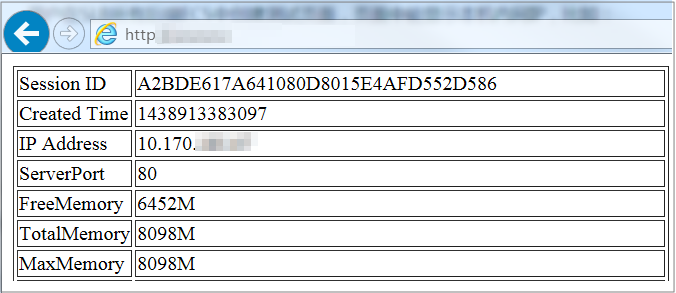
Execute the curl command in a Linux system.
Assume the load balancer's service IP address is 10.170.XX.XX and the test page URL is:
http://10.170.XX.XX/check.jsp.Log in to the Linux server used for testing.
Run the following command to query the load balancer's server cookie value.
curl -c test.cookie http://10.170.XX.XX/check.jspNoteThe default session persistence mode for Alibaba Cloud load balancers is to set a cookie. However, curl tests do not save and send cookies by default, so you must first save the corresponding cookie for the test. Otherwise, the curl test results will be random, which can give the false impression that session persistence is not working.
Run the following command for continuous testing.
for ((a=1;a<=30;a++)); do curl -b test.cookie http://10.170.XX.XX/check.jsp | grep '10.170.XX.XX'; sleep 1; doneNotea<=30is the number of test repetitions, which can be modified as needed.grep '10.170.XX.XX'filters the displayed IP information; modify it according to the internal IP of your backend ECS instance.Observe the IPs returned by the test. If it is the same internal IP of an ECS instance, it proves that session persistence is effective; otherwise, it indicates a problem with session persistence.
HTTPS and certificates
Why do styles fail to load over an HTTPS listener?
Symptom:
HTTP and HTTPS listeners are created separately, and both use the same backend servers. When accessing the website via the HTTP listener's port, the site displays correctly, but when using the HTTPS listener, the website's layout is distorted.
Cause:
By default, the load balancer does not block the loading or transmission of JS files. Possible causes include:
The certificate is incompatible with the browser's security level.
The certificate is from an untrusted third-party provider. You need to contact the certificate issuer to check the certificate's validity.
Solution:
When opening the website, load the scripts as prompted by the browser.
Add the corresponding certificate to the client.
Are backend certificates required after HTTPS redirection?
No. You only need to configure the relevant certificate in the CLB instance's HTTPS listener. For more information, see Configure the SSL certificate.
Why does the browser show an old certificate after an update?
This issue typically occurs when CLB is integrated with WAF 2.0 in transparent proxy mode, and the certificate in WAF has not been updated. WAF synchronizes certificates from CLB periodically. To force an immediate sync, you can go to the WAF console, disable and then re-enable traffic redirection. This action forces a refresh of the certificate status. Note that this operation will cause a brief service interruption of 1-2 seconds.
Protocols and features
HTTP version for backend server access
If a client uses HTTP/1.1 or HTTP/2.0, the Layer 7 listener uses HTTP/1.1 to connect to the backend server.
For all other client protocols, the listener uses HTTP/1.0.
Can backend servers get the client protocol version?
Yes.
Does CLB support URL-based rate limiting?
CLB does not support URL-based rate limiting. It only supports bandwidth limiting at the listener level.
ALB supports URL-based rate limiting. You can configure listener forwarding rules to set a QPS limit for specific paths (this requires using the "Forward To" action). See the figure below for reference:

Security and networking
How to enable WAF protection for CLB
CLB instances support transparent proxy mode integration with WAF 2.0 and WAF 3.0. You can enable WAF protection through the WAF console and the CLB console.
WAF 3.0 has been released and WAF 2.0 is no longer available for new purchases. We recommend using WAF 3.0 for protection. For more information, see:
Limitations
Enabling protection in the WAF console
You can enable WAF 2.0 or WAF 3.0 protection for Layer 4 and Layer 7 CLB instances in the Web Application Firewall console.
To add a Layer 4 CLB instance to WAF 3.0, see Add a Layer 4 CLB instance to WAF.
To add a Layer 7 CLB instance to WAF 3.0, see Add a Layer 7 CLB instance to WAF.
To add a Layer 4 CLB instance to WAF 2.0, see Configure a traffic redirection port for a Layer 4 SLB instance, Tutorial, and Transparent proxy mode.
To add a Layer 7 CLB instance to WAF 2.0, see Configure a traffic redirection port for a Layer 7 SLB instance, Tutorial, and Transparent proxy mode.
Enabling protection in the CLB console
Currently, the load balancer console only supports enabling WAF 2.0 or WAF 3.0 protection for Layer 7 (HTTP/HTTPS) listeners of CLB instances.
If you cannot enable WAF protection or it fails, check if a Layer 7 listener has been created and check the Usage notes.
Category | Description |
No WAF 2.0 instance exists in the Alibaba Cloud account or WAF is not enabled | When enabling WAF protection for CLB, a WAF 3.0 pay-as-you-go version is automatically activated. |
A WAF 2.0 instance already exists in the Alibaba Cloud account | CLB supports enabling WAF 2.0 protection. To enable WAF 3.0 protection, you must first terminate the WAF 2.0 instance. For information on terminating a WAF 2.0 instance, see Terminate WAF. |
A WAF 3.0 instance already exists in the Alibaba Cloud account | CLB only supports enabling WAF 3.0 protection. |
To enable WAF protection through the load balancer console:
Methods 1 and 2 enable protection for all HTTP and HTTPS ports on the instance. For custom port protection, go to the details page of the specific listener.
Method 1: Log in to the CLB console. On the Instances page, hover over the
 icon next to the target instance name, then in the pop-up box, click Enable Port Protection in the WAF Protection area.
Method 2: Log in to the CLB console. On the Instances page, click the target instance ID, click the Security Protection tab, and then click Enable for All.
Method 3: When creating an HTTP or HTTPS listener, select Enable WAF Protection in the advanced configuration of the configuration wizard. For details, see Add an HTTP listener and Add an HTTPS listener.
Method 4: For an existing HTTP or HTTPS listener, you can enable WAF Protection on the Listener Details page of the target listener.
To disable WAF protection, please go to the WAF console to turn it off.
Does disabling the public NIC affect CLB?
Disabling the public NIC on an ECS instance that has a public IP address will disrupt the load balancing service.
This is because with a public NIC, the default route goes through the public network. Disabling it prevents return packets, thus affecting the service. We recommend not disabling the public NIC. If you must, you need to change the default route to the private network to avoid service disruption, but you must consider if your business depends on the public network, such as accessing RDS over the public network.
Does CLB support client requests with the TOA field?
No. The TCP Option Address (TOA) field from a client request conflicts with the TOA field used internally by the load balancer, which prevents the retrieval of the client's real IP address.
However, you can use the following methods to obtain the client's real IP address: