You can use Alibaba Cloud Elasticsearch to search and analyze data in RDS SQL Server. This topic describes how to use the Data Integration service of DataWorks to synchronize data offline to an Alibaba Cloud ES instance.
Background information
DataWorks is an end-to-end big data development and governance platform based on big data compute engines. DataWorks provides features such as data development, task scheduling, and data management. You can create synchronization tasks in DataWorks to rapidly synchronize data from various data sources to Alibaba Cloud Elasticsearch.
The following types of data sources are supported:
Alibaba Cloud databases: ApsaraDB RDS for MySQL, ApsaraDB RDS for PostgreSQL, ApsaraDB RDS for SQL Server, ApsaraDB for MongoDB, and ApsaraDB for HBase
Alibaba Cloud PolarDB for Xscale (PolarDB-X) (formerly DRDS)
Alibaba Cloud MaxCompute
Alibaba Cloud Object Storage Service (OSS)
Alibaba Cloud Tablestore
Self-managed databases: HDFS, Oracle, FTP, Db2, MySQL, PostgreSQL, SQL Server, MongoDB, and HBase
The following synchronization scenarios are supported:
Synchronize big data from a database or table to Alibaba Cloud Elasticsearch in offline mode. For more information, see Create a batch synchronization task to synchronize all data in a database to Elasticsearch.
Synchronize full and incremental big data to Alibaba Cloud Elasticsearch in real time. For more information, see Create a real-time synchronization task to synchronize data to Elasticsearch.
Prerequisites
An ApsaraDB RDS for SQL Server instance is created. This topic uses an ApsaraDB RDS for SQL Server 2019 Standard Edition instance as an example. For more information, see Quickly create and use an ApsaraDB RDS for SQL Server instance.
An Alibaba Cloud ES instance is created, and the automatic index creation feature is enabled for the instance. For more information, see Create an Alibaba Cloud Elasticsearch instance and Configure YML parameters.
A DataWorks workspace is created. For more information, see Create a workspace.
Data can be synchronized only to Alibaba Cloud ES. Self-managed Elasticsearch instances are not supported.
The ApsaraDB RDS for SQL Server instance, ES instance, and DataWorks workspace must be in the same region.
The ApsaraDB RDS for SQL Server instance, ES instance, and DataWorks workspace must be in the same time zone. Otherwise, a time zone difference may occur when you synchronize time-related data.
Billing
For information about the billing of Alibaba Cloud Elasticsearch clusters, see Elasticsearch billable items.
For information about the billing of exclusive resource groups for Data Integration, see Billing of exclusive resource groups for Data Integration (subscription).
Procedure
Step 1: Prepare the source data
The following test data is used in the ApsaraDB RDS for SQL Server instance.
The data in this topic is for testing only. Do not use it in a production environment.

CREATE TABLE statement
CREATE TABLE students(
    id INT,
    name VARCHAR(20),
    age INT
)
INSERT statement
INSERT INTO [students]( [id] , [name] , [age] )values('1', 'Xiaoming','21');
Step 2: Purchase and configure an exclusive resource group
Purchase an exclusive resource group for Data Integration and attach a VPC and a workspace to the resource group. Exclusive resource groups ensure fast and stable data transmission.
Log on to the DataWorks console.
In the top menu bar, select a region. In the left navigation pane, click Resource Group.
On the Exclusive Resource Groups tab, click .
On the DataWorks Exclusive Resource (Subscription) purchase page, set Exclusive Resource Type to Exclusive Resource for Data Integration, enter a name for the resource group, and then click Buy Now.
For more configuration information, see Step 1: Purchase a resource group.
To attach a VPC to the exclusive resource group, click Network Settings in the Operation column. For more information, see Attach a VPC.
NoteThis topic uses an example in which data is synchronized over a VPC internal network using an exclusive resource group for Data Integration. For more information, see Add a whitelist.
The exclusive resource group must be connected to the VPCs of the RDS SQL Server and Elasticsearch instances to synchronize data. To establish this connection, attach the VPC, Zone, and VSwitch where the RDS SQL Server and Elasticsearch instances reside. To view the VPC information for the instances, see Switch the vSwitch for an ApsaraDB RDS for SQL Server instance and View the basic information of an Elasticsearch instance.
ImportantAfter you attach the VPC, you must add the VSwitch CIDR Block to the internal-facing whitelists for the RDS SQL Server and Elasticsearch instances. For more information, see Configure a whitelist for an ApsaraDB RDS for SQL Server instance and Configure a public or internal-facing whitelist for an Elasticsearch instance.
In the upper-left corner of the page, click the back icon to return to the Resource Group List page.
In the Operation column for the exclusive resource group, click Attach Workspace to attach the target workspace.
For more information, see Step 2: Attach a workspace.
Step 3: Add data sources
Add the ApsaraDB RDS for SQL Server and Elasticsearch data sources to the Data Integration service of DataWorks.
In DataWorks, go to the Data Integration page.
Log on to the DataWorks console.
In the left navigation pane, click Workspaces.
In the Operation column of the target workspace, choose .
In the navigation pane, click Data Source.
Add an ApsaraDB RDS for SQL Server data source.
On the Data Source List page, click Add Data Source.
On the Add Data Source page, search for and select the SQL Server data source.
In the Add SQL Server Data Source dialog box, configure the parameters in the Basic Information area.
For more information, see Configure a SQL Server data source.
In the Connection Configuration area, click Test Connectivity. A status of Connected indicates a successful connection.
Click Finish.
Add an Elasticsearch data source in the same way. For more information, see Configure an Elasticsearch data source.
Step 4: Configure and run an offline data sync task
The offline sync task uses the exclusive resource group to run. The exclusive resource group retrieves data from the data source in Data Integration and writes the data to Elasticsearch.
You can configure an offline sync task in two ways. This topic uses the codeless UI as an example. You can also use the code editor. For more information, see Configure an offline sync task using the code editor and Elasticsearch Writer.
Go to the Data Development page in DataWorks.
Log on to the DataWorks console.
In the left navigation pane, click Workspaces.
In the Operation column of the target workspace, choose .
Create an offline sync task.
In the navigation pane on the left, click the
 icon and choose .
Right-click the new business flow and choose .
In the New Node dialog box, enter a node name and click Confirm.
Configure the network and resources.
In the Data Source area, set Data Source to SQL Server and select a data source for Data Source Name.
In the My Resource Groups area, select the exclusive resource group.
In the Data Destination area, set Data Destination to Elasticsearch and select a data source for Data Source Name.
Click Next.
Configure the task.
In the Data Source area, select the table to sync.
Configure the parameters in the Data Destination area.
In the Field Mapping area, configure the mapping between the Source Field and the Destination Field. For more information, see Configure an offline sync task using the codeless UI.
In the Channel Control area, you can configure the channel parameters.
For more configuration information, see Configure an offline sync task using the codeless UI.
Run the task.
(Optional) In the right pane, click Scheduling Configuration to configure the scheduling parameters for the task. For more information about each parameter, see Scheduling configuration.
In the upper-right corner of the node configuration tab, click the save icon to save the task.
In the upper-right corner of the node configuration tab, click the submit icon to submit the task.
If you configured scheduling properties, the task runs automatically at the specified intervals. You can also click the run icon in the upper-right corner of the node configuration tab to run the task immediately.
If the log contains the message
Shell run successfully!, the task ran successfully.
Step 5: Verify the data synchronization result
Log on to the Kibana console of the destination Alibaba Cloud ES instance. For more information, see Log on to the Kibana console.
In the top-left corner of the Kibana page, click the icon and select Dev Tools.
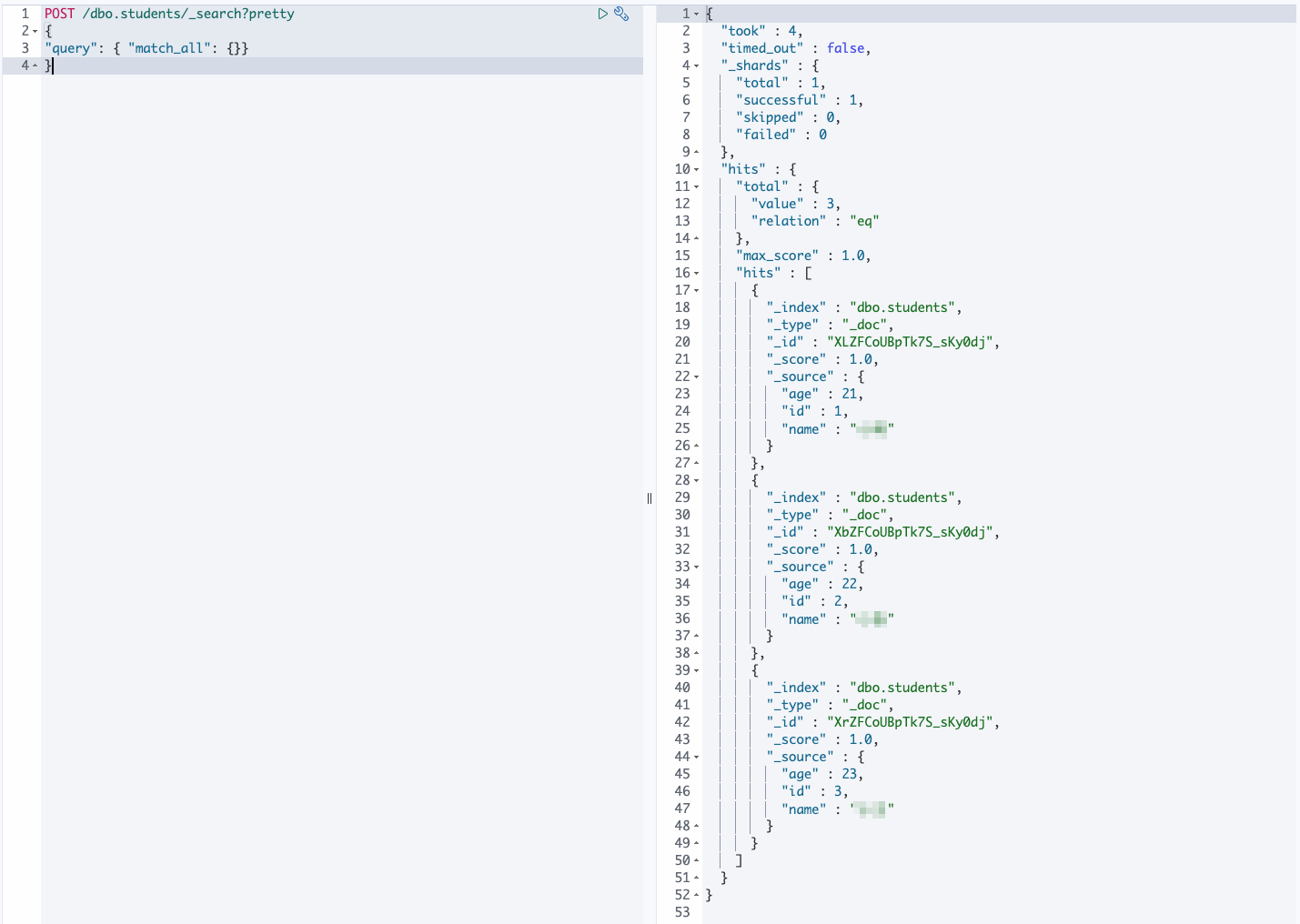
In the Console, you can run the following command to view the synchronized data.
POST /dbo.students/_search?pretty { "query": { "match_all": {}} }NoteReplace dbo.students with the value that you specified for the index parameter when you configured data synchronization in DataWorks.
The expected result is shown in the following figure.