Managed Service for Prometheus is part of Application Real-Time Monitoring Service (ARMS). To let team members access Prometheus monitoring data without exposing your Alibaba Cloud account credentials, create Resource Access Management (RAM) users and assign them ARMS permission policies.
ARMS permission policies
ARMS provides two system policies for Managed Service for Prometheus:
| Policy | Permissions | Use case |
|---|---|---|
AliyunARMSFullAccess | View, edit, and delete instances across all ARMS sub-services | Administrators and operators who manage Prometheus instances |
AliyunARMSReadOnlyAccess | View instance information across all ARMS sub-services (no edit or delete) | Team members who only need to view dashboards and metrics |
AliyunARMSFullAccess already includes all read permissions. Do not attach both policies to the same RAM user.
To grant read-only access scoped to a specific resource group, attach both the AliyunARMSReadOnlyAccess policy and the ReadTraceApp permission to the resource group. Without ReadTraceApp, ARMS cannot display the application list for that resource group.
Prerequisites
Before you begin, make sure that you have:
ARMS activated. For more information, see Activate ARMS
RAM activated. For more information, see Activate RAM
Step 1: Create a RAM user
Log on to the RAM console with an Alibaba Cloud account or a RAM user that has administrative privileges.
In the left-side navigation pane, choose Identities > Users.
On the Users page, click Create User.

In the User Account Information section, configure the following parameters:
Parameter Description Logon Name Up to 64 characters. Supports letters, digits, periods (.), hyphens (-), and underscores (_). Display Name Up to 128 characters. Tag Click the  icon to add tag key-value pairs for managing RAM users by tags.Note
Click Add User to create multiple RAM users at once.
In the Access Mode section, select an access mode.
Select only one access mode per RAM user to separate human access from programmatic access.
Console Access: For team members who access Alibaba Cloud through a browser.
Setting Description Set Console Password Select Automatically Regenerate Default Password or Reset Custom Password. Custom passwords must meet complexity requirements. For more information, see Configure a password policy for RAM users. Password Reset Specify whether the RAM user must reset the password on the next logon. Enable MFA Turn on multi-factor authentication (MFA) for the RAM user. After MFA is enabled, bind an MFA device to the RAM user. For more information, see Bind an MFA device to a RAM user. Using permanent AccessKey to access: For applications that call API operations programmatically. This option is also referred to as OpenAPI Access in the console.
The system automatically generates an AccessKey ID and AccessKey secret. For more information, see Obtain an AccessKey pair.
ImportantThe AccessKey secret is displayed only at creation time and cannot be retrieved later. Save it immediately.
If an AccessKey pair is compromised, all resources under the account are at risk. For temporary access, use Security Token Service (STS) tokens instead. For more information, see Best practices for using access credentials to call API operations.
Click OK.
Complete security verification as prompted.
Step 2: Grant permissions to the RAM user
Log on to the RAM console as a RAM administrator.
In the left-side navigation pane, choose Identities > Users.
Find the RAM user and click Add Permissions in the Actions column.

To grant permissions to multiple RAM users at once, select the RAM users and click Add Permissions at the bottom of the page.
In the Grant Permission panel, configure the following parameters:
Resource Scope: Select the scope for the authorization.
Scope Description Account Permissions apply to the entire Alibaba Cloud account. ResourceGroup Permissions apply to a specific resource group. ImportantIf you select ResourceGroup, verify that ARMS supports resource groups. For more information, see Services that work with Resource Group. For an example of resource-group-scoped authorization, see Use a resource group to grant a RAM user the permissions to manage a specific ECS instance.
Principal: The RAM user to authorize. The current RAM user is automatically selected.
Policy: Select one or more policies to attach.
Policy type Description System policies Predefined by Alibaba Cloud and maintained automatically. Select AliyunARMSFullAccessorAliyunARMSReadOnlyAccessbased on the access level required. For a full list of supported services, see Services that work with RAM.Custom policies Define your own policies for fine-grained access control. You can create, update, and delete custom policies. For more information, see Create a custom policy. NoteThe system flags high-risk policies such as
AdministratorAccessandAliyunRAMFullAccess. Avoid attaching these policies unless necessary.Click Grant permissions.
Click Close.
Share credentials and verify access
After the RAM user is created and authorized, share the logon credentials with the intended team member.
Log on to the Alibaba Cloud console
Go to the RAM user logon page.
Enter the RAM user logon name and click Next.
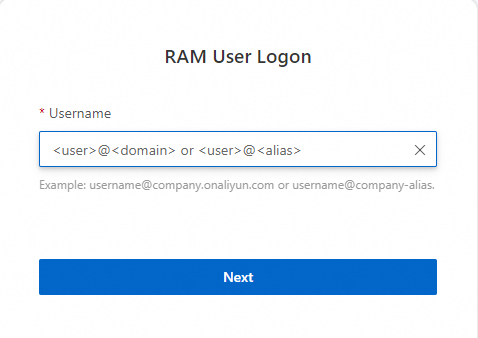
Use one of the following logon name formats:
Format Example When to use <UserName>@<AccountAlias>.onaliyun.comusername@company-alias.onaliyun.comDefault domain name. For more information, see Terms and View and modify the default domain name. <UserName>@<AccountAlias>username@company-aliasAccount alias. For more information, see Terms and View and modify the default domain name. <UserName>@<DomainAlias>username@example.comDomain alias (requires prior configuration). For more information, see Terms and Create and verify a domain alias. Enter the logon password and click Log On.
(Optional) Complete MFA verification if MFA is enabled. For more information, see MFA overview and Bind an MFA device to a RAM user.
Call API operations with an AccessKey pair
Specify the AccessKey ID and AccessKey secret of the RAM user in your code to authenticate API requests.