All Products
Search
Document Center

WUYING Terminal:Mobile client

Last Updated:Dec 24, 2025

This topic describes the release notes for the mobile client of cloud computers (Android client/iOS client).

Release notes in 2025

V7.7 - 2025年08月

Download the Android client of V7.7

Edition

Type

Feature

Description

General

New

New two-finger touch gestures

We've added new touch gestures to improve your workflow. A new gesture guide and overview is now available in the app to help you get started quickly. For more info, see Use touch gestures.

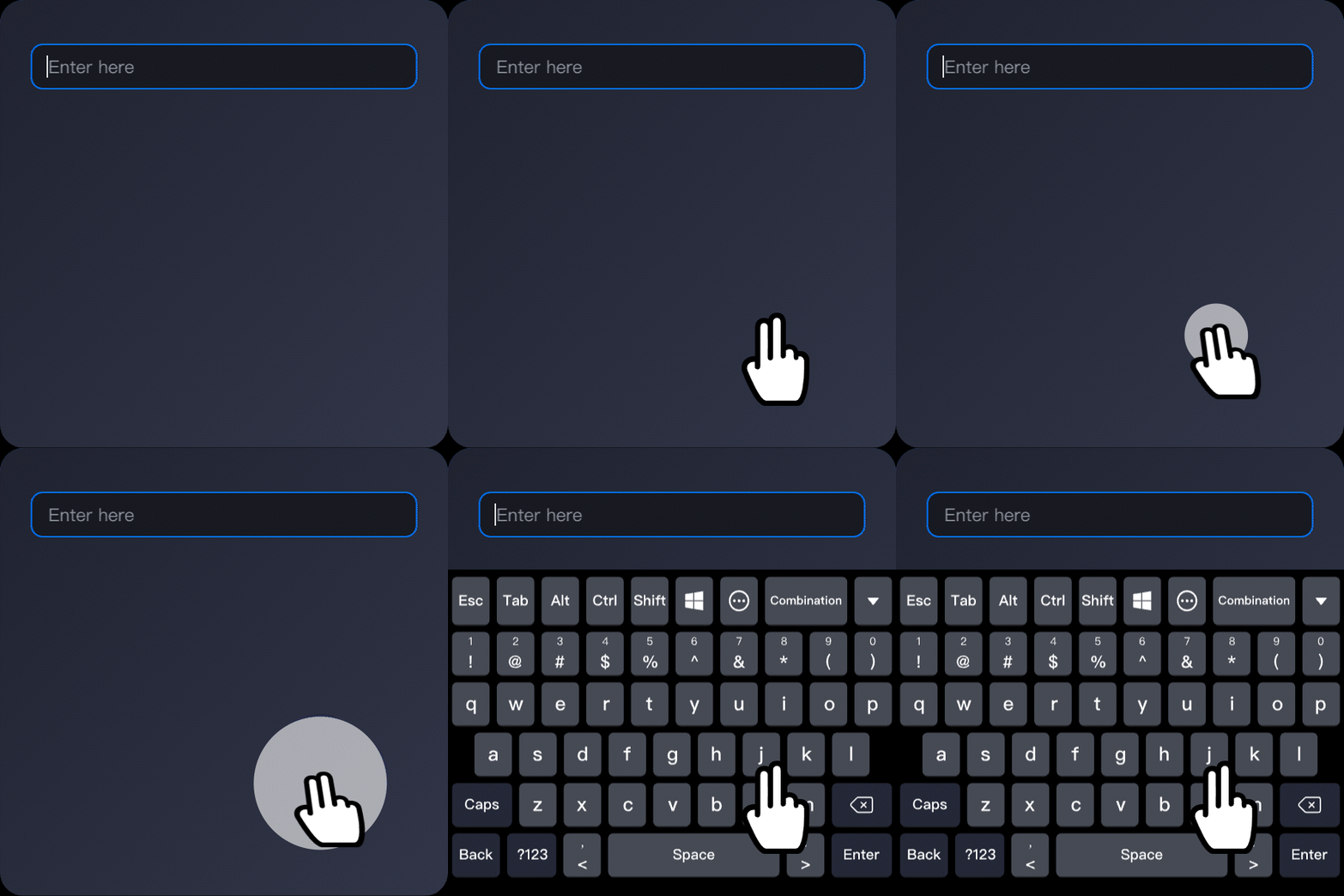
  • Long-press with two fingers on the screen to open the virtual keyboard.

    gesture-longpress-twofinger

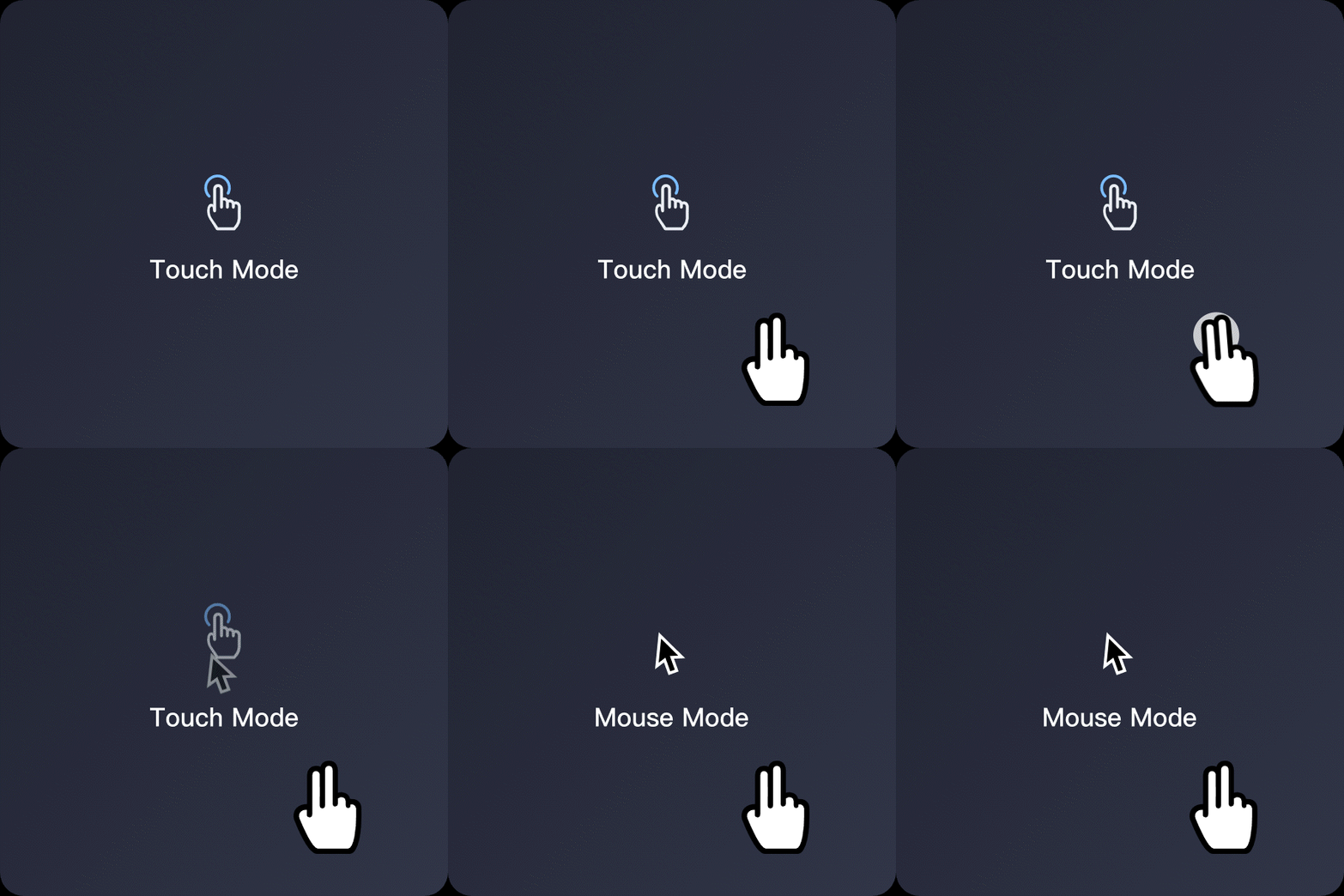
  • Double-tap with two fingers to toggle between Mouse Mode and Touch Mode.

    gesture-double-tap-twofinger

General

Optimized

Improved touch gesture interaction

The pinch-to-zoom gesture has been enhanced for more intuitive control:

  • When you pinch to zoom, the screen will now zoom in and out centered on the position of your fingers. For more info, see Use touch gestures.

General

Optimized

Optimized device-cloud synergy keyboard

  • The device-cloud synergy keyboard is now automatically disabled when a physical keyboard is connected.

  • You can now manually open the keyboard by tapping the new keyboard button on the DesktopAssistant. Tap the button again to dismiss it. For more info, see Use a keyboard.

General

Optimized

Manual screen orientation control

A new button has been added to the DesktopAssistant to manually switch the cloud computer between portrait and landscape mode. The selected orientation will be maintained for the duration of the current session, independent of your device's physical orientation. For more info, see Manual rotation.

General

Optimized

Enhanced virtual keyboard shortcuts

The virtual keyboard now includes common shortcuts, such as Ctrl+Alt+Del (to open the Security tab). For more info, see Use the virtual keyboard.

V7.5 - 2025年05月

Download the Android client of V7.5

Edition

Type

Feature

Description

General

New

Adaptive screen orientation

Seamlessly adapts to both landscape and portrait orientations. Combined with the ability to automatically launch your device's native keyboard, this provides a more flexible and user-friendly experience. For more info, see Automatic rotation.

General

New

Bluetooth gamepad support

Now supports Bluetooth gamepads, unlocking new possibilities for cloud gaming.

Note

This feature is not available on the iOS client.

General

New

Mouse optimization for 3D and gaming

Optimized for complex 3D and gaming environments, the new relative mouse mode enhances the precision and responsiveness of 360-degree mouse movements. For more info, see Use relative mouse mode.

General

Optimized

Major product experience and design upgrade

  • New design language: A completely new UI focuses on clarity and reduces visual clutter, helping you stay focused.

  • Streamlined navigation: We've refined the information hierarchy and interaction flows. Key features are now more intuitive and accessible, significantly boosting your efficiency.

  • Performance boost: Significant optimizations to the underlying architecture result in faster UI loading and reduced latency for a consistently smooth experience.

We are committed to continuously improving based on your feedback. Expect more enhancements in future releases. For more info, see Mobile client.

General

Optimized

Enhanced DesktopAssistant experience

The DesktopAssistant has been optimized for easier access and improved responsiveness, delivering a more seamless and efficient cloud computer interaction.

V7.4 - January 2025

Download the Android client of V7.4

Edition

Type

Feature

Description

General

New

File upload and download features

The following features are added to the level-1 menu of DesktopAssistant: file upload from the on-premises device to the cloud computer and file download from the cloud computer to the on-premises device.

General

New

Cursor confinement feature

The cursor confinement feature is added to the page displayed after you choose Settings > Preferences > Control on DesktopAssistant. If you enable the cursor confinement feature, the user experience of 360-degree view rotation by using a mouse is optimized for 3D and gaming software. You can specify custom shortcut keys for enabling and disabling the feature.

Note

This feature is not available on the iOS client.

General

New

Automatic invocation of the keyboard of the on-premises device

The feature of automatically invoking the keyboard of the on-premises device is added to the page displayed after you choose Settings > Preferences > Control on DesktopAssistant. If you enable the feature, the keyboard and input method of the on-premises device are automatically invoked when you edit text on a cloud computer. This helps improve user input experience. After you enable the feature, the button that allows you to manually invoke the keyboard and input method of the on-premises device is displayed in the lower part of DesktopAssistant.

Release notes in 2024

V7.3 - November 2024

Edition

Type

Feature

Description

Enterprise

New

Addition of a limit on the maximum number of logged-on terminals

Your IT administrator can configure a limit on the number of Alibaba Cloud Workspace terminals you can log on to. If you exceed this limit, the first terminal you logged on to will be automatically logged off. For more information, see Limits on the number of logon terminals.

Enterprise

New

Support for multi-factor authentication (MFA) based on mobile phone numbers and email addresses

MFA based on mobile phone numbers and email addresses is supported. For more information, see Log on to the mobile client.

Enterprise

New

Support for disabling and enabling automatic logon

Your IT administrator can enable or disable the client-side automatic logon feature in the Elastic Desktop Service (EDS) console. For more information, see Enable automatic logon and Configure automatic logon settings.

V7.2 - October 2024

Edition

Type

Feature

Description

General

New

Support for the adaptive orientation mode

After you turn on the adaptive orientation mode for the on-premises operating system, the orientation of the cloud computer automatically changes based on the orientation of the on-premises operating system.

General

Optimized

Optimized user experience for the virtual keyboard

The virtual keyboard can be started when the cloud computer is in portrait mode and the layout of the cloud computer is optimized to adapt to the keyboard input area.

General

Optimized

Optimized language policy for the client UI

By default, the language of the client UI is the same as the language of the on-premises operating system. When the language of the on-premises operating system switches between Chinese and English, the language of the client UI switches accordingly.

General

Optimized

Optimized interactive experience of DesktopAssistant

DesktopAssistant automatically changes to a small tag when dragged to the edge of the window. The small tag changes to DesktopAssistant after being tapped.

V7.1 - August 2024

Edition

Type

Feature

Description

General

New

Virtual shortcut keys supported for paging forward and paging backward

The virtual shortcut keys for paging forward and paging backward have been added to the virtual shortcut keys of DesktopAssistant, making it easier to use cloud computers on mobile devices with small screens.

Note

This feature is not available on the iOS client.

General

New

Activity cards added for accounts that meet specific conditions

Different types of activity cards are displayed for accounts that meet specific conditions. The accounts can participate in the activities based on business requirements.

Enterprise

New

Files allowed to be transferred from on-premises devices to cloud computers

One or more photos or files can be transferred from on-premises devices to cloud computers. For more information, see Transfer files.

Enterprise

New

Addition of the Monthly Subscription billing method supported by the Enterprise edition

Users are provided with the 120- and 250-hour monthly subscription plans. The subscription hours are only valid for the current month. If you exhaust all of your subscription hours before the end of the month and want to keep using the cloud computer, your billing method will automatically change from Monthly Subscription to Pay-as-you-go. When the fee reaches the same amount as the cost of the Unlimited plan, no additional fees are incurred, essentially making it equivalent to purchasing the Unlimited plan.

Enterprise

New

Automatic start or wake-up upon user logon

After you log on to the client, if you have only one cloud computer in your Alibaba Cloud account, then the cloud computer automatically wakes up or starts and connects to the client. To configure this feature, choose Profile > Setting > General > Sign-in.

Enterprise

Optimized

Improved MFA binding and authentication experience

The interface provides instructions on how to bind a virtual MFA device, such as the Alibaba Cloud App, and enter a secure token during the verification process.

V7.0 - June 2024

Edition

Type

Feature

Description

General

New

Issue detection and repair capabilities

When you connect to a cloud computer, the system checks for any connectivity issues to ensure Internet access. If any issue is detected, a pop-up window will appear with information about the cause of the issue and suggestions on how to fix it. However, if a policy configured by your administrator causes connectivity issues that result in Internet access failure, the detection and repair capabilities will not work.

General

New

Guide for beginners

New users logging on to a client for the first time are provided with a guide to assist them in selecting the best version for their needs.

General

Optimized

Improved client update

Users who are logged on can be prompted to update their clients to new versions, which can be downloaded in the background.

General

Optimized

Optimized network printer configurations

The historical configuration records of network printers can be viewed and network printer configurations can be deleted.

Note

This feature is not available on the iOS client.

General

Optimized

Optimized user experience of webcams on on-premises devices

To allow the cloud computer to access webcams on on-premises devices, tap Peripherals in DesktopAssistant and then tap Authorize. After the authorization is complete, the cloud computer is automatically connected to the webcams on on-premises devices.

Enterprise

New

QR code-based logon supported on the homepage

Users who have logged on to the client on one device can scan the QR code on the other device to log on to the client on the other device. For more information, see Procedure.

Enterprise

New

Automatic logon cycle

If your administrator allows you to configure an automatic logon cycle, log on to your client and choose Profile > Setting > General to configure the Sign in automatically for the next N field.

V6.9 - April 2024

Edition

Type

Feature

Description

General

New

More UI element on the logon page

The More UI element is added to the logon page. The UI element includes features such as network access method and interface language settings.

General

New

Feedback UI element in the Profile menu

You can provide feedback on product suggestions related to Alibaba Cloud Workspace.

General

New

Support for configuring network printers

After you configure network printers, you can tap DesktopAssistant and choose Settings > Peripherals to check the connection status of the network printers.

General

New

Virtual shortcut keys provided based on the scenarios

The system can intelligently identify the applications being used, and provide virtual shortcut keys for frequently used operations. For example, if you select a file or folder in the system file manager, then shortcut keys for copy, paste, and delete operations are provided.