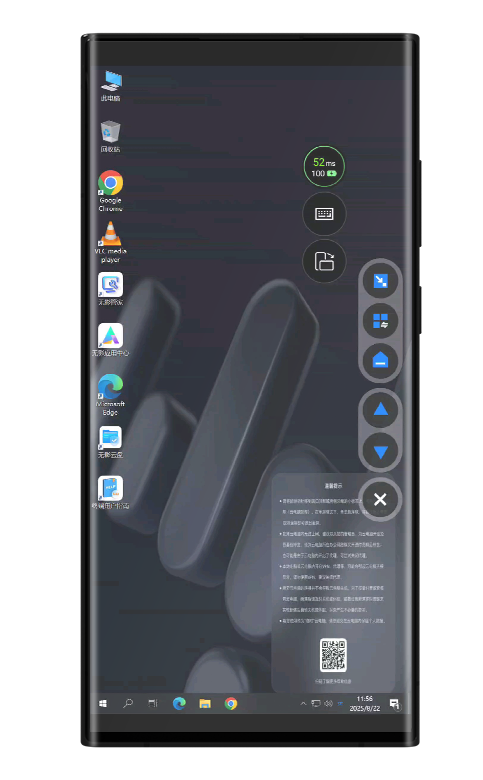
The mobile client supports two control modes: touch mode and mouse mode.
The examples in this topic are based on the iOS client V7.7 and the Enterprise Edition. If your experience differs from the description in this topic, you may be using a different client or an outdated version. Upgrade to the latest version.
Prerequisites
You have logged on to the mobile client. For more information, see Log on to the mobile client.
A cloud computer is assigned to you. If you do not see any cloud computer available after you log on, contact your administrator to assign one to you. For more information, see Assign cloud computers to users.
Mouse mode
In mouse mode, you control the cloud computer using the mouse pointer.
Switch to mouse mode
The mobile client uses touch mode by default. You can switch to mouse mode.
Connect to the cloud computer.
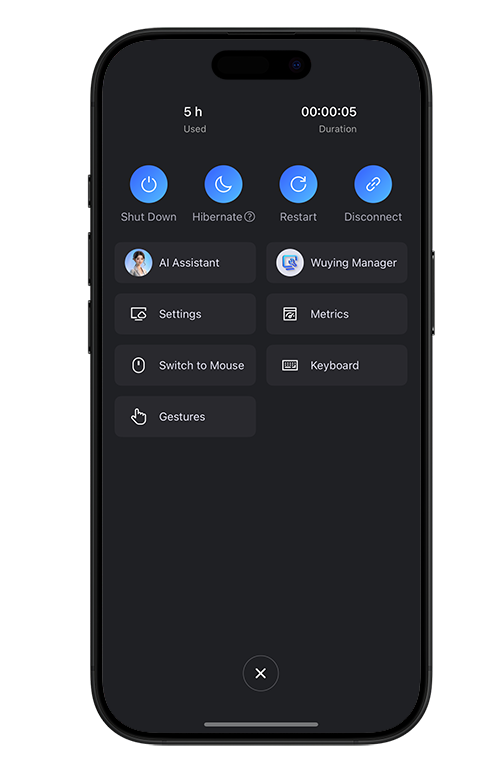
Open the DesktopAssistant and tap Switch To Mouse.
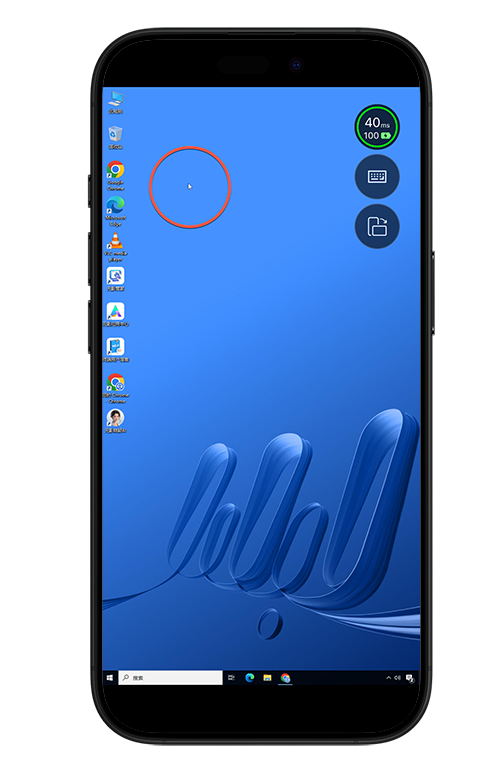
In mouse mode, drag the mouse pointer to control the cloud computer.
Use relative mouse mode
The small screens on mobile devices can limit the movement range of the mouse pointer in 3D games and software, which can negatively affect the user experience. You can enable confine cursor mode to use a relative mouse effect. This mode expands the pointer's movement range and ensures a full 360-degree rotation experience in 3D games or software.
Prerequisites
You are using the Android client. This feature is not supported on the iOS client.
You are using a graphics (GPU-accelerated) cloud computer. This feature is not supported on cloud computers that are not graphics types.
Procedure
Connect to the cloud computer.
Open the DesktopAssistant and tap Settings.
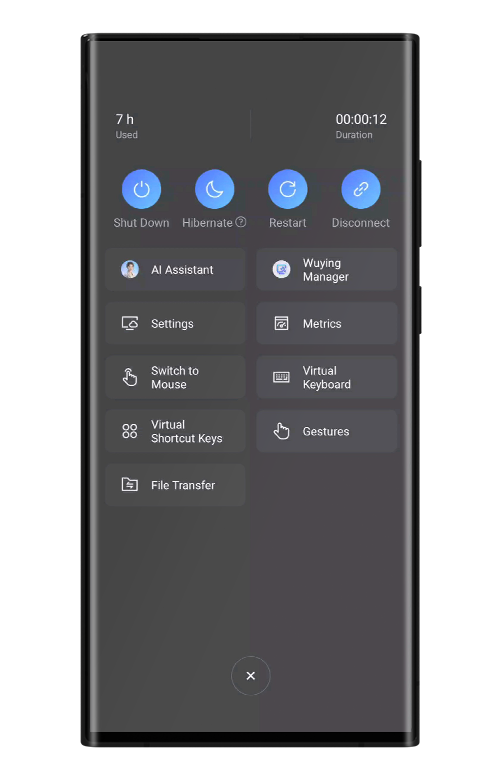
Tap the Control tab and turn on Confine Cursor.
NoteYou can set a custom keyboard shortcut to release the cursor. To temporarily exit confine cursor mode, press the
Esckey twice or press your custom shortcut.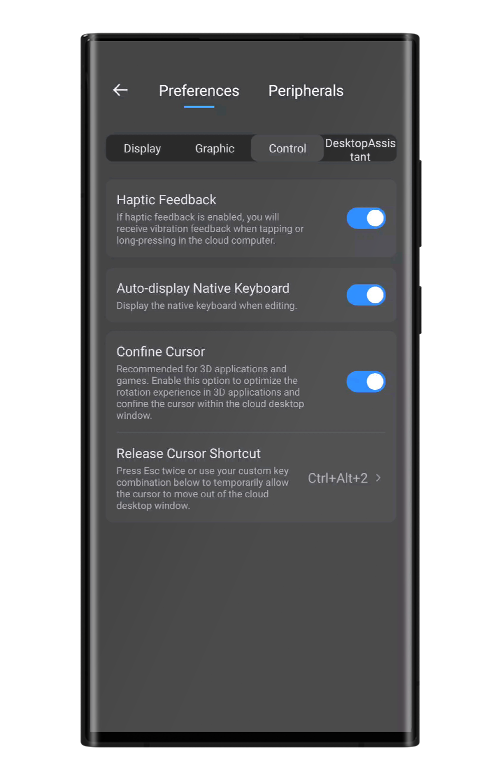
Touch mode
In touch mode, you control the cloud computer by touching the screen and using touch gestures.
Switch to touch mode
If you are in mouse mode, you can switch back to touch mode.
Connect to the cloud computer.
Open the DesktopAssistant and tap Switch To Touch.
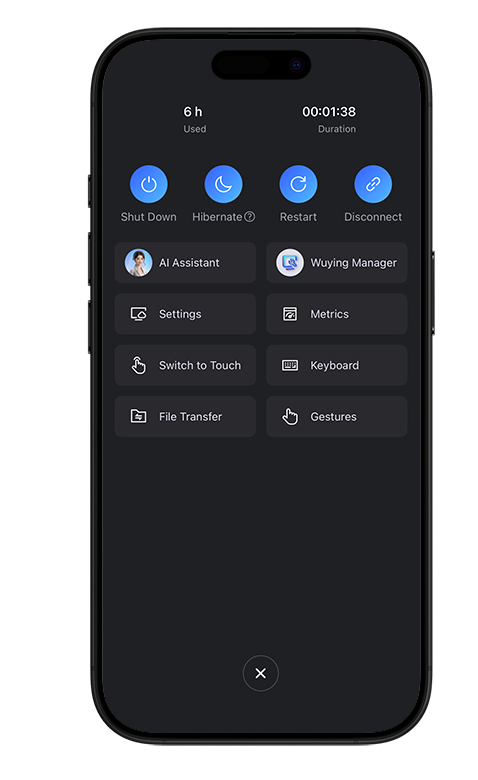
In touch mode, control the cloud computer by touching the mobile device's screen and using touch gestures.
NoteFor more information about touch gestures, see Use touch gestures.
Enable haptic feedback
In touch mode, you can enable haptic feedback for a more realistic interaction.
Connect to the cloud computer.
Open the DesktopAssistant and tap Settings.
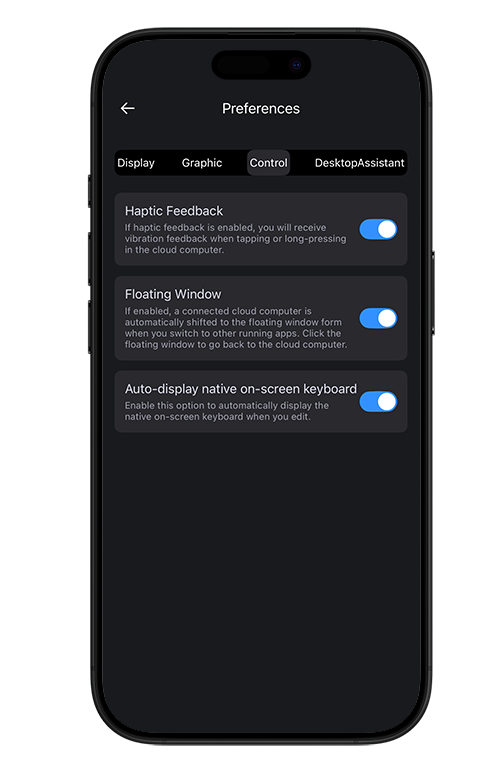
Tap the Control tab and turn on Haptic Feedback. When enabled, your mobile device provides a short, slight vibration when you tap or long-press the screen.
Use virtual shortcut buttons
On small mobile device screens, pressing keys or key combinations can be difficult. Virtual shortcut buttons let you perform multiple operations with ease.
Prerequisites
You are using the Android client. This feature is not supported on the iOS client.
Procedure
Connect to the cloud computer.
Open the DesktopAssistant and tap Virtual Shortcut Keys.
On the cloud computer desktop, you will see blue virtual shortcut buttons. These buttons are not fixed. They adapt to the current background and provide common operations such as minimizing a window, switching applications, returning to the desktop, cut, copy, and paste.