Most people's bookmarks meet the same fate. You save something intending to read it later, then never open it again.
It is not laziness. There is a whole process between saving information and making it your own: extracting key ideas, categorizing, summarizing, and more. One or two articles are manageable; a hundred or two hundred can be exhausting.
But what if you did not have to do that step yourself?
Qoder has released Qoderian, an open-source plugin available in Obsidian's community plugin directory. With Qoderian installed, Qoder CLI works directly inside your Obsidian vault. There is no need to switch to a terminal or copy and paste file paths. You can chat with Qoder right in your vault and ask it to organize notes, write articles, and more.
Qoderian is built on Claudian, an MIT-licensed open-source project, and adapted to work with the Qoder Agent SDK. We sincerely thank Claudian's author and contributors for providing the open-source foundation.
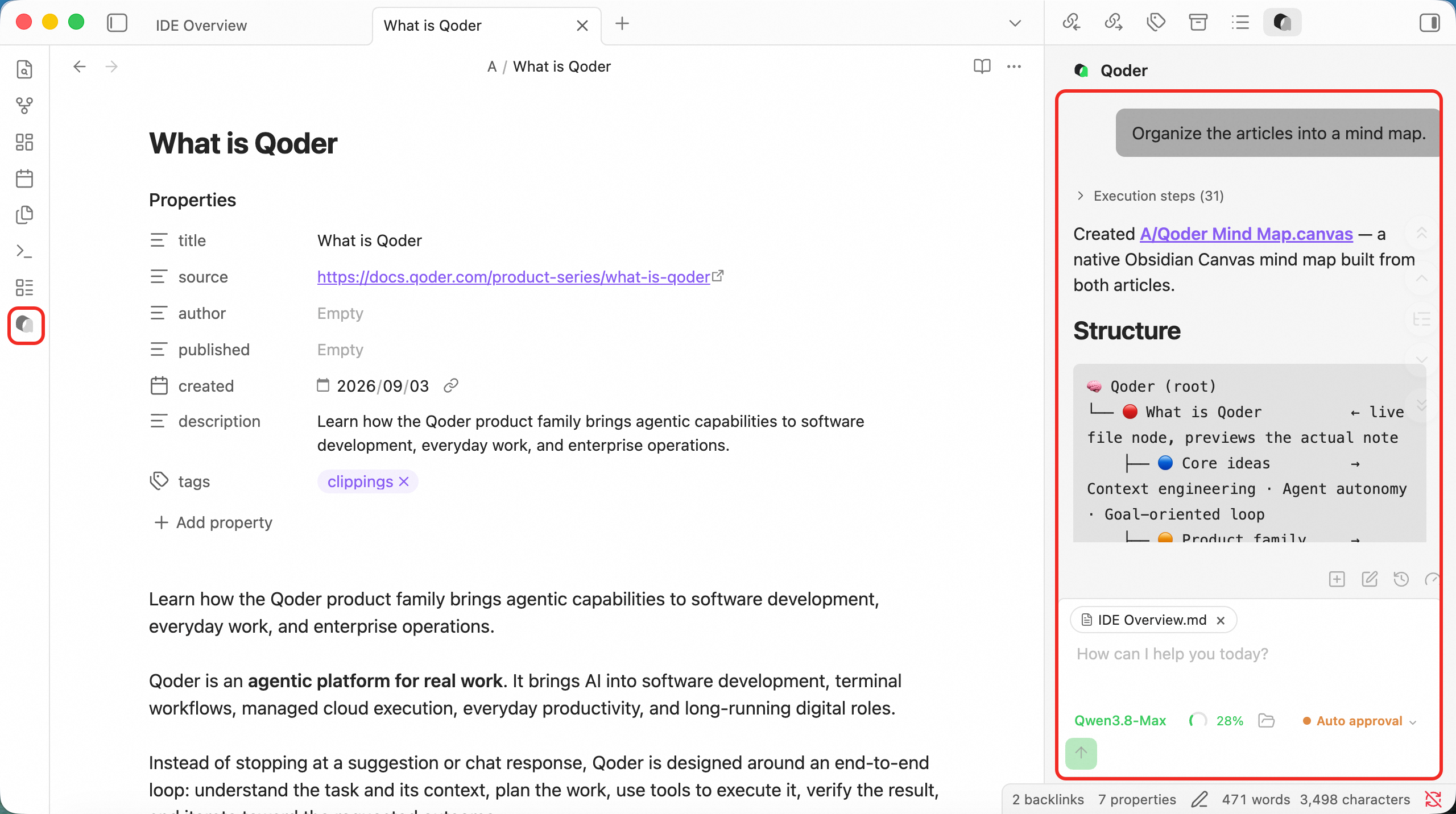
Below, we will walk you through setting up Qoderian in Obsidian so Qoder CLI can work directly in your vault:
P.S. Qoder's first-anniversary promotion includes a limited-time Qwen3.8-Max offer. From August 3 to September 3, newly registered users can receive 300 trial credits and 800 Qwen3.8-Max model calls for free. Placing an order, renewing, upgrading, or purchasing a resource pack on Qoder's official website also qualifies you for an additional 2,000 Qwen3.8-Max model calls. You can put that allowance to work building your knowledge base.
First, you will need two essential tools: Obsidian and Qoder CLI.
Obsidian is a local-first knowledge base application. Notes, web clippings, organized articles, and whiteboard files can all be stored in the same vault. Notes are saved as Markdown files, while the vault can also contain canvases, images, PDFs, and other assets—making the content readily accessible for AI-assisted reading and processing.
To install Obsidian, download the installer from the official website (https://obsidian.md/) and install it.
Qoder CLI is an AI assistant that runs in the terminal. It can read Markdown files directly, analyze directory structures, organize documents, generate new content, and invoke Skills for specific tasks, such as creating content for an Excalidraw canvas.
To install Qoder CLI, run the appropriate command in your terminal:
After installation, run qodercli --version in the terminal. If a version number appears, the installation was successful.
Next, we want Qoder CLI to help manage the notes in our Obsidian vault. The Qoderian plugin makes this possible.
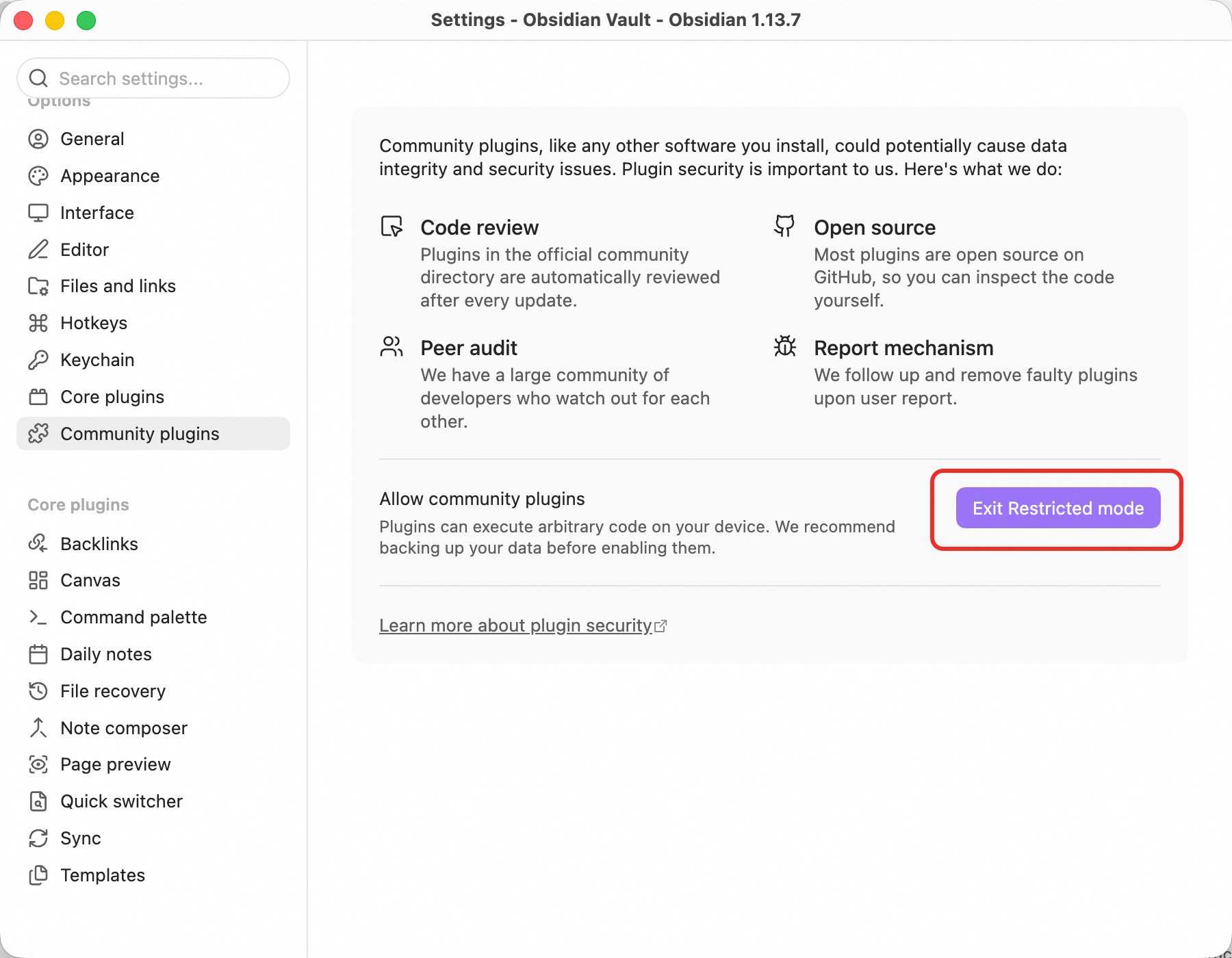
In a new Obsidian installation, Restricted Mode is enabled by default, disabling all community plugins and access to the plugin directory. Before installing your first plugin, go to Settings → Community plugins and turn off Restricted Mode.
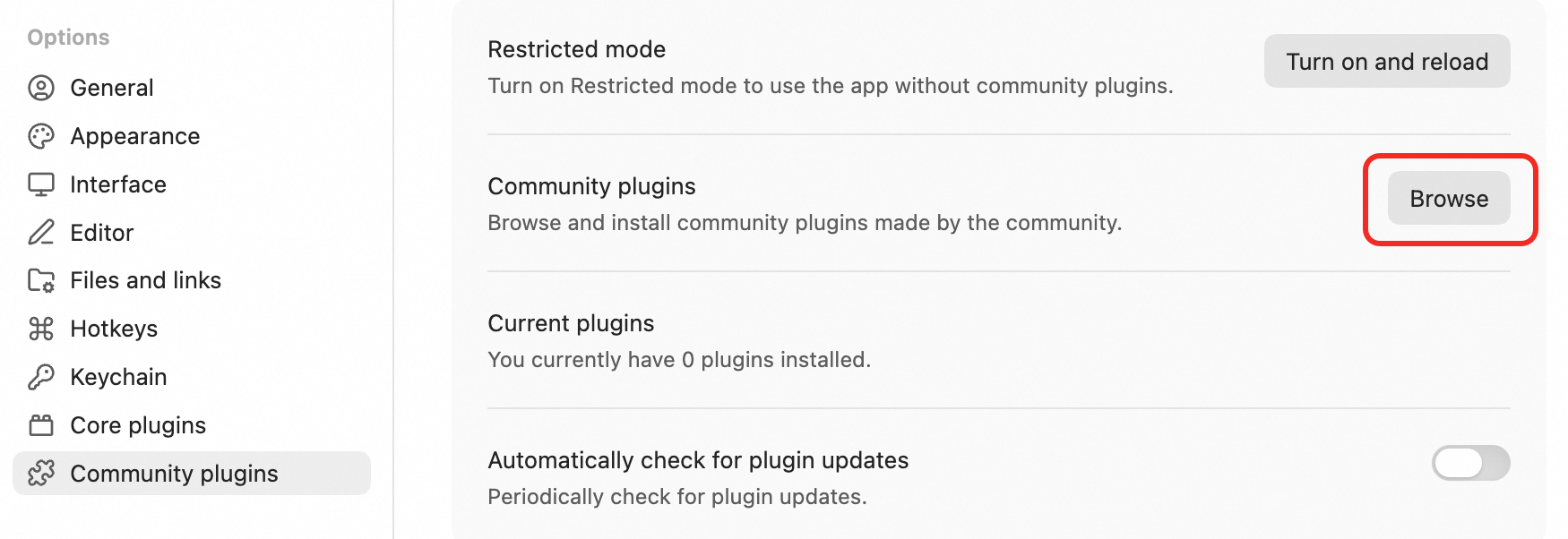
Then, open the community plugin directory → search for and install Qoderian → find Qoderian in the installed plugins list under Community plugins and enable it.
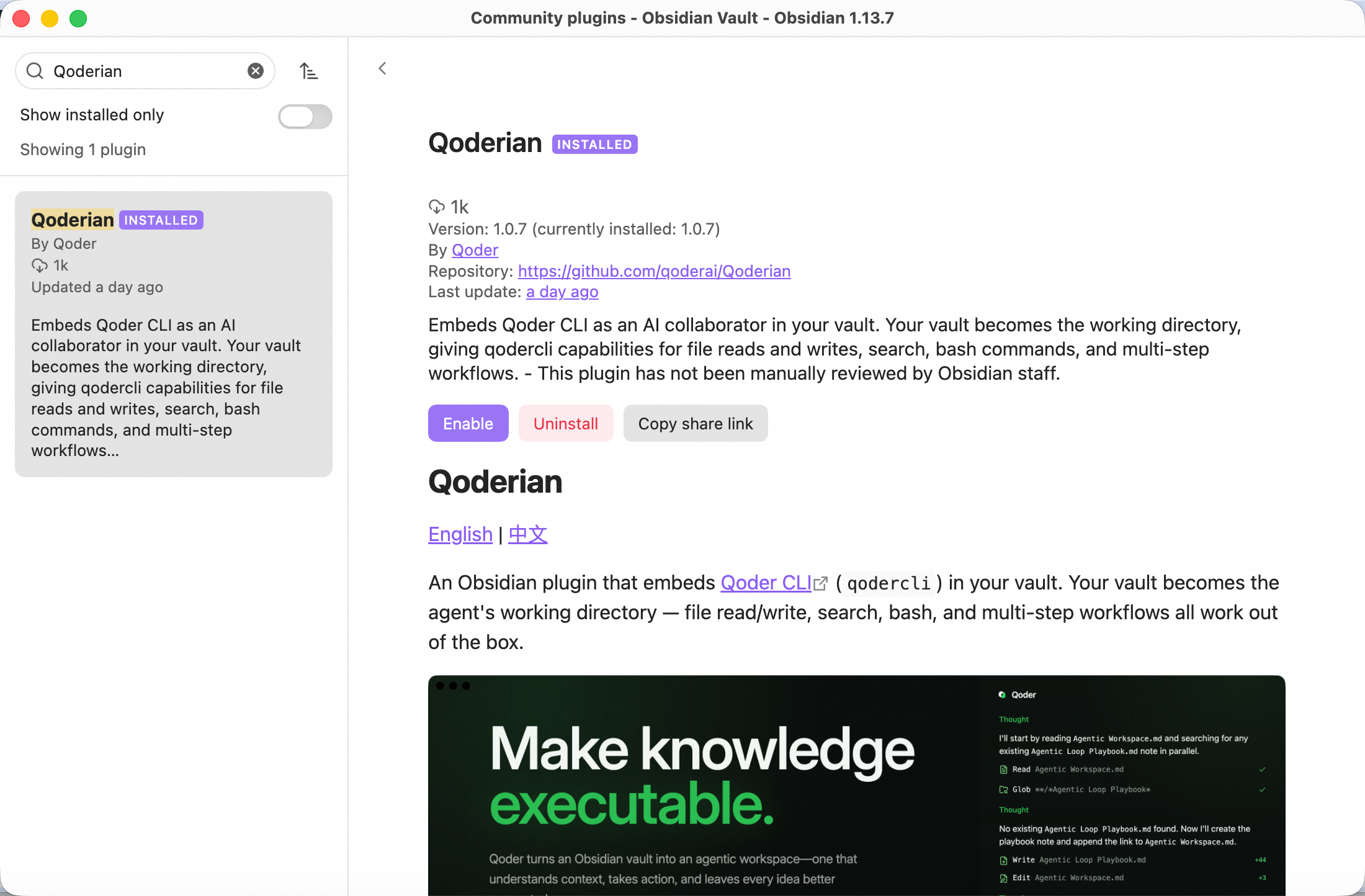
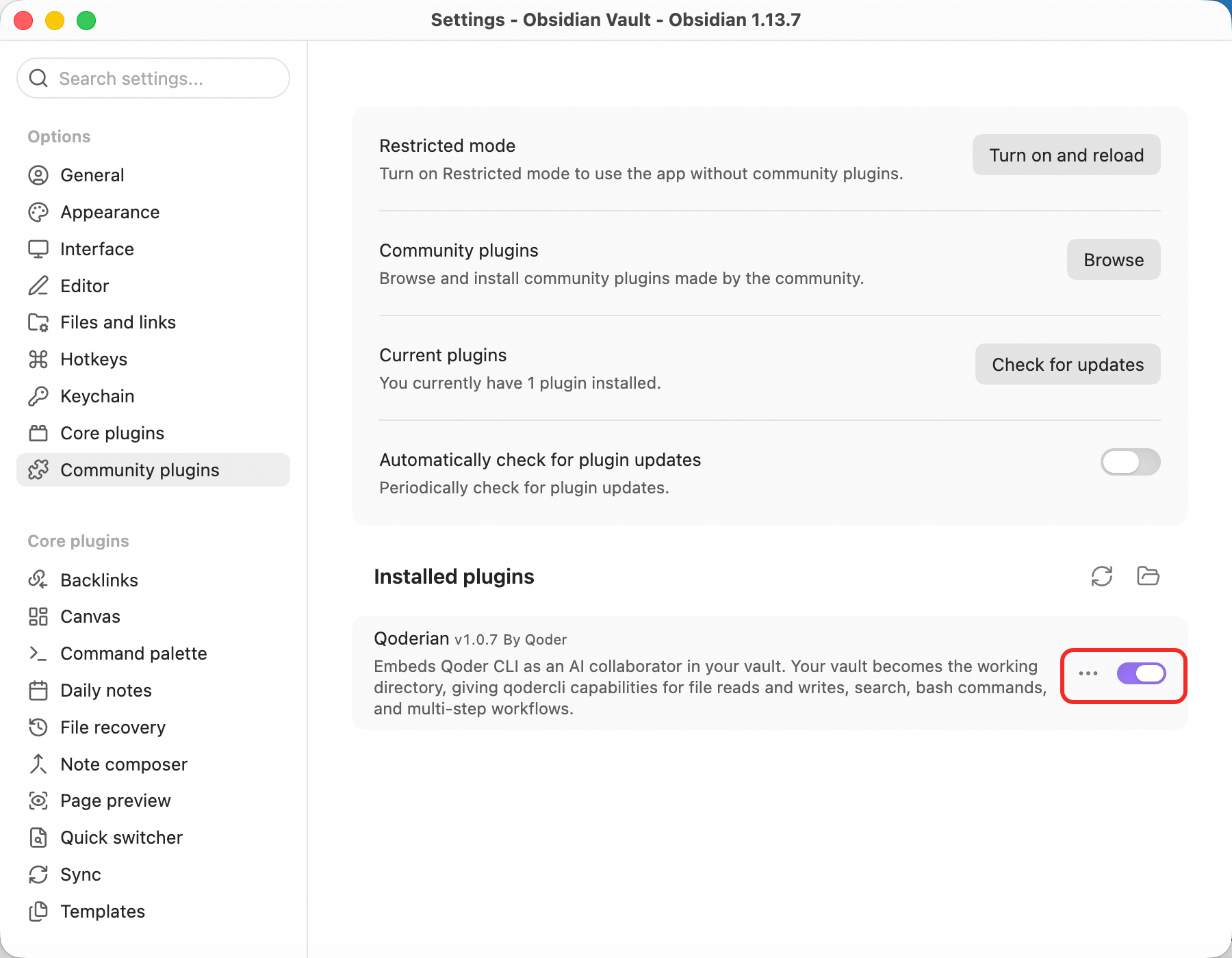
Once enabled, a Qoderian icon appears in Obsidian's left sidebar. Click it to open the Qoderian chat panel on the right. No additional configuration is required, provided Qoder CLI is already installed.
The file you are currently viewing is selected by default when you start a conversation. You can assign a task directly in chat—for example, ask Qoderian to turn the article into a mind map. It will create the mind map in the same folder.
Once the tools are installed, you can save web content to your Obsidian vault and have Qoder organize it.
For saving web content, I recommend Obsidian's official Obsidian Web Clipper browser extension. Search for it in your browser's extension store and install it.
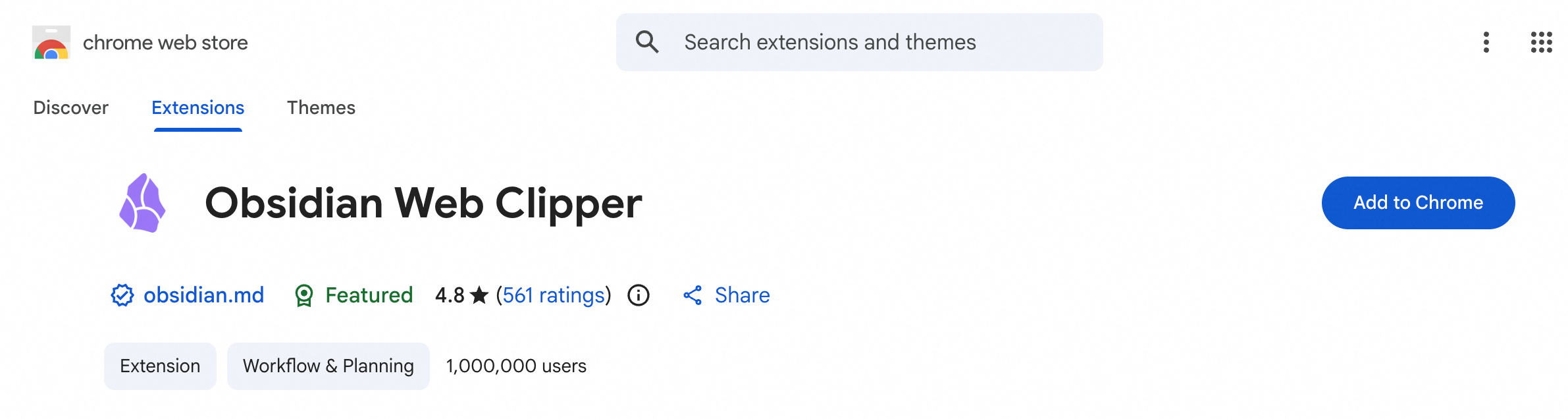
After installing Web Clipper, whenever you find a webpage or video you want to save, click the extension to capture the page as Markdown in Obsidian.
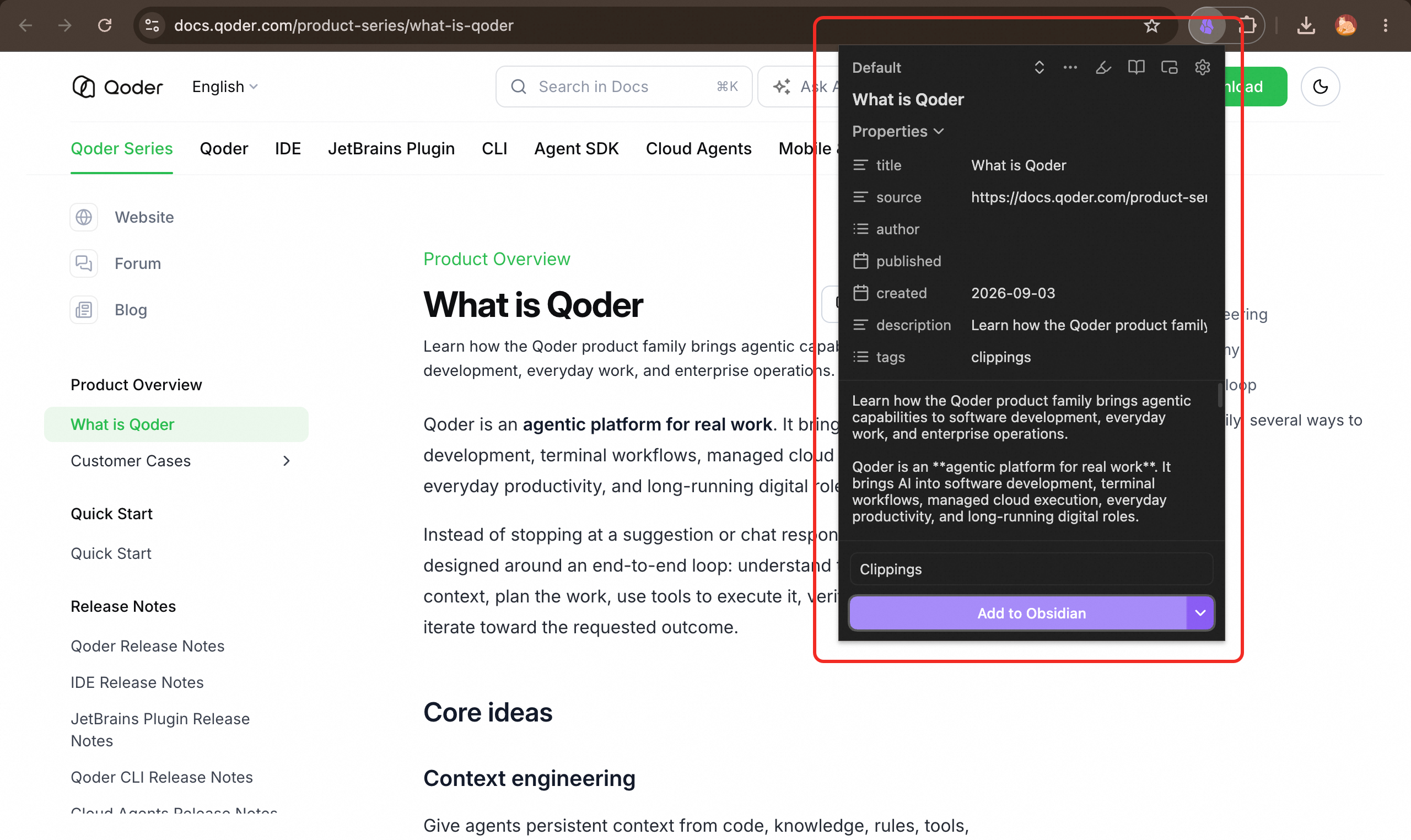
Once you have collected dozens of articles, the problems become obvious: inconsistent formats, documents of varying lengths mixed together, and English content that still needs translation. Reading and distilling everything yourself is both time-consuming and labor-intensive.
At that point, return to Obsidian and tell Qoder in the chat panel: “Review all the articles in folder A, extract their core ideas, and save the results to folder B.”
After a few minutes, the organized article notes will be waiting in folder B.
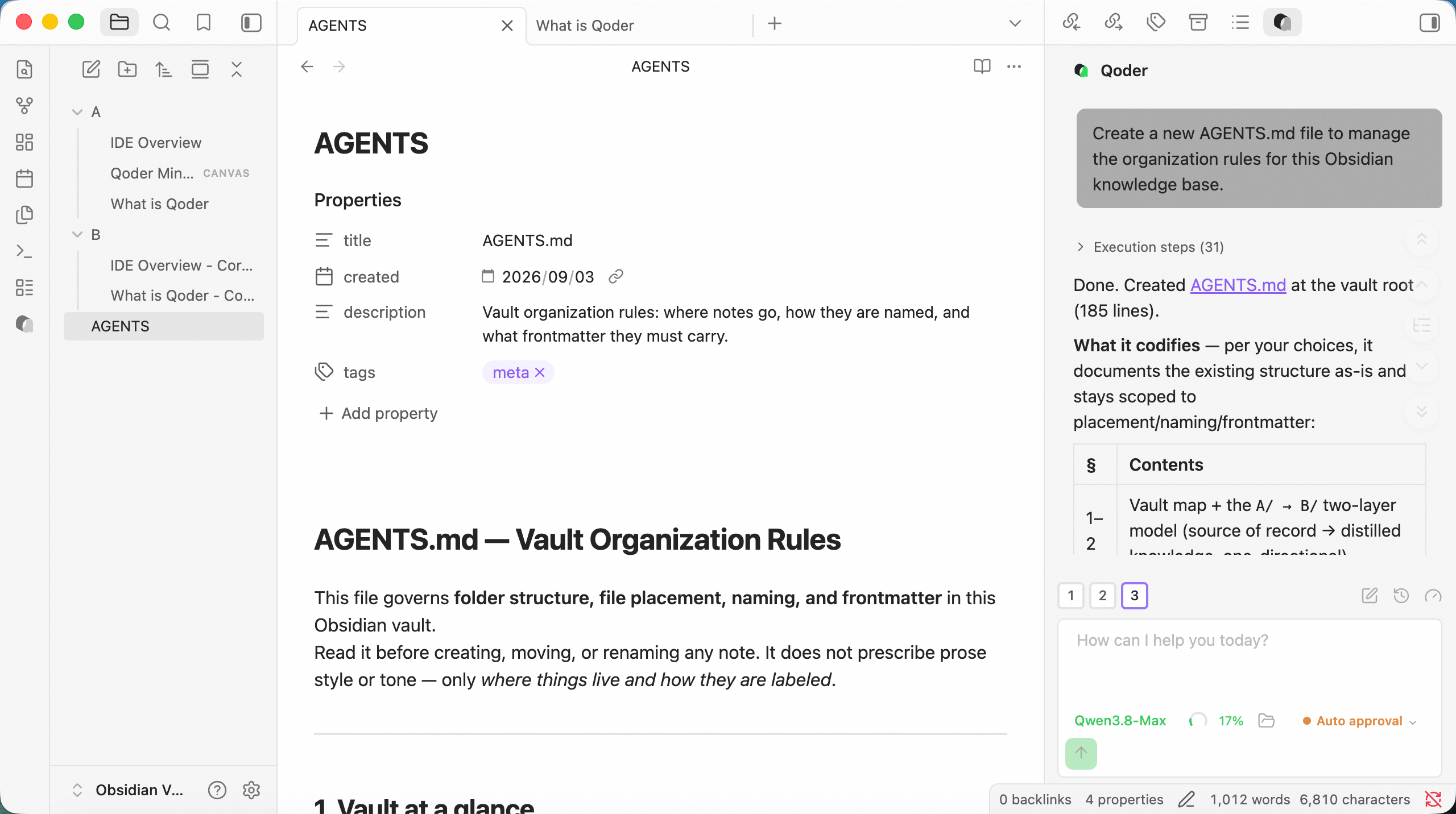
If you want your knowledge base to follow a consistent organization style of your own, you can configure an AGENTS.md file for Qoder.
The setup is simple. Tell Qoder: “Create an AGENTS.md file to define the organization rules for this Obsidian vault.”
Qoder will create AGENTS.md in the root of the current vault as a project-level memory file.
With AGENTS.md in place, Qoder will apply the same conventions whenever it organizes articles, so you do not have to repeat your requirements.
To change those requirements, open AGENTS.md from the file list and edit it like any other note.
The final step is to visualize your written content.
Obsidian offers an excellent whiteboard plugin called Excalidraw. It lets you create hand-drawn-style charts, flowcharts, structural diagrams, and visual notes directly in Obsidian.
Installation is straightforward: go to Settings → Community plugins, search the community plugin directory for Excalidraw, then install and enable it.
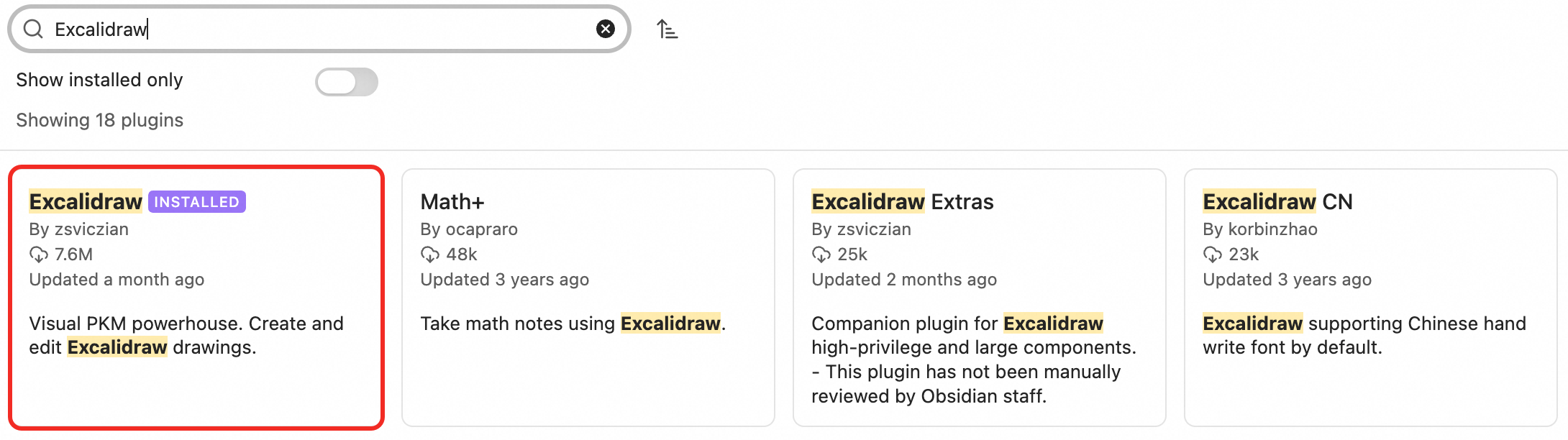
Once enabled, you can create Excalidraw files in Obsidian to map knowledge structures, workflows, tutorial outlines, or article frameworks.
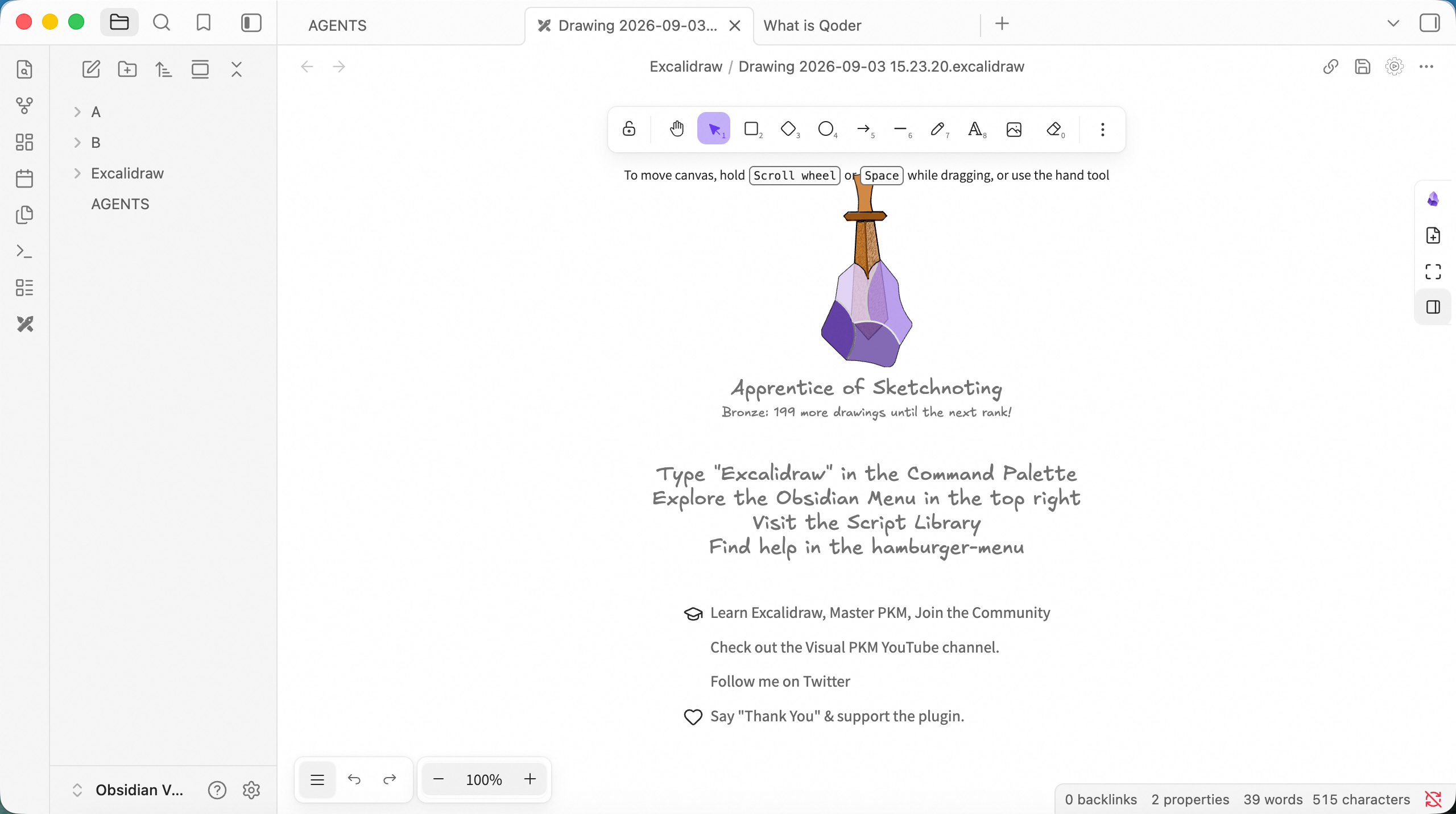
To have Qoder generate whiteboard content automatically, use it with the Excalidraw Skill, excalidraw-diagram.
Installing the Skill is equally simple. Give Qoder the Skill's repository URL (https://github.com/coleam00/excalidraw-diagram-skill) and ask it to install the Skill.
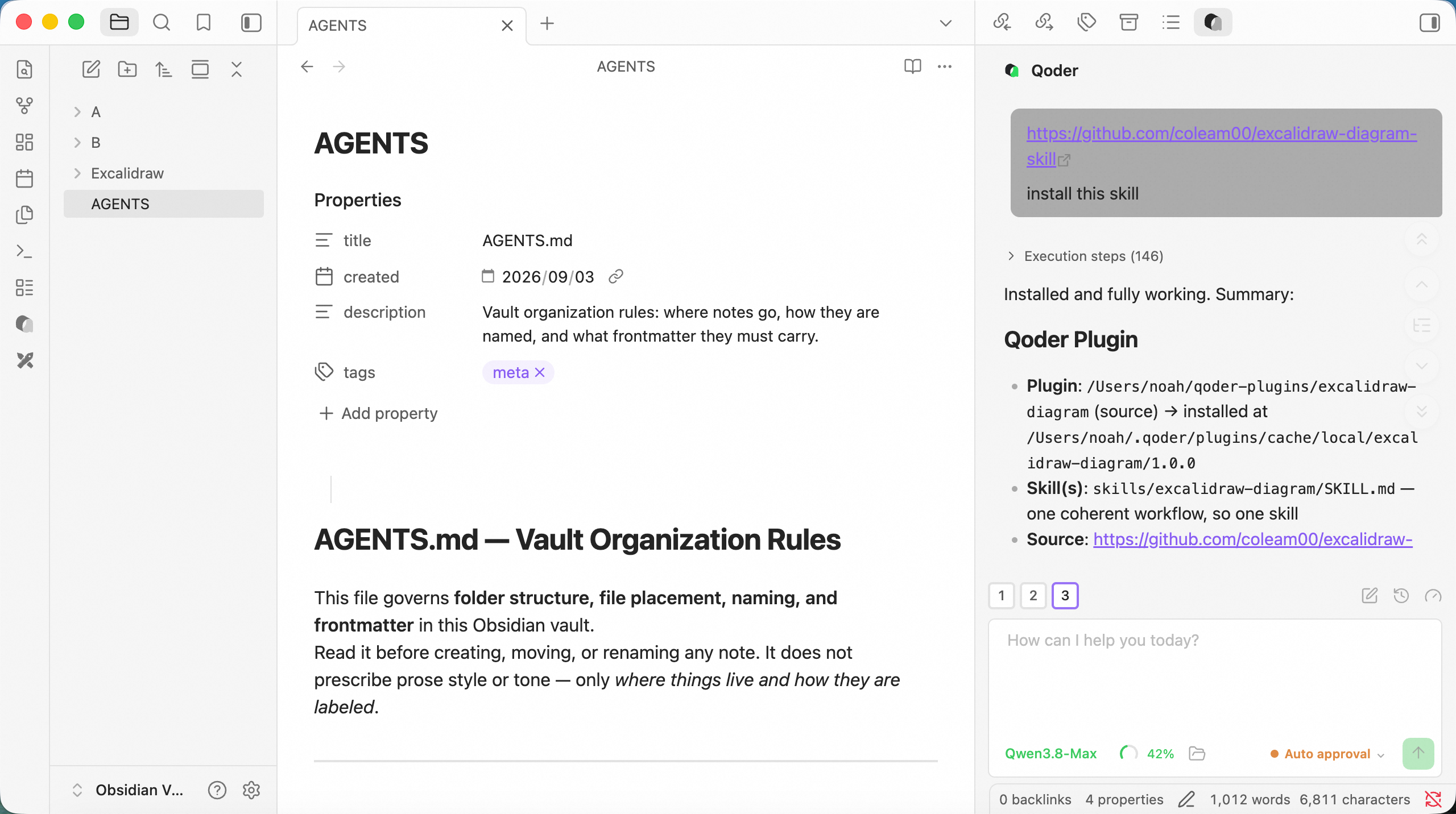
After installation, you can invoke it directly from the Qoder panel on the right using a slash command.
For example: /excalidraw-diagram Create a hand-drawn-style flowchart based on the current note that is suitable for teaching and presentation.
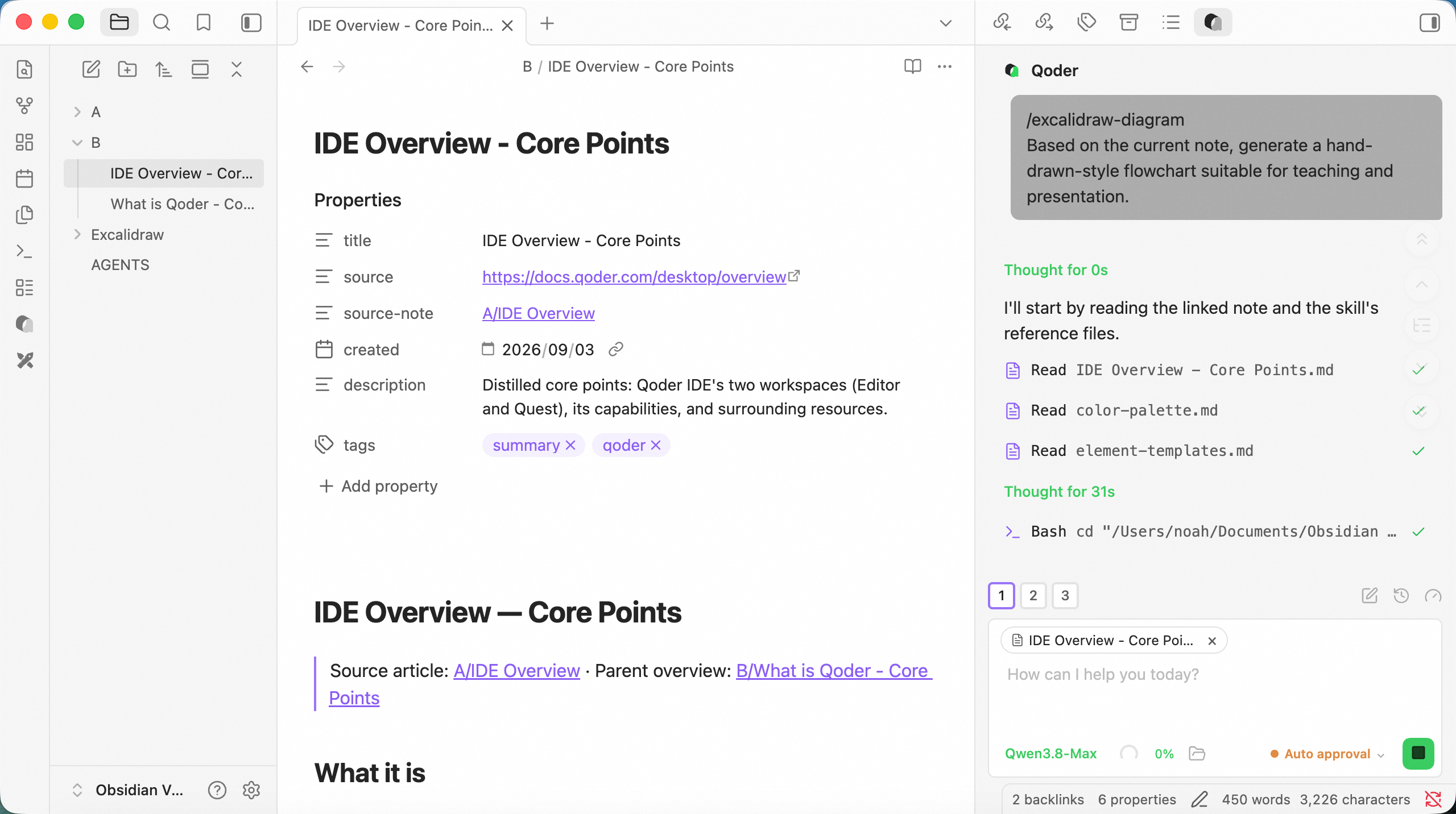
Once generation is complete, you will have an editable, logically sound, and well-structured flowchart.
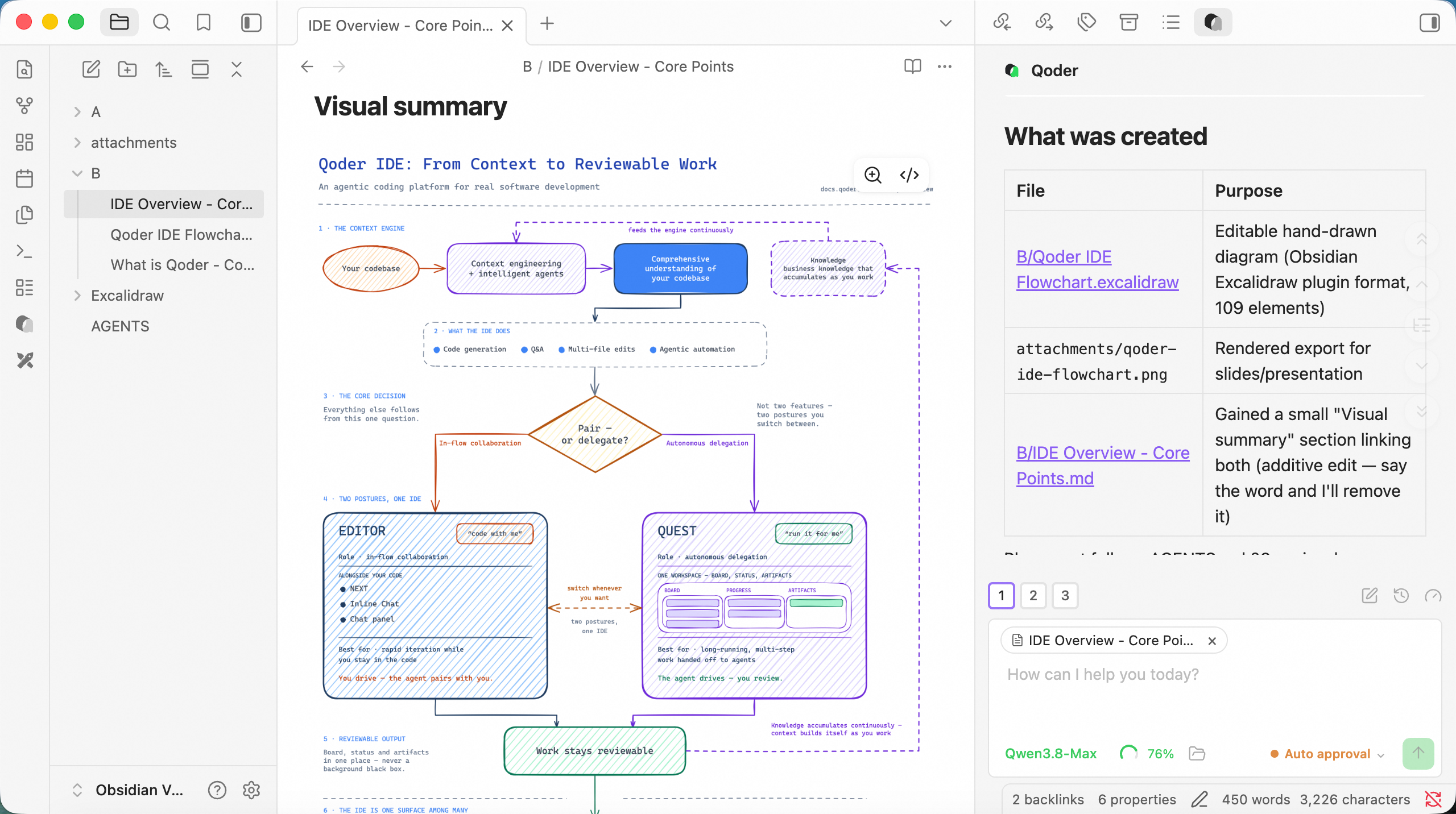
By connecting Qoder CLI to Obsidian through Qoderian, you can transform Obsidian from a conventional note-taking app into a local AI-powered knowledge processing hub.
For anyone who regularly reads web articles, organizes tutorials, writes content, or manages technical materials, this workflow can significantly reduce the effort required to organize information—and turn Obsidian into a local knowledge base where you can collaborate with AI.
Qoderian open-source repository: https://github.com/QoderAI/Qoderian
Qwen3.8-Max on Qoder CLI: Five Hardcore Tasks, Put to the Test

1,563 posts | 524 followers
FollowAlibaba Cloud Community - October 14, 2026
Alibaba Cloud Community - August 6, 2026
Alibaba Cloud Community - July 17, 2026
CloudSecurity - July 24, 2026
Alibaba Cloud Community - August 31, 2026
Alibaba Cloud Community - June 16, 2026
1,563 posts | 524 followers
Follow Qoder
Qoder
From Assisted to Autonomous — Adapting to Every Programming Need
Learn More QwenWork
QwenWork is dedicated to helping employees strengthen their professional competitiveness in the AI era and to enabling enterprises to improve organizational effectiveness.
Learn More Qwen
Qwen
Full-range, open-source, multimodal, and multi-functional
Learn More Wan3.0
Unleash Your Creativity Try Wan 3.0 now — longer narratives, greater control, endless creativity.
Learn MoreMore Posts by Alibaba Cloud Community

