ApsaraDB RDS for SQL Server manages password expiration at the Windows host layer. By default, host account passwords expire after 42 days, which causes logon failures if not addressed. Configure a custom password policy to control how long passwords remain valid and prevent unexpected lockouts.
Host account passwords expire after 42 days by default. Expiration causes logon failures. Configure a password policy before the 42-day limit is reached. Host accounts apply the policy automatically; user accounts require manual application.
Default password behavior
| Account type | Default expiration | Policy application |
|---|---|---|
| Host account | 42 days (Windows default) | Automatic |
| User account | Never expires | Manual |
Limits
This feature is not available for the following instance types:
Shared instances
SQL Server 2008 R2 instances
Serverless ApsaraDB RDS for SQL Server instances
The RDS instance must use a General-purpose or dedicated instance type, and a subscription or pay-as-you-go billing method.
Usage notes
When you create an account and apply the password policy that you configured for the account, the password cannot contain the username of the account. For example, if the username is Test240903, the password cannot be Test240903abc.
Step 1: Configure a password policy
Go to the Instances page. In the top navigation bar, select the region where your RDS instance resides. Find the instance and click its ID.
In the left-side navigation pane, click Accounts.
Click Account Password Policy, configure the parameters, select the target policy, and then click OK.
You can configure one or both of the following parameters:
| Parameter | Description | Range (days) |
|---|---|---|
| Maximum password usage time | How long a password can be used before the account must change it. | 0–999 |
| Minimum password usage time | How long a password must be used before the account can change it. Must not exceed Maximum password usage time. | 0–998 |
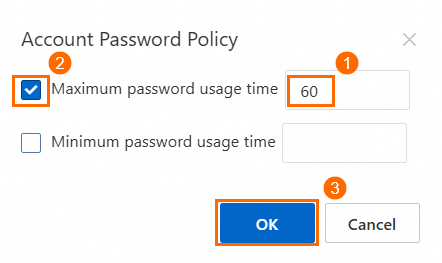
Example 1: Maximum password age only
To require a password change every 60 days, set Maximum password usage time to 60.
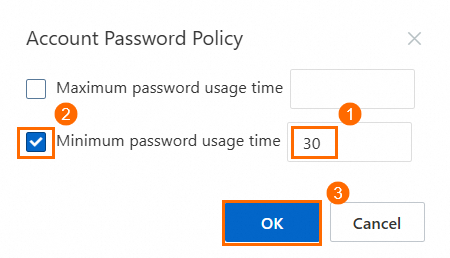
Example 2: Minimum password age only
To prevent password changes within the first 30 days, set Minimum password usage time to 30.
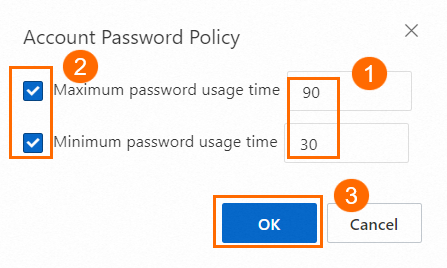
Example 3: Both maximum and minimum password age
To require a password change every 90 days and prevent changes within the first 30 days, set Maximum password usage time to 90 and Minimum password usage time to 30.
Step 2: Apply the policy to user accounts
Host accounts apply the configured policy automatically. For user accounts, apply the policy manually using either of the following approaches.
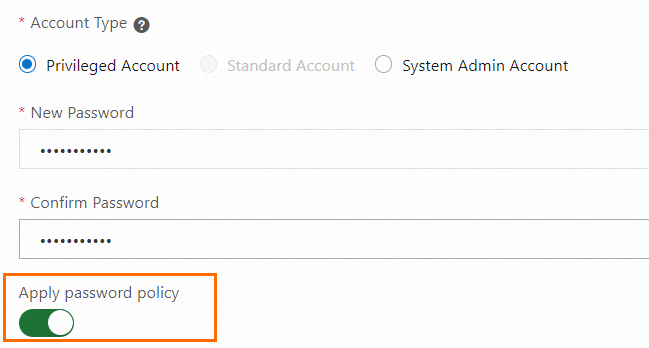
Apply when creating a user account
On the Accounts > User Accounts page, apply the password policy when you create a standard account or a privileged account or a database account with SA permissions.
Apply to existing user accounts
On the Accounts > User Accounts page, apply the password policy to existing accounts.

FAQ
Do host accounts apply the policy automatically?
Yes. After you configure the policy in the RDS console, host accounts apply it immediately with no additional steps. User accounts require manual application as described in Step 2.
By default, host accounts use the Windows password policy, with a default expiration time of 42 days. If RDS SQL Server creates a host logon account, the password expires after 42 days by default. After expiration, you need to reset the password.


You can configure the account password policy through the RDS console or log on to the Windows host directly to modify the password policy.


No. User accounts created through the RDS console do not have CHECK_POLICY or CHECK_EXPIRATION enabled by default, so passwords never expire. When you apply a policy to a user account through the console, both CHECK_POLICY and CHECK_EXPIRATION are set to ON, which inherits the Windows password policy settings.
For example, if you set the minimum password age to 1 day and the maximum to 2 days in the RDS console, the Windows policy is updated to Minimum password age = 1 day and Maximum password age = 2 days.


Run the following SQL query against sys.sql_logins to check policy status, expiration state, last password change time, and related details:
-- Query user password policy status and related information
SELECT
    name,
    is_policy_checked,          -- Whether password complexity policy is enabled
    is_expiration_checked,      -- Whether password expiration policy is enabled
    LOGINPROPERTY(name, 'IsMustChange') AS IsMustChange,              -- Whether password must be changed at next logon
    LOGINPROPERTY(name, 'IsLocked') AS IsLocked,                      -- Whether account is locked
    LOGINPROPERTY(name, 'LockoutTime') AS LockoutTime,                -- Time when account was locked (NULL if not locked)
    LOGINPROPERTY(name, 'PasswordLastSetTime') AS PasswordLastSetTime, -- Time when password was last modified
    LOGINPROPERTY(name, 'IsExpired') AS IsExpired,                    -- Whether password has expired
    LOGINPROPERTY(name, 'BadPasswordCount') AS BadPasswordCount,      -- Number of incorrect password attempts
    LOGINPROPERTY(name, 'BadPasswordTime') AS BadPasswordTime,        -- Time of last incorrect password attempt
    LOGINPROPERTY(name, 'HistoryLength') AS HistoryLength,            -- Password history length (prevents reuse of old passwords)
    modify_date                 -- Time when the account was last modified
FROM
    sys.sql_logins;
API reference
ModifyAccountSecurityPolicy — Configure SQL Server account password policies
ModifyAccountCheckPolicy — Modify SQL Server account password policies
CreateAccount — Create a database account (apply policy at creation time)
ModifyAccountSecurityPolicy - Configure SQL Server account password policies
ModifyAccountCheckPolicy - Modify SQL Server account password policies