After adding your website to Web Application Firewall (WAF), use the Overview page to view urgent vulnerabilities, analyze website traffic, and review threat events from the last 30 days. This page helps you assess the security of your web services.
Prerequisites
The website domain name has been added to WAF for protection. For more information, see Add a domain name.
View overview data
WAF instances have control planes in China (Hangzhou) and Singapore, depending on their region. WAF instances in the Chinese mainland are managed by the control plane in China (Hangzhou), and WAF instances outside the Chinese mainland are managed by the control plane in Singapore.
On the Overview page, you can view metrics such as total requests and QPS for all protected resources. The data displayed is specific to the control plane for your WAF instance's region.
-
Log on to the Web Application Firewall (WAF) console. In the top menu bar, select the resource group and region for your WAF instance: Chinese Mainland or Outside Chinese Mainland.
-
In the left navigation pane, click Overview.
-
At the top of the Overview page, specify the domain name and time range to view the data.
The following query settings are available:
-
Domain name: By default, data for All domain names protected by WAF is displayed. You can select a specific one.
-
Time: By default, the page displays data for Today. You can set the data aggregation interval to 10s, 30s, 60s, or 5m. You can also set the time range to Yesterday, Today, 7 Days, 30 Days, or a custom range. The custom time range cannot exceed 30 days.
The Overview page has the following four sections. Click a link to learn more about the data and operations available in that section:
-
Urgent vulnerabilities
The Urgent Vulnerability section displays WAF's protection rule updates for newly disclosed security vulnerabilities.
Click an urgent vulnerability record to view the Details pane. This pane shows the affected domain names, vulnerability details, and related WAF protection rules.
Protection statistics
The protection statistics show the total requests to your domain names and the number of requests that triggered different protection modules, including web intrusion prevention, HTTP Flood Protection, Scanning Protection, Access Control, and Bot Management.
Click the request count under a protection module to go to the corresponding Security Report page and view the related attack logs. For more information, see WAF security reports.
Click the  icon below the protection statistics section to view more details. The behavior depends on your query:
-
If you query data for all domain names, the page displays the top 5 domain names contributing the most to the statistics.
-
If you query data for a specific domain name, the page displays a trend chart of the statistics over time.
Request analysis charts
The request analysis charts include a request trend chart, a client type distribution chart, and request data analysis ranking charts. The following list describes the charts:
-
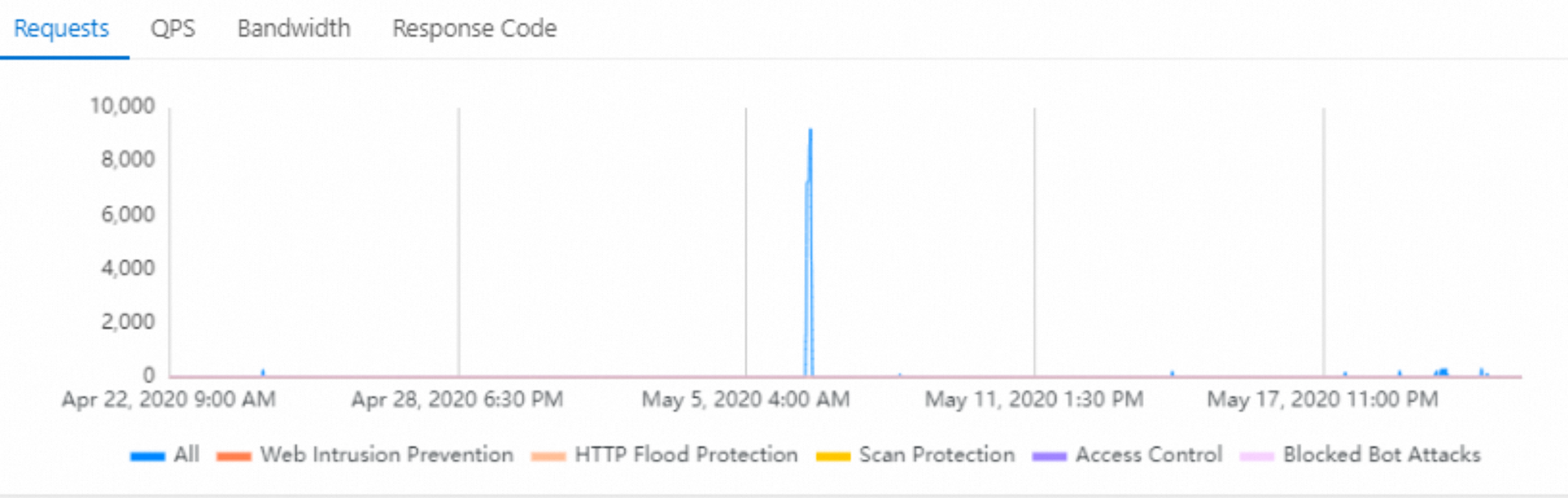
Request Trend: This chart shows trends over time for Requests, QPS, Bandwidth, and Status Code.
 Note
NoteThe minimum time granularity for the trend chart is one second. When you query real-time data, you can see request trends with one-second accuracy.
You can click a tab to select the trend data to view. Click a legend item below the chart to hide or show its corresponding data series.
The following trend data is available:
-
Requests: Includes trends for total requests and for requests that triggered web intrusion prevention, http flood protection, scan protection, access control, and bot protection.
-
QPS: Includes trends for the total request QPS and the QPS for requests that triggered web intrusion prevention, http flood protection, scan protection, access control, and bot protection.
Click Average-value Chart or Peak-value Chart in the upper-right corner of the chart to switch between average and peak QPS data.
-
Bandwidth: Includes trends for inbound and outbound bandwidth over time, measured in bps.
-
Status Code: Includes trends for abnormal response codes (such as 5xx, 405, 499, 302, and 444) returned by WAF to clients and by the origin server to WAF.
Click WAF to Client or Origin Server to WAF in the upper-right corner of the chart to switch between the datasets.
-
-
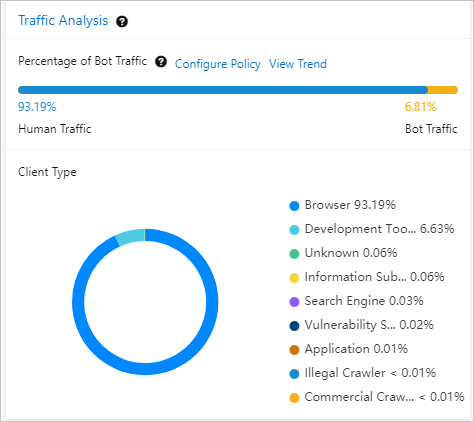
Traffic Analysis: Includes Percentage of Bot Traffic data and the Client Type distribution chart.
Details are as follows:
-
The Percentage of Bot Traffic is the proportion of bot traffic among all web requests to your domain name. WAF considers traffic from browsers and applications to be Human Traffic, and traffic from other client types to be Bot Traffic.
If the bot traffic ratio is high, click Configure Policy and use the Bot Management feature of WAF to defend against bot attacks. You can click View Trend to open the Security Report page and check the Bot Management report to view the protection effectiveness. For more information about bot management, see Configure scenario-based rules to protect website crawlers.
-
The Client Type pie chart shows the distribution of client types that access your services. Click the
 icon next to Traffic Analysis to view definitions for each client type.
You can click a type in the pie chart to view the distribution of its sub-types. For example, click the browser type to view the traffic distribution from different kinds of browsers.
-
-
The Request Data Analysis Ranking chart displays the top 10 rankings for client types, requested URLs, and source IP addresses by request count. Click a tab to view specific ranking data:
-
Top 10 Clients: The top 10 client types that initiated the most requests.
-
URL Requests: The top 10 URLs that received the most requests.
-
Top IP: The top 10 IP addresses that initiated the most requests.
-
Threat event analysis
The Threat Event Analysis section shows attack events on your domain names and how WAF blocks them. This helps you understand your threat landscape and decide how to respond.
You can click an event name to view the Event details. The details pane provides threat intelligence, security recommendations, and basic analysis in the Top 5 Attacks section. For example, you can click the following tabs to view related data:
-
Source IP Address: The top 5 client IP addresses that initiated the most attacks.
-
Attack Target: The top 5 URLs that were attacked most frequently.
-
Attack Type: The top 5 attack types, such as SQL injection and cross-site scripting.
-
Attack Date: The top 5 dates with the highest number of attacks.
-
Attack Tool: The top 5 attack tools, such as Curl and Postmanruntime.
In the Event details pane, click Check log next to the event title to open the Log Service page. Here, you can query the related logs to further analyze the event. For more information, see Log query.