VPN Gateway integrates with Network Intelligence Service (NIS) to provide Reachability Analyzer. Use this feature to diagnose network connectivity for resources connected via a VPN Gateway instance.
Background
To use Reachability Analyzer, you specify a source and a destination resource. The system then models the network configuration between them to determine their reachability. If a path is unreachable, Reachability Analyzer identifies the blocking component to help you troubleshoot the issue. The analysis runs without sending any packets and does not affect your live services.
For example, you can specify an ECS instance as the source and another ECS instance within the same Alibaba Cloud account as the destination. By setting the protocol to TCP and the destination port to 22, you can use Reachability Analyzer to verify if the source instance can connect to the destination instance over SSH. For more information, see Use Reachability Analyzer.
This topic provides use cases to demonstrate how to diagnose IPsec-VPN connectivity issues with Reachability Analyzer.
Prerequisites
Before using Reachability Analyzer to diagnose IPsec-VPN connectivity, check the connection for negotiation failures. If the IPsec-VPN connection fails to negotiate, first resolve the issue based on the error code in the VPN Gateway console, the IPsec connection logs, or the VPN Gateway instance diagnosis feature. For more information, see Troubleshoot IPsec-VPN connection issues and Diagnose a VPN Gateway instance.
Example 1: Connecting a data center to a VPC
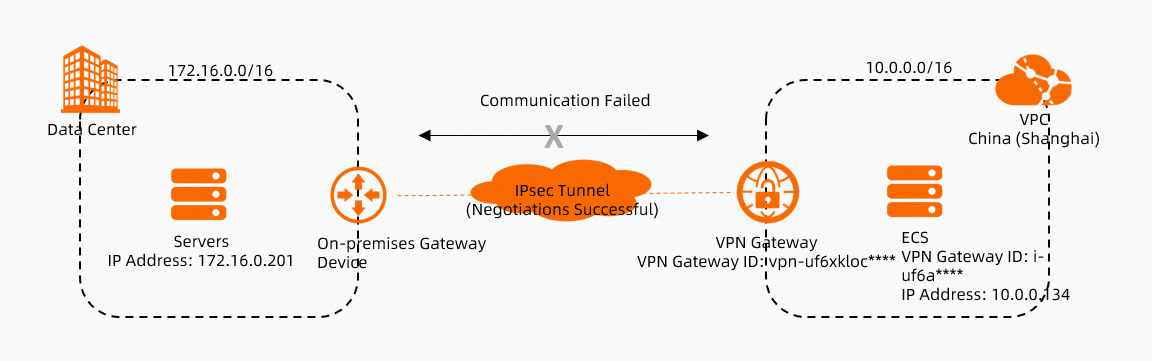
As shown in the preceding figure, an IPsec-VPN connection connects a data center to a VPC. If the connection is established but resources in the data center and the VPC cannot communicate, use Reachability Analyzer to diagnose the connectivity issue.
Log on to the VPN Gateway console.
-
In the top navigation bar, select the region where the VPN Gateway instance is deployed.
-
On the VPN Gateways page, find the target VPN Gateway instance. In the Diagnose column, choose .
-
In the Reachability Analyzer pane, configure the following parameters and click Start Analyzing.
The following tables show the parameters for creating a path analysis for traffic in each direction.
Traffic from the data center to the VPC
Parameter
Description
Source
Select a Source Type.
In this example, select VPN Gateway. Then, select the VPN Gateway instance vpn-uf6xkloc**** that is connected to the data center, and enter the private IP address 172.16.0.201 of the server in the data center.
Destination
Select a Destination Type.
In this example, select ECS Instance ID. Then, select the ECS instance i-uf6a**** in the VPC.
Protocol
Select the protocol for the test.
In this example, the default value TCP is used.
NoteYou can select a protocol and destination port based on your network environment.
Destination Port
Enter the port number of the destination resource.
In this example, the default value 80 is used.
Name
Enter a name for the path.
The path is automatically saved after analysis, which allows you to run the test again. You can view all saved paths on the Network Intelligence Service console.
Traffic from the VPC to the data center
Parameter
Description
Source
Select a Source Type.
In this example, select ECS Instance ID. Then, select the ECS instance i-uf6a**** in the VPC.
Destination
Select a Destination Type.
In this example, select VPN Gateway. Then, select the VPN Gateway instance vpn-uf6xkloc**** that is connected to the data center, and enter the private IP address 172.16.0.201 of the server in the data center.
Protocol
Select the protocol for the test.
In this example, the default value TCP is used.
NoteYou can select a protocol and destination port based on your network environment.
Destination Port
Enter the port number of the destination resource.
In this example, the default value 80 is used.
Name
Enter a name for the path.
The path is automatically saved after analysis, which allows you to run the test again. You can view all saved paths on the Network Intelligence Service console.
-
View the analysis result in the Reachability Analyzer pane.
Troubleshoot the issue based on the analysis result, and then run the analysis again to confirm that the path is reachable.
-
If the analysis shows the path is reachable, the data center and the VPC can typically communicate. You can try accessing resources to verify the connection.
If the resources in the data center and the VPC still cannot communicate with each other, see IPsec-VPN connection FAQ for more troubleshooting steps.
Example 2: Connecting cross-region VPCs
To create a path analysis for connecting VPCs across different Alibaba Cloud accounts and regions, see Example 1.
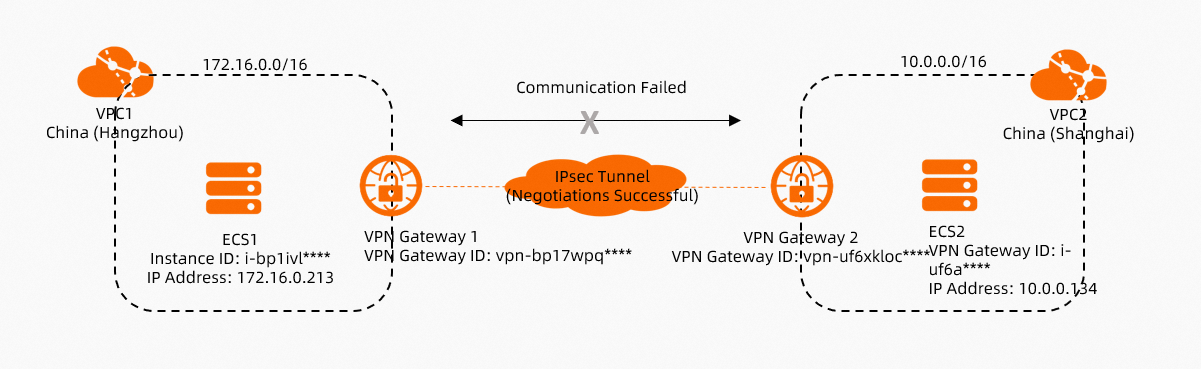
As shown in the preceding figure, an IPsec-VPN connection connects two VPCs in different regions within the same Alibaba Cloud account. If the connection is established but the ECS instances in the two VPCs cannot communicate, use Reachability Analyzer to diagnose the connectivity issue.
Log on to the VPN Gateway console.
-
In the top navigation bar, select the region where the VPN Gateway instance is deployed.
-
On the VPN Gateways page, find the target VPN Gateway instance. In the Diagnose column, choose .
-
In the Reachability Analyzer pane, configure the following parameters and click Start Analyzing.
Parameter
Description
Source
Select a Source Type.
In this example, select ECS Instance ID and then select ECS1.
Destination
Select a Destination Type.
In this example, select ECS Instance ID and then select ECS2.
Protocol
Select the protocol for the test.
In this example, the default value TCP is used.
NoteYou can select a protocol and destination port based on your network environment.
Destination Port
Enter the port number of the destination resource.
In this example, the default value 80 is used.
Name
Enter a name for the path.
The path is automatically saved after analysis, which allows you to run the test again. You can view all saved paths on the Network Intelligence Service console.
-
View the analysis result in the Reachability Analyzer pane.
The analysis shows that ECS1 cannot connect to ECS2 because a security group rule on ECS2 denies access from ECS1. Check the security group rules for ECS2, and then run the analysis again to confirm that the path is reachable.
-
If the analysis shows the path is reachable, the ECS instances in the VPCs can typically communicate. You can try accessing the instances to verify the connection.
If the ECS instances in the VPCs still cannot communicate with each other, see IPsec-VPN connection FAQ for more troubleshooting steps.
Example 3: Connecting multiple sites
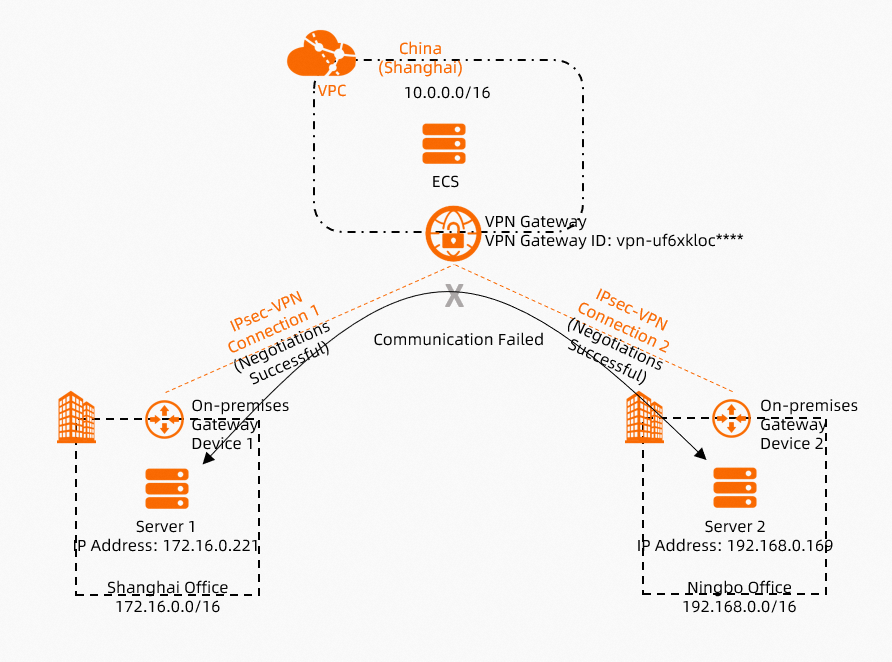
As shown in the preceding figure, IPsec-VPN connections connect multiple sites. If all connections are established but the sites cannot communicate, use Reachability Analyzer to diagnose the connectivity issue.
Log on to the VPN Gateway console.
-
In the top navigation bar, select the region where the VPN Gateway instance is deployed.
-
On the VPN Gateways page, find the target VPN Gateway instance. In the Diagnose column, choose .
-
In the Reachability Analyzer pane, configure the following parameters and click Start Analyzing.
Parameter
Description
Source
Select a Source Type.
In this example, select VPN Gateway. Then, select the VPN Gateway instance vpn-uf6xkloc**** that is connected to the Shanghai office, and enter the private IP address 172.16.0.221 of Server 1 in the Shanghai office.
Destination
Select a Destination Type.
In this example, select VPN Gateway. Then, select the VPN Gateway instance vpn-uf6xkloc**** that is connected to the Ningbo office, and enter the private IP address 192.168.0.169 of Server 2 in the Ningbo office.
Protocol
Select the protocol for the test.
In this example, the default value TCP is used.
NoteYou can select a protocol and destination port based on your network environment.
Destination Port
Enter the port number of the destination resource.
In this example, the default value 80 is used.
Name
Enter a name for the path.
The path is automatically saved after analysis, which allows you to run the test again. You can view all saved paths on the Network Intelligence Service console.
-
View the analysis result in the Reachability Analyzer pane.
Troubleshoot the issue based on the analysis result, and then run the analysis again to confirm that the path is reachable.
-
If the analysis shows the path is reachable, the sites can typically communicate. You can try accessing resources across the sites to verify the connection.
If the sites still cannot communicate with each other, see IPsec-VPN connection FAQ for more troubleshooting steps.