Reachability Analyzer is a configuration analysis tool for various use cases, such as connectivity between ECS instances, between an ECS instance and a public or ECS, and between a cloud-based VPC and an on-premises site. It determines the connectivity between a source and a destination resource and diagnoses connection issues caused by network misconfigurations.
Reachability Analyzer
How it works
When you run an analysis, Network Intelligence Service (NIS) generates hop-by-hop details for the virtual network path between the source and destination resources. If the destination is unreachable, the tool identifies the blocking component and the reason. Reachability Analyzer primarily checks instance status and network configurations, including security groups, network ACLs, route tables, and load balancers.
Reachability Analyzer does not send packets or analyze the data plane. You only need to specify a traffic path from a source to a destination. For example, you can specify an Elastic Compute Service (ECS) instance in your Alibaba Cloud account as the source, another ECS instance as the destination, set the protocol to TCP, and set the destination port to 22. Reachability Analyzer can then verify whether the source ECS instance can connect to the destination ECS instance over SSH.
An analysis is unidirectional. To analyze the return path, run a new analysis with the source and destination resources swapped.
Supported intermediate nodes
Reachability Analyzer supports the following intermediate nodes: vSwitches, virtual routers, elastic network interfaces (ENIs), EIP, CLB, TR, VBR, public NAT gateways, Cloud Firewall, VPN Gateway, IPv4 gateways, and ECRs.
Use cases
You can use Reachability Analyzer in the following scenarios:
Connectivity between ECS instances across different regions: Uses a Cloud Enterprise Network (CEN) instance, VPC, or a TransitRouter instance to enable cross-region communication between ECS instances. It can also identify Virtual Private Cloud (VPC) boundary firewalls. In this scenario, the source and destination resources can belong to different Alibaba Cloud accounts.
Connectivity between ECS instances in the same region: Uses a CEN, VPC peering connection, or TR to enable intra-region communication between ECS instances. It can also identify VPC boundary firewalls.
Connectivity between an ECS instance and a public IP address. It can also identify internet boundary firewalls.
Connectivity between a public IP address and a private-facing CLB instance.
Connectivity between an ECS instance and an internet-facing CLB instance.
An ECS instance accesses the internet through the SNAT rules of a public NAT gateway.
An ECS instance is accessed from the internet through the DNAT rules of a public NAT gateway.
Connectivity between an ECS instance and a private IP address through a VPN gateway.
Connectivity between an instance in a VPC and an on-premises site through a Virtual Border Router (VBR). It can also identify VPC boundary firewalls.
Limitations
Reachability Analyzer supports the following resource types as a source or destination:
Source resources: ECS, public IP address, vSwitch, VBR, VPN gateway, and on-premises private IP address.
Destination resources: ECS, public IP address, vSwitch, VBR, VPN gateway, on-premises private IP address, and Classic Load Balancer (CLB).
If you select a public IP address for both the source and destination, make sure that at least one of them is mapped to the public IP address of an ECS instance. Otherwise, the analysis fails.
The following table lists the default quotas for a single Alibaba Cloud account.
Resource | Default quota | Quota increase |
Maximum number of paths | 100 | Cannot be increased |
Maximum number of historical analysis records | 1,000 | |
Concurrent analyses | 5 |
Create a path
Log on to the NIS console.
In the left-side navigation pane, choose .
On the Reachability Analyzer page, click Start Analysis.
On the Start Analysis page, configure the following parameters.
Parameter
Description
Source
Select a Source Type:
ECS: Select an ECS instance ID. This specifies the ECS instance as the source resource in the path. After you select an ECS instance, you can select a private IP address of the ECS instance. If you do not select a private IP address of the ECS instance, the primary IP address of the ECS instance is analyzed by default.
Public IP Address: Enter a public IP address to use as the source resource.
You can enter a static public IP address of an ECS instance, an EIP, or a public IP address that is not on Alibaba Cloud. You cannot use public IP addresses that are not on Alibaba Cloud for both the source and destination.
vSwitch: Select a vSwitch to use as the source resource.
VBR: Select a VBR to use as the source resource.
VPN Gateway: Select a VPN gateway to use as the source resource.
On-premises Private IP: Enter a private IP address in your on-premises network to use as the source resource. In this scenario, the path must pass through a VPN gateway or a VBR. You must specify the private IP address.
Destination
Select a Destination Type:
ECS: Select an ECS instance ID. The selected ECS instance is used as the destination resource in the path. After you select an ECS instance, you can select a private IP address of the ECS instance. If you do not select a private IP address for the ECS instance, the primary IP address of the ECS instance is analyzed by default.
Public IP Address: Enter a public IP address to use as the destination resource.
You can enter a static public IP address of an ECS instance, an EIP, or a public IP address that is not on Alibaba Cloud. You cannot use public IP addresses that are not on Alibaba Cloud for both the source and destination.
vSwitch: Select a vSwitch to use as the destination resource.
VBR: Select a VBR to use as the destination resource.
VPN Gateway: Select a VPN gateway to use as the destination resource.
On-premises Private IP: Enter a private IP address in your on-premises network to use as the destination resource. In this scenario, the path must pass through a VPN gateway or a VBR. You must specify the private IP address.
Classic Load Balancer: Select a CLB instance to use as the destination resource.
Protocol
The default protocol is TCP. You can select one of the following protocols:
TCP: Transmission Control Protocol.
UDP: User Datagram Protocol.
ICMP: Internet Control Message Protocol.
Destination Port
Enter the port number of the destination resource. The default port is 80. This parameter is optional. If you leave it empty, the analysis checks the connectivity to all ports on the destination resource.
Select whether to save the path. The default is No. If you select Yes, the path parameters are saved for future analyses.
Click Start Analysis.
Analyze a path
On the Reachability Analyzer page, find the path that you want to analyze and click Start Analysis in the Actions column.
In the dialog box that appears, click OK.
On the Path Analysis Details page, view the analysis result.
If the path is reachable or unreachable, the result shows the connectivity status and all nodes along the path from the source to the destination. If the path is unreachable, an error message is also displayed.
If the path status is unknown, an error message is displayed.
Result analysis
A path analysis can have the following results.
Reachable
The following figure shows the result of a path analysis from an ECS instance in one VPC to a vSwitch in another VPC over a VPC peering connection. The figure indicates that the path between the source ECS instance and the destination vSwitch is connected, the network connectivity between the two VPCs is normal, and the destination is accessible.
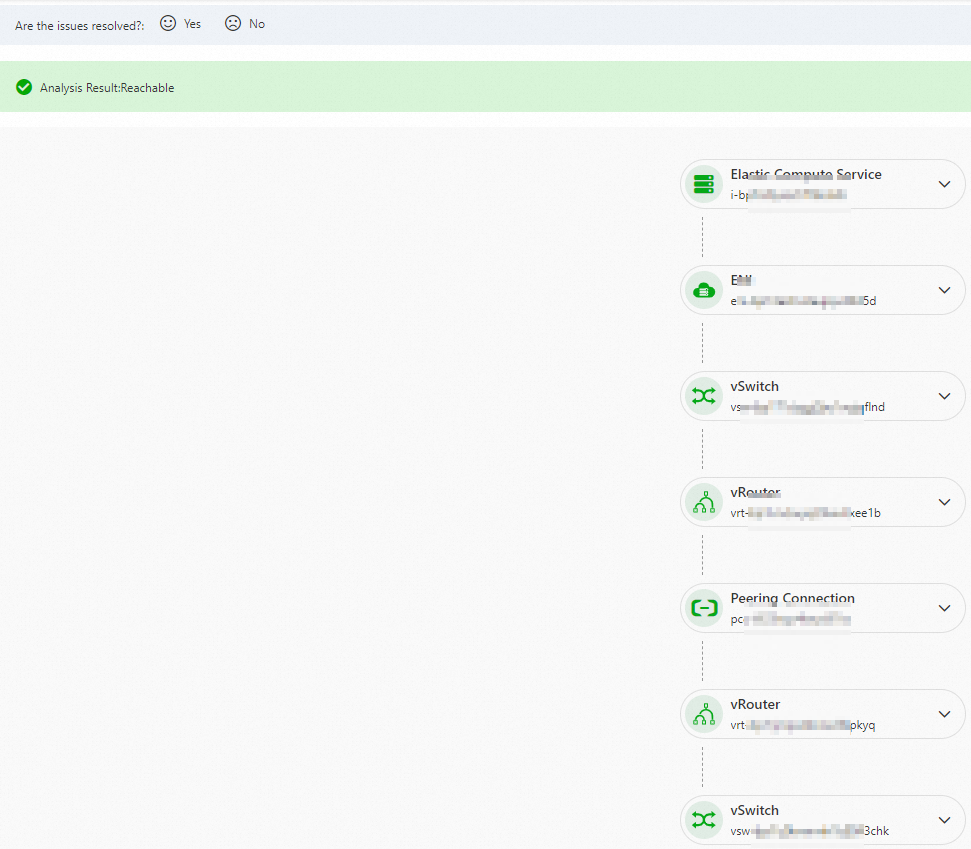
Click the
 icon next to each node in the path to view its details.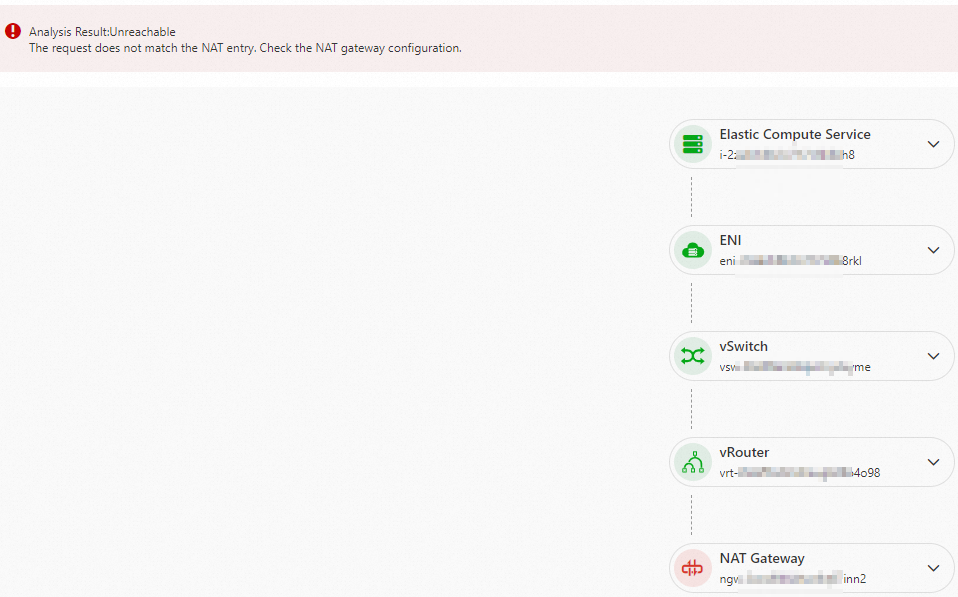
Unreachable
The following figure shows the analysis result for a path from an ECS instance in a VPC to a NAT gateway. The error message is The Internet NAT gateway entry does not match. Check the NAT gateway configuration. In this case, the path between the source ECS instance and the destination NAT gateway is unreachable.
Click the
icon next to an abnormal node to view its details.
Unknown
The following figure shows an unknown analysis result with the error message The specified resource does not exist. Check whether the resource is already deleted.
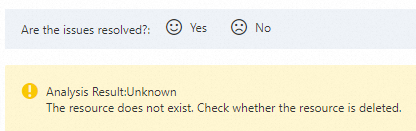 The following list describes possible error messages for an unknown analysis result:
The source and destination resources cannot be the same.
The path contains an unsupported intermediate node. Path analysis is not supported.
The resource does not exist. Check whether the resource has been deleted.
The resource is in an abnormal state. Check whether the resource is running correctly.
The route is unreachable. Check your route configuration.
No matching security group rule was found. The request was denied by the default rule.
Matched a security group drop rule.
No matching network ACL rule was found. The request was denied by the default rule.
Matched a network ACL drop rule.
An unknown error occurred. Please try again later.
An internal service error occurred. Please try again later.
Matched a user-specified CLB blacklist drop rule.
The traffic was dropped by default because it did not match any CLB whitelist rule.
No matching SNAT or DNAT entry is found. Check your NAT gateway configuration.
Cannot connect to the internet. Associate an Elastic IP address.
The IPv4 gateway route is unreachable. Add a route that points to the IPv4 gateway in the VPC route table.
The IPv4 gateway was deleted after activation, causing an internet connection failure. Re-create and activate the IPv4 gateway, and add a route that points to it in the VPC route table.
The route is unreachable. Check the IPv4 gateway route configuration.
The VPN gateway is missing a return route to the source IP address.
Delete a historical analysis
You can delete unneeded historical analysis records.
On the Reachability Analyzer page, find the path whose historical analysis record you want to delete and click its ID in the Path ID column.
On the path analysis details page, in the Historical Analysis section, find the record you want to delete and click Delete in the Actions column.
In the dialog box that appears, click OK.
Delete a path
If you no longer need a path, you can delete it.
On the Reachability Analyzer page, delete the target path.
To delete a single path: Find the path you want to delete and click Delete in the Actions column.
To delete multiple paths: Select the checkboxes of the paths you want to delete and click Delete below the list.
In the dialog box that appears, click OK.
Configure tags
Reachability Analyzer supports tags. You can use tags to mark and categorize path analysis instances to simplify searching and aggregation.
Add tags in batches
On the Reachability Analyzer page, select the target paths and click below the list.
In the Edit Tag dialog box, configure the Tag Key and Tag Value, and then click OK.
Delete tags in batches
On the Reachability Analyzer page, select the target paths and click below the list.
In the dialog box that appears, click OK. For more information about tags, see What are tags?.
Other operations
Actions | Procedure |
View historical analysis records | On the path analysis details page, you can view past analysis results in the Historical Analysis section. |
Rerun a path analysis | On the path analysis details page, click Start Analysis in the upper-right corner. The new analysis record appears in the Historical Analysis list. You can differentiate between results by their Analysis Time. |
FAQ
Why do I see the message "The path contains an unsupported intermediate node. Path analysis is not supported."?
This error message appears if the path determined by the specified source and destination resources is not supported by the current version of NIS.
Why do I see the message "Matched a security group drop rule."?
For example, you configure the security group of an ECS instance in VPC2 to allow access only from ECS instances in the CIDR block of vSwitch 1 in VPC1, and deny access from ECS instances in the CIDR blocks of other vSwitches in VPC1. When you use Reachability Analyzer and select ECS1 in vSwitch 2 of VPC1 as the source and an ECS instance in VPC2 as the destination, you can find that the connection is blocked by the security group on the ENI of the destination ECS instance, and the error message "matches a security group drop rule" is displayed. You can modify the security group rule to resolve this issue.
Why do I see the message "The route is unreachable. Check your route configuration."?
For example, when you use a VPC peering connection for cross-region communication, you must configure route entries to the destination CIDR block in the VPC routers of both regions. For example, if VPC1 is in Region 1 and VPC2 is in Region 2, and you do not configure a route from VPC1 to VPC2, the ECS instances in the two VPCs cannot communicate with each other. By using Reachability Analyzer, if you specify ECS1 in VPC1 as the source and ECS2 in VPC2 as the destination, you will see that the path is blocked at the router of VPC1, displaying the message "The route is unreachable. Please check the route configuration."
Related API operations
CreateNetworkPath: Creates a network analysis path.
CreateNetworkReachableAnalysis: Creates a network reachability analysis task.
CreateAndAnalyzeNetworkPath: Creates and runs a network reachability analysis.
GetNetworkReachableAnalysis: Retrieves the result of a network reachability analysis task.
DeleteNetworkPath: Deletes a network analysis path.
DeleteNetworkReachableAnalysis: Deletes a network reachability analysis task.