VPN Gateway is integrated with Network Intelligence Service (NIS), which allows you to diagnose VPN Gateway instances and provides troubleshooting suggestions for detected anomalies. You can use this feature to troubleshoot problems with VPN Gateway instances, such as IPsec connection negotiation issues, VPN Gateway route configuration errors, and VPN Gateway instance status. This process does not affect your services.
VPN Gateway diagnostic items
The following table describes the diagnostic items for VPN Gateway instances.
Category | Diagnostic item | Description |
Configuration Diagnostics | Instance configuration check | Checks whether the VPN Gateway instance is being configured. If the instance is being configured, wait until its status changes to Active before you perform other operations. |
Version check | Checks if the VPN Gateway instance is the latest version. Upgrade the VPN Gateway instance to the latest version to access more features. For more information, see Upgrade a VPN Gateway. | |
Check the status of the IKE tunnel negotiation | Checks the status of phase 1 and phase 2 negotiations for each IPsec connection on the VPN Gateway instance. If an IPsec connection has an abnormal negotiation status, follow the suggestions in the console or refer to the documentation to troubleshoot the issue. For more information, see Troubleshooting. | |
VPN tunnel configuration integrity check | Checks whether IPsec connections are configured for the VPN Gateway instance. If configurations are missing, add them based on your network requirements. To configure an IPsec connection, see IPsec-VPN connections in single-tunnel mode or IPsec-VPN connections associated with a VPN gateway. | |
System network segment conflict check | Checks whether the destination CIDR blocks of policy-based routes, destination-based routes, and BGP routes on the VPN Gateway instance conflict with the 100.64.0.0/10 CIDR block. 100.64.0.0/10 is a CIDR block reserved by Alibaba Cloud. Make sure that the destination CIDR blocks of the policy-based routes, destination-based routes, and BGP routes on the VPN Gateway instance do not conflict with 100.64.0.0/10 or its subnets. Otherwise, the VPN Gateway instance cannot function correctly. If a system CIDR block conflict is detected, modify the CIDR block configuration or use a NAT Gateway for address translation. For more information, see Use a VPC NAT gateway and a VPN gateway to connect an on-premises data center to a VPC. | |
BGP Consistency Check | Checks for IPsec connections where phase 2 negotiation has succeeded but BGP negotiation has failed. If this occurs, check the BGP configurations for the IPsec connection and verify that BGP messages are being sent and received. For more information, see What do I do if the status of an IPsec connection is "Phase 2 Negotiation Succeeded" but the BGP status is "Abnormal"?. | |
Shared Phase 1 IPsec Negotiations | Checks whether multiple IPsec connections that use shared phase 1 have the same configurations. If a VPN Gateway instance has multiple IPsec connections that are associated with the same customer gateway and use the same IKE version, these IPsec connections use shared phase 1. In a shared phase 1 scenario, all IPsec connections must have the same Pre-Shared Key and the same parameters in the IKE Configurations. These parameters include IKE Version, Negotiation Mode, Encryption Algorithm, Authentication Algorithm, DH Group, and SA Lifetime (Seconds). This allows the IKE Configurations of any of these connections to be shared during IPsec negotiation. You can modify the configurations of the IPsec connections to ensure that they are the same. For more information, see Modify an IPsec connection. | |
Quota Limit Diagnostics | Check VPN Bandwidth Usage | Checks if the bandwidth usage of the VPN Gateway instance has reached 80% of its limit. If bandwidth usage reaches 80% of the limit, upgrade the instance's bandwidth to meet your network requirements. For more information, see Upgrade and renew a classic VPN gateway. |
Cost Diagnostics | Alerts for Overdue Payments | Checks whether the VPN Gateway instance has overdue payments. If the system detects that the VPN Gateway instance has an overdue payment, top up your account promptly. |
Alerts for Expiration | Checks whether the VPN Gateway instance will expire within seven days. | |
Route Diagnostics | Unpublished routes check | Checks for unpublished policy-based or destination-based routes on the VPN Gateway instance. If unpublished routes are found, advertise or delete them based on your network requirements. For more information, see Advertise a policy-based route, Delete a policy-based route, Configure routes for a VPN gateway, or Configure routes for a VPN gateway. |
BGP poor configuration check | Checks for optimal BGP configurations when an IPsec connection uses BGP.
| |
VPN routing configuration integrity check |
| |
Check for conflicts between destination-based routes | Checks for overlapping destination CIDR blocks in destination-based routes. If destination CIDR blocks in destination-based routes overlap, delete and recreate the routes, ensuring the CIDR blocks no longer overlap. For more information, see Configure routes for a VPN gateway. You can also use BGP for networking. For more information, see Connect a VPC to an on-premises data center in dual-tunnel mode over BGP. | |
Check for conflicts between policy-based routes | Checks for overlapping destination CIDR blocks in policy-based routes. If destination CIDR blocks in policy-based routes overlap, delete and recreate the routes, ensuring the CIDR blocks no longer overlap. For more information, see (Deprecated) Policy-based routes (for classic VPN gateways only). You can also use BGP for networking. For more information, see Connect a VPC to an on-premises data center in dual-tunnel mode over BGP. | |
BGP Route Conflict Check |
If a BGP route's destination CIDR block overlaps with that of another route, follow the console suggestions. | |
VPC and VPN Route Match Check | Checks whether the destination CIDR block of a route that points to the VPN Gateway instance in the VPC route table is included within the destination CIDR block of a policy-based route on the VPN Gateway instance. Make sure that the destination CIDR block of the policy-based route includes the destination CIDR block of the route that points to the VPN Gateway instance in the VPC route table. If the system detects that the current configurations do not meet requirements, you need to modify the destination CIDR block of the policy-based route. To do this, delete the policy-based route and create a new one. For more information, see (Deprecated) Policy-based routes (for classic VPN gateways only). |
Run a diagnosis
Log on to the VPN Gateway console.
In the top navigation bar, select the region where the VPN Gateway instance is deployed.
On the VPN Gateways page, find the target VPN Gateway instance, and in the Diagnose column, select .
In the Instance Diagnostics panel, view the diagnostic details.
NoteIf this is your first time using Network Intelligence Service, select the Terms of Service for Standard Edition NIS checkbox and click Activate NIS free of charge to diagnose instances..
If a RAM user does not have the required permissions to activate Network Intelligence Service, grant the RAM user the AliyunNISFullAccess permission from your Alibaba Cloud account. For more information, see Manage the permissions of RAM users.
When you run a diagnosis for the first time, the system automatically creates a service-linked role (AliyunServiceRoleForNis) to perform the necessary operations. For more information about AliyunServiceRoleForNis, see Service-linked roles.
No.
Description
1
Abnormal items are displayed directly. You can view their description, associated resources, and recommended actions.
2
In the Diagnostic Items section, select Show All Diagnostic Items to view information about all diagnostic items for the current VPN Gateway instance.
3
At the top of the Instance Diagnostics panel, click Go to the NIS console to view diagnostic records to access historical diagnostic reports for the instance on the Overview page of the Network Intelligence Service console. For more information, see Overview.
Diagnosis example
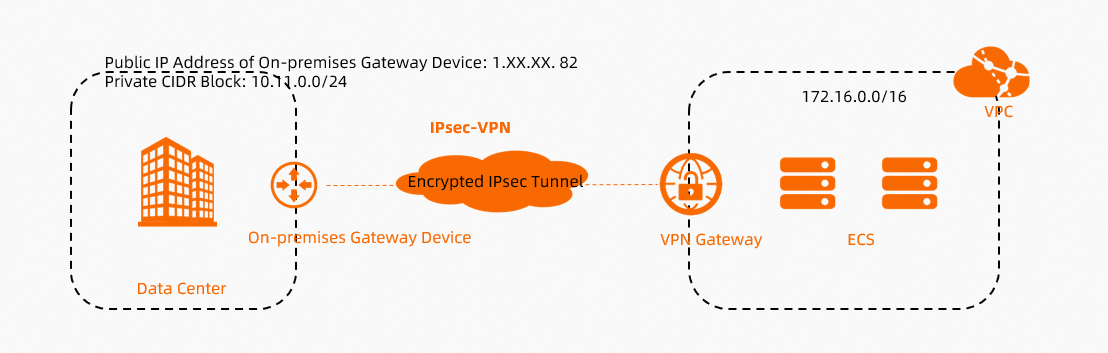
When an on-premises data center connects to VPC resources over an IPsec connection, you can diagnose the VPN Gateway instance to verify its configuration. This ensures the connection is ready for production traffic.
Run a diagnosis on the VPN Gateway instance. For more information, see Run a diagnosis.
In the Instance Diagnostics panel, review the diagnostic results and address any issues found.
On the Diagnostic Item Details page, the Configuration Diagnostics area includes two modules: IKE tunnel negotiation status and Proposal Match Check. For the proposal match check, verify that the IKE version, encryption algorithm, authentication algorithm, DH group, and pre-shared key configurations are consistent on both ends.
The diagnosis shows that the IPsec connection has a Phase 1 Negotiation Failed status. You can click Phase 1 Negotiation Failed in the Diagnostic Result column to view detailed diagnostic information, and then troubleshoot the issue based on the information.
You can also troubleshoot issues by using the error codes on the IPsec Connections page. For IPsec-VPN connection failures that occur during phase 1 or phase 2 negotiation, the system provides corresponding error codes on the IPsec Connections page to help you troubleshoot the issue. For more information, see Troubleshooting. In the Connection Status column of the IPsec connection list, you can view the specific error reason, such as pre-shared key mismatch. Click View Details for more detailed diagnostic information.
The mismatch occurs because the pre-shared keys are different. To fix this, ensure the pre-shared keys are identical on both ends of the connection.
After fixing the issue, run the diagnosis again to confirm it is resolved.
The diagnostic result shows This diagnosis passed. All 23 checks passed, with 0 Critical, 0 Major, 0 Minor, and 0 Info issues.
If the diagnosis detects no problems but you still have issues with the IPsec connection, such as traffic test failures between the on-premises data center and the VPC, refer to the FAQ for further troubleshooting. For more information, see FAQ about IPsec connections.