The micro-drama solution provides SDK or API methods for media upload. This article explains the basic operation steps for micro-drama media upload.
Before using micro-drama media upload, ensure you have a basic understanding of media upload. For more information, see Media upload overview.
Basic media upload process
Obtain an upload URL and an upload credential from ApsaraVideo VOD.
Call an OSS API operation to upload a media file.
Upload SDK (recommended)
The upload SDK encapsulates the logic for obtaining upload credentials and addresses, along with the OSS upload logic. Developers only need simple configuration to implement the upload function, which is recommended.
Call the corresponding interface to complete the upload. Demo:
public class Sample {
    // Required. Enter the AccessKey pair of your Alibaba Cloud account.
    // The AccessKey pair of your Alibaba Cloud account has permissions on all API operations. We recommend that you use a RAM user to call API operations or perform routine O&M.
    // We recommend that you do not save your AccessKey pair in your project code. Otherwise, the AccessKey pair may be leaked. As a result, the security of all resources within your account is compromised.
    // In this example, the system reads the AccessKey pair from environment variables to implement authentication for API access. Before you run the sample code, configure the environment variables ALIBABA_CLOUD_ACCESS_KEY_ID and ALIBABA_CLOUD_ACCESS_KEY_SECRET.
    private static final String accessKeyId = System.getenv("ALIBABA_CLOUD_ACCESS_KEY_ID");
    private static final String accessKeySecret = System.getenv("ALIBABA_CLOUD_ACCESS_KEY_SECRET");

    public static void main(String[] args) {
        // Upload a video file.
        // Required. Specify the title of the file.
        String title = "Test";
        // 1.When you upload a local file or a file stream, set the file name to the absolute path of the file, such as /User/sample/File name.mp4. The file name is required.
        // 2.When you upload an online file, set the file name to the name of the source file, such as File name.mp4. The file name is required.
        // 3.When you use stream upload, set the file name to the name of the source file, such as File name.mp4. The file name is required.
        // The names of all files that you upload must contain a file name extension.
        String fileName = "/Users/test/video/test.mp4";
        // Upload a local file.
        testUploadVideo(accessKeyId, accessKeySecret, title, fileName);

        // The URL of the online file that you want to upload.
        String url = "http://test.aliyun.com/video/test.mp4";

        // Upload a network stream.
        // If the URL does not contain a file name extension, specify a file name extension.
        String fileExtension = "mp4";
        testUploadURLStream(accessKeyId, accessKeySecret, title, url, fileExtension);

        // Upload a file stream.
        testUploadFileStream(accessKeyId, accessKeySecret, title, fileName);

        // Use stream upload to upload a file stream or a network stream.
        InputStream inputStream = null;
        // Upload a file stream.
        try {
            inputStream = new FileInputStream(fileName);
        } catch (FileNotFoundException e) {
            e.printStackTrace();
        }
        // Upload a network stream.
        try {
            inputStream = new URL(url).openStream();
        } catch (IOException e) {
            e.printStackTrace();
        }
        testUploadStream(accessKeyId, accessKeySecret, title, fileName, inputStream);
    }

    /**
 * Specify the API operation that is used to upload local files.
 *
 * @param accessKeyId
 * @param accessKeySecret
 * @param title
 * @param fileName
 */
    private static void testUploadVideo(String accessKeyId, String accessKeySecret, String title, String fileName) {
        UploadVideoRequest request = new UploadVideoRequest(accessKeyId, accessKeySecret, title, fileName);
        /* Specify the size of each part in multipart upload. Default value: 2. Unit: MB. */
        request.setPartSize(2 * 1024 * 1024L);
        /* Specify the number of concurrent threads for multipart upload. The default value is 1. Concurrent threads consume CPU resources of the server. You can specify a value based on your server load. */
        request.setTaskNum(1);
        /* Specify whether to enable resumable upload. By default, resumable upload is disabled. If the upload is paused due to network disconnection or program crashes, you can resend an upload request to resume the upload. Resumable upload is suitable for large files that cannot be completely uploaded within a timeout period of 3,000 seconds.
    Note: After you enable resumable upload, the upload progress is written to a local disk file during the upload. This affects the upload speed. Specify whether to enable resumable upload based on your business requirements. */
        //request.setEnableCheckpoint(false);
        /* Specify the timeout period of OSS slow requests for each part. If the system takes more time than the specified timeout period to upload a part, a debug log is generated. You can adjust the threshold to prevent debug log generation. The default timeout period is 300,000 milliseconds.*/
        //request.setSlowRequestsThreshold(300000L);
        /* Specify the timeout period of slow requests for each part. The default timeout period is 300 seconds. */
        //request.setSlowRequestsThreshold(300000L);
        /* Optional. Specify whether to display the watermark. When you specify the ID of the template group, determine whether to display the watermark based on the configuration of the template group. */
        //request.setIsShowWaterMark(true);
        /* Optional. Configure callback settings and upload acceleration. Specify custom extended configurations in the Extend field, callback configurations in the MessageCallback field, and upload acceleration configurations in the AccelerateConfig field. You must apply to enable the upload acceleration feature before you use the feature. */
        //request.setUserData("{\"Extend\":{\"test\":\"www\",\"localId\":\"xxxx\"},\"MessageCallback\":{\"CallbackType\":\"http\",\"CallbackURL\":\"http://example.aliyundoc.com\"},\"AccelerateConfig\":{\"Type\":\"oss\",\"Domain\":\"****Bucket.oss-accelerate.aliyuncs.com\"}}");
    /* Optional. Specify the category ID of the video. */
    //request.setCateId(0);
    /* Optional. Specify the tags of the video. Separate multiple tags with commas (,). */
    //request.setTags("tag 1,tag 2");
    /* Optional. Specify the description of the video. */
    //request.setDescription("video description");
    /* Optional. Specify the thumbnail of the video. */
    //request.setCoverURL("http://cover.example.com/image_01.jpg");
    /* Optional. Specify the ID of the template group. */
    //request.setTemplateGroupId("8c4792cbc8694e7084fd5330e5****");
    /* Optional. Specify the ID of the workflow. */
    //request.setWorkflowId("d4430d07361f0*be1339577859b0****");
    /* Optional. Specify the storage location. */
    //request.setStorageLocation("in-201703232118266-5sejd****.oss-cn-shanghai.aliyuncs.com");
    /* Enable the default callback for the upload progress. */
    //request.setPrintProgress(false);
    /* Specify the custom callback for the upload progress. The callback must inherit VoDProgressListener. */
    /* By default, the custom callback for the upload progress feature is disabled. If you enable this feature, the system returns upload details in the logs during upload. Disable this feature if you do not need to receive upload details. */
    //request.setProgressListener(new PutObjectProgressListener());
    /* Specify the class that is used to generate the Security Token Service (STS) information. */
    // request.setVoDRefreshSTSTokenListener(new RefreshSTSTokenImpl());
    /* Specify the ID of the application. */
    //request.setAppId("app-100****");
    /* Specify the access region of ApsaraVideo VOD. */
    //request.setApiRegionId("cn-shanghai");
    /* Specify the region in which the Elastic Compute Service (ECS) instance is deployed. */
    // request.setEcsRegionId("cn-shanghai");

    /* Optional. Configure a proxy. */
    //OSSConfig ossConfig = new OSSConfig();
    /* Required. Specify the address of the proxy server. */
    //ossConfig.setProxyHost("<yourProxyHost>");
    /* Required. Specify the port that is used to connect to the proxy server. */
    //ossConfig.setProxyPort(-1);
    /* Specify the protocol that is used to access Object Storage Service (OSS). Valid values: HTTP and HTTPS. Default value: HTTP. */
    //ossConfig.setProtocol("HTTP");
    /* Specify the User-Agent field in the HTTP headers. Default value: aliyun-sdk-java. */
    //ossConfig.setUserAgent("<yourUserAgent>");
    /* Specify the username that is used to log on to the proxy server. The username is required if you use the HTTPS protocol. */
    //ossConfig.setProxyUsername("<yourProxyUserName>");
    /* Specify the password that is used to log on to the proxy server. The password is required if you use the HTTPS protocol. */
    //ossConfig.setProxyPassword("<yourProxyPassword>");
    //request.setOssConfig(ossConfig);

    UploadVideoImpl uploader = new UploadVideoImpl();
    UploadVideoResponse response = uploader.uploadVideo(request);
    System.out.print("RequestId=" + response.getRequestId() + "\n"); // Specify the ID of the request that is sent to ApsaraVideo VOD.
    if (response.isSuccess()) {
    System.out.print("VideoId=" + response.getVideoId() + "\n");
    } else {
    /* If the callback URL that you specify is invalid, the upload process is not affected. The ID of the video and an error code are returned. If the upload fails in other cases, the video ID is empty. You need to analyze the cause based on the returned error code. */
    System.out.print("VideoId=" + response.getVideoId() + "\n");
    System.out.print("ErrorCode=" + response.getCode() + "\n");
    System.out.print("ErrorMessage=" + response.getMessage() + "\n");
    }
    }

    /**
    * Use URLs to upload online files. Resumable upload is supported. You can upload a file of up to 48.8 TB in size.
    * Before you upload online files, you must download the files to a local disk. Make sure that the local disk has sufficient space.
    * If the URL that you specify does not contain a file name extension, set the fileExtension parameter.
    * @param accessKeyId
    * @param accessKeySecret
    * @param title
    * @param fileExtension
    * @param url
    */
    private static void testUploadURLStream(String accessKeyId, String accessKeySecret, String title, String url, String fileExtension) {
    UploadURLStreamRequest request = new UploadURLStreamRequest(accessKeyId, accessKeySecret, title, url);

    /* Specify the file name extension. */
    request.setFileExtension(fileExtension);
    /* Specify the timeout period of the connection that is established to download online files. Unit: milliseconds. The value 0 indicates no limit. */
    request.setDownloadConnectTimeout(1000);
    /* Specify the timeout period for reading online files. Unit: milliseconds. The value 0 indicates no limit. */
    request.setDownloadReadTimeout(0);
    /* Specify a local directory to store online files. */
    request.setLocalDownloadFilePath("/Users/download");
    /* Optional. Specify whether to display the watermark. When you specify the ID of the template group, determine whether to display the watermark based on the configuration of the template group. */
    //request.setShowWaterMark(true);
    /* Optional. Configure callback settings and upload acceleration. Specify custom extended configurations in the Extend field, callback configurations in the MessageCallback field, and upload acceleration configurations in the AccelerateConfig field. You must apply to enable the upload acceleration feature before you use the feature. */
    //request.setUserData("{\"Extend\":{\"test\":\"www\",\"localId\":\"xxxx\"},\"MessageCallback\":{\"CallbackType\":\"http\",\"CallbackURL\":\"http://example.aliyundoc.com\"},\"AccelerateConfig\":{\"Type\":\"oss\",\"Domain\":\"****Bucket.oss-accelerate.aliyuncs.com\"}}");
    /* Optional. Specify the category ID of the video. */
    //request.setCateId(0);
    /* Optional. Specify the tags of the video. Separate multiple tags with commas (,). */
    //request.setTags("tag 1,tag 2");
    /* Optional. Specify the description of the video. */
    //request.setDescription("video description");
    /* Optional. Specify the thumbnail of the video. */
    //request.setCoverURL("http://cover.example.com/image_01.jpg");
    /* Optional. Specify the ID of the template group. */
    //request.setTemplateGroupId("8c4792cbc8694e7084fd5330e56****");
    /* Optional. Specify the ID of the workflow. */
    //request.setWorkflowId("d4430d07361f0*be1339577859b0****");
    /* Optional. Specify the storage location. */
    //request.setStorageLocation("in-201703232118266-5sejd****.oss-cn-shanghai.aliyuncs.com");
    /* Enable the default callback for the upload progress. */
    //request.setPrintProgress(true);
    /* Specify the custom callback for the upload progress. The callback must inherit VoDProgressListener. */
    /* By default, the custom callback for the upload progress feature is disabled. If you enable this feature, the system returns upload details in the logs during upload. If you do not need to receive upload details, disable this feature. */
    //request.setProgressListener(new PutObjectProgressListener());
    /* Specify the ID of the application. */
    //request.setAppId("app-100****");
    /* Specify the access region of ApsaraVideo VOD. */
    //request.setApiRegionId("cn-shanghai");
    /* Specify the region in which the ECS instance is deployed. */
    // request.setEcsRegionId("cn-shanghai");

    /* Optional. Configure a proxy. */
    //OSSConfig ossConfig = new OSSConfig();
    /* Required. Specify the address of the proxy server. */
    //ossConfig.setProxyHost("<yourProxyHost>");
    /* Required. Specify the port that is used to connect to the proxy server. */
    //ossConfig.setProxyPort(-1);
    /* Specify the protocol that is used to access OSS. Valid values: HTTP and HTTPS. Default value: HTTP. */
    //ossConfig.setProtocol("HTTP");
    /* Specify the User-Agent field in the HTTP headers. Default value: aliyun-sdk-java. */
    //ossConfig.setUserAgent("<yourUserAgent>");
    /* Specify the username that is used to log on to the proxy server. The username is required if you use the HTTPS protocol. */
    //ossConfig.setProxyUsername("<yourProxyUserName>");
    /* Specify the password that is used to log on to the proxy server. The password is required if you use the HTTPS protocol. */
    //ossConfig.setProxyPassword("<yourProxyPassword>");
    //request.setOssConfig(ossConfig);

    UploadVideoImpl uploader = new UploadVideoImpl();
    UploadURLStreamResponse response = uploader.uploadURLStream(request);
    System.out.print("RequestId=" + response.getRequestId() + "\n"); // Specify the ID of the request that is sent to ApsaraVideo VOD.
    if (response.isSuccess()) {
    System.out.print("VideoId=" + response.getVideoId() + "\n");
    } else {
    /* If the callback URL that you specify is invalid, the upload process is not affected. The ID of the video and an error code are returned. If the upload fails in other cases, the video ID is empty. You need to analyze the cause based on the returned error code. */
    System.out.print("VideoId=" + response.getVideoId() + "\n");
    System.out.print("ErrorCode=" + response.getCode() + "\n");
    System.out.print("ErrorMessage=" + response.getMessage() + "\n");
    }
    }

    /**
    * Specify the API operation that is used to upload a file stream.
    *
    * @param accessKeyId
    * @param accessKeySecret
    * @param title
    * @param fileName
    */
    private static void testUploadFileStream(String accessKeyId, String accessKeySecret, String title, String fileName) {
    UploadFileStreamRequest request = new UploadFileStreamRequest(accessKeyId, accessKeySecret, title, fileName);
    /* Optional. Specify whether to use the default watermark. You can specify whether to use the default watermark based on the template group configuration. */
    //request.setShowWaterMark(true);
    /* Optional. Configure callback settings and upload acceleration. Specify custom extended configurations in the Extend field, callback configurations in the MessageCallback field, and upload acceleration configurations in the AccelerateConfig field. You must apply to enable the upload acceleration feature before you use the feature. */
    //request.setUserData("{\"Extend\":{\"test\":\"www\",\"localId\":\"xxxx\"},\"MessageCallback\":{\"CallbackType\":\"http\",\"CallbackURL\":\"http://example.aliyundoc.com\"},\"AccelerateConfig\":{\"Type\":\"oss\",\"Domain\":\"****Bucket.oss-accelerate.aliyuncs.com\"}}");
    /* Optional. Specify the category ID of the video. */
    //request.setCateId(0);
    /* Optional. Specify the tags of the video. Separate multiple tags with commas (,). */
    //request.setTags("tag 1,tag 2");
    /* Optional. Specify the description of the video. */
    //request.setDescription("video description");
    /* Optional. Specify the thumbnail of the video. */
    //request.setCoverURL("http://cover.example.com/image_01.jpg");
    /* Optional. Specify the ID of the template group. */
    //request.setTemplateGroupId("8c4792cbc8694e7084fd5330e56****");
    /* Optional. Specify the ID of the workflow. */
    //request.setWorkflowId("d4430d07361f0*be1339577859b0****");
    /* Optional. Specify the storage location. */
    //request.setStorageLocation("in-201703232118266-5sejd****.oss-cn-shanghai.aliyuncs.com");
    /* Enable the default callback for the upload progress. */
    //request.setPrintProgress(true);
    /* Specify the custom callback for the upload progress. The callback must inherit VoDProgressListener. */
    /* By default, the custom callback for the upload progress feature is disabled. If you enable this feature, the system returns upload details in the logs during upload. If you do not need to receive upload details, disable this feature. */
    //request.setProgressListener(new PutObjectProgressListener());
    /* Specify the ID of the application. */
    //request.setAppId("app-100****");
    /* Specify the access region of ApsaraVideo VOD. */
    //request.setApiRegionId("cn-shanghai");
    /* Specify the region in which the ECS instance is deployed. */
    // request.setEcsRegionId("cn-shanghai");

    /* Optional. Configure a proxy. */
    //OSSConfig ossConfig = new OSSConfig();
    /* Required. Specify the address of the proxy server. */
    //ossConfig.setProxyHost("<yourProxyHost>");
    /* Required. Specify the port that is used to connect to the proxy server. */
    //ossConfig.setProxyPort(-1);
    /* Specify the protocol that is used to access OSS. Valid values: HTTP and HTTPS. Default value: HTTP. */
    //ossConfig.setProtocol("HTTP");
    /* Specify the User-Agent field in the HTTP headers. Default value: aliyun-sdk-java. */
    //ossConfig.setUserAgent("<yourUserAgent>");
    /* Specify the username that is used to log on to the proxy server. The username is required if you use the HTTPS protocol. */
    //ossConfig.setProxyUsername("<yourProxyUserName>");
    /* Specify the password that is used to log on to the proxy server. The password is required if you use the HTTPS protocol. */
    //ossConfig.setProxyPassword("<yourProxyPassword>");
    //request.setOssConfig(ossConfig);

    UploadVideoImpl uploader = new UploadVideoImpl();
    UploadFileStreamResponse response = uploader.uploadFileStream(request);
    System.out.print("RequestId=" + response.getRequestId() + "\n"); // Specify the ID of the request that is sent to ApsaraVideo VOD.
    if (response.isSuccess()) {
    System.out.print("VideoId=" + response.getVideoId() + "\n");
    } else {
    /* If the callback URL that you specify is invalid, the upload process is not affected. The ID of the video and an error code are returned. If the upload fails in other cases, the video ID is empty. You need to analyze the cause based on the returned error code. */
    System.out.print("VideoId=" + response.getVideoId() + "\n");
    System.out.print("ErrorCode=" + response.getCode() + "\n");
    System.out.print("ErrorMessage=" + response.getMessage() + "\n");
    }
    }

    /**
    * Specify the API operation that is used for streaming upload.
    *
    * @param accessKeyId
    * @param accessKeySecret
    * @param title
    * @param fileName
    * @param inputStream
    */
    private static void testUploadStream(String accessKeyId, String accessKeySecret, String title, String fileName, InputStream inputStream) {
    UploadStreamRequest request = new UploadStreamRequest(accessKeyId, accessKeySecret, title, fileName, inputStream);
    /* Optional. Specify whether to use the default watermark. When you specify the ID of the template group, specify whether to use the default watermark based on the configuration of the template group. */
    //request.setShowWaterMark(true);
    /* Optional. Configure callback and upload acceleration settings. Specify custom extended configurations in the Extend field, callback configurations in the MessageCallback field, and upload acceleration configurations in the AccelerateConfig field. You must apply to enable the upload acceleration feature before you use the feature. */
    //request.setUserData("{\"Extend\":{\"test\":\"www\",\"localId\":\"xxxx\"},\"MessageCallback\":{\"CallbackType\":\"http\",\"CallbackURL\":\"http://example.aliyundoc.com\"},\"AccelerateConfig\":{\"Type\":\"oss\",\"Domain\":\"****Bucket.oss-accelerate.aliyuncs.com\"}}");
    /* Optional. Specify the category ID of the video. */
    //request.setCateId(0);
    /* Optional. Specify the tags of the video. Separate multiple tags with commas (,). */
    //request.setTags("tag 1,tag 2");
    /* Optional. Specify the description of the video. */
    //request.setDescription("video description");
    /* Optional. Specify the thumbnail of the video. */
    //request.setCoverURL("http://cover.example.com/image_01.jpg");
    /* Optional. Specify the ID of the template group. */
    //request.setTemplateGroupId("8c4792cbc8694e7084fd5330e56****");
    /* Optional. Specify the ID of the workflow. */
    //request.setWorkflowId("d4430d07361f0*be1339577859b0****");
    /* Optional. Specify the storage location. */
    //request.setStorageLocation("in-201703232118266-5sejd****.oss-cn-shanghai.aliyuncs.com");
    /* Enable the default callback for the upload progress. */
    // request.setPrintProgress(true);
    /* Specify a custom callback for the upload progress. The callback must inherit VoDProgressListener. */
    /* By default, the custom callback for the upload progress feature is disabled. If you enable this feature, the system returns upload details in the logs during the upload. If you do not need to receive upload details, disable this feature. */
    // request.setProgressListener(new PutObjectProgressListener());
    /* Specify the ID of the application. */
    //request.setAppId("app-100****");
    /* Specify the access region of VOD. */
    //request.setApiRegionId("cn-shanghai");
    /* Specify the region in which the ECS instance is deployed. */
    // request.setEcsRegionId("cn-shanghai");

    /* Optional. Configure a proxy. */
    //OSSConfig ossConfig = new OSSConfig();
    /* Required. Specify the address of the proxy server. */
    //ossConfig.setProxyHost("<yourProxyHost>");
    /* Required. Specify the port that is used to connect to the proxy server. */
    //ossConfig.setProxyPort(-1);
    /* Specify the protocol that is used to access OSS. Valid values: HTTP and HTTPS. Default value: HTTP. */
    //ossConfig.setProtocol("HTTP");
    /* Specify the User-Agent field in the HTTP headers. Default value: aliyun-sdk-java. */
    //ossConfig.setUserAgent("<yourUserAgent>");
    /* Specify the username that is used to log on to the proxy server. The username is required if you use the HTTPS protocol. */
    //ossConfig.setProxyUsername("<yourProxyUserName>");
    /* Specify the password that is used to log on to the proxy server. The password is required if you use the HTTPS protocol. */
    //ossConfig.setProxyPassword("<yourProxyPassword>");
    //request.setOssConfig(ossConfig);

    UploadVideoImpl uploader = new UploadVideoImpl();
    UploadStreamResponse response = uploader.uploadStream(request);
    System.out.print("RequestId=" + response.getRequestId() + "\n");  // Specify the ID of the request that is sent to VOD.
    if (response.isSuccess()) {
    System.out.print("VideoId=" + response.getVideoId() + "\n");
    } else { // If the callback URL that you specify is invalid, video upload is not affected. The video ID and an error code are returned. If the upload fails in other cases, the video ID is empty. Analyze the cause based on the returned error code.
    System.out.print("VideoId=" + response.getVideoId() + "\n");
    System.out.print("ErrorCode=" + response.getCode() + "\n");
    System.out.print("ErrorMessage=" + response.getMessage() + "\n");
    }
    }
    }
Upload multiple media files in a batch based on URLs
Use the UploadMediaByURL interface to pull media files from publicly accessible URL addresses and upload them to the storage address of ApsaraVideo VOD.
Demo:
We recommend that you use the more secure STS access method. For more information about authentication access methods, see Manage access credentials.
import com.aliyun.tea.*;

public class Sample {

    /**
     * <b>description</b> :
     * <p>Use your AccessKey ID and AccessKey secret to initialize the client.</p>
     * @return Client
     *
     * @throws Exception
     */
    public static com.aliyun.vod20170321.Client createClient() throws Exception {
        // If the project code is leaked, the AccessKey pair could be exposed, potentially compromising the security of all resources in your account. The following lines are provided only for reference.
        com.aliyun.teaopenapi.models.Config config = new com.aliyun.teaopenapi.models.Config()
        // Required. Make sure that the ALIBABA_CLOUD_ACCESS_KEY_ID environment variable is configured in the code runtime environment.
        .setAccessKeyId(System.getenv("ALIBABA_CLOUD_ACCESS_KEY_ID"))
        // Required. Make sure that the ALIBABA_CLOUD_ACCESS_KEY_SECRET environment variable is configured in the code runtime environment.
        .setAccessKeySecret(System.getenv("ALIBABA_CLOUD_ACCESS_KEY_SECRET"));
        // For more information about endpoints, see https://api.aliyun.com/product/vod.
        config.endpoint = "vod.cn-shanghai.aliyuncs.com";
        return new com.aliyun.vod20170321.Client(config);
    }

    public static void main(String[] args_) throws Exception {
        java.util.List<String> args = java.util.Arrays.asList(args_);
        com.aliyun.vod20170321.Client client = Sample.createClient();
        com.aliyun.vod20170321.models.UploadMediaByURLRequest uploadMediaByURLRequest = new com.aliyun.vod20170321.models.UploadMediaByURLRequest();
        com.aliyun.teautil.models.RuntimeOptions runtime = new com.aliyun.teautil.models.RuntimeOptions();
        try {
            // If you copy and run the sample code, write your own code to display the response of the API operation if necessary.
            client.uploadMediaByURLWithOptions(uploadMediaByURLRequest, runtime);
        } catch (TeaException error) {
            // Handle exceptions with caution in actual business scenarios and never ignore exceptions in your project. In this example, error messages are displayed for your reference only.
            // Display the error message.
            System.out.println(error.getMessage());
            // The URL of the corresponding error diagnostics page.
            System.out.println(error.getData().get("Recommend"));
            com.aliyun.teautil.Common.assertAsString(error.message);
        } catch (Exception _error) {
            TeaException error = new TeaException(_error.getMessage(), _error);
            // Handle exceptions with caution in actual business scenarios and do not ignore the exceptions in your project. In this example, exceptions are provided only for reference.
            // Display the error message.
            System.out.println(error.getMessage());
            // Provide the URL for troubleshooting.
            System.out.println(error.getData().get("Recommend"));
            com.aliyun.teautil.Common.assertAsString(error.message);
        }
    }
}
Based on native OSS SDK
When the upload SDK cannot meet business requirements (such as incompatible development languages), developers can combine the VOD server SDK (to obtain upload credentials and addresses) with the native OSS SDK (Base64 decode the obtained upload credentials and addresses, then call OSS interfaces) to complete the upload.
Based on OSS server API (not recommended)
Developers can also directly call the VOD server interface to obtain upload addresses and credentials, and then call the native OSS API to complete the upload. We recommend that you do not use this upload method due to its low upload efficiency and high error probability.
FAQ
Why does my file remain in the "uploading" status?
The following section describes the possible causes:
Cause 1: You uploaded files from URLs in a batch. The URL-based upload is in asynchronous mode. In this case, the upload job may be queued.
If you are uploading through the UploadMediaByURL - URL-based upload interface, URL batch pull upload is an asynchronous task, not real-time, and does not guarantee timeliness. Generally, after submission, the migration upload will be completed within hours or even days.
Cause 2: You uploaded only the upload credential and no media file.
If you are uploading through the CreateUploadVideo - Obtain audio and video upload address and credential interface, this interface is only used to obtain upload credentials and create basic media information, not to upload files. You still need to call OSS capabilities to complete the upload. For the complete upload steps, see Upload media files through ApsaraVideo VOD API.
Cause 3: The size of the file that you uploaded is large.
Check the size of the uploaded file and whether the period of time during which the file remained in the Uploading status is within a valid range. By default, multipart upload applies when you use the ApsaraVideo VOD console, upload SDK, or PC client tool to upload files. Multipart upload allows you to upload a single file that is up to 48.8 TB in size. The upload SDK allows you to upload a single file that is up to 5 GB in size.
Cause 4: Network issues occur.
Check whether the network bandwidth meets your business requirements.
Upload failure with iOS upload SDK and error Error Domain=NSCocoaErrorDomain
Typically, the upload failure with the error code 207 and error message Error Domain=NSCocoaErrorDomain is usually caused by a file read error and lack of permissions. You can use either of the following methods to solve the problem:
Method 1: Grant the permission for reading local resources to the upload SDK for iOS.
Method 2: Store local resources in the sandbox directory before uploading.
Error "The service is not open in current region" when using URL batch pull upload
The error
The service is not open in current regionindicates that the current service region does not support URL batch pull upload. URL batch pull upload is currently only supported in the China (Shanghai) and Singapore regions.If you are not in the above regions, we recommend that you download the audio and video files to your local device, and then upload them using the upload SDK. For more information, see SDK Overview.
Compatibility issues when using JS SDK to upload in WeChat, unable to upload normally
After investigation, due to WeChat browser compatibility issues with H5, you need to remove the
multiple=""parameter from<input type="file" name="file" id="files" multiple="">to upload normally.Preview page stretching when using Push SDK with specific resolutions
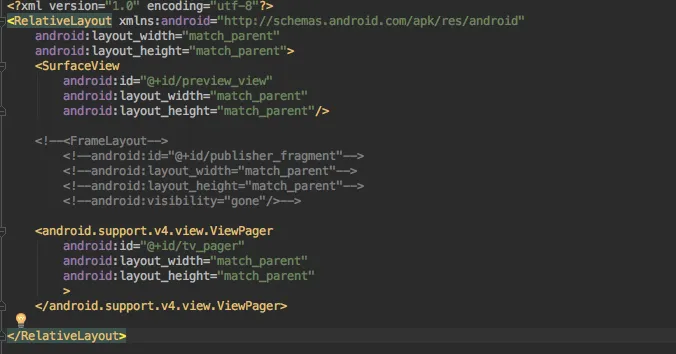
When the resolution of an ingested stream is set to 480p in the stream ingest SDK, the video image of the stream is properly displayed. However, the preview page may be stretched. This issue occurs because the resolution of a 480p video is 480 × 640 pixels, which is not supported by most mobile phone screens.
To resolve this issue, modify the settings of the SurfaceView parameter for the preview page in the activity_push.xml file, as shown in the following figure.

How to view and import AAR packages in Android Studio
To view AAR package data: Change the
.aarfile extension to.zipand extract it to view.class,.xml,.jar, images, text, and other content. To import an AAR package, perform the following steps:Copy the
.aarfile to the project directory, typically projectName/libs/, and reload the project.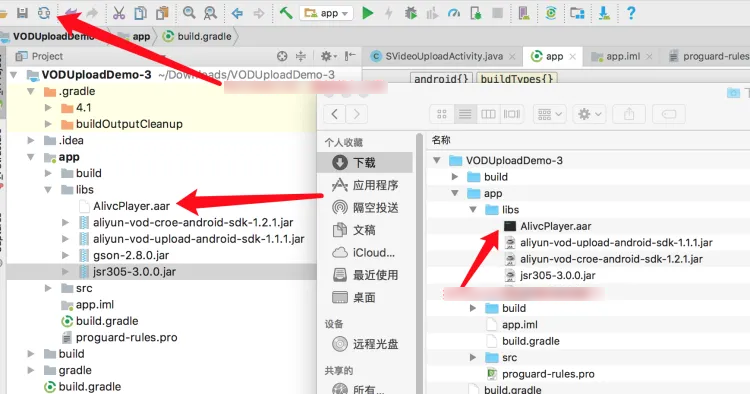
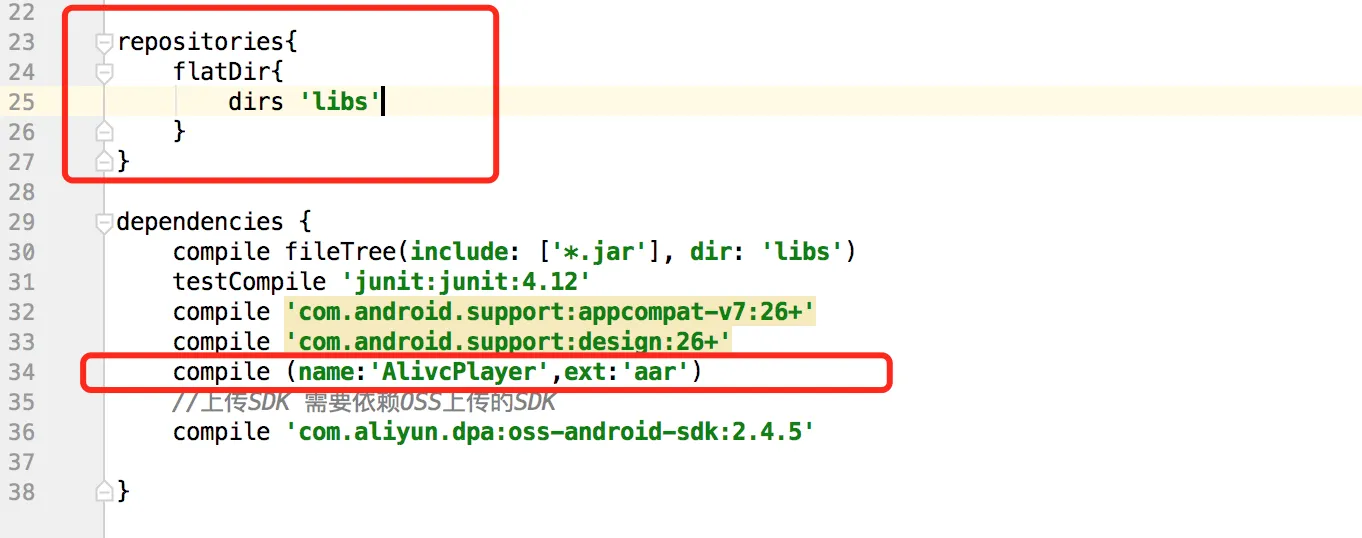
Add the local repository path under the root tag in build.gradle, and add compilation dependencies in dependencies. Replace libs in the sample code with the name of the directory to which the AAR package is imported. In the compile parameter, the value of name is the name of the AAR file, and ext is the file extension.
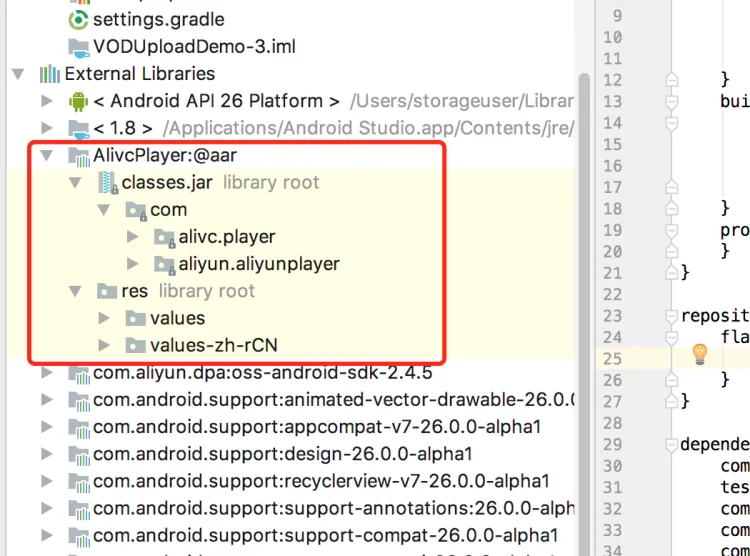
Select build > rebuild to rebuild the project. After the build is complete, you can see the imported AAR package in the External Libraries of the project.