This topic describes how to unsubscribe from prepaid (subscription or resource plan) products that you no longer need. For pay-as-you-go products, you do not need to request unsubscription. To stop billing, back up your data and release the resources.
Unsubscription rules
Before you unsubscribe, review the unsubscription rules to understand the policies and confirm whether your resource is eligible for unsubscription.
After you unsubscribe, the resources are released and all data is permanently deleted. This action cannot be undone. Before you proceed, make sure that you have backed up your data and verified the order information.
Note the following limitations before proceeding with an unsubscription:
Alibaba Cloud does not support a "one-click unsubscribe all services" feature. To unsubscribe resources, sign in to the Expenses and Costs console and go to the Resource Unsubscription page to filter and unsubscribe resources one by one.
Pay-as-you-go (postpaid) resources cannot be unsubscribed through the Resource Unsubscription page. To stop billing for pay-as-you-go resources, go to the respective product console and release or delete the resource.
Initiate unsubscription
The Alibaba Cloud root account has unsubscription permissions by default. To grant a RAM user the required permissions, either attach the AliyunBSSFullAccess policy directly to the user or add the user to an authorized user group. For more information, see Manage RAM user permissions.
Sign in to the Expenses and Costs console. In the left-side navigation pane, choose Expenses > Subscription Orders to go to the Resource Unsubscription page. This page lists the resources eligible for unsubscription under your account. The resources are categorized by resource type, refund type, and activation status.
Active instance orders appear on the Unsubscribe Resource tab (in the new console) or the Unsubscribe Active Resources tab (in the legacy console). Unsubscribing cancels both the current active order and any pending renewal orders for the resource.
Pending renewal orders appear on the Unsubscribe Renewal That Does Not Take Effect tab. If you choose to unsubscribe, only the pending renewal orders are canceled. Your current active service is not affected.
Unsubscribe from active orders
Active orders are classified as either Regular Cloud Resource or Resource Plans. If a resource has pending renewal orders, these orders will also be canceled.
Regular cloud resource
Unsubscriptions for regular cloud resources are classified into two types: Partial Refund and Nonrefundable.
Only resources that are eligible for a Partial Refund can be unsubscribed in batches. You can unsubscribe from a maximum of 50 instances at a time. The refund amount is calculated based on the rules on the official website.
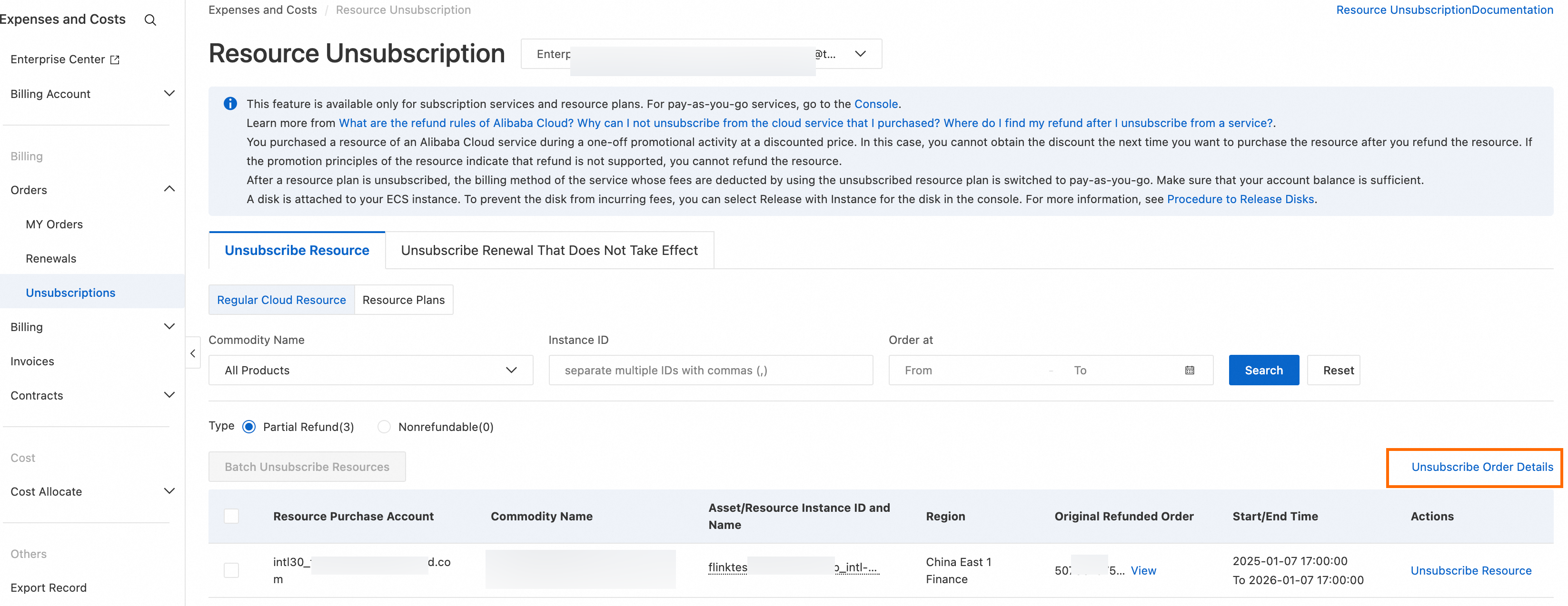
On the Regular Cloud Resource tab, filter by product name, instance ID, or order time to find the instance that you want to unsubscribe from. Then, click Unsubscribe Resource or Batch Unsubscribe Resources.
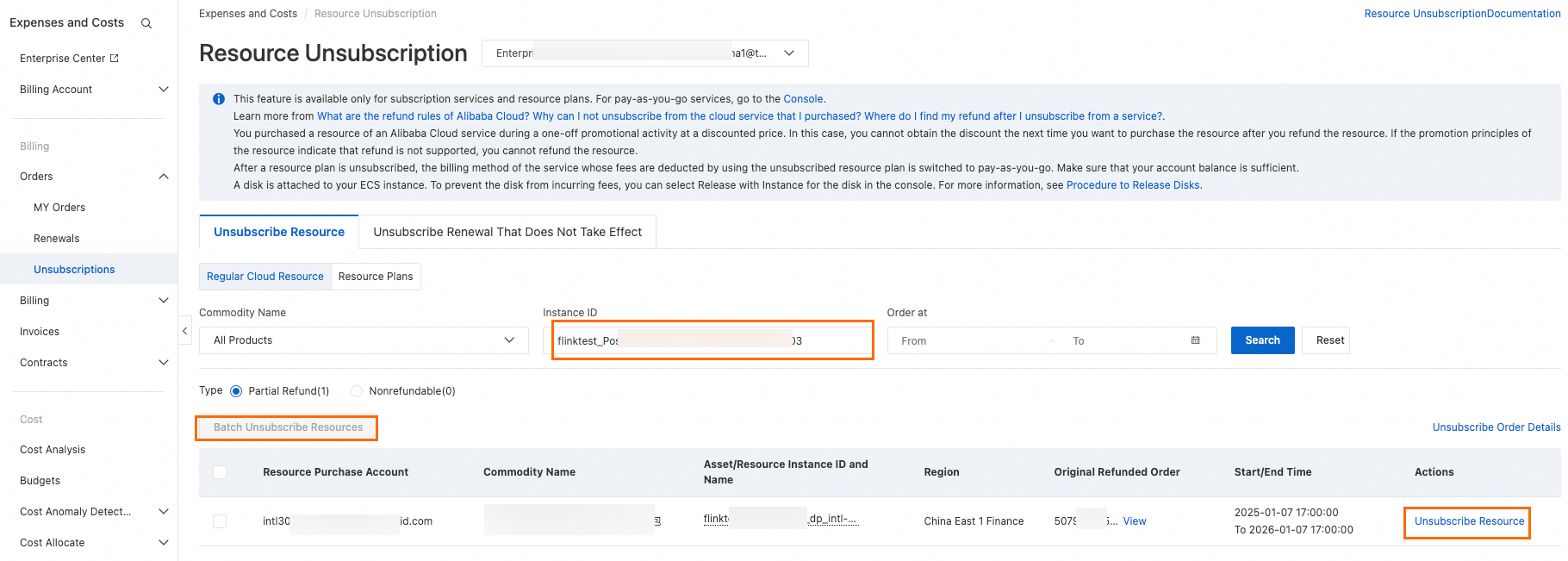
On the Unsubscribe Resource page, carefully review the resource information, and confirm the unsubscription terms and the refund amount. At the bottom-left of the page, select the two checkboxes to confirm the refund amount and to confirm that you have backed up or migrated your data. The Unsubscribe Now button is enabled only after you select both checkboxes. Click Unsubscribe Now to complete the unsubscription.
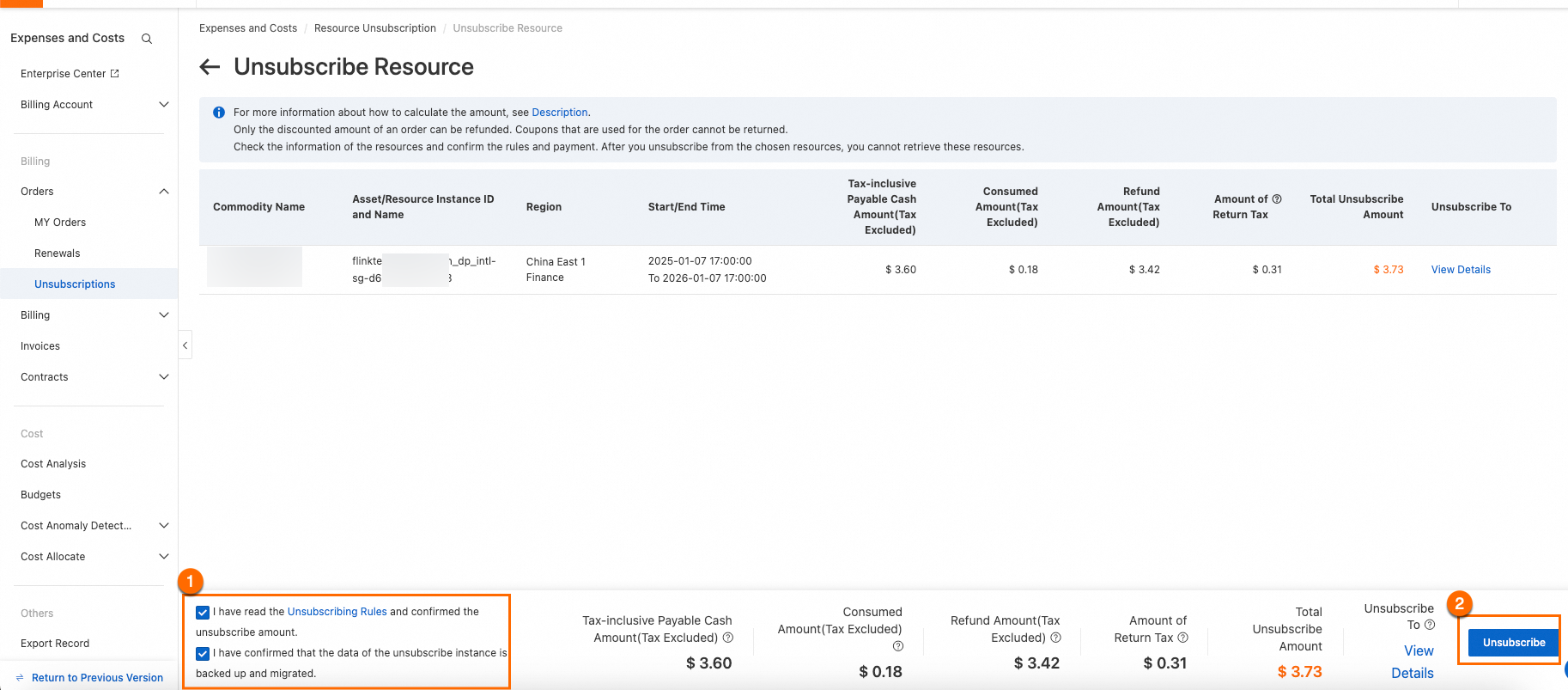
Review the following before confirming your unsubscription.
Data retention period — After an ECS instance is unsubscribed, it enters a Refund Shutdown state. Instance data is retained for 15 days before being permanently released and cannot be recovered. For Web Host products, data is released immediately upon unsubscription with no retention period.
Associated resources — Unsubscribing an ECS instance does not automatically delete any snapshots or custom images you have created, nor does it automatically release associated pay-as-you-go cloud disks. Go to the ECS console after unsubscription to confirm whether you want to release these resources. Unreleased pay-as-you-go disks continue to incur charges.
Service impact:
Unsubscribing a renewal order (a pending renewal that has not yet taken effect) only restores the instance expiration time to before the renewal. Current running services are not affected.
Unsubscribing an effective (currently running) instance terminates the service immediately. Make sure that you have backed up all data and confirmed that your business workloads have been migrated before proceeding.
Resource plans
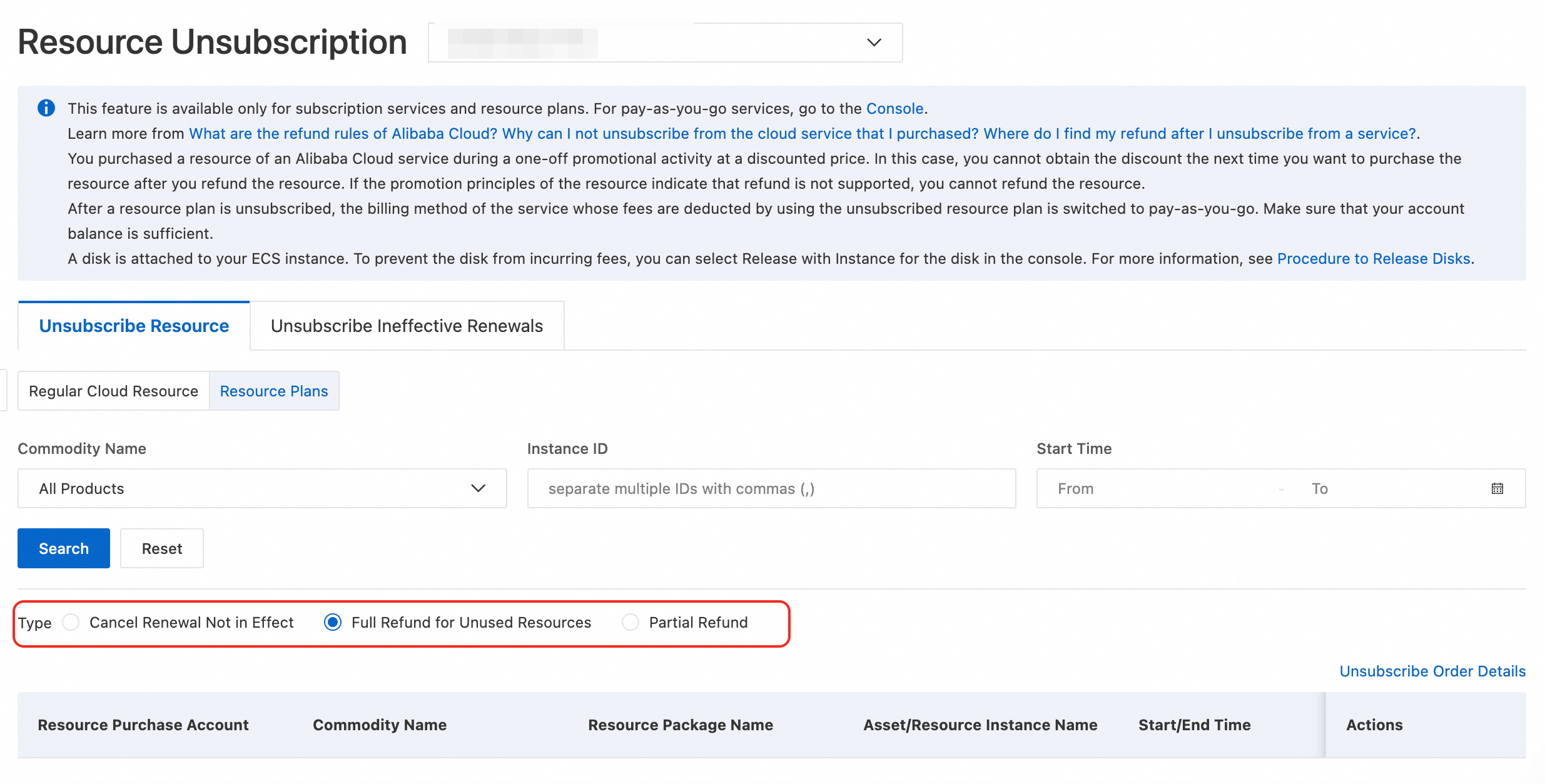
Unsubscriptions for resource plans are classified into three types: Unactivated Subscription Refund, Full Refund for Unused Resources, and Partial Refund.
Only resources that are eligible for a Partial Refund can be unsubscribed in batches. You can unsubscribe from a maximum of 50 instances at a time. The refund amount is calculated based on the rules on the official website.
On the Resource Plans tab, filter by product name, instance ID, or order time to find the resource plan that you want to unsubscribe from. Then, click Unsubscribe Resource or Batch Unsubscribe Resources and complete the unsubscription as prompted.
Unsubscribe from pending renewals
Unsubscribe from pending renewals
Sign in to the Resource Unsubscription page.
Click the Unsubscribe Renewal That Does Not Take Effect tab. Filter by product name or instance ID to find one or more instances that you want to unsubscribe from. Click Unsubscribe from Renewal or Batch Refund/Renew, and then complete the unsubscription as prompted.
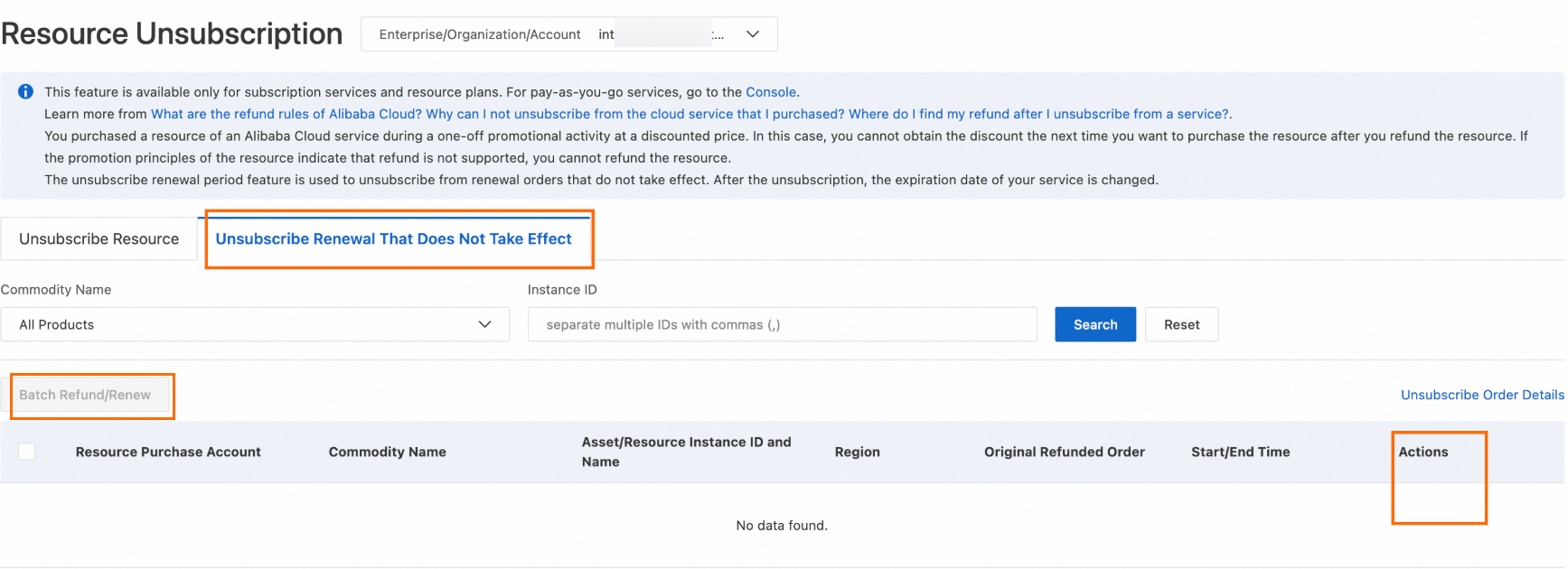
If an instance has multiple renewal orders, you can select an Updated Expiration Time to unsubscribe from a specific order. You can unsubscribe from one or more orders at a time.
The Unsubscribe Renewal That Does Not Take Effect tab only handles renewal orders that have not yet taken effect. Effective renewal orders (renewals that have already started billing and are currently active) cannot be individually unsubscribed or cancelled from this tab.
If you need a refund for an effective renewal order, you must unsubscribe the entire instance from the Unsubscribe Resource tab. This terminates both the current subscription and any associated pending renewals.
If you only need to stop future automatic renewals or change the renewal period without affecting the current subscription, go to the Renewal Management page to disable auto-renewal or modify the renewal cycle.
Refund status
By default, refunds are returned to the original payment source. After a successful unsubscription, the time it takes for the refund to arrive varies based on the processing speed of the payment channel and can take up to 30 business days.
Payment method | Refund destination |
Bank card | If the unsubscription occurs within 5 months (150 days) after payment, the refund is returned to the original account. If the unsubscription occurs more than 5 months after payment, the refund is credited to your Alibaba Cloud account balance. |
PayPal | If the unsubscription occurs within 6 months (180 days) after payment, the refund is returned to the original PayPal account. If the unsubscription occurs more than 6 months after payment, the refund is credited to your Alibaba Cloud account balance. |
Alibaba Cloud account balance | Alibaba Cloud account balance. |
You can use the following methods to check your unsubscription records:
Sign in to the Resource Unsubscription page and click Unsubscribe Order Details to view your account's unsubscription history.
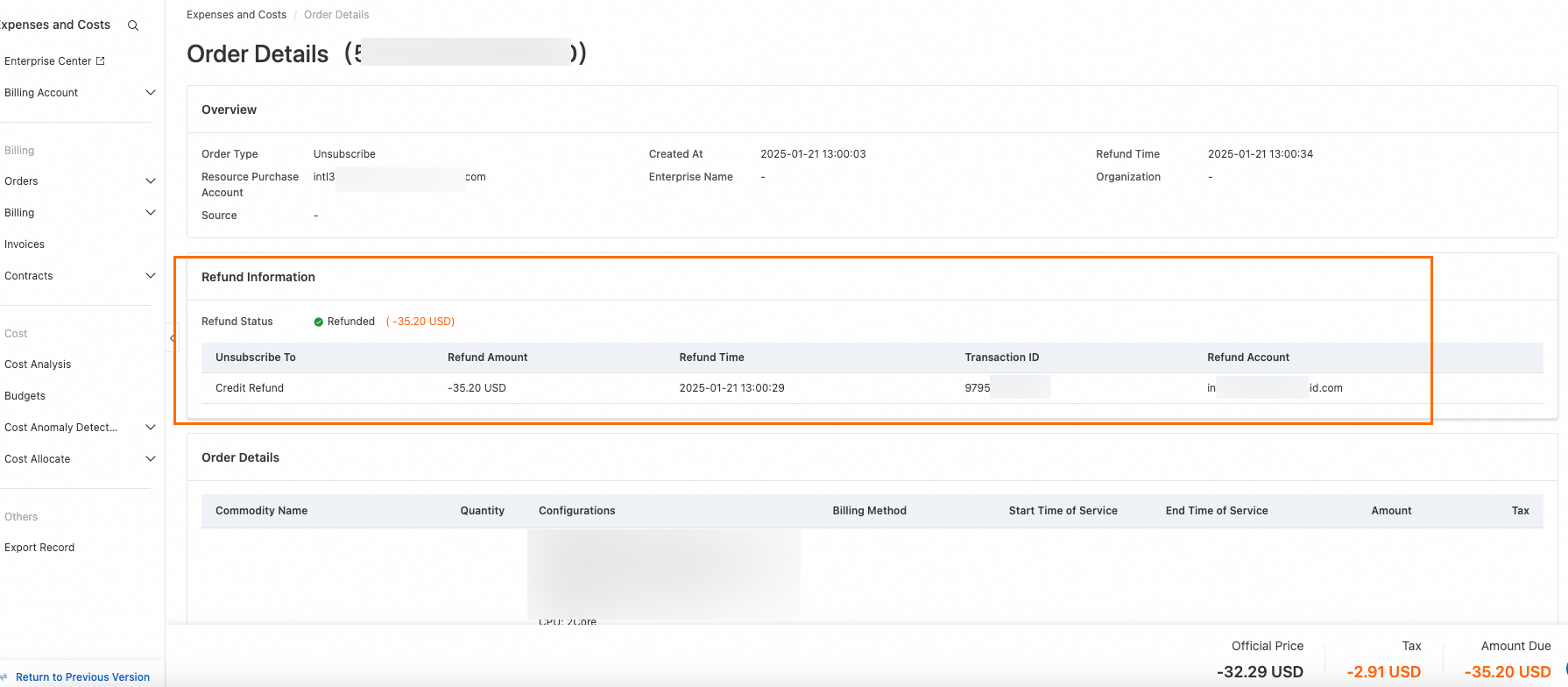
In the unsubscription list, find the unsubscribed order and click View Details in the Actions column. On the Order Details page, you can view information such as Order Status, Unsubscribe To, Refund Time, Refund Amount, and Unsubscription Information. The time it takes for your refund to arrive and the method used depend on your payment method. For more information, see Refund policy.
What to do if the refund has not arrived:
Confirm successful submission — Check your Unsubscribe Order Details for a corresponding unsubscription record. If no record exists, the unsubscription was not successfully submitted. Repeat the unsubscription process from the beginning.
Refund timeline — Refund arrival times vary by payment channel. Refunds to the original payment method may take additional time due to bank or payment provider processing. The maximum processing period is 30 business days from the date of successful unsubscription. For the specific deadline per payment method, see the refund path table above.
Refund path — If the original payment path is no longer available (for example, the payment deadline has expired) or if the refund amount exceeds your invoiceable amount, the refund is automatically transferred to your Alibaba Cloud account balance. Check your account balance in the Expenses and Costs console.
Outstanding invoice impact — If your account has outstanding invoices (invoices that were issued for amounts greater than the actual amount consumed after a refund), your refund may be frozen and used to offset the outstanding amount. Resolve the outstanding invoice issue first before attempting to withdraw the refunded funds.
FAQ
Can I call an API operation to unsubscribe from a subscription resource?
Why is the refund amount 0 when I request an unsubscription?
Why can't I find my order or instance on the Unsubscribe page?
The following scenarios may cause an order or instance to be absent from the Resource Unsubscription page:
Temporary bandwidth upgrade (scheduled bandwidth expansion) — Not supported for direct unsubscription. The upgrade is automatically cancelled and refunded only when you lower the fixed bandwidth value or switch the public bandwidth billing method while the upgrade is active.
Expansion orders — Cannot be individually unsubscribed. To reduce capacity, consider migrating workloads via SMC or purchasing new cloud disks.
Effective renewal orders — Renewal orders that have already taken effect do not appear in the Unsubscribe Resource tab. Switch to the Unsubscribe Renewal That Does Not Take Effect tab to locate and unsubscribe them.
Product-specific portals — Certain products, such as SMS resource packages, ICP Filing Assistant, SSL certificates, and Alibaba Cloud Marketplace products, require you to operate from their respective product consoles or designated links rather than the central Resource Unsubscription page.
Pay-as-you-go or free-tier orders — Cannot be unsubscribed. To stop billing, release or delete the instance from the respective product console.
Account security restrictions — If your account has been restricted from unsubscribing due to detected AK or account credential risks, the primary account owner must authorize the RAM user or submit an appeal to lift the restriction before unsubscription can proceed.
Are coupons, vouchers, and first-purchase discounts retained after unsubscription?
Vouchers and coupons — Activity vouchers and coupons associated with the unsubscribed order are typically forfeited after a successful unsubscription. However, if the original coupon is still within its validity period and meets the applicable return rules, it may be returned to your account. Check the prompts on the unsubscription confirmation page for the specific outcome.
First-purchase and promotional discounts — After unsubscribing an instance that was purchased under a first-purchase discount or a specific promotional offer, you can no longer use that discount eligibility again. Any repurchase of the same product is billed at the regular price or the current applicable promotional price.
Invoice quota — A successful refund automatically reduces your available invoice quota (the amount you are eligible to invoice for). If the refund amount exceeds your remaining invoiceable amount, the excess funds are returned to your Alibaba Cloud account balance. Do not apply for an invoice on the refunded order, as doing so may affect your ability to withdraw the refunded balance.
What should I do if the Unsubscribe Now button is grayed out and cannot be clicked?
To activate the Unsubscribe Now button, you must select both of the following checkboxes in the lower-left corner of the unsubscription confirmation page:
Confirm refund amount
Confirm data has been backed up and migrated
The button becomes clickable only after both checkboxes are selected.
If the button remains unclickable after selecting both checkboxes, try the following:
Switch to a different browser (some browsers may have compatibility issues with this page).
Use a PC or laptop. Mobile devices (including the Alibaba Cloud app and mobile browsers) do not support unsubscription operations.
Which products do not support self-service unsubscription or require special applications?
The following scenarios require manual intervention or a special process instead of the standard self-service unsubscription flow:
Products that cannot be self-service unsubscribed — Certain products, including Cloud Storage Gateway, ESA plans, some AI Saving Plans, and Token Plans, are not supported through the standard Resource Unsubscription page. For these products, you must submit a ticket or complete a special application to obtain a dedicated refund link.
Account security risk — If the system detects an AK or account credential compromise associated with your account, unsubscription operations are restricted. The primary account owner must authorize the operation or resolve the security issue to lift the restriction.
Bulk unsubscription risk control — If an account triggers automated risk control due to a high frequency of unsubscription requests in a short period, the account is temporarily restricted. Submit an application to lift the restriction before proceeding.
Reseller orders — Resources purchased through an Alibaba Cloud reseller (partner) must be handled through the reseller. Contact your reseller directly to initiate the unsubscription or refund process.
Used or partially deducted resource packages — Resource packages that have already been partially consumed cannot be fully unsubscribed. Only the unused portion or the remaining value may be eligible for a refund, subject to the applicable refund rules.
How can a RAM user obtain unsubscription permissions?
By default, only the primary Alibaba Cloud account has unsubscription permissions. Before a RAM user can perform unsubscription operations, the primary account must grant the RAM user at least one of the following permissions:
AliyunBSSFullAccess— Full access to billing and cost management, including unsubscription.AliyunBSSRefundAccess— Targeted permission for unsubscription and refund operations.
If the RAM user does not have the required permissions, the Resource Unsubscription page may not display any resources, or the action buttons (such as Unsubscribe Now) may be grayed out and unclickable.
For instructions on granting RAM permissions, see the RAM console documentation.