When you deploy a Retrieval-Augmented Generation (RAG)-based large language model (LLM) chatbot in Platform for AI (PAI), you can use Tablestore as the vector database. This topic describes how to use Tablestore as the vector database of a RAG-based LLM chatbot that is deployed by using JSON configurations.
Background information
EAS
PAI provides a one-stop platform for model development and deployment. The Elastic Algorithm Service (EAS) module of PAI allows you to deploy models as online inference services by using the public resource group or dedicated resource groups. The models are loaded on heterogeneous hardware (CPUs and GPUs) to generate real-time responses.
Tablestore
Tablestore is a cost-effective and high-performance system for massive data storage and retrieval. It provides vector retrieval features with high retrieval rate (multimodal retrieval, and scalar and vector mixed retrieval) and high performance (real-time indexing, queries in milliseconds, and support for up to 10 billion vectors per table) to ensure service stability and security (dedicated VPC, 99.99% availability, and 12 nines of data reliability).
RAG
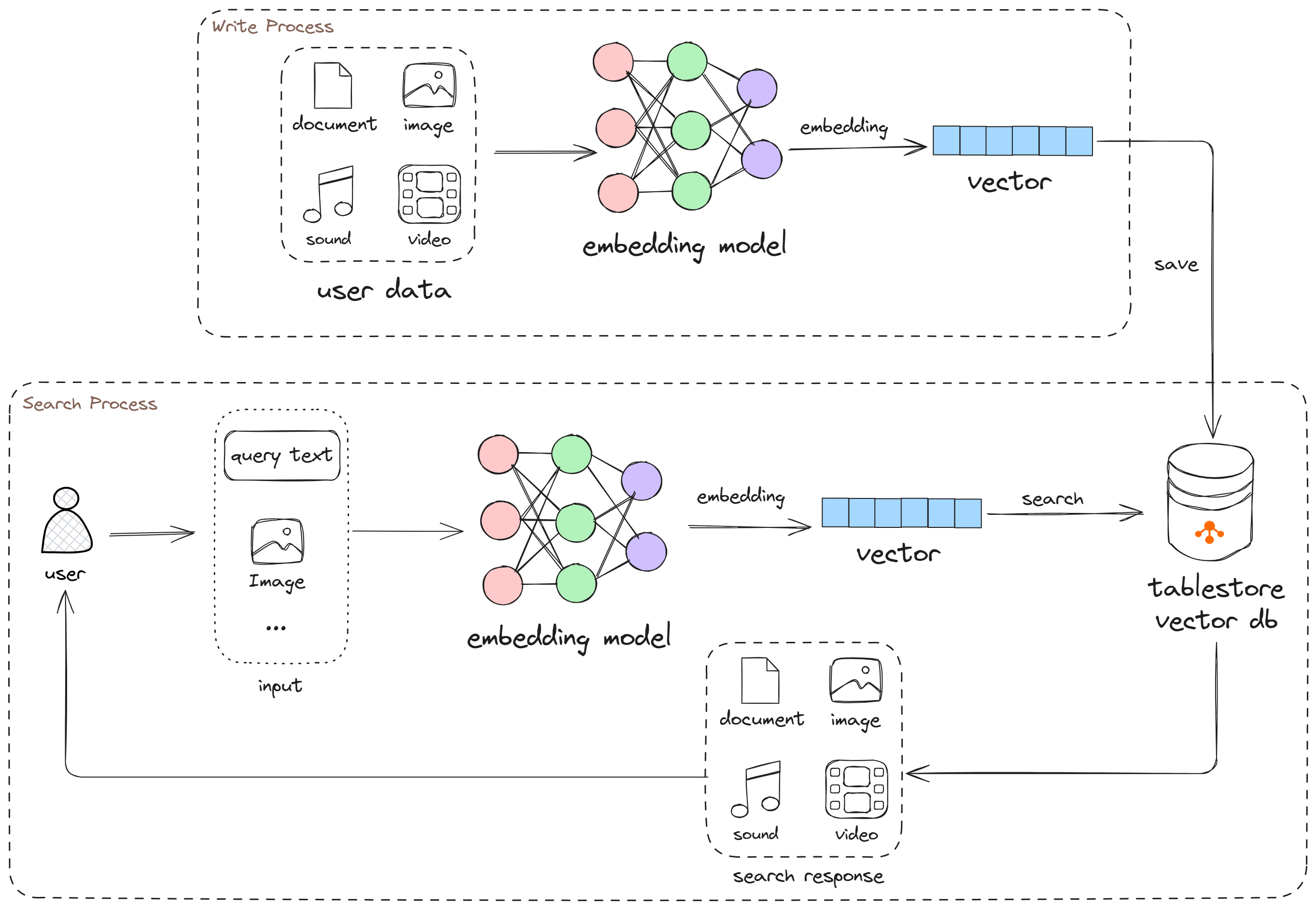
RAG retrieves relevant information from external knowledge bases, combines the information with user input, and then passes the combined input to LLMs. This enhances the knowledge-based Q&A capability of LLMs in specific domains. The following figure shows how to upload, store, and retrieve knowledge base files when Tablestore is used as the vector database of a RAG application.
Usage notes
In this example, the LLM model DeepSeek-R1-Distill-Qwen-1.5B is deployed on an instance of the ecs.gn7i-c16g1.4xlarge type. For information about the billing method of EAS, see Billing of EAS.
If you want to only test the deployment process, you must delete the deployed service immediately after deployment to prevent unexpected charges of resources.
Procedure
Step 1: Prepare a Tablestore vector database
Activate Tablestore
If Tablestore is activated, skip this step.
Log on to the product details page.
Click Get it Free.
On the Table Store (Pay-As-You-Go) page, click Buy Now.
On the Confirm Order page, read the agreement carefully, select I have read and agree to Table Store (Pay-As-You-Go) Agreement of Service, and then click Activate Now.
After you activate Tablestore, click Console to go to the Tablestore console.
Create a Tablestore instance
You can also select an existing instance as the vector database. In this case, you must prepare information such as the instance name, the virtual private cloud (VPC) endpoint, and an AccessKey pair with access permissions on the instance.
Log on to the Tablestore console.
In the top navigation bar, select a resource group and a region and click Create Instance.
In the Billing Method dialog box, specify Instance Name and Instance Type, and then click OK.
Obtain connection information
Click the instance name or Manage Instance to go to the Instance Details tab. On the Instance Details tab, you can view the instance access URL and instance name.
NoteUse the VPC endpoint as the instance access URL.
Create an AccessKey pair for your Alibaba Cloud account or RAM user that has the access permissions on Tablestore.
Step 2: Use EAS to deploy the RAG-based LLM chatbot
Activate PAI and create a default workspace.
ImportantYou must activate PAI in the same region as the Tablestore instance.
In the left-side navigation pane of the PAI console, choose Model Deployment > Elastic Algorithm Service (EAS).
On the Elastic Algorithm Service (EAS) page, click Deploy Service. On the page that appears, click JSON Deployment.
On the JSON Deployment page, enter the deployment configurations and click Deploy. In the message that appears, click OK.
After you complete the preceding steps, the system immediately starts deploying the RAG-based LLM chatbot. The entire deployment process takes about 5 minutes. After the deployment is complete, the service status changes to Running.
If the specified vector data table does not exist, the system automatically creates a data table and configures search indexes for the Tablestore instance during deployment.
Step 3: Use the RAG-based LLM chatbot
In the service list, find the deployed service and click View Web App in the Service Type column. In the dialog box that appears, click Web App.
On the Upload tab of PAI-RAG Dashboard, upload a knowledge base file.
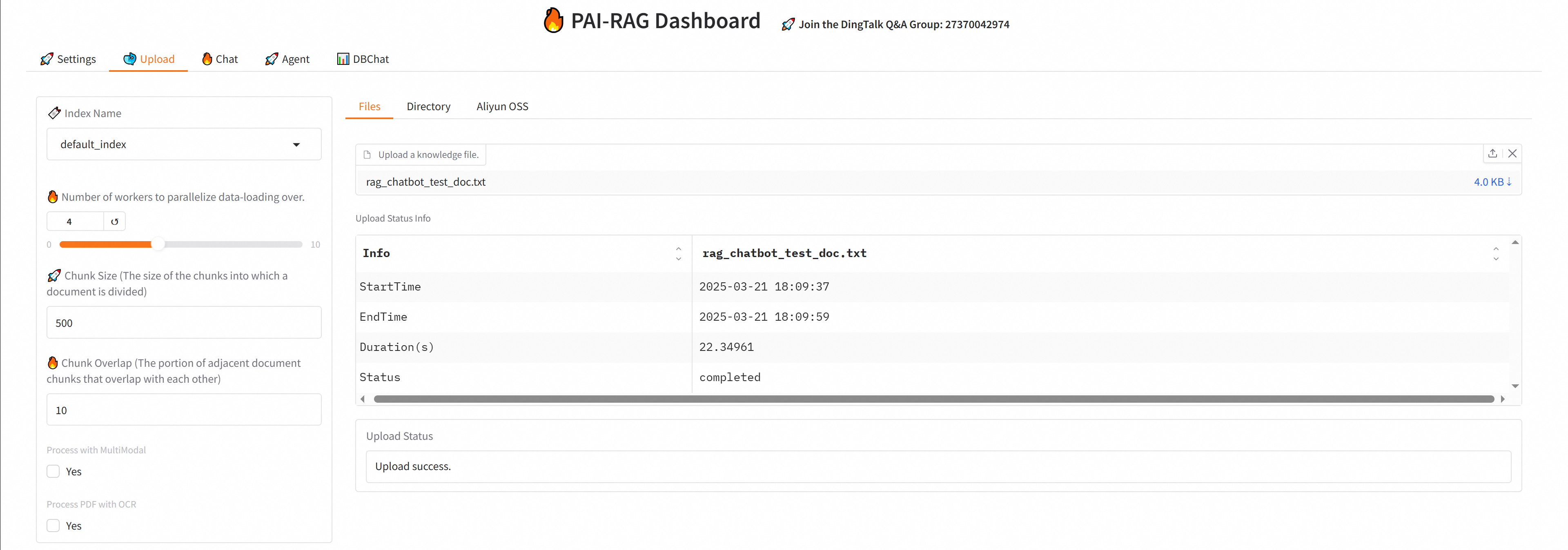
After the knowledge base file is parsed and uploaded, you can view the vector data written to the file in the Tablestore console.
On the Chat tab of PAI-RAG Dashboard, enter a question and click Submit to start a conversation.
For more information about web UI debugging, such as changing the vector database, LLM, and file types supported by the knowledge base, see RAG-based LLM chatbot.