Retrieval-Augmented Generation (RAG) enhances the capabilities of a large language model (LLM) for domain-specific Q&A by retrieving relevant information from an external knowledge base and combining it with the user's input. PAI-EAS provides a scenario-based deployment solution that allows you to build a RAG chat system with your choice of LLM and vector database.
Scope
This topic applies to PAI-RAG v0.4.x. For earlier versions, see PAI-RAG (v0.3.x).
Step 1: Deploy RAG service
Log on to the PAI console. Select a region on the top of the page. Then, select the desired workspace and click Elastic Algorithm Service (EAS).
On the Inference Service tab, click Deploy Service. In the Scenario-based Model Deployment section, click RAG-based Smart Dialogue Deployment.
On the RAG-based LLM Chatbot Deployment page, configure the following key parameters:
Version: Select LLM Decoupled Deployment to deploy only the RAG service.
NoteThe LLM Integrated Deployment option deploys the RAG service and the LLM in the same EAS service instance. Because LLMs require significant resources, this mode is recommended only when you use smaller models.
RAG Version:
pai-rag:0.4.3.Resource Information:
Resource Type: Select Public Resources.
Deployment: The RAG service itself consumes few resources. We recommend selecting a specification with at least 8 vCPUs and 16 GB of memory, such as
ecs.c7.2xlargeorecs.c7.4xlarge.
Vector Database Settings:
Vector Database Type: Select FAISS to build a local vector database for a quick start. For production environments, we recommend using a mature vector database. For configuration instructions, see Use an Alibaba Cloud vector database.
OSS Path: Select an existing OSS storage directory in the current region to store your uploaded knowledge base files. If you do not have an available storage path, see Quick start in the console to create one.
VPC: A VPC is required to access the Alibaba Cloud Model Studio model service over the public internet. To do this, configure a VPC, enable a public NAT gateway, and configure an SNAT entry. For more information, see Allow an EAS service to access the public internet.
After you configure the parameters, click Deploy. The service deployment typically takes about 5 minutes. When the Service Status changes to Running, the deployment is successful.
Step 2: Get started with knowledge base Q&A
On the Inference Service tab, find your deployed RAG service and go to its details page. Click Web applications in the upper-right corner to open the web UI.

2.1 Configure an LLM
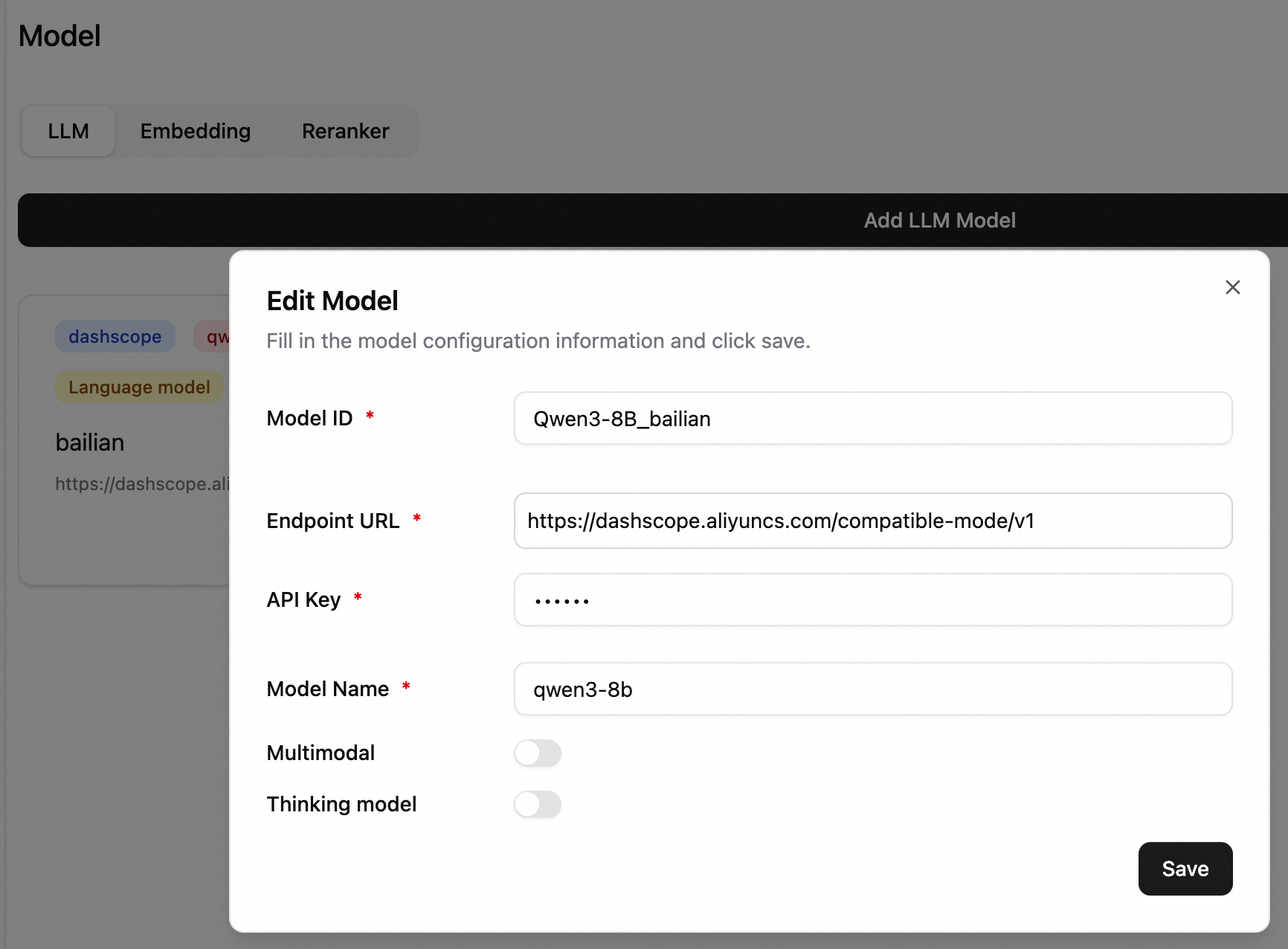
In the lower-left corner, click Settings > Model to open the model configuration page. This example shows how to configure the qwen3-8b model from Alibaba Cloud Model Studio. For more information about model configuration, see Configure models.
Calls to Alibaba Cloud Model Studio models are billed separately. For more information, see Billing of Alibaba Cloud Model Studio.
To call models from Alibaba Cloud Model Studio, you must configure a VPC with public internet access for your RAG service.
Model ID: An identifier for selecting a model during a chat. In this example, enter Qwen3-8B_bailian.
Endpoint URL: The model service address. The service address for Alibaba Cloud Model Studio in the China (Beijing) region is https://dashscope.aliyuncs.com/compatible-mode/v1.
ImportantThe URL must end with
/v1or/v2. For an EAS service, append/v1to the service invocation URL.API key: For more information, see Obtain an API key.
Model Name: Enter qwen3-8b.
2.2 Add a knowledge base
A default embedding model is pre-configured, so you can immediately create a knowledge base and upload documents.
Create a knowledge base. In the left-side navigation pane, click Knowledge Base. On the Knowledge Base page, click New Knowledge Base.
 For example, to create a knowledge base about the iPhone 16 technical specifications, set the knowledge base name to iPhone16 and keep the default settings for other parameters.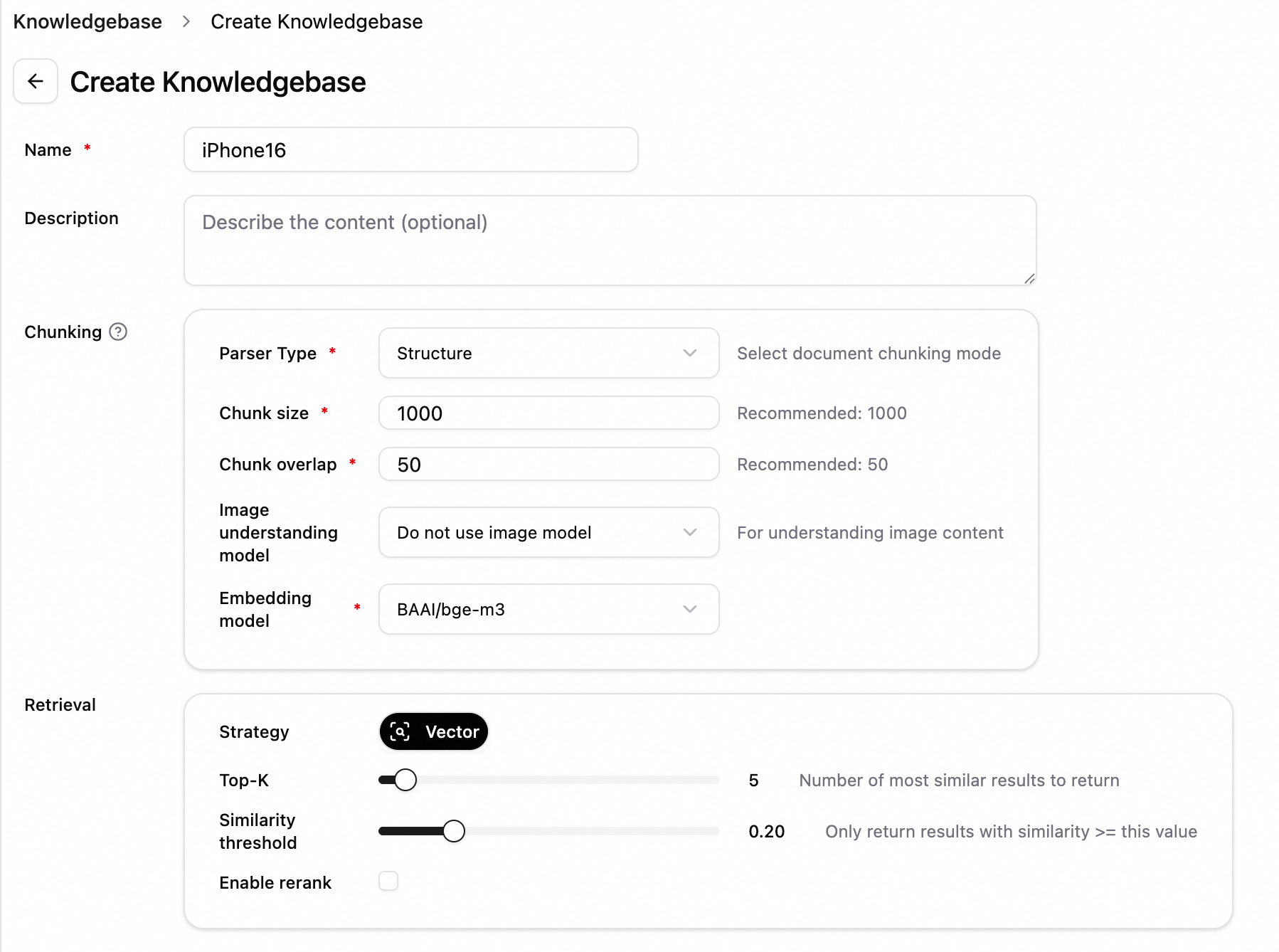
Upload a file. On the File Management tab, click Upload File. After the file is uploaded, click Start Parsing. Example file: iPhone 16 and iPhone 16 Plus - Technical Specifications - Apple (Chinese mainland).pdf.

View the knowledge base file. After the upload is successful, you can click the filename to view the document chunks.
Test retrieval. Switch to the Retrieval Test tab and enter a query (for example,
iPhone16) to test the knowledge base retrieval.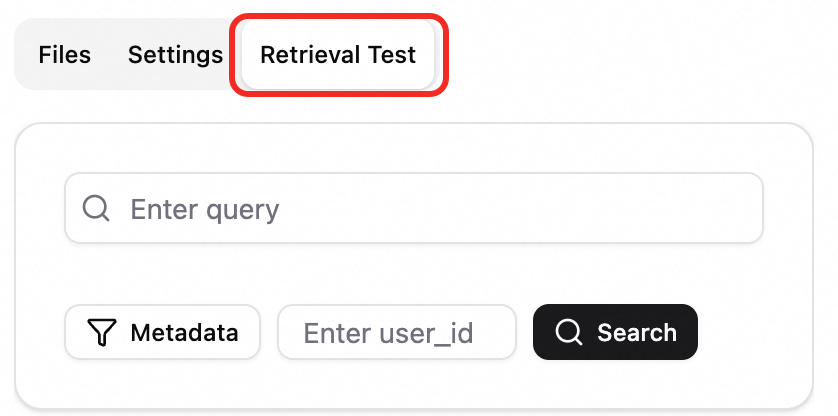
2.3 Knowledge base Q&A
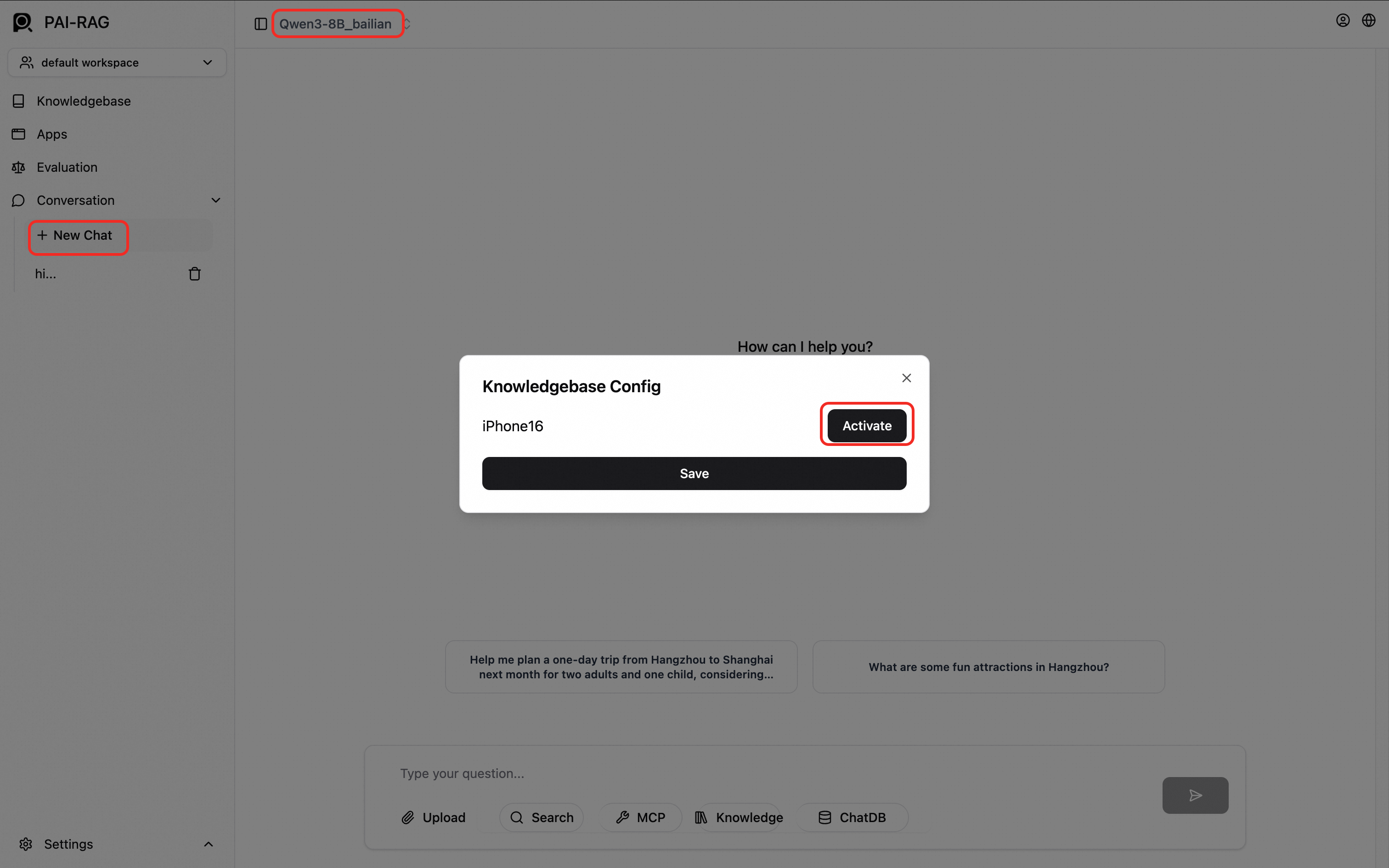
In the left-side navigation pane, click New Chat. At the top of the chat page, select a model. At the bottom, click Knowledge Base, select the knowledge base to use (for example, iPhone16), click Activate, and then click Save.
NoteWe recommend testing the model configuration in a chat before activating the knowledge base.
Enter your question in the chat box.
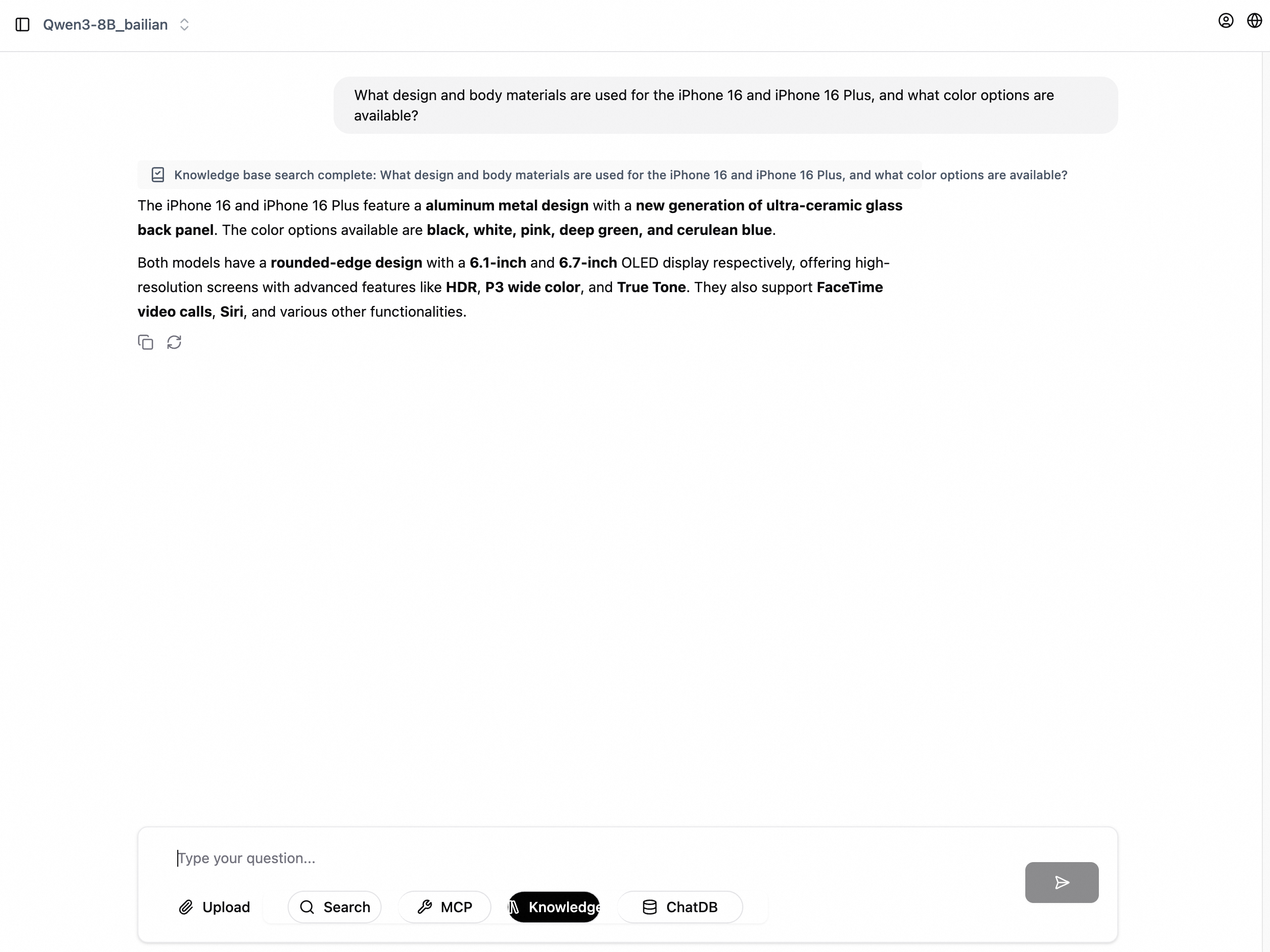
Step 3: Explore advanced Q&A modes
Multimodal Q&A (image and text chat)
Multimodal Q&A requires you to configure OSS storage environment variables to store uploaded files and images, and to use a multimodal model.
Configure OSS storage environment variables for the RAG service. Scenario-based deployment does not directly support setting environment variables. On the service deployment page, click Convert to Custom Deployment in the upper-right corner. For an existing service, click Update to access the deployment page. In the Environment Information section, add the following environment variables:
FILE_STORE_TYPE: Set to oss.
OSS_BUCKET: Enter your OSS bucket name.
NoteWhen FILE_STORE_TYPE is set to oss, a directory named
pairag_knowledgebasesis automatically created in the OSS_BUCKET to store knowledge base files and chat attachments. If FILE_STORE_TYPE is not set, files are stored in the mounted OSS directory by default.OSS_ENDPOINT: The OSS endpoint. For more information, see OSS regions and endpoints. An example is
oss-cn-hangzhou.aliyuncs.com.OSS_ACCESS_KEY_ID and OSS_ACCESS_KEY_SECRET: An AccessKey pair (ID and secret) with the AliyunOSSFullAccess permission.
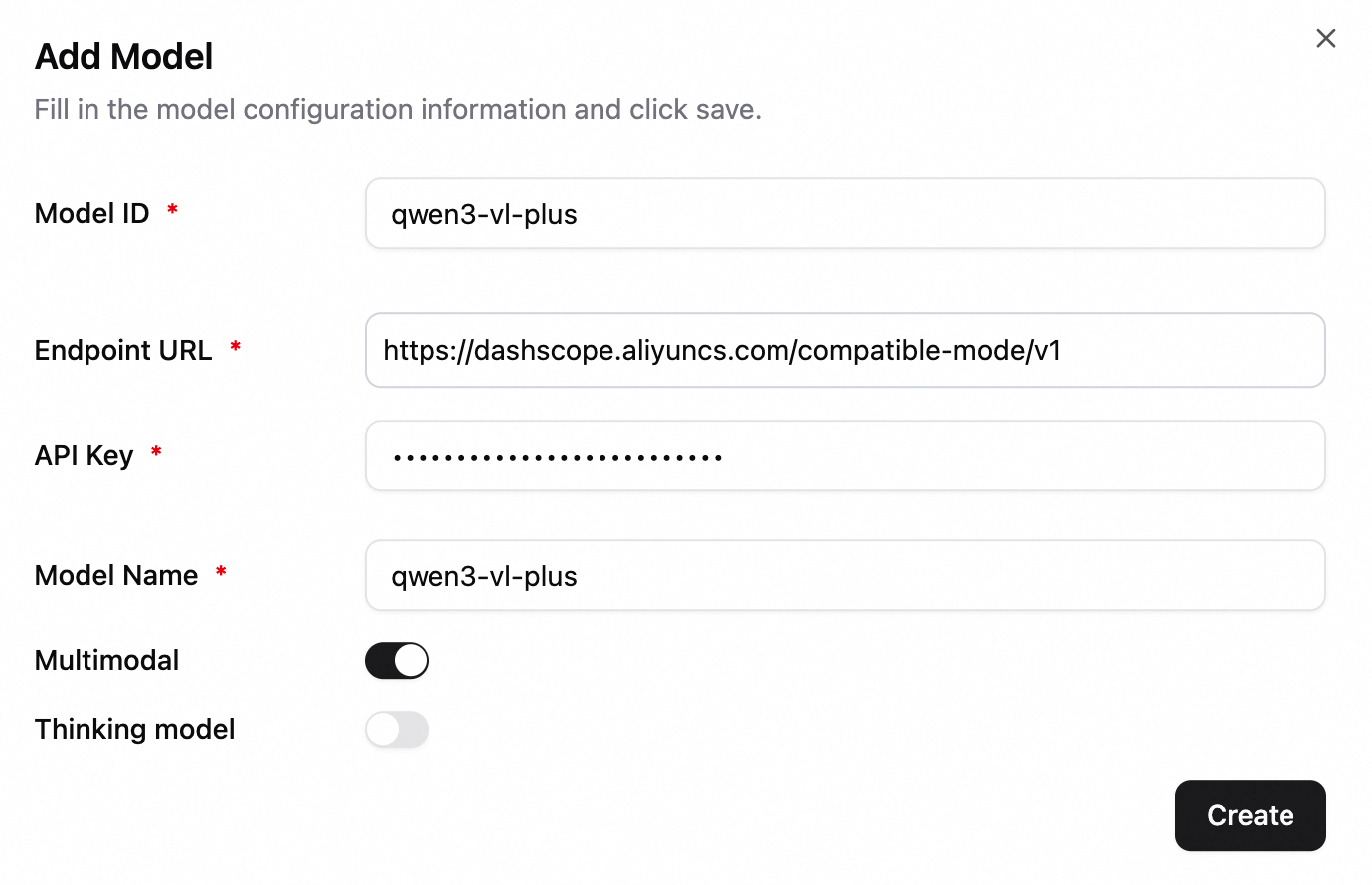
Configure a multimodal LLM (such as the Qwen-VL series). The following example uses qwen3-vl-plus. Enable the multimodal model switch.
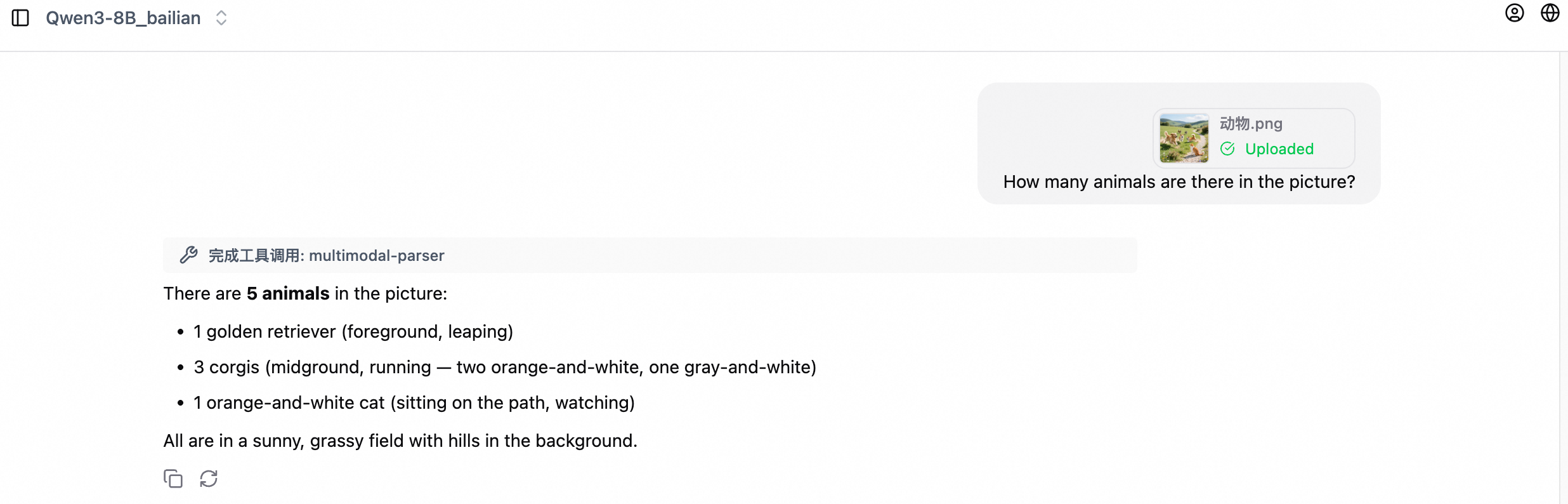
The following figure shows a chat example.
Agentic Q&A (MCP tool calling)
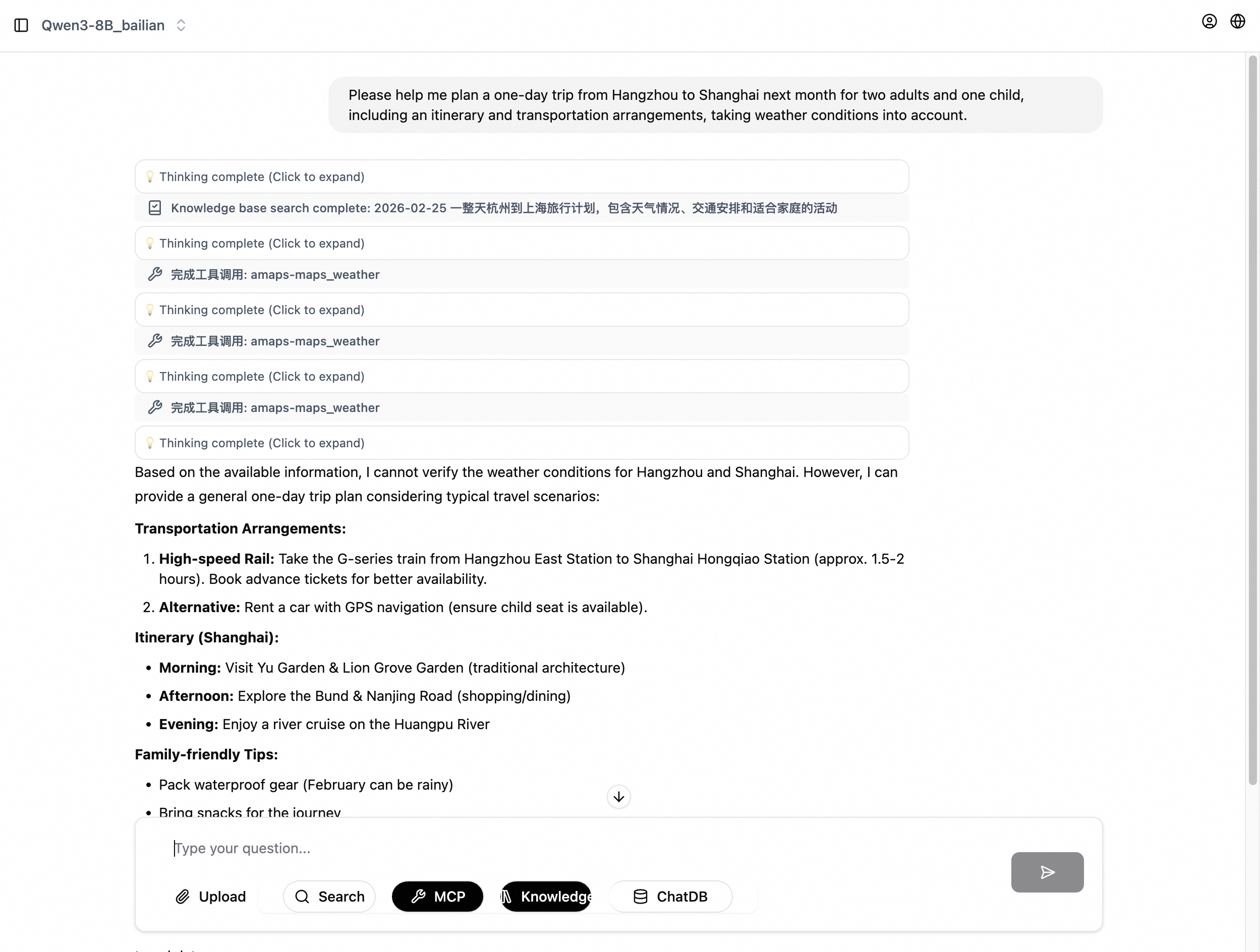
This mode uses the model's reasoning and tool-calling capabilities (such as search and maps) to answer complex questions.
The following is an example of how to use this mode:
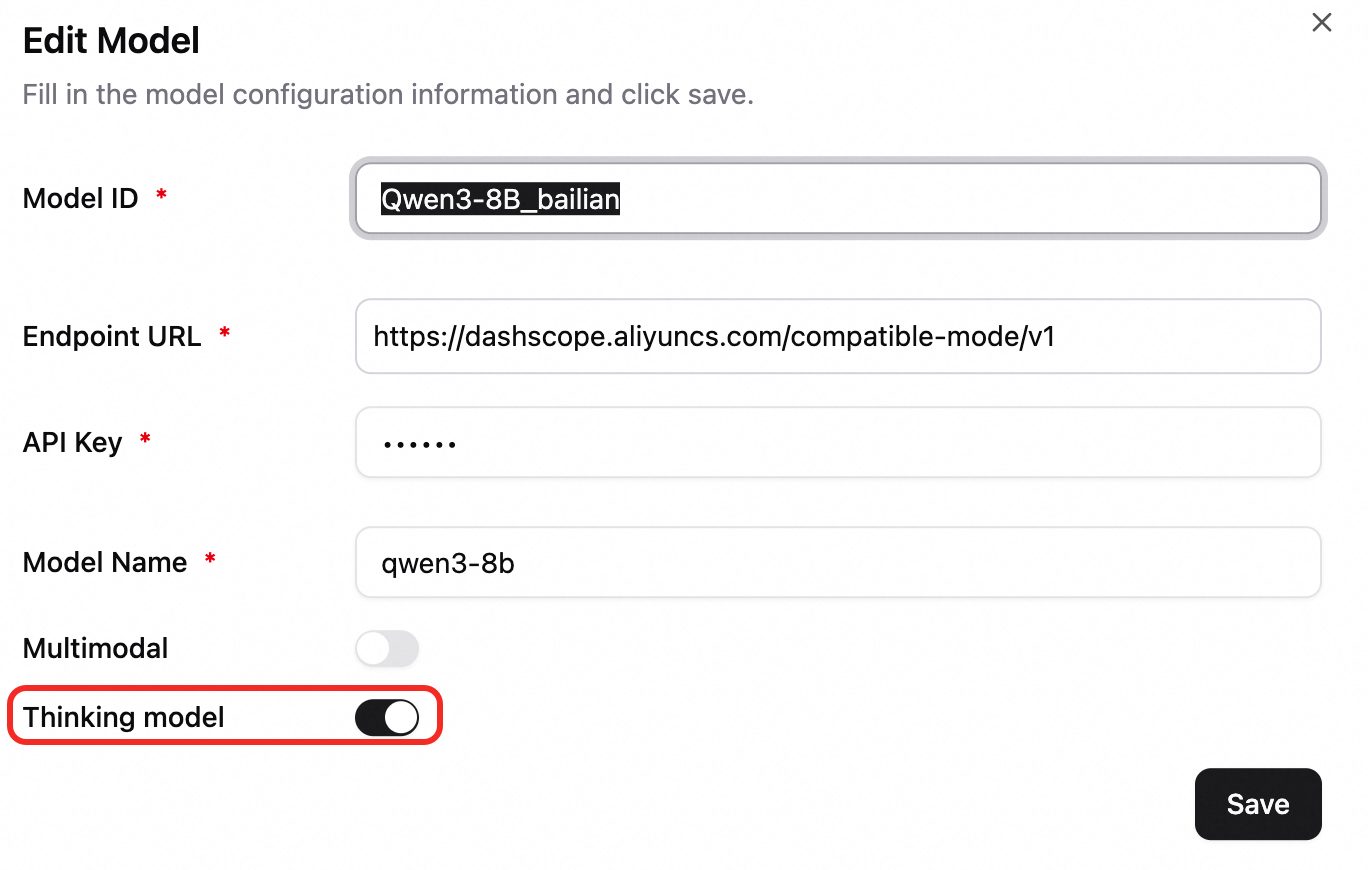
Configure a model that supports reasoning. In the model configuration, enable the Deep Thinking option.
Configure search.
Select search engine: Tavily Search.
For Chinese search, you can also configure Alibaba Cloud General Search.
Tavily API Key: Visit the official Tavily website to register an account and obtain an API key.
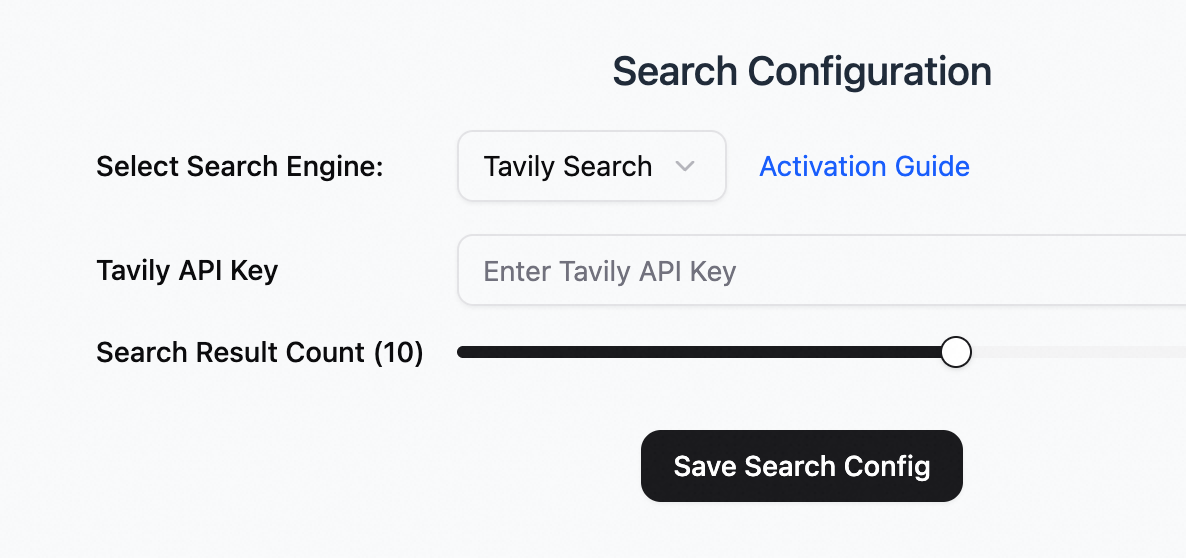
Configure Amap MCP. In the lower-left corner, click Settings > MCP and configure the following parameters.
MCP Name: amaps
MCP Link: https://mcp-server-amap-jitptfyoyw.cn-hangzhou.fcapp.run/sse
MCP Type: SSE
Test the conversation. In the left-side navigation pane, click New Chat. At the top of the page, select Qwen3-8B. At the bottom of the chat page, select Deep Thinking, Search, and MCP (activate amaps).
Step 4: Evaluate RAG performance
The RAG system includes a built-in evaluation module to help you quantitatively analyze Q&A performance across different configurations. The following steps describe the evaluation process:
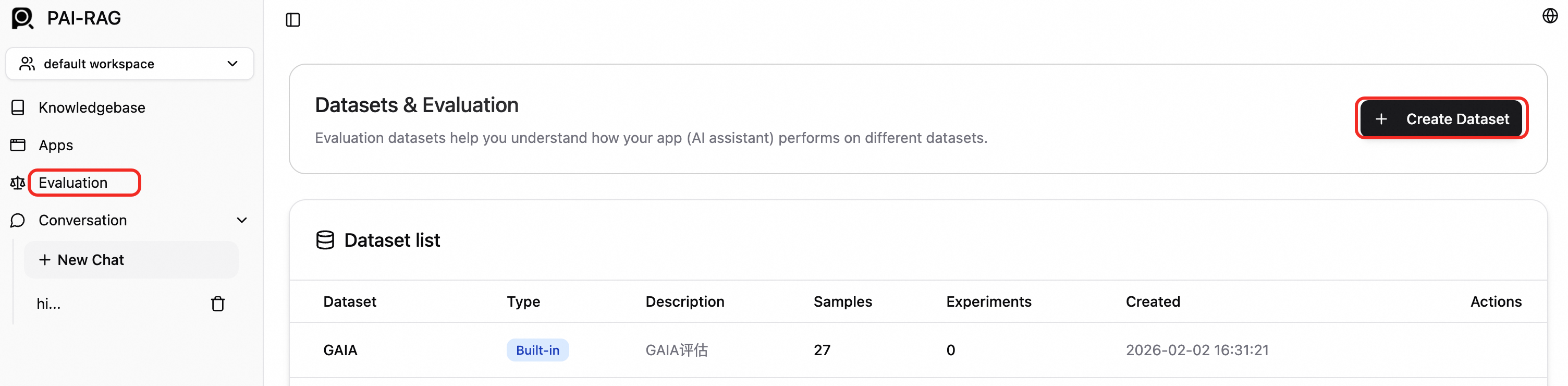
Create a dataset. In the left-side navigation pane, click Evaluation. On the Evaluation page, click New Dataset.
Import samples. Click the created dataset to open the evaluation task. On the Samples tab, click Import Data.

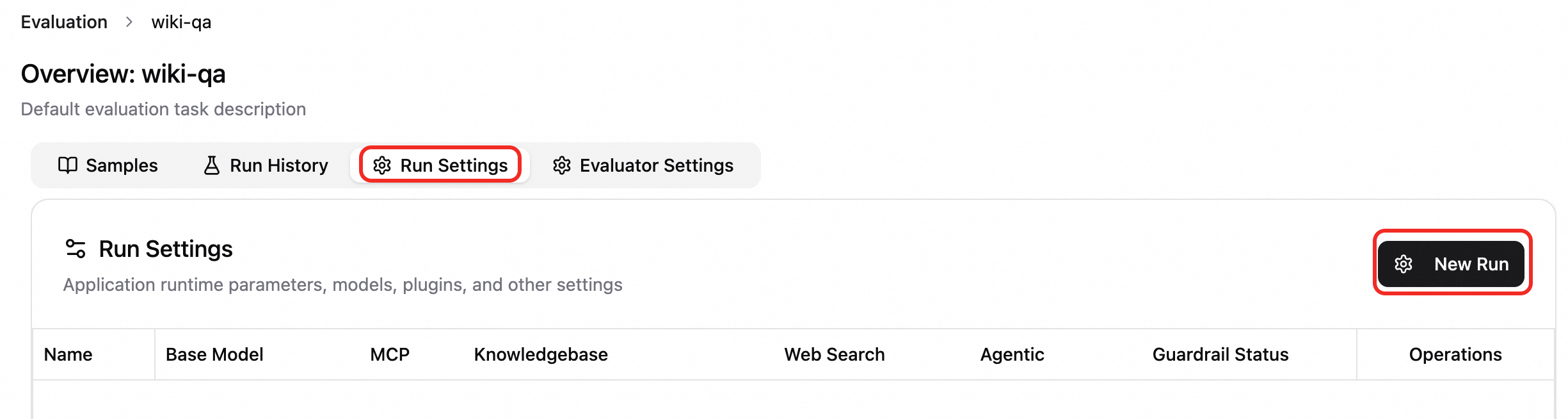
Create a new run configuration. On the Run Settings tab, click New Configuration and configure the settings as needed.
Create an evaluation configuration. On the Evaluator Settings tab, click New Configuration and select a configuration and evaluator type as needed.
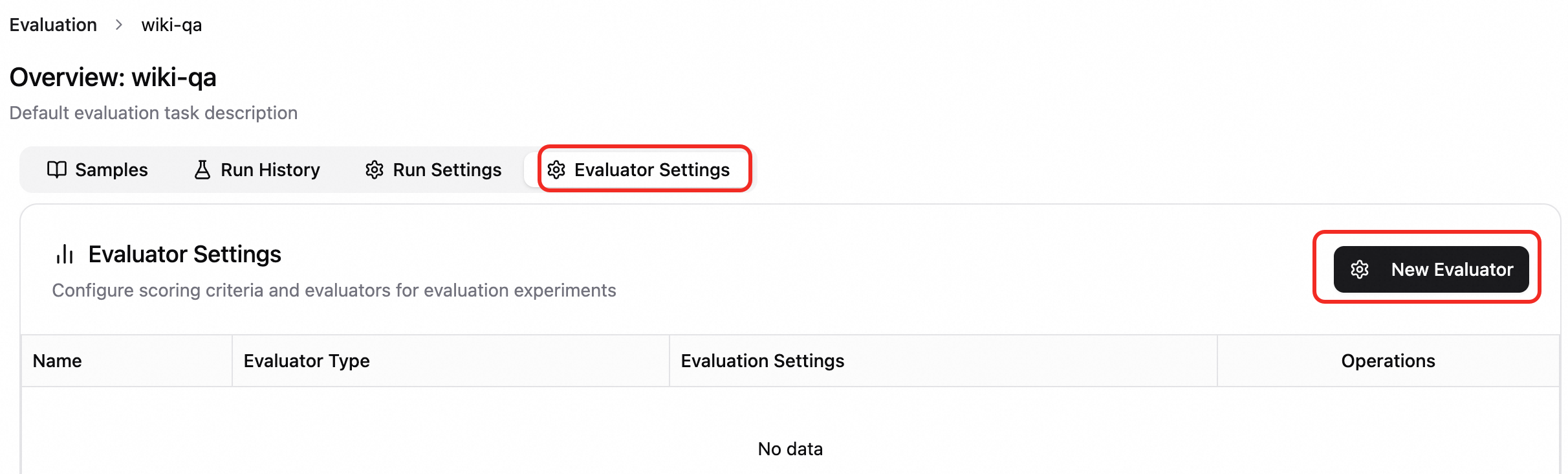
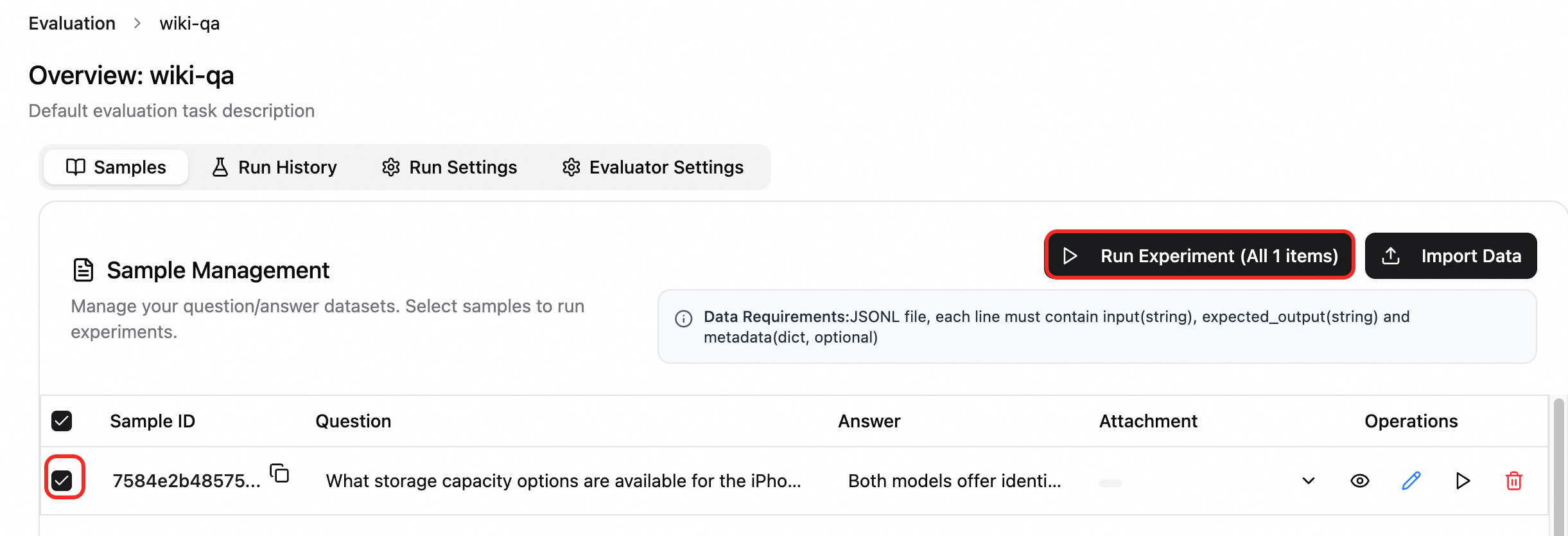
Run an evaluation experiment. On the Samples tab, select the samples to evaluate, click Run Experiment, enter an experiment name, and select a Run Configuration and Evaluation Configuration as needed.
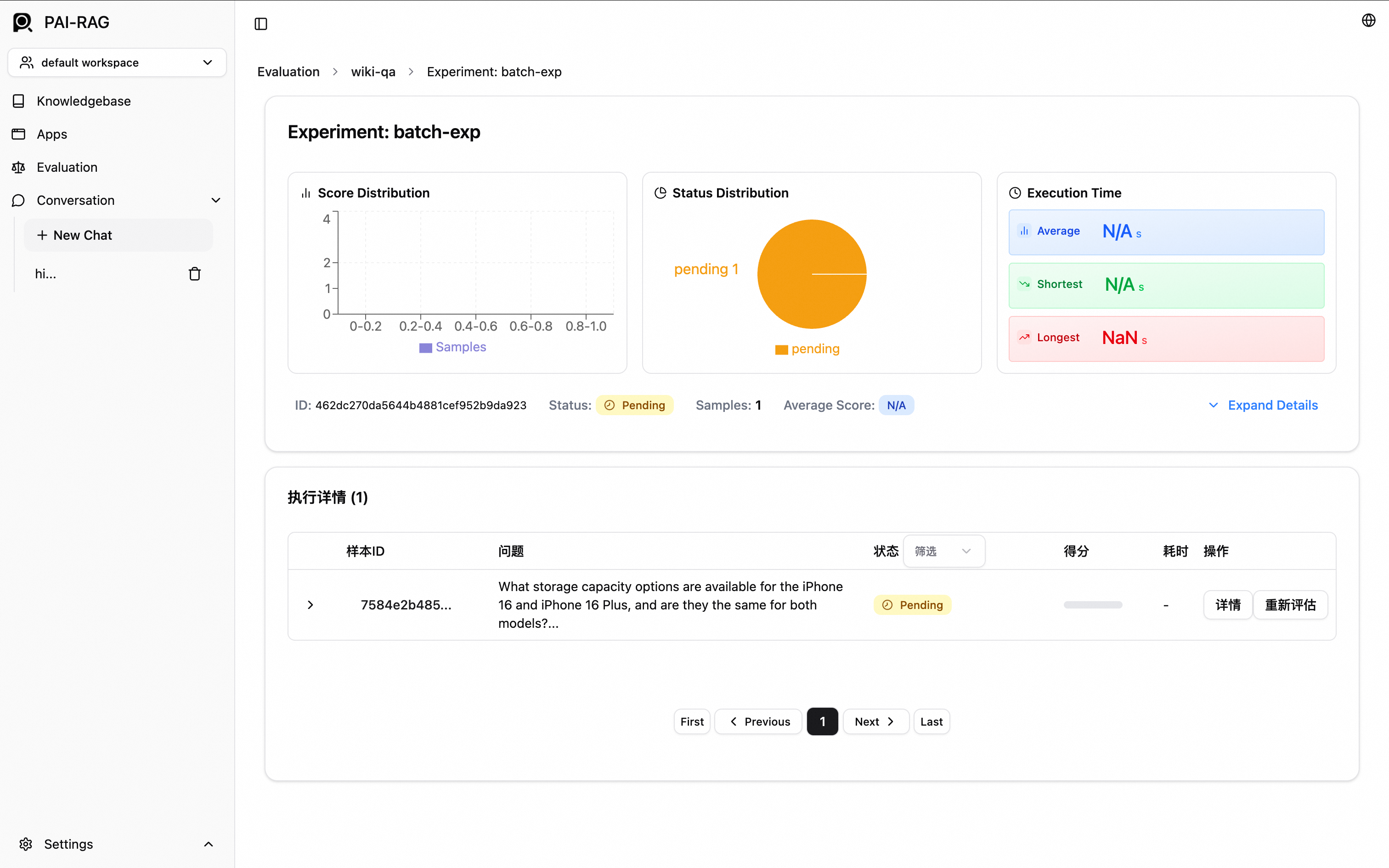
View evaluation results. After the experiment is created, you are automatically redirected to the experiment details page. You can also go to the Run History tab and select the target experiment.
Production setup
Use an Alibaba Cloud vector database
PAI-RAG supports building a vector retrieval library by using Elasticsearch, Hologres, OpenSearch, or RDS for PostgreSQL.
Hologres, Elasticsearch, and RDS for PostgreSQL support access over an internal network or the public internet. We recommend using the internal network for access.
OpenSearch supports access only over the public internet.
Elasticsearch
Prepare an instance
If you do not have an Elasticsearch instance, log on to the Alibaba Cloud Elasticsearch console and create one with the following settings. For more information, see Create an Alibaba Cloud Elasticsearch instance.
Region and Availability Zone: Select the same region as your EAS service.
VPC: Select the same VPC as your EAS service to allow access over the internal network.
Instance Type: Select Standard.
Scenario Initialization Configuration: Select General-purpose.
Service settings
You must allow your Elasticsearch instance to automatically create indexes. On the page of your Elasticsearch instance, click Modify Configurations and set Auto Create Index to Allow Auto Create Index. For more information, see Configure YML parameters.
Vector Database Type: Select Elasticsearch.
Private Endpoint and Port: On the details page of your Elasticsearch instance, find the private endpoint and port in the Basic Information section. The format is
http://<private_endpoint>:<private_port>.Index Name: The system's behavior depends on whether you enter a new or an existing index name.
Enter a new name: EAS automatically creates an index that is compatible with PAI-RAG during deployment.
ImportantBy default, Alibaba Cloud Elasticsearch does not allow automatic index creation. On the page of your Elasticsearch instance, click Modify Configurations, update the YML file, and set Auto Create Index to Allow Auto Create Index. For more information, see Configure YML parameters.
Enter an existing name: EAS uses the existing index directly. Ensure the index was created by the PAI-RAG service to maintain structural compatibility.
Account and Password: Configure the username and password that you set when creating the Elasticsearch instance. The default username is elastic. If you forget the password, you can reset the access password of an instance.
OSS Path: Select an existing OSS storage directory in the current region. You can manage your knowledge base by mounting an OSS path.
Manage indexes with Kibana
Elasticsearch provides index management features. For more information, see Connect to an Elasticsearch cluster by using a Kibana client.
Hologres
Make sure that you have purchased a Hologres instance.
Vector Database Type: Select Hologres.
Invocation Information: The host information for the specified VPC. Go to the instance details page in the Hologres console. In the Network Information section, click Copy next to Specified VPC to obtain the endpoint. The host is the part of this endpoint before
:80.Database Name: The database name of the Hologres instance. If you do not have one, see Create a database.
Account: A custom user account that you have created. For more information, see Create a custom user. For Select member role, select Instance Super Administrator (SuperUser).
Password: The password for the custom user account.
Table Name: The system's behavior depends on whether you enter a new or an existing table name.
Enter a new name: EAS automatically creates a table that is compatible with PAI-RAG during deployment.
Enter an existing name: EAS uses the existing table directly. Ensure the table was created by the PAI-RAG service to maintain structural compatibility.
OSS Path: Select an existing OSS storage directory in the current region. You can manage your knowledge base by mounting an OSS path.
OpenSearch
Prepare an instance
If you do not have an OpenSearch instance, log on to the OpenSearch console and create one with the following settings. For more information, see Purchase an OpenSearch Vector Search Edition instance.
Product Version: Select Vector Search Edition.
Region and Availability Zone and VPC: OpenSearch supports access only over the public internet, so these settings do not need to be consistent with your EAS service.
Service settings
Vector Database Type: Select OpenSearch.
Endpoint: The public endpoint of your OpenSearch Vector Search Edition instance.
NoteYou must enable public access for the OpenSearch Vector Search Edition instance and add the EAS public IP address to the allowlist.
Instance ID: Obtain the instance ID from the OpenSearch Vector Search Edition instance list.
Username and Password: The username and password that you set when creating the OpenSearch Vector Search Edition instance.
Table Name: You must first create an index table that meets the requirements. To create a table, see Configure an instance and use the following key parameters:
Select the general-purpose scenario template and import the following configuration file for field configuration.
In the Index Schema, ensure the vector dimension matches the dimension of the embedding model. For Distance Type, we recommend selecting InnerProduct.
Manage indexes and data
Log on to the Alibaba Cloud OpenSearch Vector Search Edition console and click the ID of your instance to go to the Instance Details page.
Go to the table management page to manage the index table. For more information, see Table management.

Go to the vector management page to run query tests and manage data. For more information, see Vector management.
RDS for PostgreSQL
Prepare an instance
If you do not have an RDS for PostgreSQL instance, go to the RDS instance creation page, configure the following key parameters, and follow the on-screen instructions to complete the payment and activation process. For more information, see Create an ApsaraDB RDS for PostgreSQL instance.
Engine: Select PostgreSQL.
VPC: Select the same VPC as your EAS service to allow access over the internal network.
Privileged Account: In the More Configurations section, configure a privileged account. Select Set Now and configure the database account and password.
Create a database.
Click the instance name. In the left-side navigation pane, click Database Management, and then click Create Database.
In the Create Database panel, configure the Database (DB) Name. For Authorized Account, select the privileged account that you created. For information about other parameters, see Create a database and an account.
After you configure the parameters, click Create.
Service settings
Make sure that you have created an RDS for PostgreSQL instance.
Vector Database Type: Select RDS for PostgreSQL.
Host address: The internal endpoint of your RDS for PostgreSQL instance. You can find it on the Database Connection page of the instance in the ApsaraDB RDS for PostgreSQL console.
Port: The default is 5432. Enter the actual port if it is different.
Database: The Authorized Account for the database must be a privileged account. For more information, see Create a database and an account. You must also install the vector and jieba extensions for the database.
Table Name: A custom name for the database table.
Account and Password: The authorized username and password that you configured when creating the database. For information about how to create a privileged account, see Create a database and an account. For Account Type, select Privileged Account.
OSS Path: Select an existing OSS storage directory in the current region. You can manage your knowledge base by mounting an OSS path.
Database management
Go to the RDS instance list, switch to the region where your instance is located, and click the instance name to go to the instance details page.
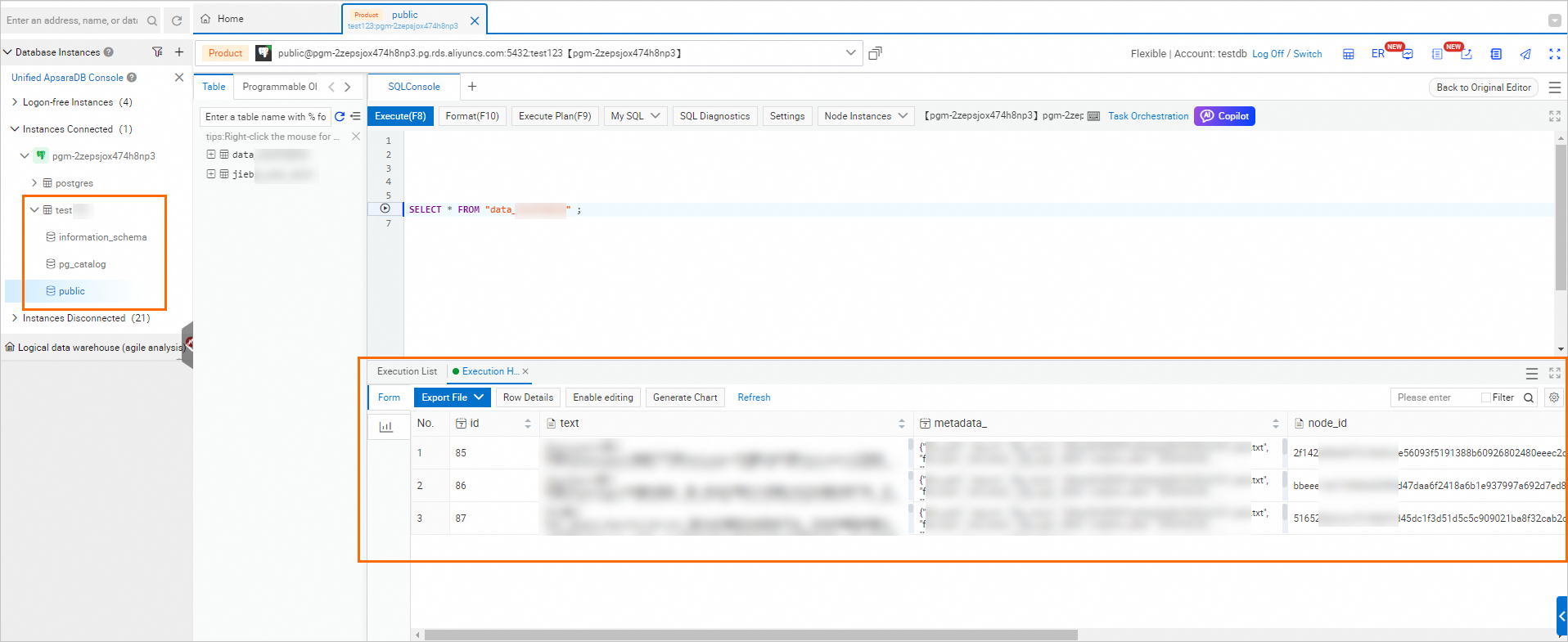
In the left-side navigation pane, select Database Management. In the Actions column of the target database, click SQL Query.
Enter the Database Account and Database Password, which are the credentials for the privileged account you set when creating the RDS for PostgreSQL instance, and then click Sign in.
After you log on, you can query the list of imported knowledge bases in the database instance.
FAQ
Q:How to Deploy a Vector Retrieval Service Locally on PAI
Solution
Hybrid deployment: GPU embedding with a CPU vector database
Architecture: EAS supports a hybrid deployment in which the embedding model runs on a GPU-accelerated instance and a self-managed vector database runs on a CPU-based ECS instance. For example, deploy the embedding model on ecs.gn6e-c12g1.12xlarge, which provides four NVIDIA V100 GPUs, and run Milvus or Elasticsearch on a memory-optimized ECS instance type from the r5 or r6 series. This combination separates the compute requirements of embedding generation from the memory requirements of vector storage and retrieval.
This approach is suitable for small-scale development and testing environments. For a production environment, evaluate high availability and data backup strategies, or use one of the Alibaba Cloud managed vector database services described earlier in this topic.
Network configuration:
When you deploy the embedding service on EAS, use the VPC configuration item to select the same VPC and zone as the ECS instance that hosts the vector database. This ensures low-latency communication over the internal network.
For cross-region scenarios, use Cloud Enterprise Network (CEN) or a VPC peering connection to connect the networks.
The EAS shared gateway supports invocation through a VPC address, and the dedicated gateway supports invocation across regions.
Performance considerations:
Vector databases are memory- and I/O-intensive workloads. For a self-managed vector database, choose an ECS instance type with a large memory capacity, such as r5.4xlarge (16 vCPUs, 128 GiB). Memory-optimized r5, r6, and re4 instance families provide 16 GiB to 1920 GiB of memory, so you can select an instance type based on the size of your knowledge base.
In a production environment, implement your own backup and high availability solution for the vector data. EAS does not manage the vector data for you.
Q:Can a vector retrieval service be deployed on DSW?
Data Science Workshop (DSW) is suitable for Large Language Model (LLM) validation and code debugging. Do not use it to deploy a multi-container vector retrieval service that includes Milvus, embedding, and reranker components. For a production-grade retrieval-augmented generation (RAG) deployment, use Elastic Algorithm Service (EAS).