This topic describes how to query the bill details and split bill details of Tablestore.
Bill details
The detailed bills displayed on the Bill Details page represent the most detailed billing granularity, with each charge displayed as a bill record. You can view the consumption details of your Alibaba Cloud account on the Bill Details page. You can check the resource usage, prices, and discounts based on the fields in the detailed bills. This helps you accurately reconstruct the cost calculation process. The final bill of the current month on the Bill Details page is issued at 12:00 on the third day of the following month. The data query results before that date are provided only for reference and are not used as the basis for account reconciliation.
Log on to the Expenses and Costs console.
In the left-side navigation pane, choose .
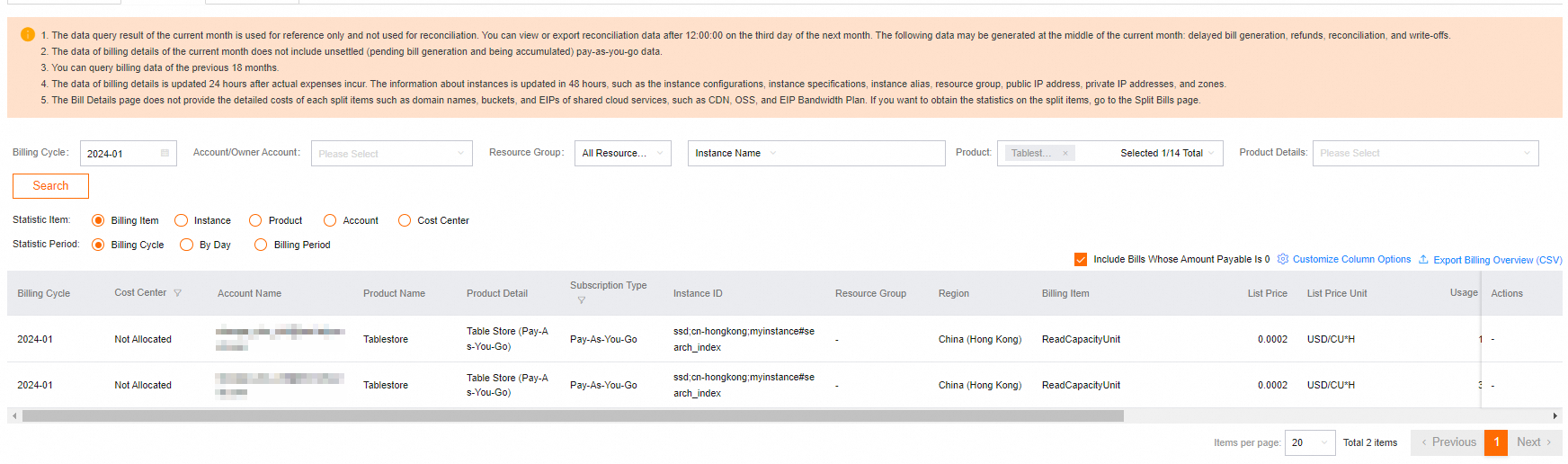
On the Billing Details tab, specify Billing Cycle, set Product to Tablestore, and then click Search.
To view specific details of bills, you can configure the Statistics Item and Statistic Period parameters.
 Note
NoteYou can click the
 icon in the upper right corner of the bill to select the bill content you want to display.
If you want to analyze your bill more conveniently, you can click the
 icon to export your current bill to your local device.
Split bills
Splitting bills allows you to reallocate the cloud resource fees in a statement based on your requirements, analysis needs, or resource granularity. Split bills provide fine-grained records for internal accounting. The final bills for the current month on the Split Bill page are issued at 12:00 on the fourth day of the following month. Data query results generated earlier are provided only for reference and are not used for reconciliation. For more information, see Split Bill.
Add tags to instances or modify the resource groups of instances based on your bill splitting requirements.
NoteIf you use tags for bill splitting, after you add a tag to an instance, one day (T+1) is required to synchronize the tag to the Cost allocation tags page. New tags are disabled by default. You must manually enable the tags. For more information, see Cost allocation tags.
Add tags to instances
Operations on a single instance
Log on to the Tablestore console.
In the top navigation bar, select a resource group and a region.
In the Instances section of the Overview page, find the instance that you want to manage, move the pointer over the
 icon in the Tags column, and click Edit in the pop-up box.
In the Configure Tags dialog box, configure the parameters and then click OK. The following table describes the parameters.

Parameter
Description
Tag Key
A tag key can contain up to 128 characters. It cannot start with
aliyunoracs:, and cannot containhttp://orhttps://.Tag Value
A tag value can contain up to 128 characters. It cannot start with
aliyunoracs:, and cannot containhttp://orhttps://.
NoteYou can also click the
 icon next to Tags to add tags in the Basic Information section on the Instance Details tab of the instance that you want to manage.
Operations on multiple instances
Log on to the Tablestore console.
In the top navigation bar, select a resource group and a region.
In the Instances section of the Overview page, select the instances to which you want to add tags, and click Batch Tagging at the bottom of the page.

In the Configure Tags dialog box, configure the parameters and then click OK. The following table describes the parameters.

Parameter
Description
Tag Key
A tag key can contain up to 128 characters. It cannot start with
aliyunoracs:, and cannot containhttp://orhttps://.Tag Value
A tag value can contain up to 128 characters. It cannot start with
aliyunoracs:, and cannot containhttp://orhttps://.
Modify the resource group of an instance
Log on to the Tablestore console.
In the top navigation bar, select a resource group and a region.
On the Overview page, click the instance name or click Manage Instance in the Actions column of the instance.
In the Basic Information section on the Instance Details tab, click the
 icon next to Resource Group to modify the resource group.
Visit the Split Bill page in the Expenses and Costs console.
On the Split Bill page, specify Billing Cycle, and set Product to Tablestore.
Click Search to view the split bill data.
NoteCurrently, bill splitting is not supported for search indexes (
search_index), time series metadata tables (timeseries_meta), and time series data tables (timeseries_data).