A tag is an identifier that you assign to a cloud resource. Tags help you categorize, search for, and aggregate cloud resources based on shared characteristics across different dimensions. A cost allocation tag is a specific type of tag used for cost allocation and cost analysis. It serves as a simple cost allocation tool for scenarios where you need to split costs along a single dimension.
How it works
Cost allocation tags let you manage and filter your existing tags for cost analysis. Specific use cases include:
|
Use case |
Description |
|
Bill details |
Enabled tags appear in filters and page lists. |
|
Split bill |
Enabled tags appear in filters and page lists. |
|
Cost analysis |
Enabled tags appear in filters, groups, and page lists. |
|
Cost centers |
Enabled tags appear in filters and page lists. |
|
Other |
The same filtering logic applies to other data, such as Object Storage Service (OSS) billing data and data returned by billing-related API operations. |
When bills are generated, only the tag keys that have been enabled as cost allocation tags, along with their assigned values, are recorded in the billing data. Tag keys that are assigned to resources but not enabled as cost allocation tags do not participate in cost allocation and do not appear in split bills or cost analysis.
After you enable cost allocation tags, the tags take effect only for bills generated after the enablement date. Bills that have already been issued are not retroactively split when you enable tags at a later time. The tag data recorded in a bill is based on the tag bindings on the resource at the time the bill is generated. Starting from the next day (T+1), new bills show cost allocation based on the current tag status of the resources.
Procedure
Prerequisites
-
You have assigned tags to your resource instances in their respective product consoles.
-
New tags added in a product console take one day to sync to the cost allocation tags list in Expenses and Costs.
-
The cost allocation tags feature is free to use but must be activated. If you do not activate the feature, all tags are displayed unfiltered on all pages in Expenses and Costs.
Enable tags
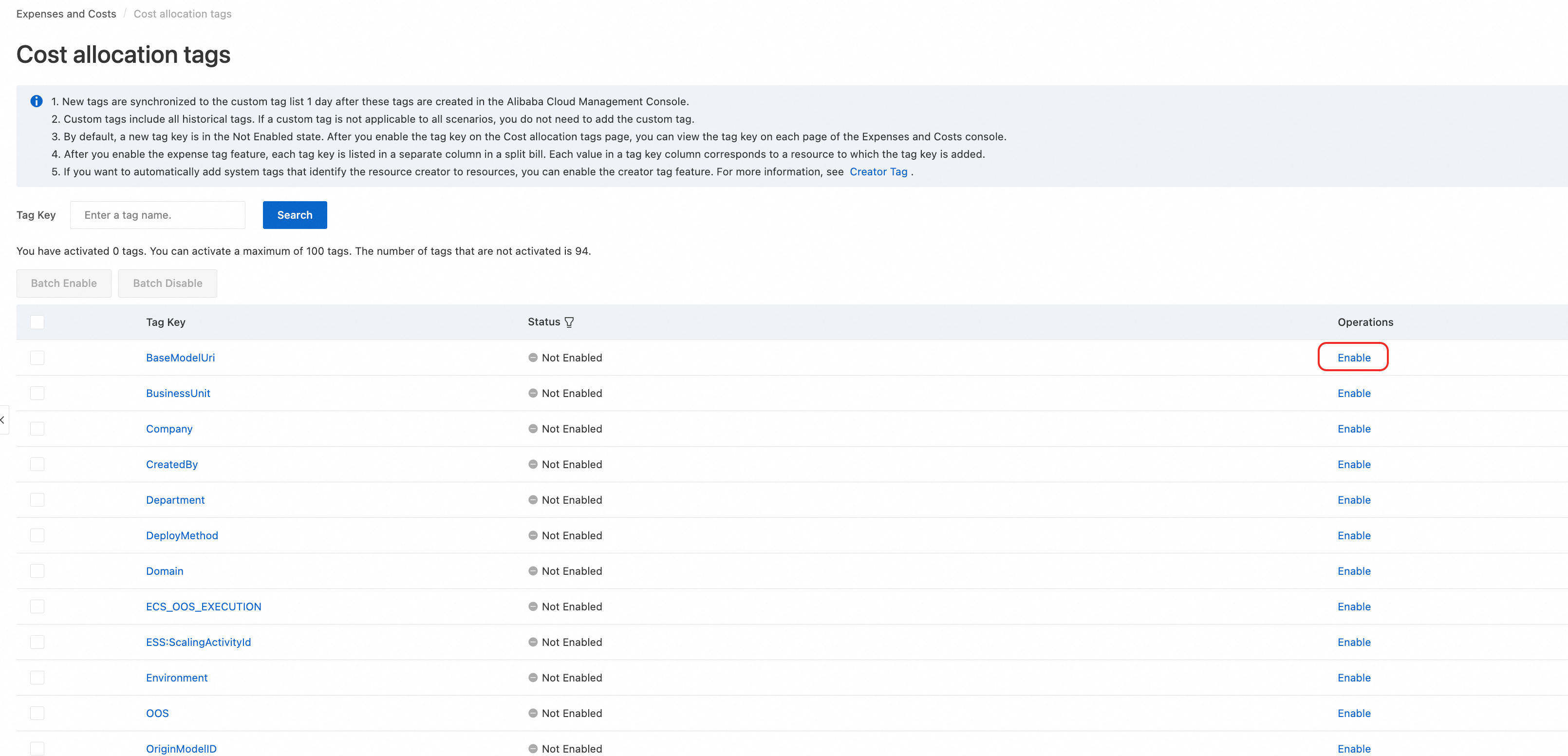
Tags synced to the cost allocation tags list are Not Enabled by default. You must manually enable them before you can use them for cost management in Expenses and Costs.
-
Log in to the Expenses and Costsconsole.
-
In the navigation pane on the left, choose Cost allocation>Cost allocation tags.
-
In the list of cost allocation tags, select the tag you want to enable and click Enable. You can also select multiple tags and click Batch Enable. After a tag is Enable, it becomes visible on all relevant pages in Expenses and Costs.
-
If you do not enable any tags on the cost allocation tags page, no tags are displayed on the cost management pages. The cost allocation tags list includes all the tags you have created. If you do not need a tag for cost management, you can leave it disabled.
-
You can enable a maximum of 100 tag keys.
-
In enterprise financial management scenarios, an MA account can view the cost allocation tags of all its member accounts.
Disable tags
If you have deleted a tag key or you no longer use a tag key as a cost allocation tag in Expenses and Costs, you must Disable that tag key.
-
Log in to the Expenses and Costsconsole.
-
In the navigation pane on the left, choose Cost allocation>Cost allocation tags.
-
In the list of cost allocation tags, select the tag you want to disable and click Disable. You can also select multiple tags and click Batch Disable.
If you are using the previous version of the Expenses and Costs console, in the navigation pane on the left, choose . On the Cost allocation tags page, you can enable or disable the desired tags.
Billing data rules
Bill details can be queried for up to the past 12 months, which is the maximum time range available for querying billing data. This time range refers only to how long billing data remains available for query; it does not mean that previously issued bills can be re-split based on cost allocation tags. After you enable a cost allocation tag, the tags on your resources, including tags that were assigned before the enablement date, are applied to cost allocation in bills generated after enablement. Bills that were issued before enablement do not include cost allocation results based on the tag.
-
For standard cloud products, Bill details data is updated with a 24-hour delay relative to actual resource consumption. Information related to instance IDs is updated with a 48-hour delay.
-
For split-billed products (such as OSS, CDN, and Internet Shared Bandwidth), data is updated with a 72-hour delay. You must view this data in Split bill details.
-
The delay is calculated from the time when the resource is actually consumed. Due to system load, the displayed data may fluctuate by up to ±2 hours.