This guide walks you through enabling HTTPS on a Simple Application Server running Node.js — from purchasing an SSL certificate to verifying a secure connection in your browser.
Prerequisites
Before you begin, make sure you have:
A domain name registered with Alibaba Cloud. See Register a generic domain name
The domain name bound to your simple application server and resolved. See Register and resolve domain name
Step 1: Create a Node.js simple application server
Open the Servers page in the Simple Application Server console.
Click Create Server in the upper-right corner.
On the Apps Image tab of the Image section, select Node.js 16.5.0.
Configure the remaining parameters based on your requirements, then complete the purchase.
For more information, see Create a simple application server.
Step 2: Purchase and apply for an SSL certificate
Purchase a certificate
Go to the Certificate Management Service buy page.
Select specifications based on your requirements.
Parameter Description Example Certificate type The type of domain name coverage. Single Domain covers one domain name. Wildcard Domain covers all subdomains at the same level (for example, *.aliyundoc.commatchesdemo.aliyundoc.comandlearn.aliyundoc.com, but notguide.demo.aliyundoc.com). You can apply for a certificate bound to one wildcard domain name. You cannot apply for a certificate bound to multiple wildcard domain names. If you want to bind multiple wildcard domain names to a certificate, see 证书合并申请. Multiple Domains covers up to five single domain names on a single certificate. After you successfully purchase an SSL certificate, if it conforms to Purchase a commercial certificate, Alibaba Cloud provides corresponding complimentary domain names to you.Single Domain Brand The certificate authority (CA) that issues the certificate. DigiCert Certificate specifications The validation level. DV SSL Quantity The number of certificates. Defaults to 1 and cannot be changed. 1 Service duration The subscription length. 1 Year provides one certificate valid for one year. 2 Years provides two certificates and one hosting quota. 3 Years provides three certificates and two hosting quotas. 1 Year Click Buy Now and complete the payment.
Apply for a certificate
Log in to the Certificate Management Service console.
In the left navigation pane, choose Certificate Management > SSL Certificate Management.
On the Commercial Certificates tab, find the certificate you purchased and click Apply for Certificate in the Actions column.
In the Apply for Certificate panel, fill in the parameters and select the Quick Issue checkbox.
Parameter Value Certificate type Single Domain Certificate specifications DigiCert DV Domain name The domain name of your Node.js simple application server, for example, aliyundoc.comValidity period 1 year Domain verification method If Alibaba Cloud DNS is active in your account, Automatic DNS Verification is selected automatically. Otherwise, choose Manual DNS Verification (add a TXT record at your DNS provider) or File Verification (upload a verification file to your web server). Contact In the Contact drop-down list, click Create Contact to create a contact for the certificate application. You can also select an existing contact. Make sure that your contact information is accurate and valid. Location Select the city or region of the certificate applicant. Encryption algorithm RSA (default, cannot be changed). RSA is a widely used asymmetric encryption algorithm with broad compatibility. CSR generation Automatic. Certificate Management Service generates the Certificate Signing Request (CSR) file using the selected algorithm. Click Submit. If you chose manual verification, complete the domain ownership verification steps. For details and common errors, see Verify domain ownership. The certificate authority reviews the application and issues the certificate in approximately 30 minutes. When the status changes to Issued, proceed to the next step.
Step 3: Download and upload the certificate
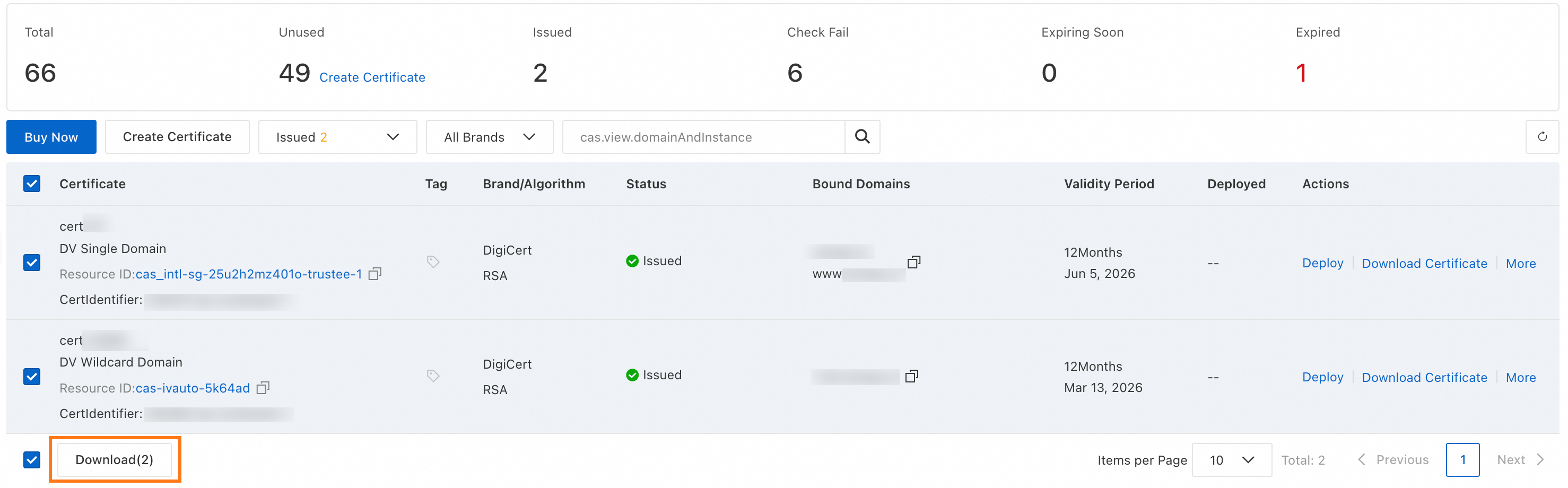
On the Official Certificate tab of the SSL Certificate Management page, find your certificate and click Download at the bottom of the certificate list.
Only certificates in Issued, To be Expired, or Expired state can be downloaded.
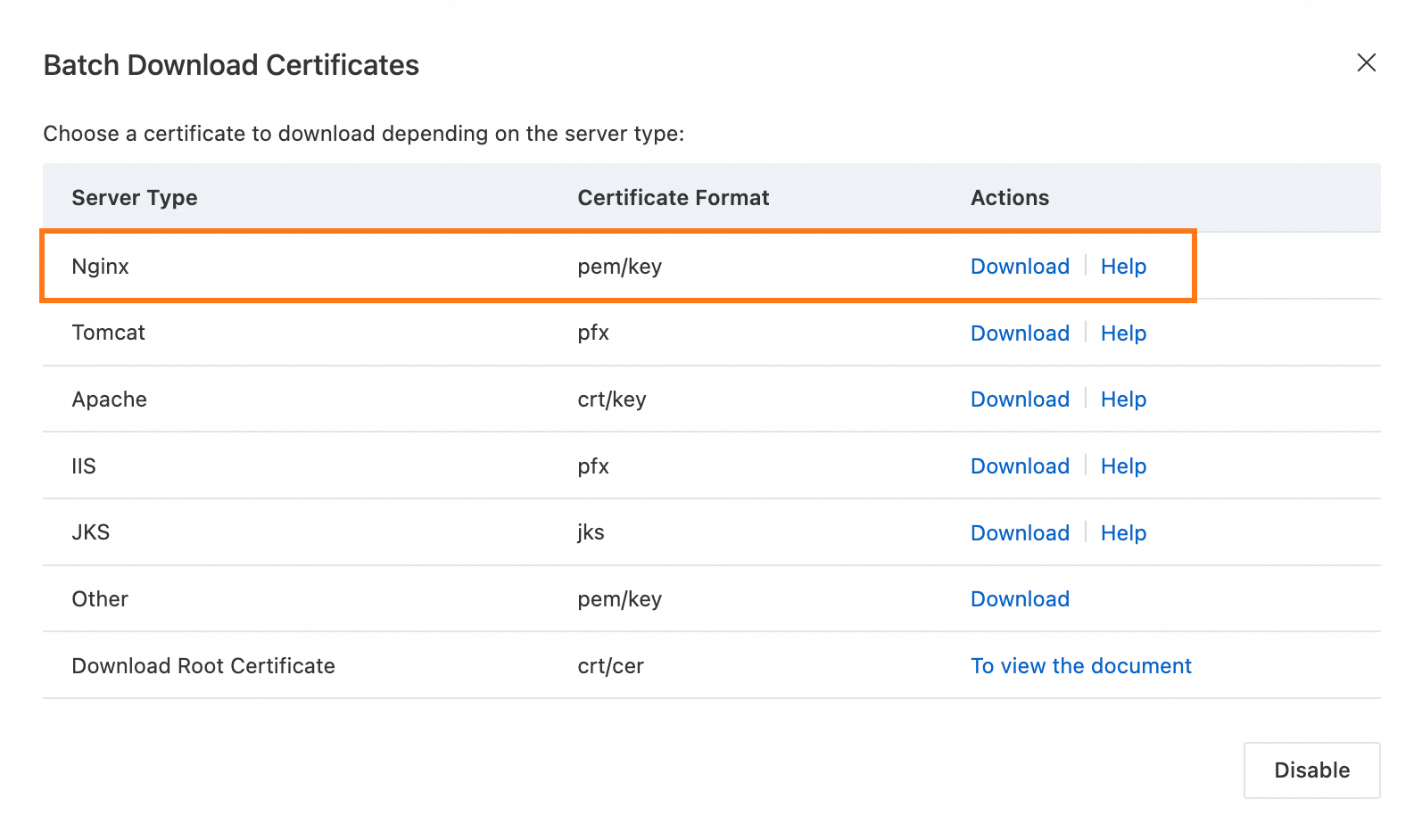
In the Batch Download Certificates dialog box, download the NGINX package.
WarningKeep the downloaded package secure. A certificate leak can expose your website to attacks.
Decompress the package. It contains two files:
File Description cert-file-name.keyPrivate key file. The absolute path of the .keycertificate file. Required for installation.cert-file-name.pemCertificate file. The absolute path of the .pemcertificate file. Required for installation.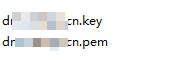
Use WinSCP, Xshell, or a similar tool to upload both files to the
/homedirectory on your simple application server.
Step 4: Configure the Node.js HTTPS server
Connect to your simple application server. See Connect to Linux server.
Create the server file:
cd /home
sudo touch https_server_test.js
Open the file for editing:
vim https_server_test.jsPress
ito enter edit mode, then paste the following content:// https module is required to start the HTTPS server // fs module is required to read certificate files from disk const https = require('https'); const fs = require('fs'); // Load the private key and certificate files. // Replace the file names with the actual names you uploaded. const options = { key: fs.readFileSync('/home/cert-file-name.key'), // private key file (.key) cert: fs.readFileSync('/home/cert-file-name.pem') // certificate file (.pem) }; // Start the HTTPS server on port 443 https.createServer(options, (req, res) => { res.end('hello world\n'); }).listen(443);Replace
/home/cert-file-name.keyand/home/cert-file-name.pemwith the actual paths of the files you uploaded.ImportantThe certificate paths must be correct for HTTPS to work.
Press
Escto exit edit mode, then type:wqand pressEnterto save and close the file.Start the HTTPS server:
sudo node https_server_test.js
Verify the installation
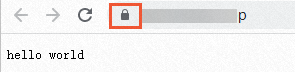
Open a browser and navigate to https://<Domain name of the simple application server>.
Success: A lock icon appears in the address bar, confirming that the SSL certificate is installed and HTTPS is active.
HTTPS not accessible: Check whether port 443 is enabled and not blocked on the simple application server. For more information about how to enable port 443, see Manage firewalls.
What's next
To learn more about Certificate Management Service, see What is Certificate Management Service?
To explore deployment options for other server environments, see Deploy a certificate.