Certificate Management Service automates SSL certificate deployment. Deploy certificates to ECS trusted instances with one click, or update certificates on ECS and Simple Application Server instances where a certificate is already configured.
Deployment methods
Choose a deployment method based on your server type and scenario.
|
Feature |
One-click deployment (for initial deployment) |
Manual deployment (for initial deployment to Simple Application Servers and certificate updates) |
|
Core mechanism |
Fully automated. The private key remains within the instance and communicates with the hardware trusted module through the PKCS#11 interface for high security. |
Semi-automated. A new certificate file is uploaded to a specified server path, overwriting the old one. |
|
Supported servers |
Supports only specific ECS trusted instances (7th/8th generation x86 architecture). Simple Application Server is not supported. |
Supports all ECS instances and Simple Application Server instances. |
|
Supported operating systems |
Alibaba Cloud Linux 3.x and Ubuntu 22.04 UEFI images. |
All major Linux and Windows Server distributions. |
|
Supported web servers |
Only supports specific versions of Nginx installed from |
Supports all web servers, including Nginx, Apache, and Tomcat. |
|
SSL certificate requirements |
Single-domain SSL certificates that use the RSA algorithm. |
All types of SSL certificates. |
|
Use cases |
Initial deployment of a certificate on an eligible ECS trusted instance to enable fully automated renewals. |
Perform the initial deployment of a certificate to a Simple Application Server instance, or update an existing certificate deployed on an ECS or Simple Application Server instance. For the initial deployment, log on to the Certificate Management Service console and choose Deployment Management > Cloud Server Deployment. Click Create Task, select an issued certificate and a Simple Application Server instance, specify the certificate path and private key path, and then submit the task. |
If neither method meets your requirements, Choose an SSL certificate deployment method covers additional options.
One-click deployment (for ECS trusted instances)
Integrates with ECS trusted instance security modules for fully automated, high-security certificate and private key deployment. Multi-year certificates are renewed automatically.
Prerequisites
-
Instance type and specification: 7th and 8th generation x86-based ECS trusted instances (Create a trusted instance). Simple Application Server is not supported.
-
Operating system: Alibaba Cloud Linux 3.x or Ubuntu 22.04 UEFI images.
-
Web server: Specific versions of Nginx installed from a
yumoraptrepository.-
For Alibaba Cloud Linux 3.x images: Nginx installed by using yum, versions 1.18.0-2.1.al8 to 1.20.1-1.0.5.al8 (exclusive).
-
For Ubuntu 22.04 UEFI images: Nginx installed by using apt.
-
-
Certificate type and status: A single-domain SSL certificate that uses the RSA algorithm and is in the Issued state.
Server Permissions: Use the
rootaccount or an account withsudopermissions.DNS Resolution: The domain name resolves to the server's public IP address.
Step 1: Verify the Cloud Assistant status
Cloud Assistant must be installed and running on the target ECS instance.
-
Select the resource group and region of your target instance.
-
On the Instance tab, locate the target ECS server and check the status in the Cloud Assistant Status column.
NoteIf Cloud Assistant is not installed or abnormal, troubleshoot using View Cloud Assistant status and troubleshoot exceptions.
Step 2: Configure the Nginx web server
For initial deployment, modify the Nginx configuration to access the private key from the trusted module via PKCS#11. Subsequent updates skip this step.
Alibaba Cloud Linux 3.x
This section uses Nginx 1.20.1 as an example. The default installation directory for Nginx installed using yum is /etc/nginx/. If you have modified this directory, adjust the paths accordingly.
-
Confirm your Nginx version.
Supported versions: 1.18.0-2.1.al8 to 1.20.1-1.0.5.al8 (exclusive).
ImportantIf Nginx is already installed, verify the version is supported. Downgrade or reinstall if needed.
-
Open the
/etc/nginx/nginx.conffile and addssl_engine pkcs11;afterpid /run/nginx.pid;to specify the PKCS#11 crypto engine. The following example shows the location and full configuration:user nginx; worker_processes auto; error_log /var/log/nginx/error.log; pid /run/nginx.pid; # Specify the PKCS#11 crypto engine ssl_engine pkcs11; -
Open the
/etc/nginx/nginx.conffile, uncomment the Settings for a TLS enabled server section, and addinclude "/etc/acm/ssl/nginx-acm.conf";to reference the SSL key configuration.-
Content to add:
include "/etc/acm/ssl/nginx-acm.conf"; -
The following example shows the location and full configuration:
server {
        listen       443 ssl http2;
        listen       [::]:443 ssl http2;

        # Specify the hostname or Common Name (CN)
        server_name  example.com;
        root         /usr/share/nginx/html;

        ssl_session_cache shared:SSL:1m;
        ssl_session_timeout  10m;
        ssl_prefer_server_ciphers on;

        # Reference the SSL key configuration
        include "/etc/acm/ssl/nginx-acm.conf";

        # Load configuration files for the default server block.
        include /etc/nginx/default.d/*.conf;

        error_page 404 /404.html;
            location = /40x.html {
        }

        error_page 500 502 503 504 /50x.html;
            location = /50x.html {
        }
    }
-
-
Open the
/usr/lib/systemd/system/nginx.servicefile and addP11_KIT_SERVER_ADDRESS=unix:path=/etc/acm/ssl/acm-p11-kit.sockandOPENSSL_CONF=/etc/acm/ssl/openssl-acm.cnfto configure communication with the SSL key service.-
Content to add:
Environment="P11_KIT_SERVER_ADDRESS=unix:path=/etc/acm/ssl/acm-p11-kit.sock" Environment="OPENSSL_CONF=/etc/acm/ssl/openssl-acm.cnf" -
The following example shows the location and full configuration:
[Unit] Description=A high performance web server and a reverse proxy server Documentation=man:nginx(8) After=network.target nss-lookup.target [Service] Type=forking PIDFile=/run/nginx.pid ExecStartPre=/usr/sbin/nginx -t -q -g 'daemon on; master_process on;' ExecStart=/usr/sbin/nginx -g 'daemon on; master_process on;' ExecReload=/usr/sbin/nginx -g 'daemon on; master_process on;' -s reload ExecStop=-/sbin/start-stop-daemon --quiet --stop --retry QUIT/5 --pidfile /run/nginx.pid TimeoutStopSec=5 KillMode=mixed # Configure communication with the SSL key service Environment="P11_KIT_SERVER_ADDRESS=unix:path=/etc/acm/ssl/acm-p11-kit.sock" Environment="OPENSSL_CONF=/etc/acm/ssl/openssl-acm.cnf" [Install] WantedBy=multi-user.targetNoteIf you do not know the path to the Nginx systemd service file, run
sudo find / -name "nginx.service"to locate it.
-
-
Run the following command to reload the Nginx systemd service configuration:
systemctl daemon-reload
Ubuntu 22.04
This section uses Nginx 1.18.0 as an example. The default installation directory for Nginx installed by using apt is /etc/nginx/. If you have modified this directory or installed Nginx by using a different method, adjust the paths accordingly.
-
Open the
/etc/nginx/nginx.conffile and addssl_engine pkcs11;afterpid /run/nginx.pid;to specify the SSL/TLS crypto engine. The following example shows the location and full configuration:user www-data; worker_processes auto; pid /run/nginx.pid; # Specify the PKCS#11 crypto engine ssl_engine pkcs11; include /etc/nginx/modules-enabled/*.conf; -
Open the
/etc/nginx/sites-enabled/defaultfile, create a new server block in the file, and addinclude "/etc/acm/ssl/nginx-acm.conf";within it.-
Content to add:
include "/etc/acm/ssl/nginx-acm.conf"; -
The following example shows the location and full configuration:
server {
    listen 443 ssl;

    # Specify the hostname or Common Name (CN)
    server_name example.com;
    root /var/www/html;
    index index.html index.htm;
    access_log /var/log/nginx/access_6equj5.log;
    error_log /var/log/nginx/error_6equj5.log;
    ssl on;

    # Reference the SSL key configuration
    include "/etc/acm/ssl/nginx-acm.conf";

    location / {
      try_files $uri $uri/ =404;
    }
}
-
-
Open the
/usr/lib/systemd/system/nginx.servicefile and addP11_KIT_SERVER_ADDRESS=unix:path=/etc/acm/ssl/acm-p11-kit.sockandOPENSSL_CONF=/etc/acm/ssl/openssl-acm.cnfto configure communication with the SSL key service.NoteIf you do not know the path to the Nginx systemd service file, run
sudo find / -name "nginx.service"to locate it.-
Content to add:
Environment="P11_KIT_SERVER_ADDRESS=unix:path=/etc/acm/ssl/acm-p11-kit.sock" Environment="OPENSSL_CONF=/etc/acm/ssl/openssl-acm.cnf" -
The following example shows the location and full configuration:
[Unit]
Description=A high performance web server and a reverse proxy server
Documentation=man:nginx(8)
After=network.target nss-lookup.target

[Service]
Type=forking
PIDFile=/run/nginx.pid
ExecStartPre=/usr/sbin/nginx -t -q -g 'daemon on; master_process on;'
ExecStart=/usr/sbin/nginx -g 'daemon on; master_process on;'
ExecReload=/usr/sbin/nginx -g 'daemon on; master_process on;' -s reload
ExecStop=-/sbin/start-stop-daemon --quiet --stop --retry QUIT/5 --pidfile /run/nginx.pid
TimeoutStopSec=5
KillMode=mixed

# Configure communication with the SSL key service
Environment="P11_KIT_SERVER_ADDRESS=unix:path=/etc/acm/ssl/acm-p11-kit.sock"
Environment="OPENSSL_CONF=/etc/acm/ssl/openssl-acm.cnf"

[Install]
WantedBy=multi-user.target
-
-
Run the following command to reload the Nginx systemd service configuration:
systemctl daemon-reload
Step 3: Deploy the certificate from the console
Log in to the Certificate Management Service console.
-
In the left navigation bar, select .
-
On the Deployment to Cloud Servers page, click Create Task, and follow the steps below to deploy the SSL certificate.
-
On the Configure Basic Information page, enter a Task Name and click Next.
-
On the Select Certificate page, select a Certificate Type and an Associated Certificates, then click Next.
Each task deploys one certificate. Create multiple tasks for multiple certificates.
-
On the Select Resource page, set All Types to Quick Deployment/Manual Deployment, select the target ECS instance, and click Next.
-
The system lists all eligible ECS instances under your account. If no resources appear, in the Total Resources area in the upper-left corner, click Synchronize Cloud Resources. Sync time depends on resource count.
-
To filter for supported instances, from the All Types drop-down list, select Quick Deployment/Manual Deployment to quickly filter for supported instances.
-
-
On the Quick Deployment tab, verify that the certificate deployment environment requirements are met, select the Confirm that the preceding operations are complete. checkbox, and click Continue to Deploy.
-
In the prompt dialog box, click OK.
WarningRestarting the web server interrupts service. Deploy during off-peak hours.

To restart Nginx manually, you can use the following command:
systemctl restart nginx.service -
After restarting Nginx, you can use the curl command to test the Nginx SSL connection. The command format is
curl -v https://<your_domain_name>.
-
-
Step 4: Check the deployment task status
On the Deployment to Cloud Servers page, find the task that you created. If the Task Status is Deployed Successfully, this means that the certificate has been successfully uploaded to the cloud server.

Step 5: Verify the SSL certificate
A successful deployment task does not guarantee the certificate is active. Verify by accessing your domain.
Access your domain name over HTTPS. Example:
https://example.com. Replaceexample.comwith your actual domain name.If a lock icon appears in the browser's address bar, the certificate is deployed successfully. If an access error occurs or the lock icon does not appear, clear your browser's cache or try again in incognito or private mode.

Starting with Chrome 117, the
 icon in the address bar has been replaced by a new
  icon. Click this icon to view the security lock information.
Manual deployment (for certificate updates)
Updates an existing certificate on ECS or Simple Application Server by overwriting old certificate files. Not for initial deployments.
Prerequisites
-
Cloud server type: Alibaba Cloud servers only (Simple Application Server and ECS).
-
Web server: Supports web servers, such as Nginx and Apache, that directly use PEM or CRT certificate files. IIS is not supported.
Server Permissions: Use the
rootaccount or an account withsudopermissions.
Step 1: Deploy the SSL certificate
Log in to the Certificate Management Service console.
-
In the left-side navigation pane, choose .
-
On the Deployment to Cloud Servers page, click Create Task.
-
On the Configure Basic Information page, enter a Task Name and click Next.
-
On the Select Certificate page, select a Certificate Type, select the Associated Certificates, and then click Next.
NoteCertificates issued by the Private CA service are synced to the Uploaded Certificates tab.
-
On the Select Resource page, select a Resources by Cloud Service, check the target instance, and click Next. The system automatically lists all eligible cloud server instances under your account (servers with a web application deployed).
NoteIf no resources appear, click Synchronize Cloud Resources in the upper-left Total Resources area to sync manually.
-
On the Deployment Configuration wizard, configure the parameters as described in the following table and click OK.
ImportantThe Certificate Path and Private Key Path must match the paths configured in your web application. Otherwise, the certificate will not take effect.
The following figure shows an example of Nginx certificate file paths on a cloud server for reference:

Parameter
Description
Example
Certificate Path
The absolute path to the certificate file on the server.
-
Linux example: /ssl/cert.pem
-
Windows example: c:\ssl\cert.pem
Private Key Path
The absolute path to the private key file on the server.
-
Linux example: /ssl/cert.key
-
Windows example: c:\ssl\cert.key
Certificate Chain Path
The absolute path to the certificate chain file on the server.
NoteIf your web application is already configured with a certificate chain file, enter the corresponding path here.
-
Linux example: /ssl/cert.cer
-
Windows example: c:\ssl\cert.cer
Reload Command
Executed after deployment to apply the new certificate.
ImportantIf restart fails, log in to the server and restart manually.
-
Nginx graceful reload:
sudo nginx -s reload. -
Apache restart:
sudo systemctl restart httpd.
-
-
In the dialog box, click OK.
-
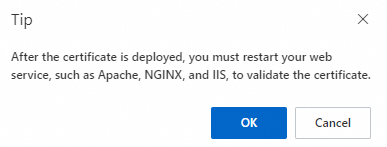
If no restart command is configured, click OK in the prompt, then manually restart the web service on the server.
-
If a restart command is configured, confirm the risks and click OK. After deployment completes, the configured restart command executes to apply the new certificate.

-
-
Step 2: Check the deployment task status
On the Deployment to Cloud Servers page, find the task you created. If the Task Status is Deployed, the certificate has been successfully updated on the cloud server.
Step 3: Verify the SSL certificate
Access your domain name over HTTPS. Example:
https://example.com. Replaceexample.comwith your actual domain name.If a lock icon appears in the browser's address bar, the certificate is deployed successfully. If an access error occurs or the lock icon does not appear, clear your browser's cache or try again in incognito or private mode.
Starting with Chrome 117, the
icon in the address bar has been replaced by a new icon. Click this icon to view the security lock information.
If you still encounter issues, FAQ provides troubleshooting steps.
Quotas and limitations
-
Deployment fees:
-
Deploying officially issued certificates is free and does not consume your deployment quota.
-
Deploying Self-uploaded certificates consumes your deployment quota. Please Purchase Deployment Package as needed. For specific fees, refer to the purchase page. If a deployment fails, the corresponding deployment quota will be refunded.
-
-
Quota limits:
Each task deploys one certificate to one instance. Create multiple tasks for multiple instances.
Going live
-
Service interruption risk: Both methods may restart your web server (Nginx, Apache), causing brief service interruption. Deploy during off-peak hours.
-
Graceful reload: If your web server supports graceful reload (e.g., Nginx), use
nginx -s reloadorsystemctl reload nginxin the Restart command field instead ofrestartto minimize connection disruption. -
Monitoring and alerts: Enable domain name monitoring to receive certificate expiry reminders and avoid service interruptions. Purchase and enable public domain name monitoring.
FAQ
Certificate not active after deployment
Common reasons include:
-
Port 443 is not open in the server's security group or firewall.
-
The domain you are accessing is not included in the certificate's Bound Domains.
-
The deployment task's Task Status is abnormal. Go to the task details page and click View Failure Cause. Update the relevant configurations based on the provided information and try again.
For further troubleshooting, see Troubleshoot certificate deployment issues based on browser errors and SSL certificate deployment troubleshooting guide.
"Cloud Assistant not install or run" error

Cause: Cloud Assistant is not installed on the ECS instance or is not running as expected.
Solution 1:
Locate the target server and check the Cloud Assistant status.
If Cloud Assistant is not installed, click One-click Installation to install it.
If the status is abnormal, see Troubleshoot issues with Cloud Assistant agent for a solution.
After the Cloud Assistant client is running as expected, create another Cloud Server Deployment task in the SSL Certificates Service console.
Solution 2:
Follow the instructions in Install an SSL certificate on an Nginx or Tengine server (Linux) to manually install the certificate on the ECS server.