All Products
Search
Document Center

Certificate Management Service:How do I troubleshoot SSL certificate deployment failures?

Last Updated:Mar 04, 2025

This topic describes how to troubleshoot manual certificate deployment failures. For example, after you install an SSL certificate on a website, the certificate does not take effect or the website is reported as insecure when you access the website.

Troubleshooting procedure

  1. Check whether port 443 is enabled on the server on which the certificate is installed.

    • If the server is an Alibaba Cloud Elastic Compute Service (ECS) instance, log on to the ECS console and go to the Security Groups page. Then, check whether security group rules are configured to allow traffic on port 443. For more information about how to configure security group rules, see Manage security groups.

      image

    • If Web Application Firewall (WAF) protection is enabled for the ECS instance, check the firewall settings of the ECS instance to ensure that external access to port 443 is allowed.

      1. Log on to the WAF 3.0 console. In the top navigation bar, select the resource group and region of the WAF instance. You can select Chinese Mainland or Outside Chinese Mainland.

      2. In the left-side navigation pane, click Website Configuration.

      3. On the CNAME Record tab, check whether external access to port 443 is allowed.

        image

  2. Check the configuration file of the web server.

    • Check whether the name and path of the certificate file in the configuration file are correct. Make sure that the name and path of the certificate file in the configuration file are the same as the actual name and path of the certificate file stored on the server. The following sample code provides an example of the configuration file of an NGINX server:

      server {
          # Port 443 is the default HTTPS port.
          listen 443 ssl;
          server_name example.com;
      
          # Specify the actual paths to your certificate file and private key file.
          ssl_certificate /etc/nginx/ssl/example.com.crt;
          ssl_certificate_key /etc/nginx/ssl/example.com.key;
      
          # Other configurations.
      }
    • Check whether the modified configuration file is saved.

    • Specific web servers, such as NGINX and Apache servers, must be restarted for the modified configuration file to take effect.

      • Run the following command to restart NGINX:

        sudo nginx -s reload
      • Run the following command to restart Apache:

        sudo systemctl restart httpd
  3. Check the validity of the certificate.

    • Check whether the certificate is valid.

      1. Log on to the Certificate Management Service console.

      2. In the left-side navigation pane, choose Certificate Management > SSL Certificate Management.

      3. On the SSL Certificate Management page, find the certificate and check whether the certificate is expired.

        If the certificate is expired, renew the certificate at the earliest opportunity. For more information about how to renew an official certificate, see Renew an official SSL certificate.

        image

    • Check whether Issued is displayed in the Status column of the certificate and the value in the Bound Domains column is correct.

      image

    • Make sure that the certificate is correctly installed. For example, check whether the certificate file is stored in the required directory and the certificate-related settings are configured in the configuration file of the web server, such as an NGINX or Apache server.

    • If you use a self-signed certificate, check whether the certificate is trusted by the current browser.

      Use Google Chrome as an example. Perform the following operations to check whether a self-signed certificate is trusted by Google Chrome:

      1. Access the website on which your self-signed certificate is installed in your browser.

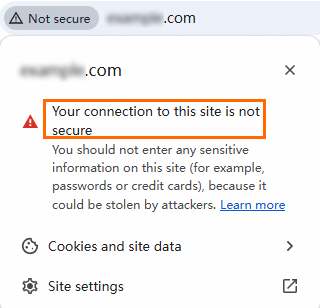
      2. In the address bar, click the image icon. If the certificate is trusted by the browser, no warning sign is displayed on the left side of the address bar. If the certificate is not trusted by the browser, the image icon is displayed, as shown in the following figure.

        image

      3. View the details of the certificate in the certificate information window. If the certificate is not trusted by the browser, a warning message is displayed.

    • If you use a certificate that is not self-signed, check whether the certificate is issued by a trusted certificate authority (CA). If the certificate is not issued by a trusted CA, your browser blocks the certificate-based connections because the certificate is not trusted by the browser.

      Use Google Chrome as an example. Perform the following operations to check whether a certificate that is not self-signed is trusted by Google Chrome.

      • View information about the certificate.

        1. Click the image icon on the left side of the address bar.

        2. Click Connection is secure to view the connection details.

        3. Click Certificate is valid. If the certificate is issued by a trusted CA, the browser displays a message indicating that the certificate is valid instead of a warning message.

          image

      • View information about the certificate issuer. In the certificate information window that appears, find the Issued To field, confirm the related information about the issuer, such as the Common Name (CN) and Organization (O) parameters, and then check whether the name of a well-known CA is included.

        image

  4. Check whether the domain name is correctly resolved.

    • Check whether the domain name is resolved to the required IP address, especially if the host or IP address is recently modified.

      1. Log on to the Alibaba Cloud DNS console.

      2. On the Authoritative Domain Names tab of the Authoritative DNS Resolution page, find and click the domain name to go to the DNS Settings tab.

        image

      3. On the DNS Settings tab, click Add DNS Record. Check whether the value in the Record Value column is the same as your IP address. If the value is different from the IP address, click Modify to change the record value.

        image

    • If you recently modified the Domain Name System (DNS) settings, the modification results require a specific period of time to take effect. You can wait until the results take effect or clear the local DNS cache and try again.

      The following section describes how to clear the local DNS cache in different operating systems:

      Windows

      1. Press Win + R, enter cmd, and then press the Enter key to open the CLI.

      2. Enter the following command in the CLI and then press the Enter key.

        ipconfig /flushdns
      3. Check whether the local DNS cache is cleared. If a message indicating that the DNS cache is refreshed appears, the local DNS cache is cleared.

      macOS

      1. Open the terminal.

        Press Command + Space to open the Spotlight search tool and enter Terminal to open the terminal.

      2. Enter the following command on the terminal and then press the Enter key:

        # dscacheutil is a CLI utility used to interact with the cache service of macOS. 
        sudo dscacheutil -flushcache
      3. Enter the following command on the terminal and then press the Enter key to restart the mDNSResponder process by sending a SIGHUP signal:

        # mDNSResponder is a background process responsible for the DNS service. You can restart the process to ensure that the DNS cache is completely refreshed. 
        sudo killall -HUP mDNSResponder
      4. Check whether the command is successfully run. If no error message appears, the command is successfully run.

      Note

      If you are prompted to enter an administrator password during the procedure, enter the password and press the Enter key.

      Linux

      The method used to clear the local DNS cache in a Linux operating system varies based on the DNS cache service used by the operating system. The following section describes common DNS cache services and the methods used to clear the DNS cache:

      1. systemd-resolved

        If the systemd-resolved service is used, run the following command to clear the DNS cache:

        sudo systemd-resolve --flush-caches
      2. Name Service Cache Daemon (nscd)

        If the nscd service is used, run one of the following commands to restart the nscd service to clear the DNS cache:

        sudo service nscd restart
        sudo systemctl restart nscd
      3. dnsmasq

        If the dnsmasq service is used, run one of the following commands to restart the dnsmasq service to clear the DNS cache:

        sudo service dnsmasq restart
        sudo systemctl restart dnsmasq
      4. Berkeley Internet Name Domain (BIND)

        If theBIND service is used, run the following command to clear the DNS cache:

        sudo rndc flush
      5. NetworkManager

        Specific Linux distributions use the NetworkManager service to manage network settings, including DNS cache settings. In this case, you can run one of the following commands to restart the NetworkManager service to clear the DNS cache:

        sudo service network-manager restart
        sudo systemctl restart NetworkManager
      Note

      You can select a command to clear the DNS cache based on the DNS cache service used by your operating system. In most cases, the administrator permissions are required to run the preceding commands. Therefore, you must add sudo before each command. After you clear the DNS cache, the system obtains the latest DNS resolution information from the DNS server, which can help resolve network access issues.

  5. Clear the browser cache.

    • The browser may cache information about the old certificate. Clear the browser cache before you access the website.

    • Access your website in Incognito mode. The following figure shows an example on how to use the Incognito mode by using Google Chrome. If you use Microsoft Edge, click Create InPrivate Window.

      image

  6. Check whether the certificate chain is complete.

    Make sure that the entire certificate chain is complete, including the intermediate and root certificates. In most cases, a browser verifies the complete certificate chain of a certificate from the root certificate to the server certificate. If the certificate chain is incomplete, the browser may not trust the certificate.

    Note
    • A root certificate is the trust anchor in a chain of trust and is used to verify the authenticity of all subordinate certificates issued from the CA of the root certificate. For more information, see root certificate. For SSL certificates issued from trusted CAs, root certificates are pre-installed in mainstream web browsers, such as Google Chrome, Mozilla Firefox, and Microsoft Edge, operating systems such as Windows and macOS, and mobile devices that run mobile operating systems, such as iOS and Android. For clients such as apps, Java clients, browsers of earlier versions, and loT devices, you must manually download a root certificate of the same type as the server certificate and manually install the root certificate on the clients. This way, the clients can establish HTTPS connections with the server. For more information, see Download a root certificate.

    • An intermediate certificate resides between the root certificate and an end-entity certificate, which can be an SSL certificate. An intermediate certificate is issued from a parent CA to a subordinate CA. When you download a certificate package from Alibaba Cloud Certificate Management Service, the extracted PEM file contains a server certificate and an intermediate certificate. The server certificate pairs with a KEY private key file to ensure secure HTTPS communication. The intermediate certificate helps reduce the risks that are caused by the issuance of SSL certificates from a root CA. If a root certificate is revoked, the certificates directly signed by the root certificate are no longer trusted. To prevent the risks, you can use the private key of an intermediate certificate to sign an SSL certificate. For more information about how to download an intermediate certificate, see Download a certificate to your computer.

    The lack of a complete certificate chain is one of the main reasons for failed certificate verification. In most cases, browsers on PCs can obtain intermediate certificates by using the URL provided in the Authority Info Access field. However, browsers of specific Android systems may report messages indicating that a certificate is not trusted or the website cannot be accessed are reported. This is because the Android browsers cannot obtain intermediate certificates by using the URL provided in the Authority Info Access field. In this case, you must merge your certificate chain-related files into a single file based on the certificate chain structure and redeploy the new file to your server. When the browsers connect to the server, the browsers download the end-entity certificate and intermediate certificates. This way, the browsers display trusted certificates during access. Certificate chain structure:

    -----BEGIN CERTIFICATE-----
    Website certificate
    -----END CERTIFICATE-----
     
    -----BEGIN CERTIFICATE-----
    Intermediate certificate
    -----END CERTIFICATE-----
    
    -----BEGIN CERTIFICATE-----
    Root certificate
    -----END CERTIFICATE-----
    Note

    In most cases, a certificate chain consists of a website certificate, an intermediate certificate, and a root certificate. Multiple intermediate certificates may exist.

    • How do I view an SSL certificate chain?

      In this example, a Google Chrome browser is used.

      1. In the address bar of the browser, click the image icon. In the message that appears, click Connection is secure.

      2. In the Connection is secure message, click Certificate is valid.

      3. Click the Details tab to view the SSL certificate chain below Certification Hierarchy.

        image

    • How do I complete an SSL certificate chain?

      • If you applied for a certificate by using Alibaba Cloud, you can redownload the certificate package to obtain the complete certificate chain.

      • Open the certificate on Windows, find the intermediate certificate, export the intermediate certificate to a Base64-encoded file, and then copy the content in the exported file to the original certificate.

  7. Check whether the private key is correct.

    • Make sure that the certificate and private key uploaded to the web server match and are in the correct format.

      In most cases, a private key is created when a Certificate Signing Request (CSR) is generated. The private key must be used for the same certificate. The following procedure describes how to check whether a private key matches a certificate in a Linux operating system:

      1. Log on to the backend of your cloud server and run the following command to go to the installation directory of the certificate:

        # The forward slash (/) indicates the root directory. ssl is only for reference. Specify the actual certificate installation directory. 
        cd / ssl
      2. Run the following command to view the public key information in the certificate file and obtain the MD5 hash value of the public key:

        # Replace your_certificate.pem with the name of the PEM certificate file in the certificate installation directory of your cloud server.
        sudo openssl x509 -in your_certificate.pem -noout -pubkey | openssl md5
      3. Run the following command to view the public key information in the private key file and obtain the MD5 hash value of the public key:

        # Replace your_private_key.key with the name of the KEY private key file in the certificate installation directory of your cloud server.
        sudo openssl rsa -in your_private_key.key -pubout | openssl md5
      4. Compare the two MD5 hash values that you obtained. If the MD5 hash values are the same, the private key matches the certificate.

        image

    • If the private key is lost or corrupted, regenerate the private key and apply for a new certificate.

  8. Check the compatibility of the browser.

    • Make sure that your certificate format and cipher suites are compatible with mainstream browsers.

      To ensure website security, make sure that your certificate format and cipher suites are compatible with mainstream browsers. You can use one of the following methods to check the compatibility of a browser:

      • Use a trusted CA

        • Select a trusted CA to issue your SSL/TLS certificate. Certificates issued by trusted CAs are automatically trusted by mainstream browsers.

      • Use the required certificate format

        • Make sure that your certificate is in the X.509 format, which is the standard format for SSL/TLS certificates.

          To check whether a certificate is in the X.509 format, use the following method:

          Run the following openssl command to view the content of a certificate:

          # Replace /ssl/cert.pem with the actual installation path to your certificate file.
          sudo openssl x509 -in /ssl/cert.pem -text -noout

          If the certificate is in the X.509 format, the details of the certificate are returned, including the version, serial number, signature algorithm, issuer, validity period, and public key information.

          Sample output:

          Certificate:
              Data:
                  Version: 3 (0x2)
                  Serial Number:
                       01:23:45:67:89:ab:cd:ef:01:23:45:67:89:ab:cd:ef
                  Signature Algorithm: sha256WithRSAEncryption
                  Issuer: C = US, O = DigiCert Inc
                  Validity
                      Not Before: Jan 17 00:00:00 2025 GMT
                      Not After : Jan 17 23:59:59 2026 GMT
                  Subject: CN = example.com
                  Subject Public Key Info:
                      Public Key Algorithm: rsaEncryption
                          RSA Public-Key: (2048 bit)
                          ......

        • Save the certificate chain file in the PEM format, which can be a .crt or .pem file. The certificate chain contains the certificate and intermediate certificate.

      • Use modern cipher suites

        • Configure modern cipher suites, such as TLS 1.2 and TLS 1.3, on your server. These versions of cipher suites provide better security and compatibility.

        • Disable insecure protocols and encryption algorithms, such as SSL 2.0, SSL 3.0, TLS 1.0, TLS 1.1, RC4, and 3DES.

    • Test network connectivity on different browsers and devices.

  9. Check whether the directory in which the certificate file is stored has the required read permissions.

    Make sure that the directory in which the certificate file is stored has the correct read permissions to allow the web server to access the certificate-related files.

    The following section describes how to check whether the directory in which the certificate file is stored has the correct read permissions in a Linux operating system:

    1. Run the ls -ld command to view the permissions of the directory:

      # Replace /ssl with the actual installation path to your certificate file. 
      sudo ls -ld /ssl

      Sample output:

      image

      Note

      The following list describes the meaning of the drwxr-xr-x permission field:

      • The first character (d) indicates that this is a directory.

      • The following three characters (rwx) indicate that the owner has the read, write, and execute permissions.

      • The intermediate three characters (r-x) indicate that the users of the same group as the owner have the read and execute permissions.

      • The last three characters (r-x) indicate that other users have the read and execute permissions.

    2. Check whether the permissions are appropriate.

      • Read permission: Make sure that the relevant users or services have the read permission on the directory.

      • Execute permission: The execute permission allows users to access the directory. The users can run the cd command to switch to the directory.

    3. Optional. Modify the permissions.

      To modify permissions, run the chmod command.

      # Replace /ssl with the actual installation path to your certificate file. 
      sudo chmod 750 /ssl
      Note

      The following list describes the meaning of the 750 permission:

      • The owner has the read, write, and execute permissions.

      • Users in the same group have the read and execute permissions.

      • Other users do not have permissions.

    After you perform the preceding steps, you can check and adjust the read permission of a directory on your Linux server to ensure security and functionality.

Note

The code implementation logic of different websites may vary. We recommend that you carefully read the log files of your web server and application to find SSL-related error information and immediately troubleshoot the issue. If the issue persists, contact your account manager.