Public Domain Name Monitoring tracks the HTTPS status of your public websites, detects SSL certificate issues, and centralizes HTTPS management to reduce the risk of service disruptions from human error.
Use cases
If you manage multiple HTTPS websites, maintaining certificates across sites can be complex. Public Domain Name Monitoring centralizes these tasks by periodically checking your sites for HTTPS issues such as missing or expired certificates. Results and recommended actions appear in the console.
Billing details: Billing of Public Domain Name Monitoring.
Purchase public domain name monitoring
-
Navigate to the Public Domain Name Monitoring page. In the Remaining Monitoring Quota area, click Buy Now.
-
Configure the following parameters, click Buy Now, and complete the payment.
Parameter
Description
Service Type
The Public Domain Name service monitors the availability of HTTPS connections for domain names that are accessible over the public network. This service provides availability monitoring and alerts for HTTPS access, certificates, and certificate chains.
Purchase Method
Only Certificate Instance Purchase is supported.
Package
The package to purchase. A 1 Year package covers one single domain name (such as aliyundoc.com or www.example.com). Set the domain count to match the number of single domain names to monitor.
The unit price varies based on the package specifications. Larger packages offer greater discounts.
Purchase Quantity
The number of packages to purchase.
Duration
The subscription period. Default: 1 Year (365 monitoring days per domain name).
The 365-day countdown starts when you first enable monitoring and continues without interruption, even if you temporarily disable the service. For example, if monitoring starts on June 1, 2022, the service expires on May 31, 2023.
Add and enable public domain name monitoring
After you enable monitoring, the system sends daily SMS or email alerts for HTTPS issues. Customize notification events and recipients in Configure notifications for domain name monitoring.
Procedure
-
Navigate to the Public Domain Name Monitoring page and click Add Domain Name.
-
In the Add Domain Name dialog box, configure the parameters described in the following table and click OK.
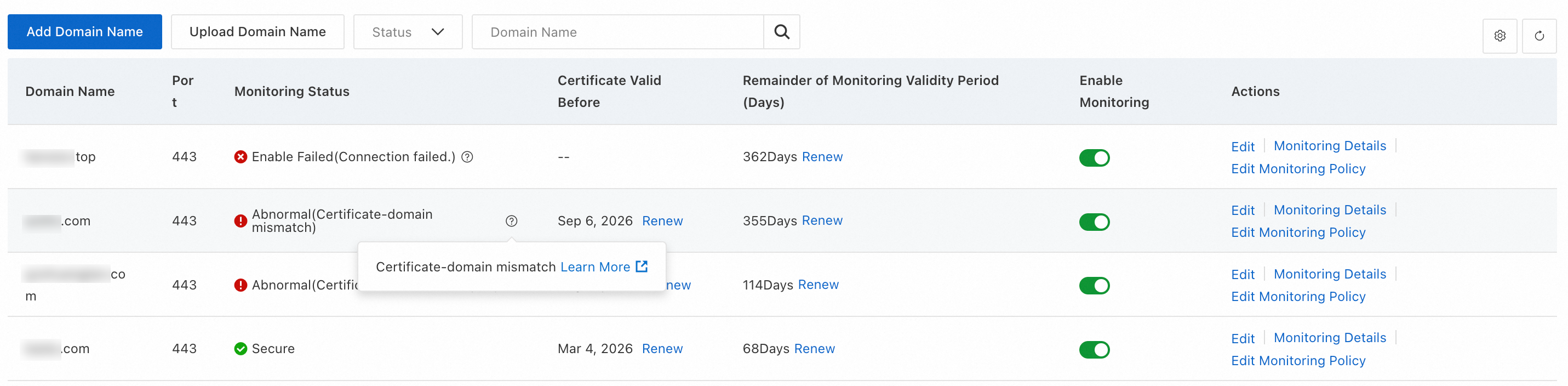
After you add a domain name, it appears in the domain list. If monitoring is enabled, the Status shows Enabling while Certificate Management Service checks the HTTPS status (typically 1 to 5 minutes). The result then appears in the Status column. For more information about possible Status results, see Monitoring status.
Parameter
Description
Domain Name/IP Address
The domain name or IP address to monitor.
Only single domain names are supported. Separate multiple entries with commas (,), or go to the Public Domain Name Monitoring page and click Upload Domain Name to add domain names in batches from a template.
Important-
The domain name must be accessible over the public network for its HTTPS status to be monitored.
If your service uses a whitelist, add the following egress IP address ranges of Public Domain Name Monitoring to your server's whitelist:
-
203.119.128.0/17
-
59.82.0.0/16
-
140.205.0.0/16
-
106.11.0.0/16
-
-
Domain names that end with
.idare not supported.
Alert Contact
Select the contacts to receive alert notifications. You can add up to three contacts. If no contacts are available, click +Add to create a contact.
HTTPS Port
The HTTPS port used by the domain name's server, such as 443 or 8443.
Default: 443. Enter 443 for standard HTTPS, or enter your custom HTTPS port number.
ImportantEnsure the domain's server provides HTTPS services on this port. Otherwise, monitoring cannot be enabled. Common misconfigurations: entering port 80 or 8080.
Enable Monitoring
Turn on to start HTTPS monitoring immediately after adding the domain name.
After you enable monitoring, customize notifications for events such as SSL certificate expiration or incomplete certificate chains. Notification channels include email, and DingTalk.
ImportantAfter you turn on this switch, the monitoring period begins and the service is no longer eligible for a refund.
-
-
Optional: If you did not enable monitoring when you added the domain name, turn on the switch for the domain name in the Enable Monitoring column of the domain name list.
Monitoring status
After the HTTPS status check, the Status column can display one of the following values:
-
Secure: The domain name is configured with an SSL certificate. Certificate Management Service displays the certificate's brand and validity period for your reference.
-
Abnormal: The HTTPS status of the domain name is insecure. The following table describes the possible causes.
Cause
Description
Recommended action
Network connection failure
The network connection timed out.
Check your server for network exceptions and resolve any issues found.
No SSL certificate is configured
The domain name has no SSL certificate configured and does not support HTTPS.
Purchase and configure an SSL certificate for the domain name. For more information, see Purchase a commercial certificate and Create an SSL certificate.
Certificate mismatch
The domain name does not match the domain name that is bound to the certificate.
Revoke the current certificate and then apply for or purchase a new one. For more information, see Revoke and delete SSL certificates and Purchase a commercial certificate.
Certificate chain validation failed
An issue exists in the SSL certificate chain. For example, the certificate chain is incomplete or untrusted.
Contact your account manager for assistance..
Certificate is about to expire
The domain's certificate is about to expire. The remaining validity period is less than 30 calendar days.
Renew the certificate promptly to prevent disruptions. Managed SSL.
Certificate has expired
The certificate that is used by the domain name has expired.
Purchase and configure a new SSL certificate for the domain name. For more information, see Purchase a commercial certificate and Create an SSL certificate.
-
Enable Failed: Monitoring could not be enabled for the domain name. The following table describes the possible causes.
Cause
Description
Solution
Connection failure
Certificate Management Service cannot connect to the domain name.
Check your server for network issues and resolve any exceptions found.
Invalid IP address
Certificate Management Service cannot resolve the IP address for the domain name's server.
Check the DNS resolution of the domain name and resolve any exceptions found.
Invalid domain name
The domain name cannot be accessed over the public network.
Verify that the domain name is correct and publicly accessible, then edit it and retry.
Invalid port
The specified port does not provide HTTPS services.
Verify that the port provides HTTPS services, then edit it and retry.
View a monitoring report
On the Public Domain Name Monitoring page, click Monitoring Details in the Actions column to view the monitoring report.
-
Monitoring Details: View the monitoring port, remaining service duration, and monitoring status of the domain name.
-
ATS Check: Check whether the server and certificate meet the security standards of Apple's App Transport Security (ATS) protocol.
-
IP Content: View the IP addresses to which the domain name resolves.
-
Certificate Information: View the remaining validity period, brand, and status of the certificate.
-
Certificate Chain Information: View the issuers and validity periods of the certificates in the certificate chain.
-
Contact Information: View the name, phone number, and email address of the contacts configured for domain monitoring.
-
Domain Name Update: View the domain's ownership change history.
Download a monitoring report
On the Public Domain Name Monitoring page, click Monitoring Details in the Actions column. On the details page, click Download Report.
Download a monthly monitoring report
On the Public Domain Name Monitoring page, click Download Monthly Report.