Add a Network Load Balancer (NLB) instance as a service resource and use PrivateLink to establish a private connection between two VPCs under the same Alibaba Cloud account — without routing traffic over the public internet.
How it works
PrivateLink connects a consumer VPC to a provider VPC through an endpoint and an endpoint service:
-
The provider side creates an NLB instance to distribute traffic across backend servers, then exposes it through an endpoint service.
-
The consumer side creates an endpoint in its VPC and connects it to the endpoint service.
-
Once the connection is established, resources in the consumer VPC reach the backend servers through the endpoint — traffic stays on the private network.

Scenario
A company uses a single Alibaba Cloud account to run two VPCs in the China (Hangzhou) region:
-
VPC1 (consumer): contains ECS01 (Zone G) and ECS02 (Zone K), which send requests
-
VPC2 (provider): contains ECS03 (Zone G) and ECS04 (Zone K), which run Nginx services
The goal is to let ECS instances in VPC1 access the Nginx services in VPC2 over a private network.
The setup:
-
Deploy an internal-facing NLB instance in VPC2 spanning Zone G and Zone K.
-
Add ECS03 and ECS04 to a server group named RS1, then attach RS1 to the NLB.
-
Create an endpoint service and add the NLB as its service resource.
-
Create an endpoint in VPC1 and connect it to the endpoint service.
Limitations
-
The region must support both PrivateLink and NLB simultaneously.
-
The zones where an endpoint is deployed must be a subset of the zones where the endpoint service is deployed.
Prerequisites
Before you begin, make sure you have:
-
VPC1 and VPC2 in the China (Hangzhou) region, each with a vSwitch in Zone G and a vSwitch in Zone K. For details, see Create a VPC and a vSwitch
-
ECS01 (Zone G) and ECS02 (Zone K) in VPC1 to send requests
-
ECS03 (Zone G) and ECS04 (Zone K) in VPC2 to receive requests, with Nginx deployed
-
A security group in VPC1 with the required inbound and outbound rules. For details, see Create a security group
Network planning
|
Property |
VPC1 |
VPC2 |
|
VPC CIDR block |
10.0.0.0/8 |
192.168.0.0/16 |
|
Zone G vSwitch CIDR |
10.0.23.0/24 |
192.168.2.0/24 |
|
Zone K vSwitch CIDR |
10.0.24.0/24 |
192.168.4.0/24 |
|
Zone G instance IP |
ECS01: 10.0.23.68 |
ECS03: 192.168.2.190 |
|
Zone K instance IP |
ECS02: 10.0.24.227 |
ECS04: 192.168.4.20 |
The CIDR blocks of VPC1 and VPC2 can overlap.
Deploy Nginx on ECS03 and ECS04
To create test services in VPC2, run the following commands on each instance:
On ECS03:
yum install -y nginx
systemctl start nginx.service
cd /usr/share/nginx/html/
echo "Hello World ! This is ECS03." > index.html
On ECS04:
yum install -y nginx
systemctl start nginx.service
cd /usr/share/nginx/html/
echo "Hello World ! This is ECS04." > index.html
The security group used in VPC2 is the default security group created with ECS03 and ECS04.
Step 1: Create an internal-facing NLB instance
Create an internal-facing NLB instance in VPC2. This NLB instance acts as the service resource that PrivateLink exposes to the consumer VPC.
-
Log in to the NLB console. In the top navigation bar, select China (Hangzhou), then click Create NLB.
-
On the Create Network Load Balancer page, create an internal-facing NLB instance in VPC2, covering Zone G and Zone K.
Deploy the NLB instance across as many zones as possible. Endpoints can only connect from zones where the endpoint service is already deployed — if the NLB covers only one zone, endpoints in other zones cannot reach the service.
Step 2: Create a server group and add backend servers
Create server group RS1 to route requests from the NLB instance to ECS03 and ECS04.
Create server group RS1
-
In the NLB console, go to Server Groups and click Create Server Group.
-
In the Create Server Group dialog box, configure the parameters. For details, see NLB server groups.
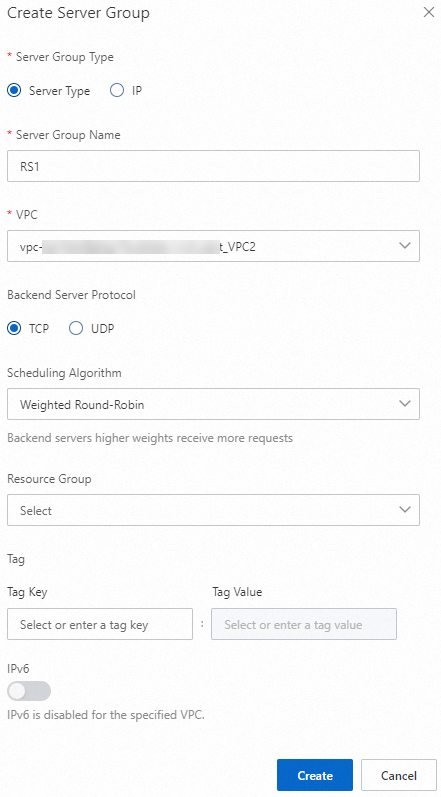
Add ECS03 and ECS04 as backend servers
-
On the Server Groups page, click the ID of the RS1 server group.
-
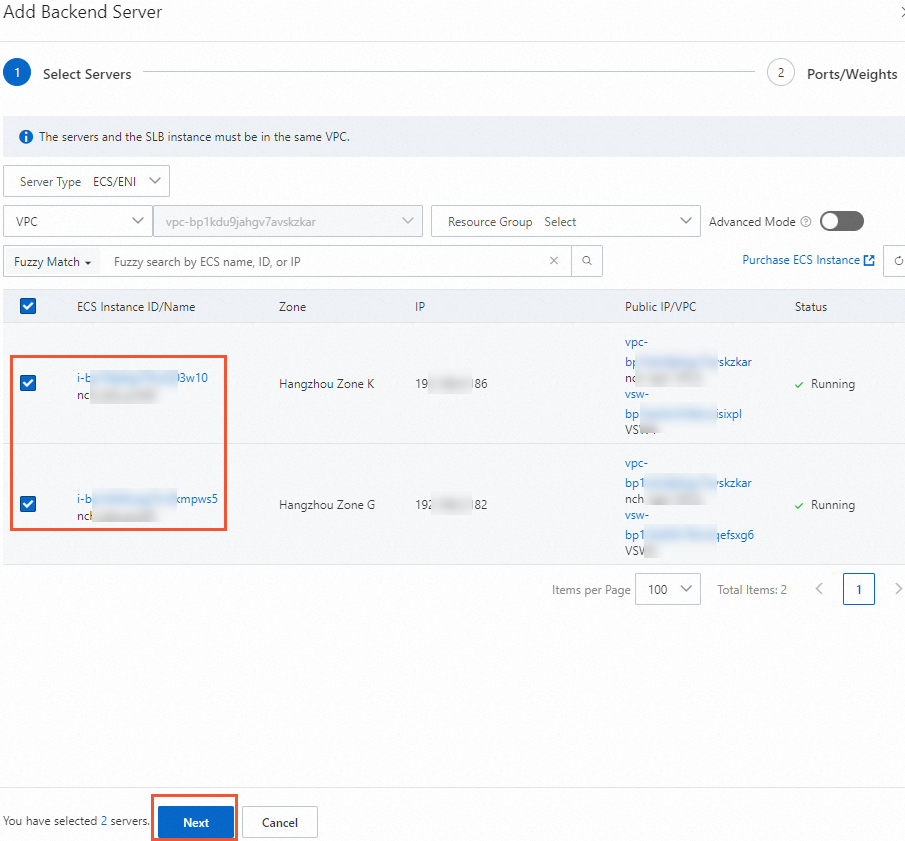
On the Backend Servers tab, click Add Backend Server. Select ECS03 and ECS04, then click Next.
-
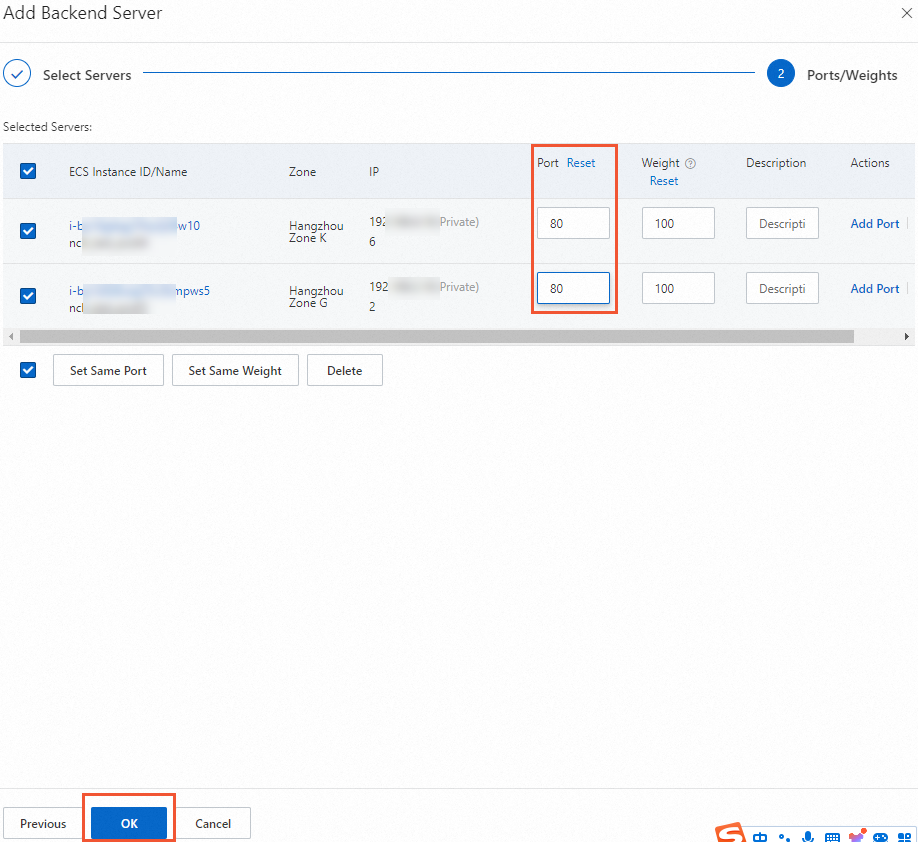
Set the port to
80and leave the weight at the default value of100.
Step 3: Configure a listener
Configure a TCP listener on port 80. The listener distributes incoming requests across backend servers using the configured scheduling algorithm.
-
On the Instances page, find the NLB instance and click Create Listener in the Actions column.
-
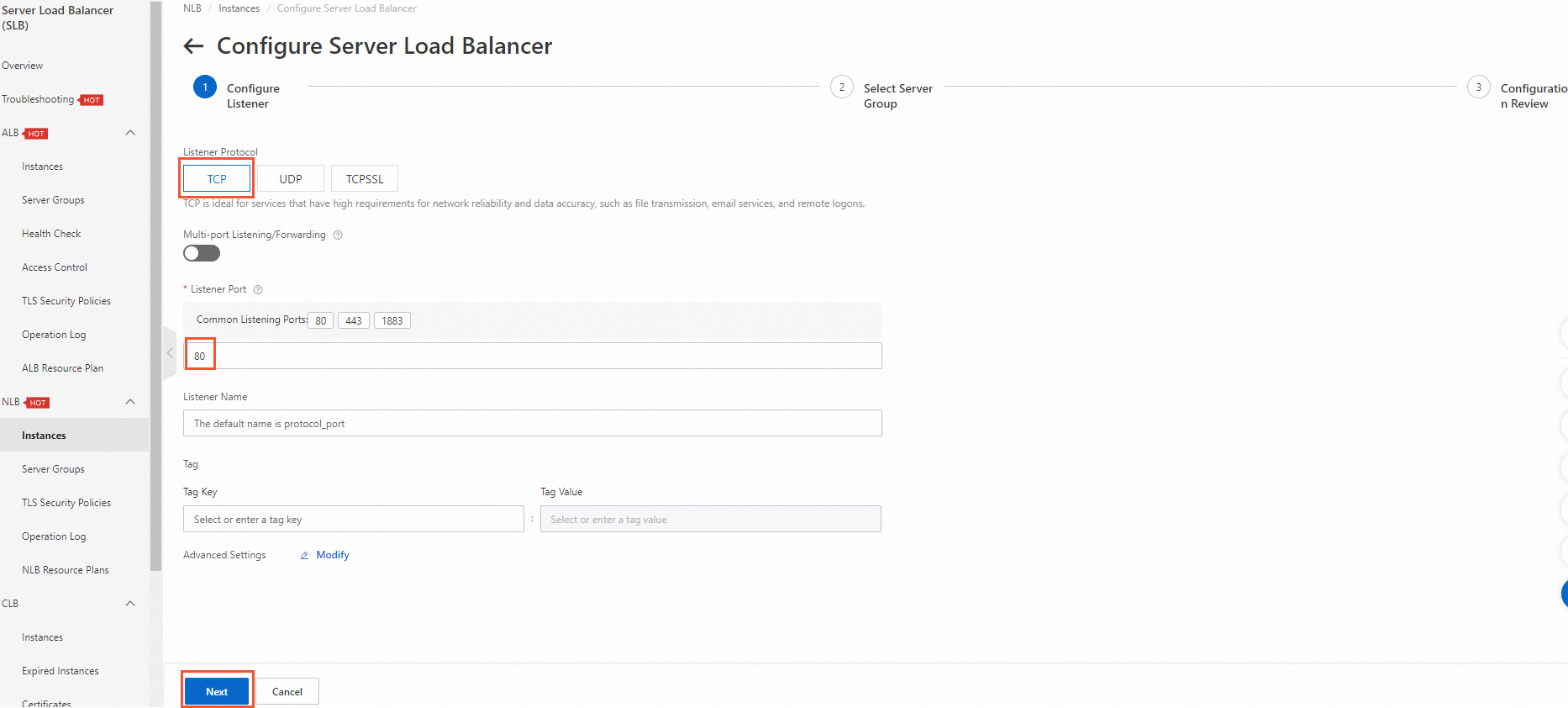
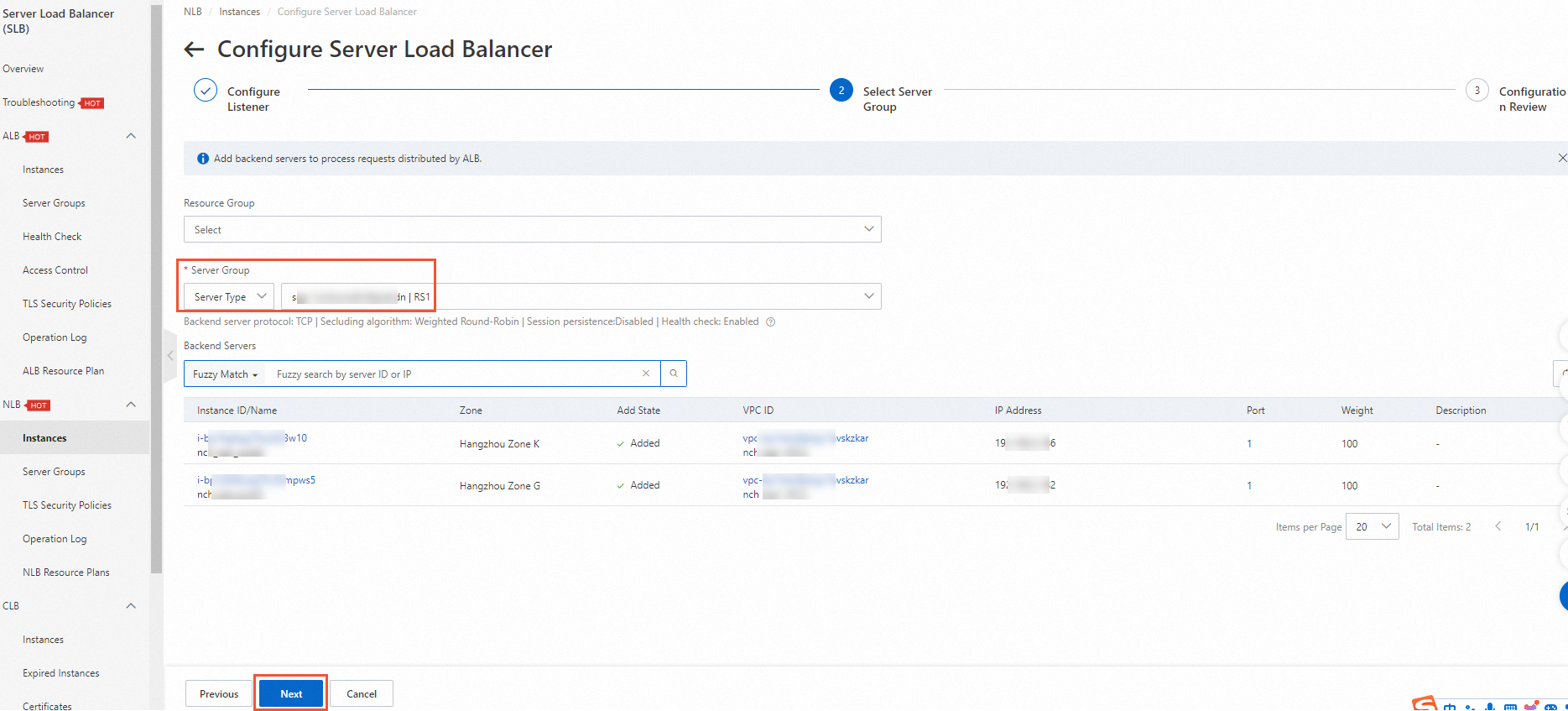
On the Configure Listener page, set the listener protocol to TCP and the port to 80, then click Next.
-
On the Select Server Group page, select RS1 and click Next.
-
On the Configuration Review page, confirm the settings and click Submit.
-
In the NLB Configuration Wizard dialog box, click OK.
When the health check status shows Healthy, ECS03 and ECS04 are ready to process requests forwarded by the NLB instance.
Step 4: Create an endpoint service
Expose the NLB instance as an endpoint service so that VPC1 can connect to it.
-
Log in to the Endpoint Service console. In the top navigation bar, select China (Hangzhou), then click Create Endpoint Service.
-
On the Create Endpoint Service page, add the NLB instance as a service resource. Keep the default values for all other parameters.
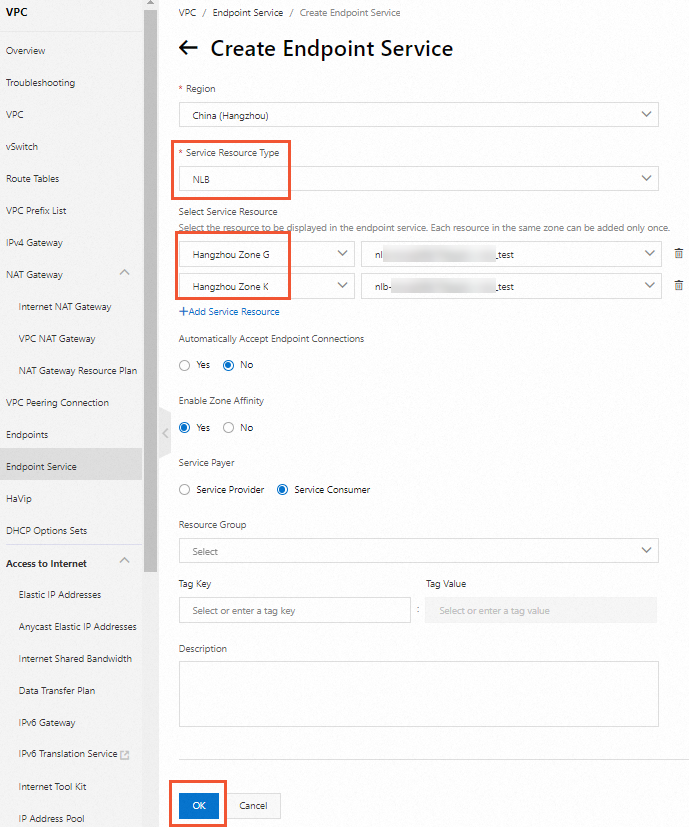
The endpoint service in this example is configured to automatically accept connection requests. If you disable auto-accept, you must manually approve each endpoint connection in Step 6.
Step 5: Create an endpoint
Create an endpoint in VPC1 and connect it to the endpoint service.
-
Log in to the Endpoint console. In the top navigation bar, select China (Hangzhou), then click Create Endpoint.
-
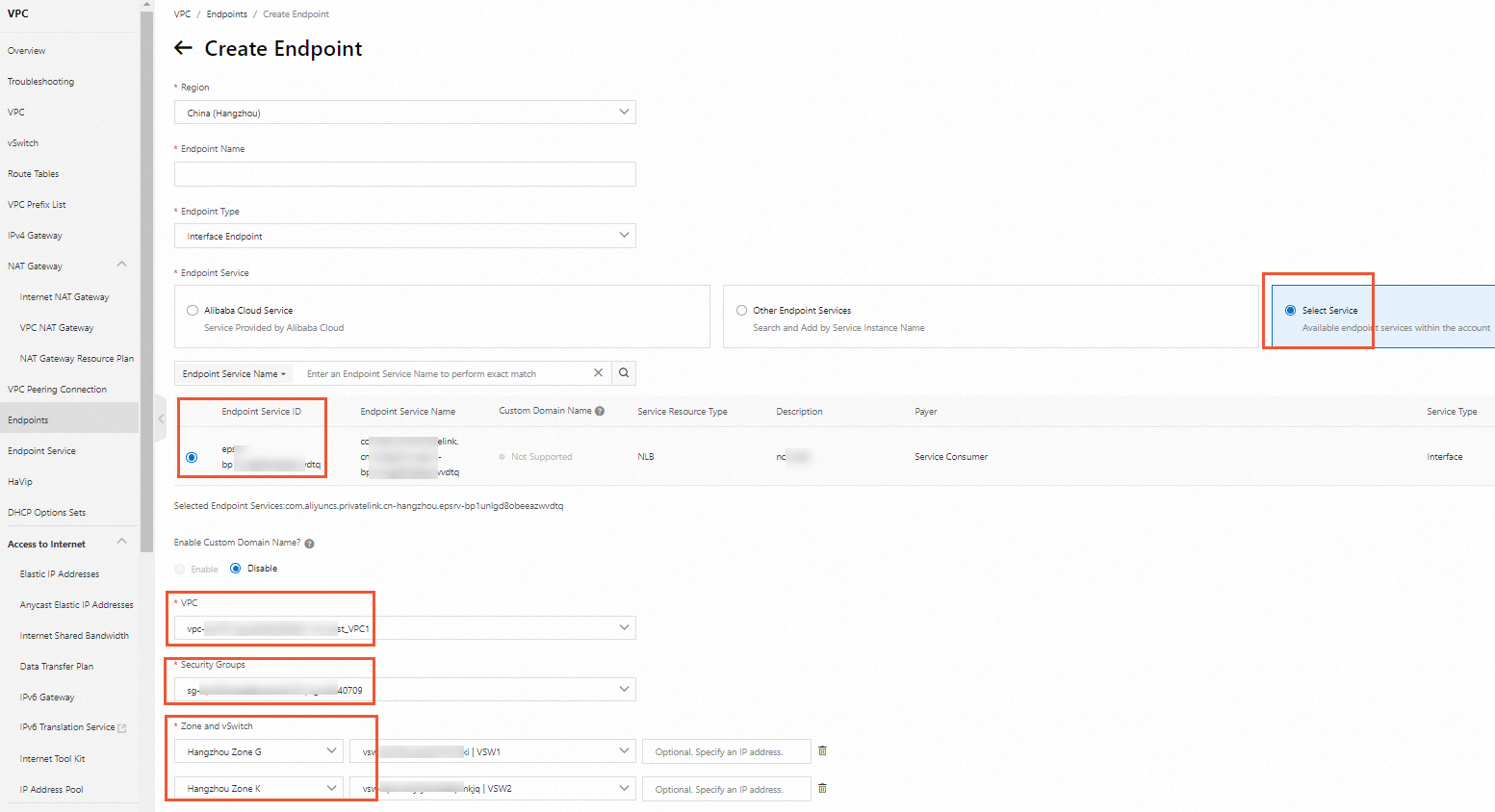
On the Create Endpoint page, associate the endpoint with the endpoint service created in Step 4. Select VPC1, the appropriate security group, zones (Zone G and Zone K), and the corresponding vSwitches. Keep the default values for all other parameters, then click OK.
(Optional) Step 6: Accept the connection request
An endpoint can communicate with an endpoint service only after the endpoint service accepts the connection request. In this example, auto-accept is enabled, so the connection is established automatically. Skip this step.
If auto-accept is disabled, go to the endpoint service details page and manually approve the pending connection request.
Step 7: Verify connectivity
After the endpoint connects to the endpoint service, test the private network connectivity from VPC1 to VPC2.
Log in to ECS01 and ECS02 in VPC1 (this example uses Alibaba Cloud Linux), then use one of the following methods:
Method 1: Use the endpoint service domain name
The endpoint service domain name supports automatic zone failover — if one zone becomes unavailable, traffic is automatically routed to a healthy zone.
-
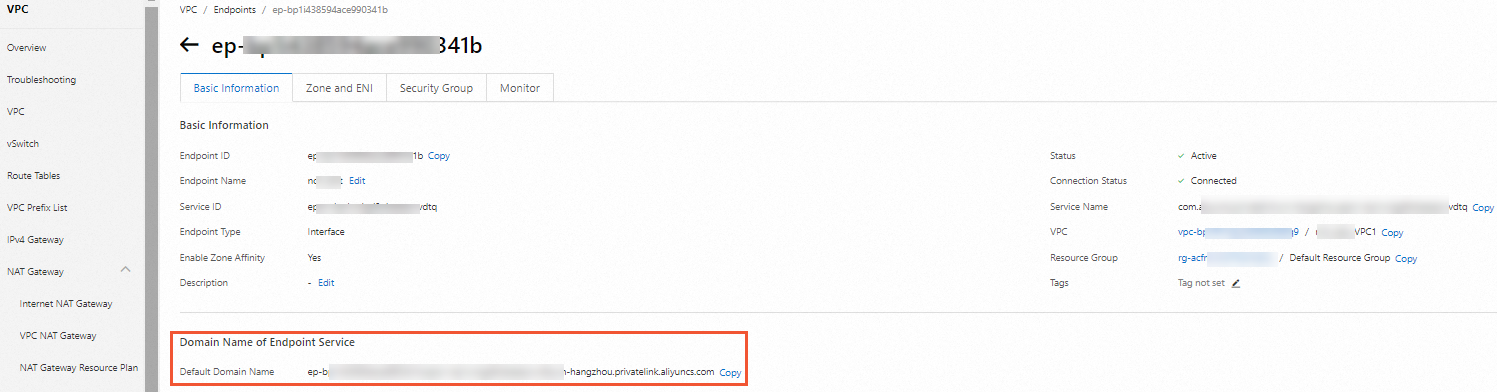
On the endpoint details page, find the endpoint service domain name.
-
Run
curlwith the domain name to test connectivity.

Method 2: Use a zone-specific domain name or IP address
Use this method when you want to target a specific zone.
-
On the endpoint details page, click the Zones And ENIs tab to view the zone-specific domain names and IP addresses.

-
Run
curlwith the zone domain name or IP address to test connectivity.

API reference
To automate this workflow, use the following PrivateLink APIs:
-
CreateVpcEndpointService: creates an endpoint service
-
AttachResourceToVpcEndpointService: adds a service resource to an endpoint service
-
CreateVpcEndpoint: creates an endpoint
-
EnableVpcEndpointConnection: accepts endpoint connection requests