In use cases such as rapid environment deployment, disaster recovery and backup, and configuration migration, you can use the instance cloning feature of Application Load Balancer (ALB) to quickly create instances that are identical or similar to a source instance. This improves deployment efficiency and reduces O&M complexity.
ALB instance cloning overview
ALB instance cloning lets you quickly copy the configurations of an existing ALB instance, including key settings such as listeners, server groups, forwarding rules, and health checks. This feature helps you avoid tedious manual reconfiguration and ensures that the new instance has configurations identical or similar to the source instance. It is especially useful for disaster recovery, backup, and configuration migration.
Key benefits
Quick replication: Clone the configurations of an existing ALB instance with a single click through an automated Resource Orchestration Service (ROS) process. This feature significantly improves deployment efficiency and reduces O&M complexity.
Configuration consistency: Ensure the new instance has configurations identical or similar to the source instance. This prevents manual errors and ensures operational parity between environments.
Flexible deployment: Deploy cloned instances in different regions or zones to meet complex business requirements, such as business expansion across multiple regions and disaster recovery switchovers.
Use cases
Environment migration: Clone configurations from a test environment to a pre-production or production environment. This ensures consistency across multiple environments and supports rapid feature releases.
Disaster recovery and backup: If a business failure occurs, you can quickly deploy backup load balancing resources by cloning instances. This improves business continuity and high availability.
Configuration migration: Migrate the configurations of an existing instance to a new one to support scenarios such as version upgrades or architecture adjustments. This avoids repeated manual configuration.
Limitations
The clone will be created with the same edition as the source instance.
ALB Ingresses do not support instance cloning.
ALB instances with modification protection enabled cannot be cloned.
If the source ALB instance is associated with an Internet Shared Bandwidth instance, the cloned instance will not be automatically associated with it. You must manually associate the new instance with the Internet Shared Bandwidth instance via the ALB instance details page.
By default, cloning a non-upgraded ALB instance creates a new, upgraded ALB instance. Please be aware of the feature differences between the non-upgraded and upgraded versions before proceeding.
Sample use case
A company deploys a new feature in a test environment. An ALB instance is used for load balancing. The ALB instance is configured with a forwarding rule to redirect HTTP requests to an HTTPS listener and uses a custom domain name www.example.com to provide test services. When a test client accesses the custom domain name, Alibaba Cloud DNS uses a CNAME record to direct the test traffic to the ALB instance. The ALB instance then forwards the traffic to Elastic Compute Service (ECS) instances ECS01 and ECS02 for processing.
After the deployment passes the acceptance testing, the ALB instance configurations must be migrated from the test environment to the production environment. The production environment handles a large amount of traffic. Manual ALB configuration is not only time-consuming but may also lead to inconsistencies between source and destination environments, potentially affecting business operations.
To resolve this issue, the company decides to use the ALB instance cloning feature to quickly replicate the ALB configurations from the test environment to the production environment. Using the instance cloning feature, the company can quickly and successfully deploy the required ALB instance in the production environment. This ensures a rapid release of the new feature and business stability.

Prerequisites
The source ALB instance is configured with listeners and backend servers. A CNAME record is configured for the ALB instance. The instance is accessible for testing using the custom domain name
www.example.com. For more information, see Use ALB to balance loads for IPv4 services.The source ALB instance is configured with an HTTP listener and an HTTPS listener. A Redirect forwarding rule is configured for the HTTP listener to redirect HTTP requests to the HTTPS listener.
Services are deployed on the backend servers ECS01 and ECS02 of the source ALB instance.
In this example, the ECS instances run the Alibaba Cloud Linux 3 operating system and are deployed with an Nginx service using port 80.
You may need to prepare backend servers for the destination ALB instance:
If the destination ALB instance and the source ALB instance are in the same virtual private cloud (VPC), the backend servers ECS01 and ECS02 of the source ALB instance can be used as the backend servers for the destination ALB instance.
If the destination ALB instance and the source ALB instance are not in the same VPC, prepare backend servers ECS03 and ECS04 in the destination VPC and deploy services on them.
Prepare ECS instances to simulate clients: ECS-A is used to test traffic forwarding before migration, and ECS-B is used to verify traffic forwarding during migration. Both instances must have Internet access. In this example, they run the Alibaba Cloud Linux 3 operating system.
If you have your own test instances, you do not need to create ECS-A and ECS-B.
Procedure
Step 1: Clone the source ALB instance
In the top menu bar of the ALB console, select the region where the source ALB instance is deployed.
On the ALB Instances page, find the target ALB instance, and choose
 > Clone Instance.
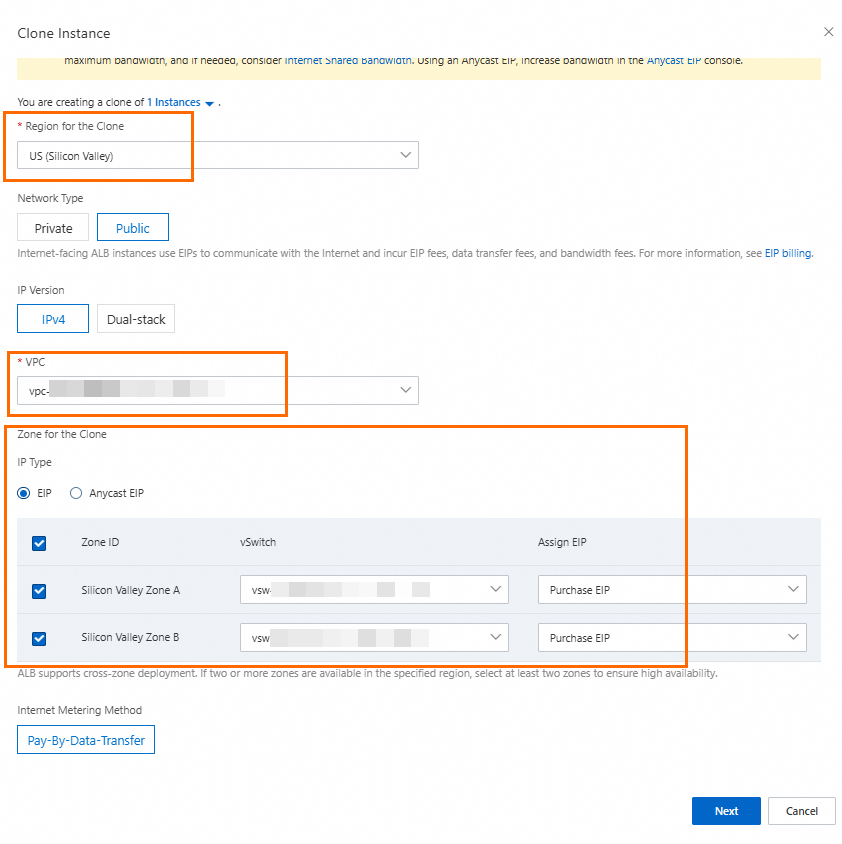
In the Clone Instance dialog box, set the destination ALB instance parameters and click Next.
By default, the destination ALB instance uses the same parameter values as the source ALB instance. In this example, change the Region for the Clone from Germany (Frankfurt) to US (Silicon Valley), and the VPC from VPC1 to VPC2. Then, select the destination zones and vSwitches. Keep the default values for the other parameters or set them as needed.
If the clone is Internet-facing and the target region supports Anycast EIPs for ALB, you must also select the IP Type (either EIP or Anycast EIP). Then, for each selected zone, you must assign a public IP address of the chosen type.
In the Preview and Confirm step, check the basic information and billing details about the cloned ALB instance and click Clone.
Confirm the cloning result.
When the status in the final step shows "Clone created successfully," the task is complete. You can then compare the new (cloned) ALB instance with the original (source) instance to verify that the configuration and business data have been copied correctly.
The instance cloning feature is powered by the Resource Orchestration Service (ROS). While the clone is in progress, you can monitor its detailed status by logging into the ROS console.
Add ECS03 and ECS04 as backend servers to the server group of the destination ALB instance.
Step 2: Test the traffic forwarding
To ensure that the destination ALB instance can communicate with the backend service, if your backend service has access policies (such as iptables rules or any other third-party security software policies), add the vSwitch CIDR blocks of the ALB instance to the allowlist.
Remotely log on to the test server ECS-A.
Run the following command to modify the hosts file:
sudo vi /etc/hostsIn the hosts file, add the elastic IP address (EIP) and domain name of the destination ALB instance. After you modify the file, save the changes and exit.
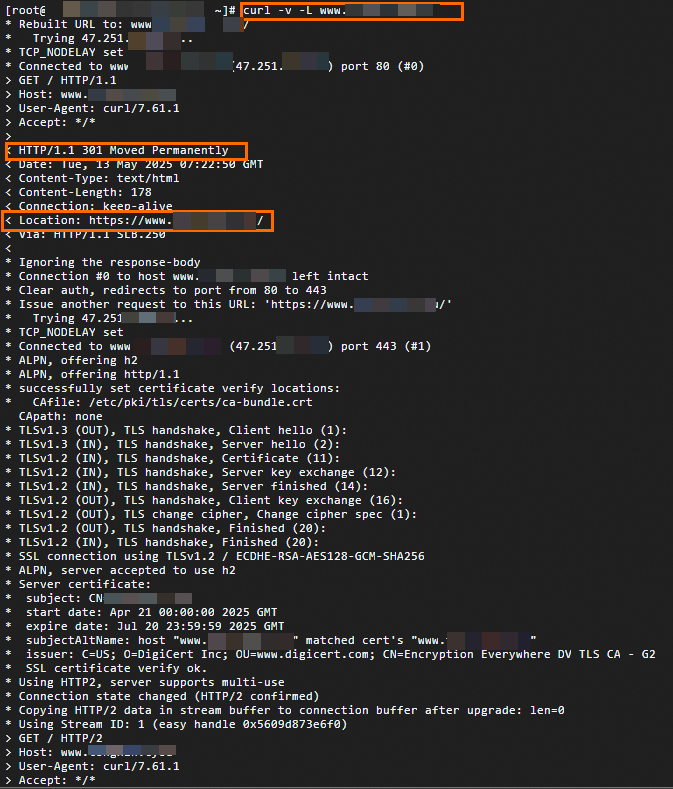
47.251.XX.XX www.example.comRun the following command to test traffic forwarding for the destination ALB instance:
curl -v -L www.example.comThe following output is returned. It shows that the HTTP request is successfully redirected to the HTTPS listener, and ECS03 responds to the request.
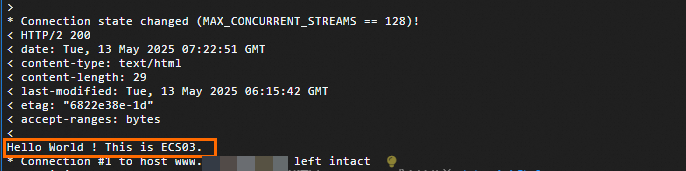
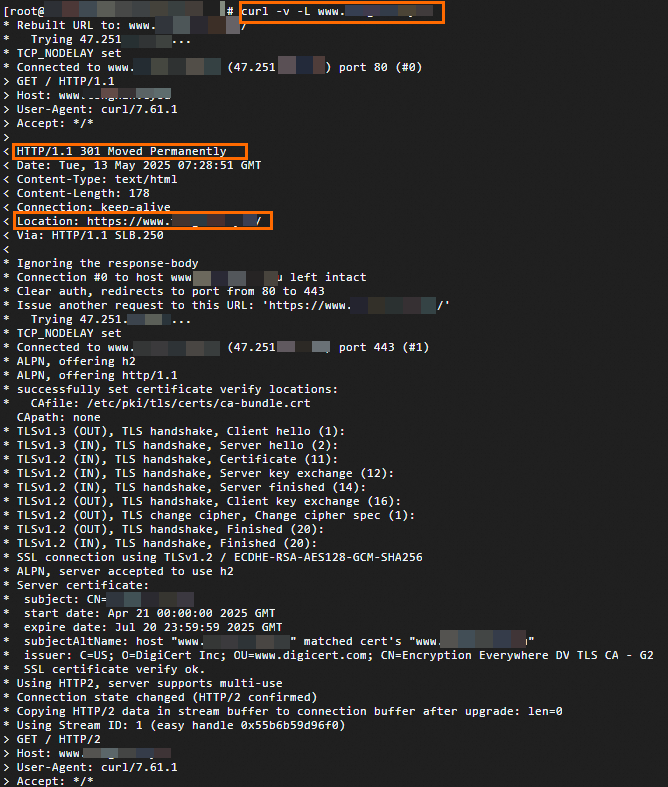
Run the command again. The responding backend server changes to ECS04.

Step 3: Migrate traffic to the destination ALB instance
Before migrating traffic, verify that the forwarding rules on the source and destination ALB instances define identical routing paths. Make sure that all configurations have passed comprehensive acceptance testing to avoid unexpected impacts on your business during migration.
Migrate ALB traffic during off-peak hours.
A CNAME record is configured for the source ALB instance. After the destination ALB instance is configured and passes the acceptance testing, migrate traffic from the source ALB instance to the destination ALB instance when you want.
In this example, the weighted routing policy of Alibaba Cloud DNS is used. The incoming DNS queries are gradually migrated from the DNS record for the source instance to that for the new instance by dynamically adjusting the DNS weights of the source and destination ALB instances.
Part 1: Add a CNAME record for the destination ALB instance
In the navigation pane on the left, choose . On the Instances page, copy the DNS name of the destination ALB instance.
Perform the following operations to add a CNAME record.
Go to the Alibaba Cloud DNS console - Public Zone page, locate your custom domain name. In the Actions column, click Settings.
NoteIf your domain name is not registered with Alibaba Cloud, you must first add the domain name to Alibaba Cloud DNS before you can add DNS records for it.
On the Settings tab, click Add Record, configure the CNAME record, and click OK.
In this example, set Record Type to CNAME and Record Value to the DNS name of the destination ALB instance. You can keep the default values for other parameters of the DNS record or set them as needed.

In the Change Resource Record Confirmation dialog box, double-check the configuration and click OK.
Part 2: Set weights and start the canary release
On the Settings tab, select the CNAME record created in Part 1, click the down arrow icon next to Modify and choose Edit Record Set.
In the Edit Record panel, in the Record Values section, set the weight of the record for the source ALB instance to 100 and set the weight of the record for the target ALB instance to 0.
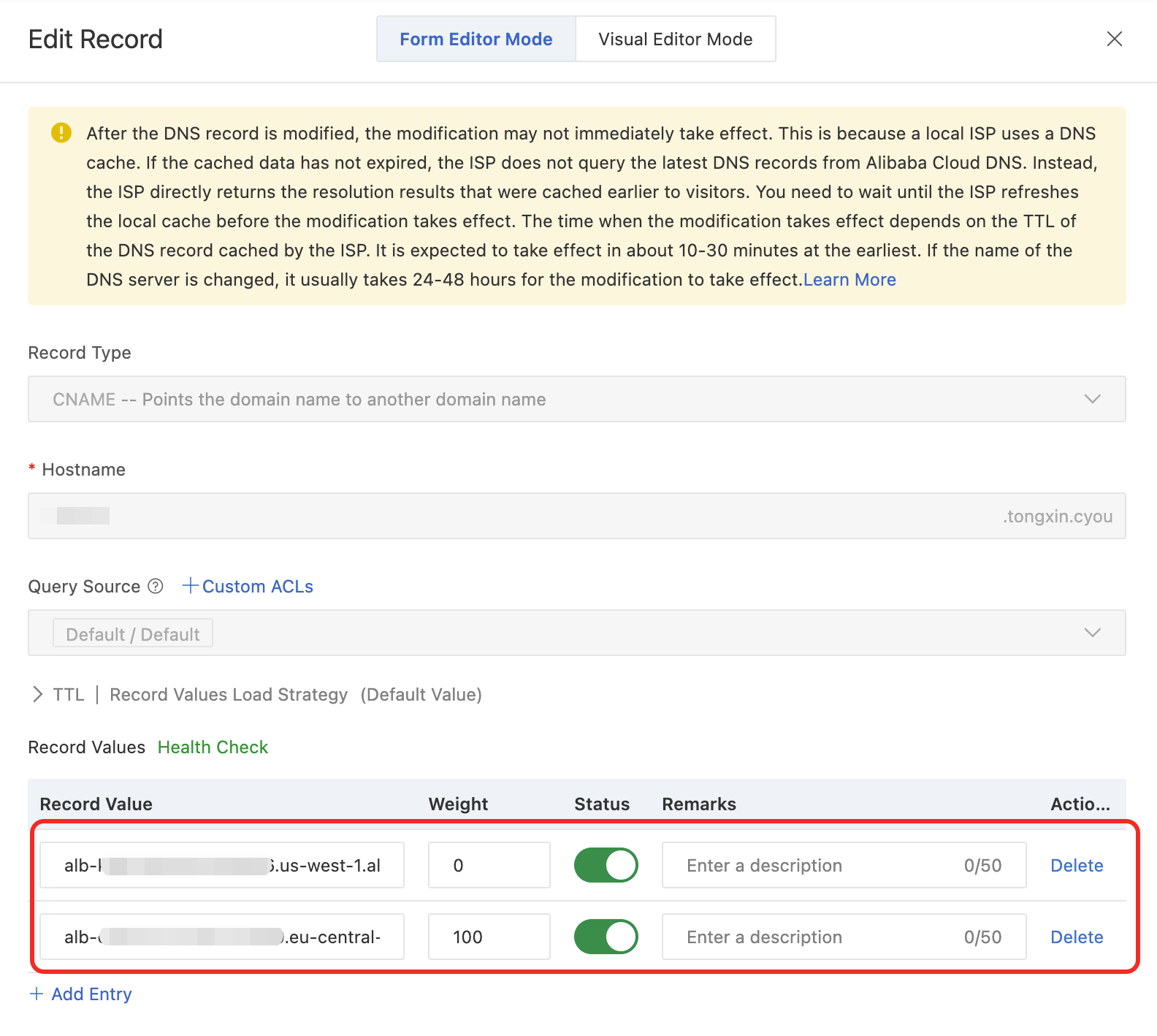
If you observe no impact on your business, gradually decrease the weight of the DNS record for the source ALB instance and increase the weight of the DNS record for the destination ALB instance.
Remotely connect to the test server ECS-B. Run the
digcommand multiple times to verify the traffic migration.dig www.example.comThe following figure shows the output. Run the command multiple times and you can observe that requests are distributed to the source or destination ALB instance based on the configured weights.
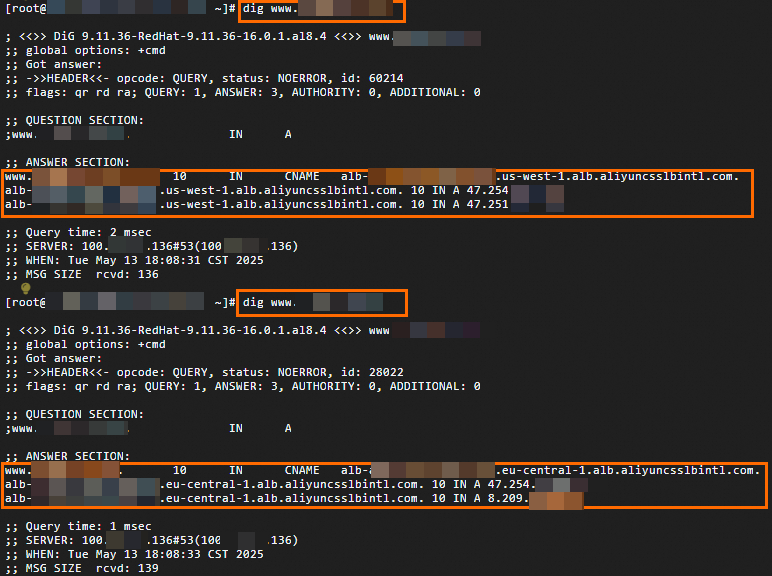
Optional: Part 3: Complete the traffic migration
Based on the traffic migration verification results, gradually decrease the weight of the DNS record for the source ALB instance to 0 and increase the weight of the DNS record for the destination ALB instance to 100. At this point, you have completed the traffic migration from the source ALB instance to the destination ALB instance.
After all persistent connections to the source ALB instance are closed and no new traffic is directed to the source ALB instance, you can monitor the instance for a period of time and then release it as needed.
References
After you clone an ALB instance, you can use access logs to monitor the load of the destination ALB instance and locate related issues.
To migrate a Layer-7 Classic Load Balancer (CLB) instance to ALB, refer to the following guides:
Consider using one of the following services and features for DNS query control:
Weight settings: This feature enables a weighted round-robin policy for your DNS records. It distributes incoming DNS queries among different record values (e.g., IP addresses) based on the specific weights you assign. This allows you to control the proportion of traffic each endpoint receives.
Intelligent DNS resolution: Intelligently returns resolution results based on the geographic location and Internet service provider (ISP) of the client. This feature reduces resolution latency and improves website access speed. Supported lines include ISP lines, provincial ISP lines, lines outside the Chinese mainland, country/regional lines outside the Chinese mainland, and custom DNS resolution lines.
Global Traffic Manager (GTM): Implements nearby access and load balancing for high-concurrency traffic. GTM can also distribute traffic based on health check results and can be used to build multi-zone active-active and multi-region active-active services.