All Products
Search
Document Center

Simple Application Server:OpenClaw integration with WhatsApp

Last Updated:Mar 26, 2026

This topic describes how to integrate the OpenClaw service with WhatsApp. This integration lets you interact with OpenClaw directly in WhatsApp using natural language.

Prerequisites

Before you configure the messaging channel, you must purchase and configure a Simple Application Server instance with the OpenClaw application image. You can follow the steps in this section or refer to the Deploy OpenClaw Image document. If you have already completed this setup, you can skip this section.

Purchase and configure a Simple Application Server instance with the OpenClaw application image

Step 1: Purchase an OpenClaw plan

Important

If you already have a Simple Application Server instance, you can skip this step and deploy OpenClaw using the reset system feature. When you reset the system, select the OpenClaw image from the list of application images. Resetting the system erases all data on the system disk. Back up your data if necessary. For more information, see Reset system.

  1. Purchase a Simple Application Server instance pre-installed with the OpenClaw application image.

  2. On the Simple Application Server page, resource configurations are preset. If you want to change any settings, refer to the following descriptions.

    • Instance: Memory must be 2 GiB or higher. You can switch plans based on your needs.

    • Region: The default is US (Virginia).

      Important

      Servers in the Chinese mainland region cannot be configured to work with overseas IM applications such as WhatsApp, Telegram, Discord, and Slack.

    • Purchase Configuration: The default subscription period is 12 months. You can change the duration based on your needs.

Step 2: Configure OpenClaw

  1. In the Simple Application Server console, click the instance ID on the server card. On the Server Overview page, click the Application Details tab.

  2. In the Steps to Use OpenClaw section, click Execute Command under Open Port to open firewall access to the OpenClaw service's port.

    Important
  3. Click Execute Command under Configure OpenClaw to configure the Model Studio API key.

    You can configure two types of Model Studio API keys:

    • Coding Plan plan-specific API key (Recommended): This plan uses a fixed monthly fee and provides a monthly request quota. Calls exceeding the quota fail without incurring charges, preventing unexpected costs.

      The Coding Plan currently supports models such as qwen3.5-plus, kimi-k2.5, MiniMax-M2.5, and glm-5. For a detailed list of models, see Coding Plan overview.
    • A Model Studio API key that is billed by token usage.

    You can configure the API key using either the System Recommendation or Manual Input method. The system recommendation lists the API key for the Model Studio Coding Plan (for cost control) and the API key for the Model Studio model service closest to your server (for lower latency). If you need to use an API key from a different region or account, choose Manual Input.

    • System Recommendation (drop-down list)

      After you make a selection, click Next.

      Instance region

      Recommended API key region

      Coding Plan API key region

      US and European regions

      US (Virginia)

      Singapore

      China (Hong Kong) and other Asian regions

      Singapore

    • Manual Input

      Click the button to switch to manual input. Enter the Model Studio API key, select its corresponding region, and click Next.image

      Important

      When you configure the API key manually, ensure that you select the correct region for the API key. An incorrect region will cause model calls to fail.

  4. Under Access Web UI Panel, click Get Address to get the URL for the OpenClaw Web UI. Use this web page to chat with the OpenClaw agent.

    If needed, you can disable public access to the Web UI with one click. For instructions, see Disable public access to the OpenClaw Web UI.
  5. (Optional) View the token.

    In Application Details > Basic Configuration > View Token, click View to view and save the token.

    Warning

    Do not share the full URL that contains the token. This link includes authentication credentials. Anyone with this link can bypass login verification and gain administrator access to the OpenClaw console.

Integrate WhatsApp

1. Configure WhatsApp in the OpenClaw wizard

  1. Go to the Servers page in the Simple Application Server console.

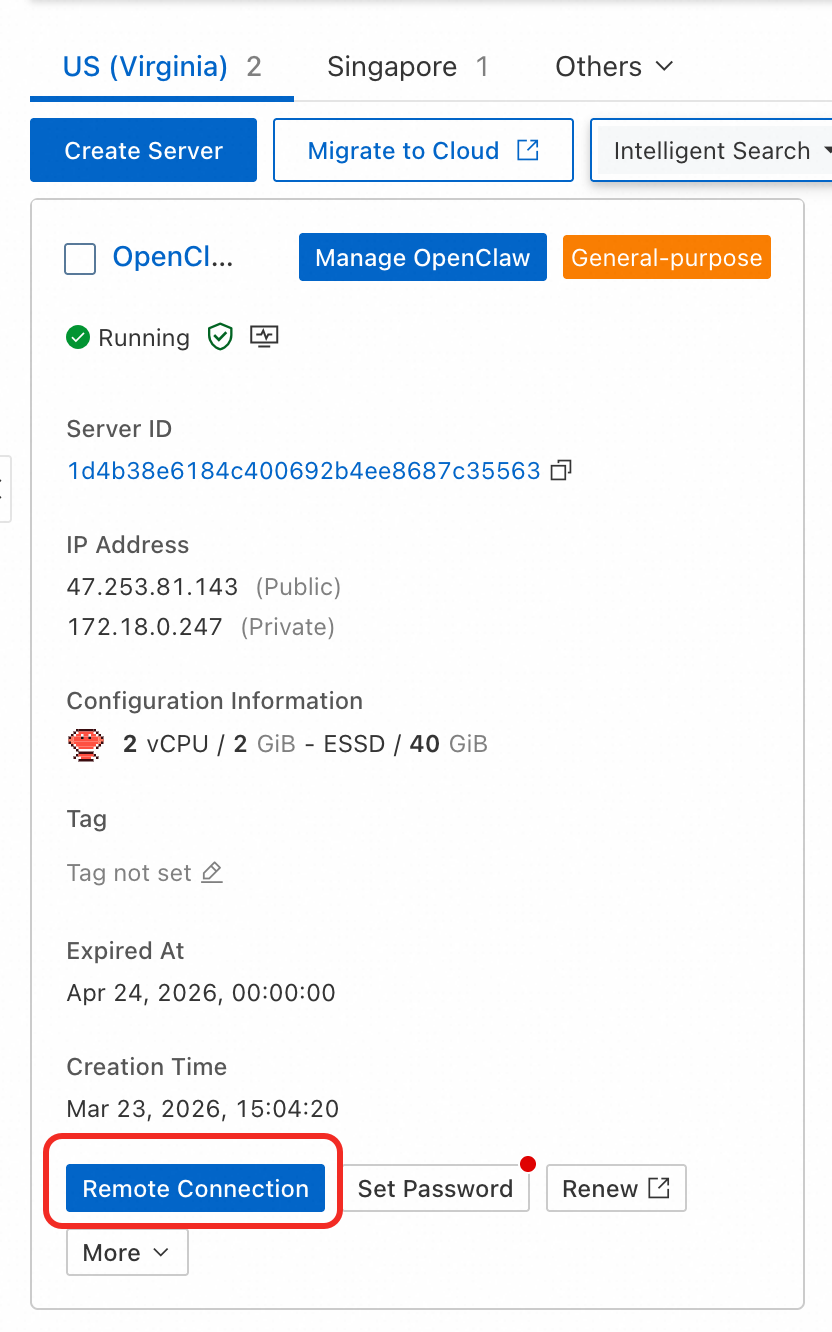
  2. On the server card, click Remote Connection.

    image

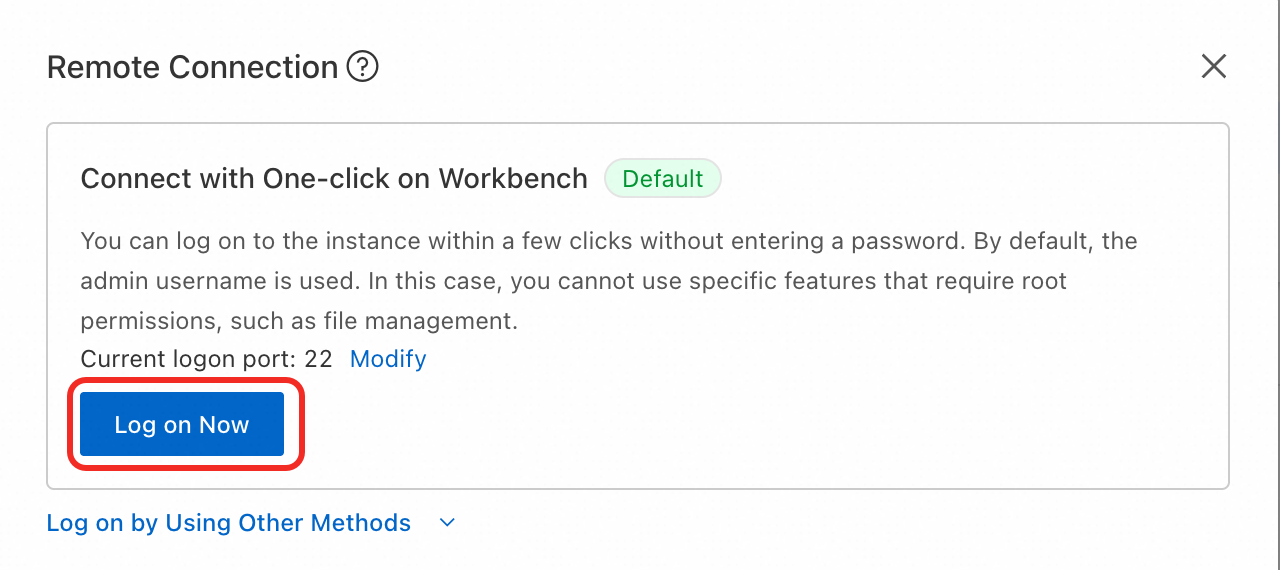
  3. In the Remote Connection dialog box, select Connect with One-click on Workbench and click Log On Now.

    image

  4. After you log on to the server, run the following command.

    Note

    From this point on, use your keyboard to complete the configuration. Use the arrow keys to navigate the options and press Enter to select and confirm.

    openclaw onboard
  5. After running the command, a confirmation prompt appears asking if you understand the risks. Select Yes to continue.

    image

  6. For the Onboarding mode, select QuickStart.

    image

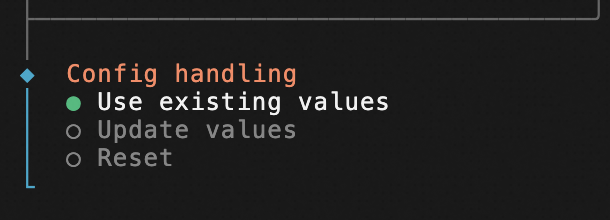
  7. For Config handling, select Use existing values.

    image

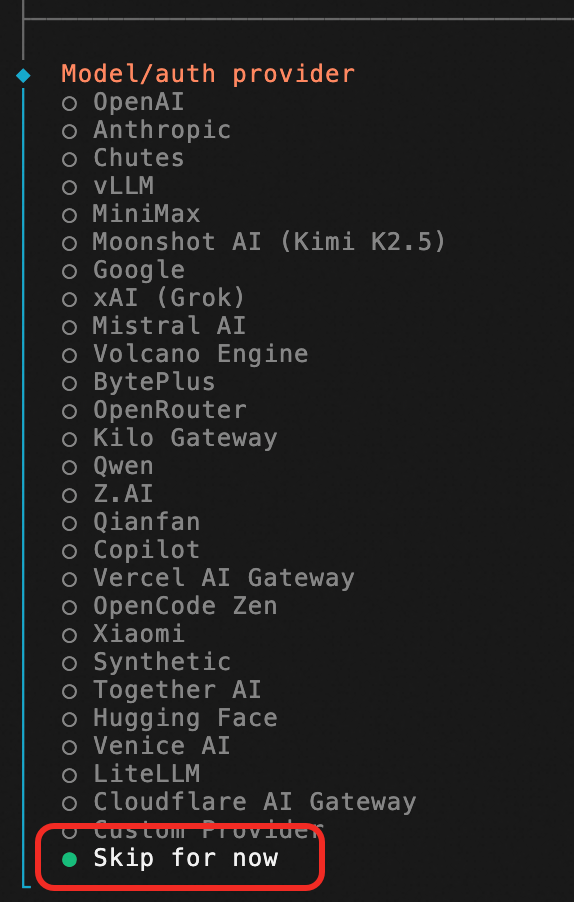
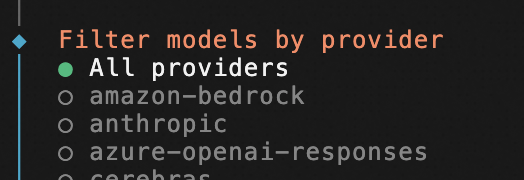
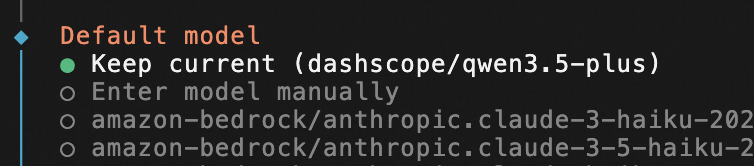
  8. For Model/auth provider, select Skip for now -> All providers -> Keep current.

    Note

    If you already configured the Model Studio API key in the previous steps, you can skip this step. If you have not yet configured a model, you must configure the model API key at this step from the command-line interface.

    imageimageimage

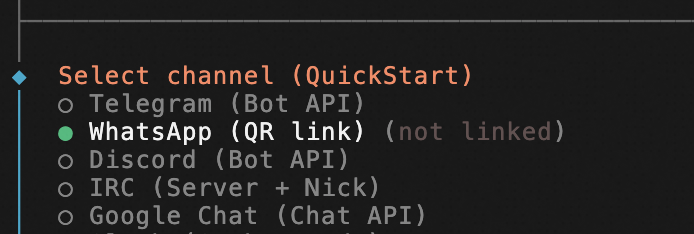
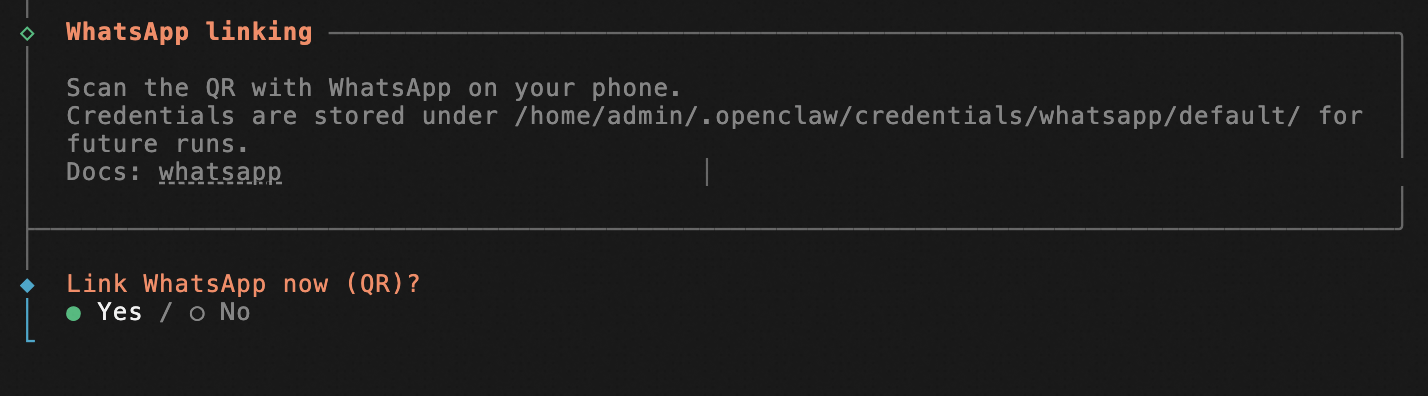
  9. Next, in the Select channel step, select WhatsApp (QR link) and then select Yes.

    imageimage

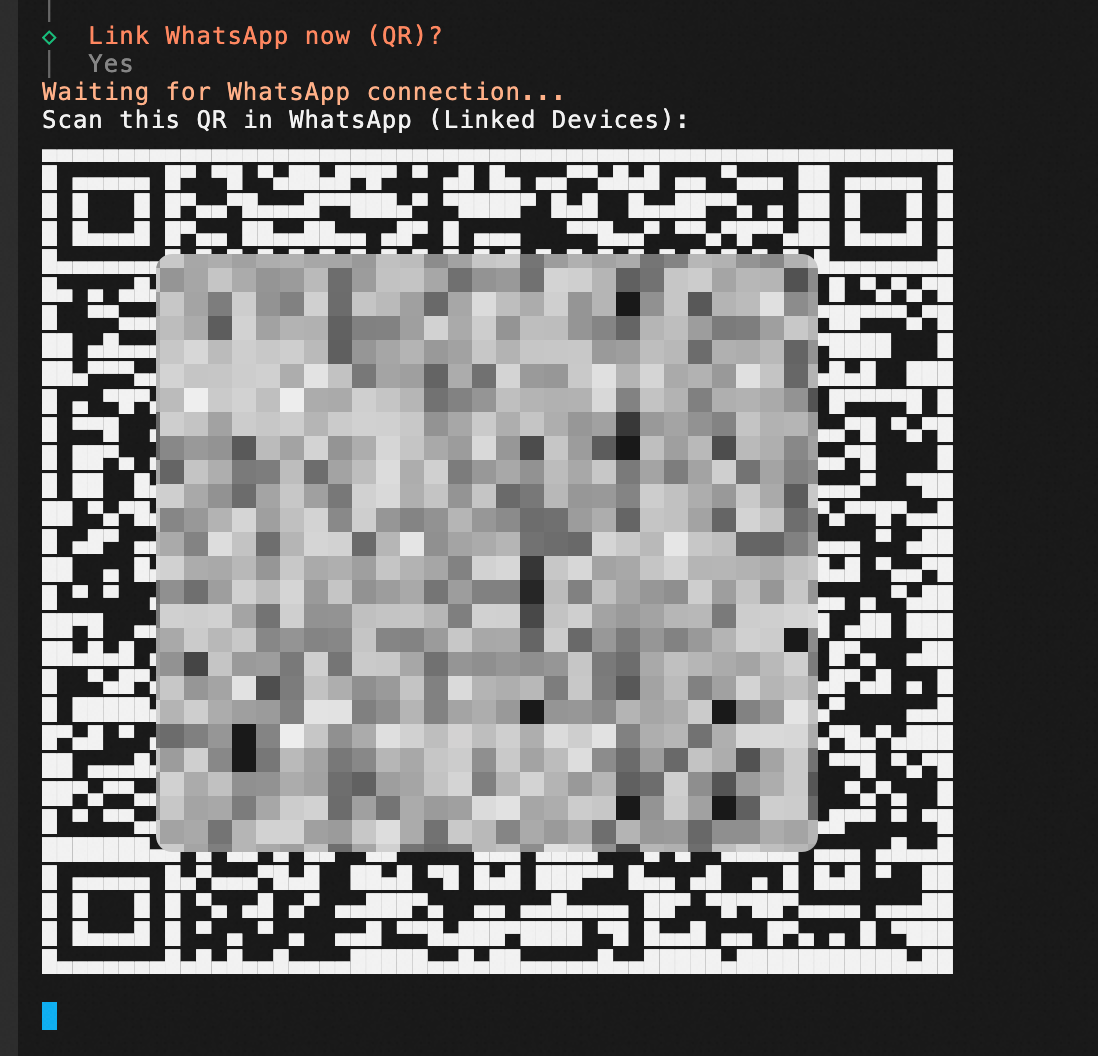
  10. Scan the QR code with WhatsApp on your phone.

    Important

    The QR code may appear distorted. If you cannot scan it, try increasing your screen brightness and adjusting the page zoom.

    image

  11. Set up your phone number.

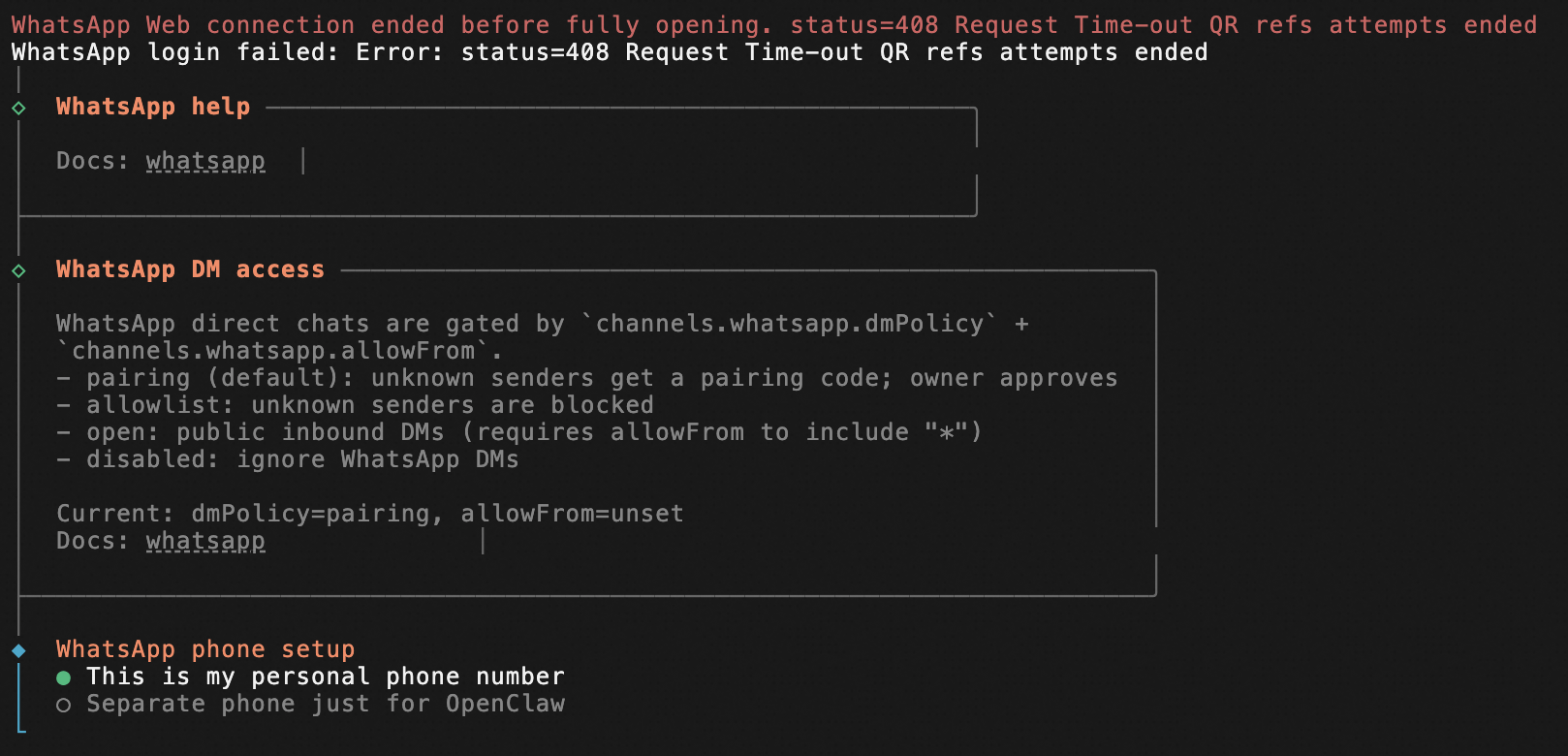
    Personal account

    1. Select This is my personal phone number.
      image

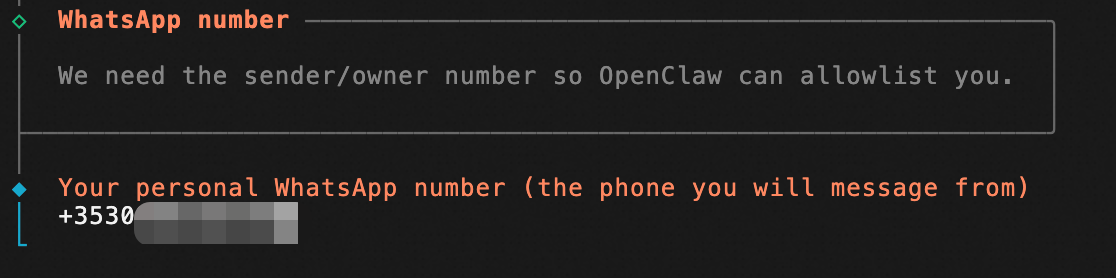
    2. Enter your phone number.

      image

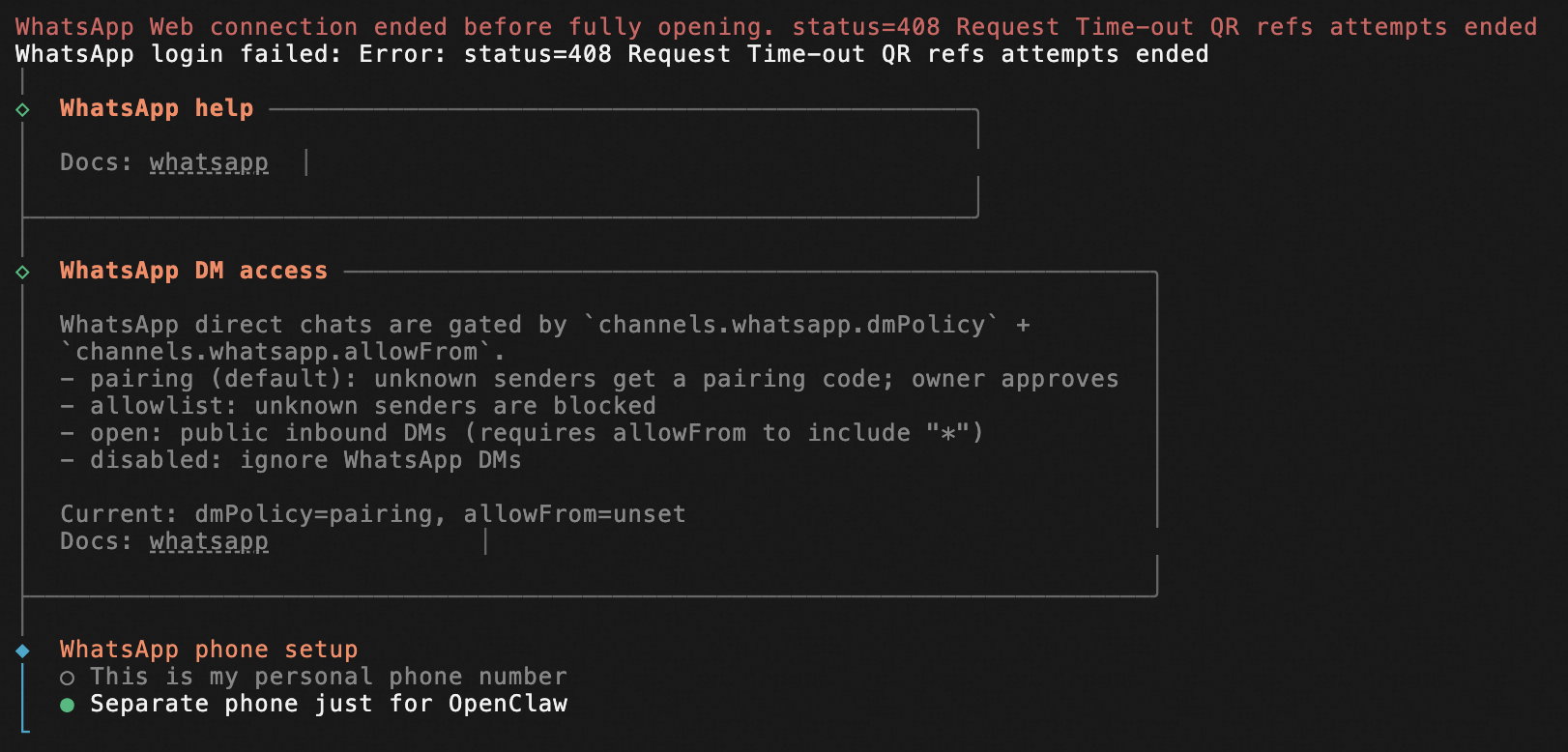
    Dedicated account

    1. Select Separate phone just for OpenClaw.
      image

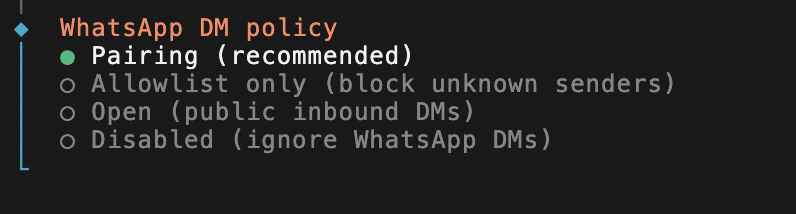
    2. For the WhatsApp DM policy setting, select the default option, Pairing (recommended).
      image

    3. For the WhatsApp allowFrom setting, select the default option, Unset allowFrom (default).

      image

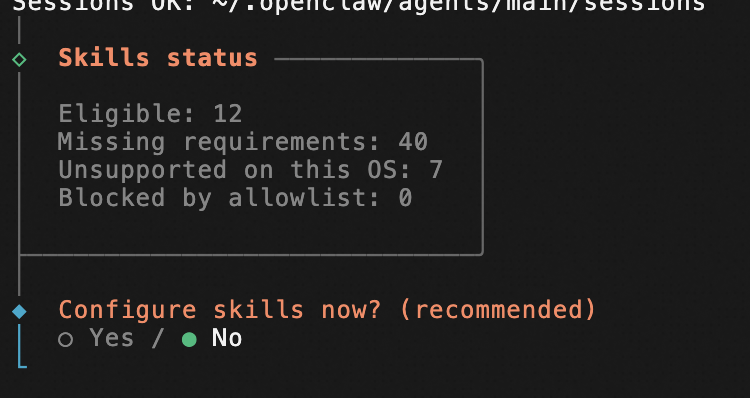
  12. Configure Skills. We recommend that you select No. For an initial deployment, limiting permissions improves stability and security.
    image

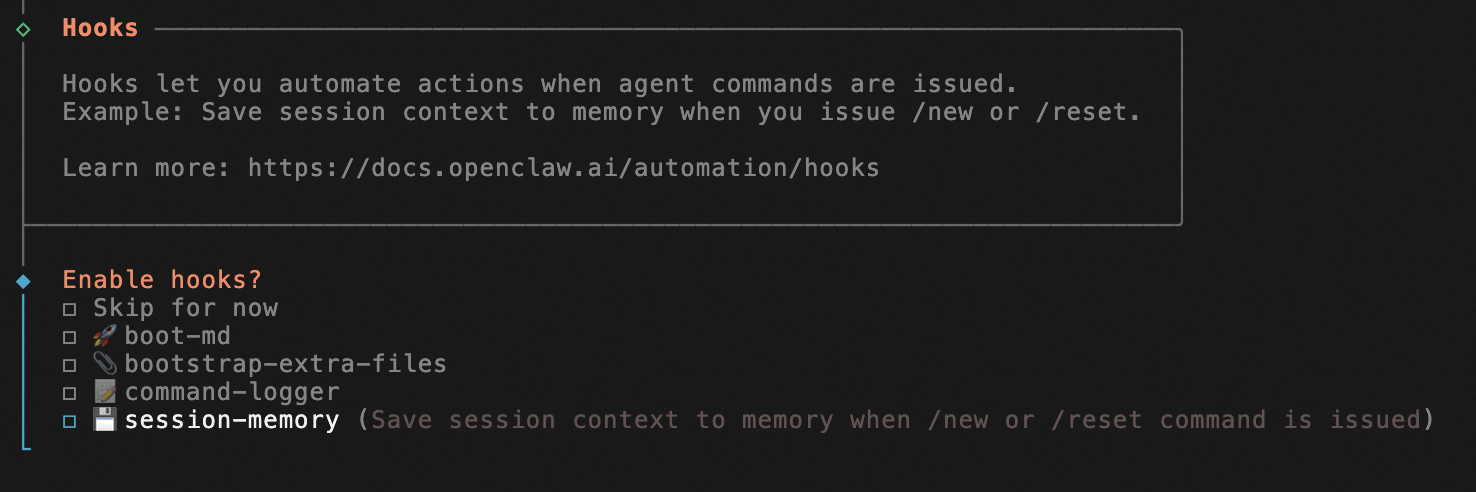
  13. Enable Hooks (if this step appears, otherwise ignore it). We recommend that you select session-memory.

    image

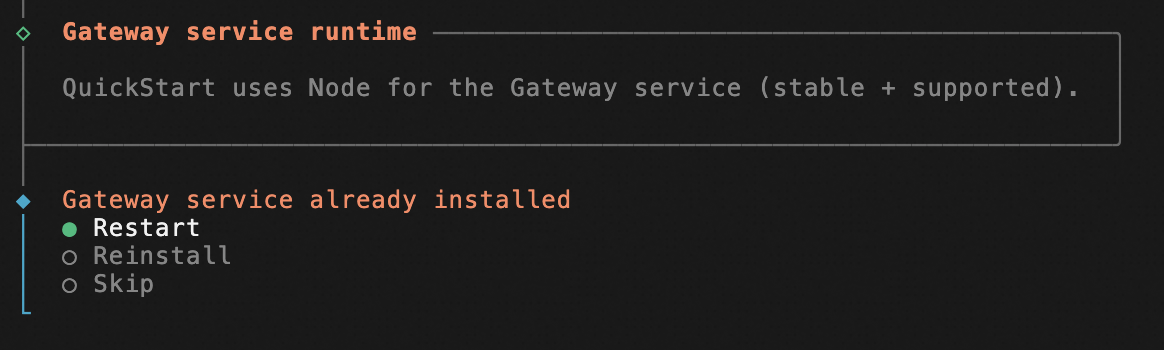
  14. Select Restart to apply the configuration.

    image

  15. Install command completion (if this step appears, otherwise ignore it). We recommend that you select No.

    Important

    If you select Yes, this can cause high CPU load on the server, which may lead to performance issues with OpenClaw.

  16. After you complete these steps, the system automatically finishes the deployment. The deployment is successful once the configuration wizard closes and you return to the command-line interface.

2. Test the bot

Personal account

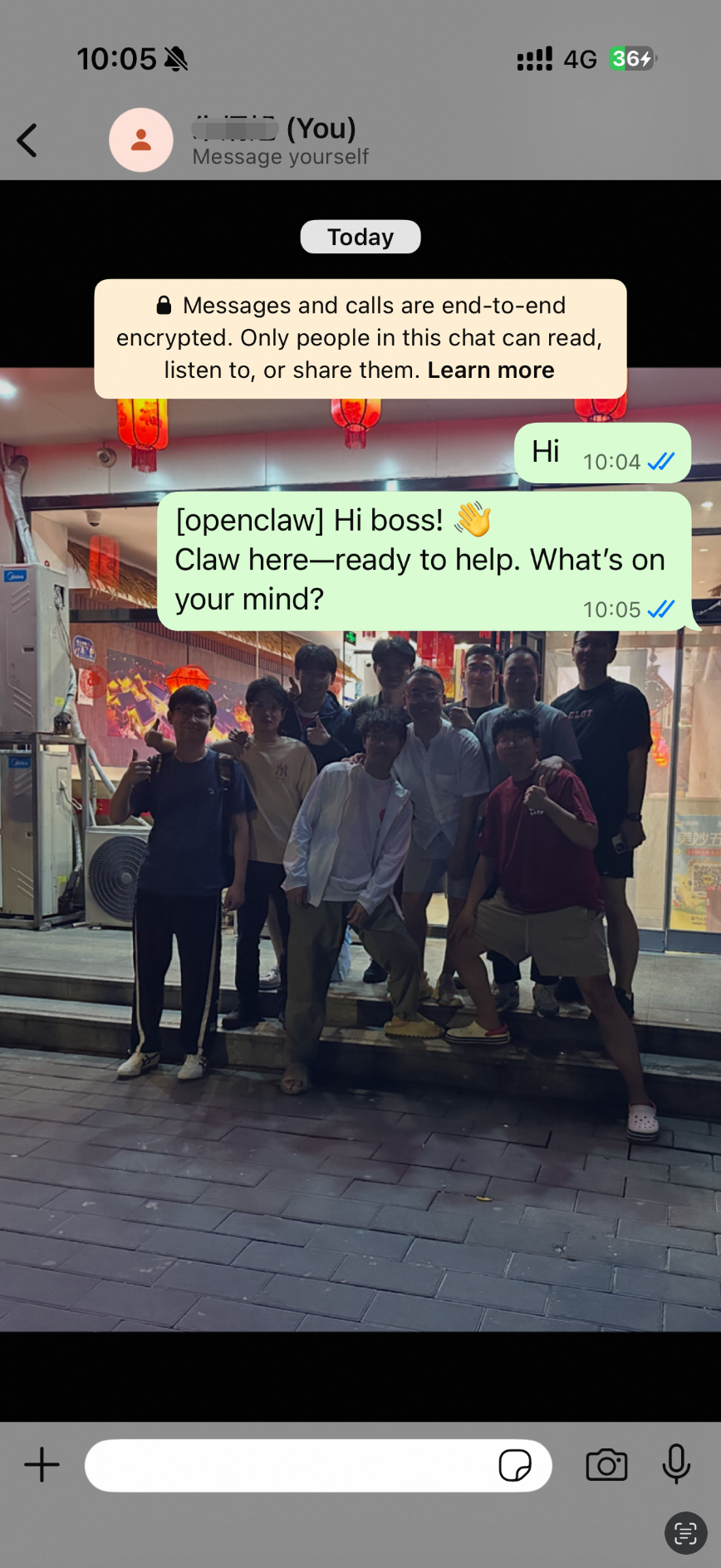
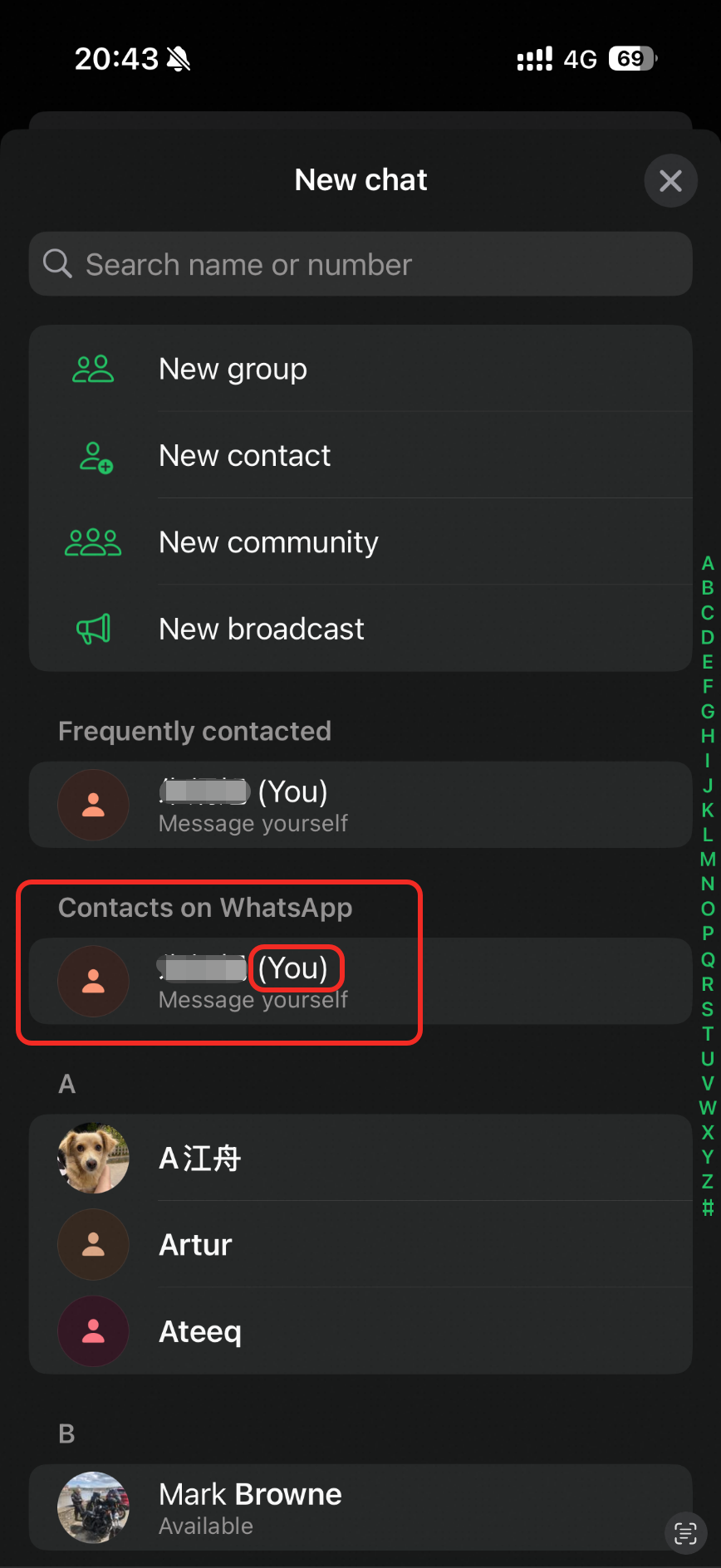
  1. In WhatsApp, select the option to message yourself.
    image

  2. In your first conversation, WhatsApp sends you a pairing code. You must run a command on the server to complete the pairing process.

  3. Connect to your Simple Application Server instance remotely and run the following command.

    Important

    Replace <code> with the pairing code that you received in WhatsApp. Do not include the angle brackets (<>).

    openclaw pairing approve whatsapp <code>
  4. You have successfully connected OpenClaw to WhatsApp.

    image

Dedicated account

  1. In WhatsApp, add this account as a contact and send it a message.

  2. In your first conversation, WhatsApp sends you a pairing code. You must run a command on the server to complete the pairing process.

  3. Connect to your Simple Application Server instance remotely and run the following command.

    Important

    Replace <code> with the pairing code that you received in WhatsApp. Do not include the angle brackets (<>).

    openclaw pairing approve whatsapp <code>
  4. You have successfully connected OpenClaw to WhatsApp.

    image

FAQ

A QR code does not appear after you select WhatsApp (QR link).

If the installation wizard exits to the command-line interface immediately after you select WhatsApp (QR link), it indicates a conflict between the DingTalk plugin and WhatsApp.

Solution:

  1. Run the command to uninstall the DingTalk plugin.

    openclaw plugins uninstall dingtalk
  2. Restart the server.

  3. Run openclaw onboard again.