This topic describes how to use CloudMonitor of Alibaba Cloud to send alerts for excess traffic over the access points and connectors of Secure Access Service Edge (SASE), and monitor exceptions in the SASE client and notify alert contacts of the exceptions.
Scenario
An enterprise uses SASE to connect its office network. The enterprise failed to identify the following issues, which adversely affected its business operations:
Traffic spikes or insufficient system resources: If traffic over SASE access points or connectors is greater than expected or system resources are insufficient, network performance may deteriorate or service interruptions may occur.
Client exceptions: The SASE client installed on terminals may experience exceptions and requires troubleshooting. For example, the client stops responding, a connector is disabled, a handling process for dynamic decision-making is generated, or a connection to the internal network fails.
To solve these issues, the enterprise uses CloudMonitor to send alerts for system resource usage and excess traffic over SASE access points and connectors, and monitor exceptions in the SASE client and notify alert contacts of the exceptions.
CloudMonitor Basic is activated by default and provides a free quota of 1,000 alert text messages per month. If the free quota cannot meet your business requirements, you can activate Cloud Monitor Basic (pay-as-you-go) to increase the quota.
Prerequisites
Configure alert rules
CloudMonitor automatically obtains access point and connector resources within your current Alibaba Cloud account. You can view related charts to monitor the resources. You can also create alert rules to monitor the resources. When the conditions in an alert rule are met, CloudMonitor automatically sends alert notifications.
Log on to the CloudMonitor console.
In the left-side navigation pane, choose .
On the Cloud Service Monitoring page, click Office Security Platform - SAAS Access Point.
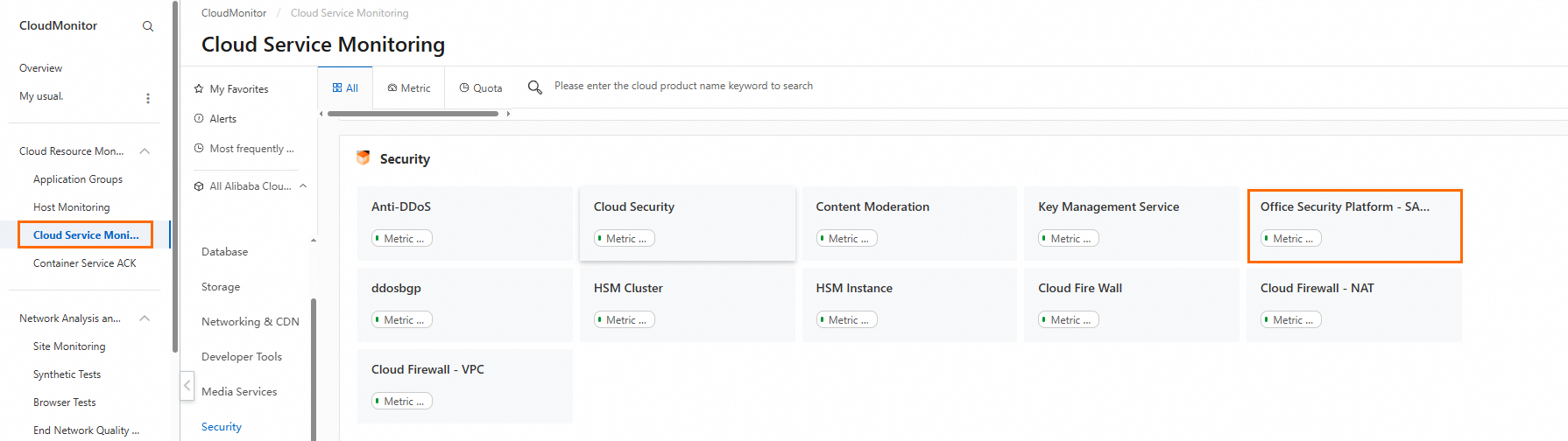
Configure alert rules for SaaS access points, connectors, and dedicated access points.
Configure an alert rule for SaaS access points
SaaS access points allow access to internal networks of an enterprise from the SASE client, support zero trust-based permission management, and provide optimized network experience. However, SaaS access points may cause network latencies because they are shared among all users. Therefore, we recommend that you configure alert rules to monitor bandwidths of SaaS access points and send alerts when bandwidth usage exceeds a specific threshold. This helps provide users with stable and efficient connections.
Click Create Alert Rule. In the Rule Description section, choose .
In the Configure Rule Description panel, specify the Alert Rule, Metric Type, and Metric parameters.
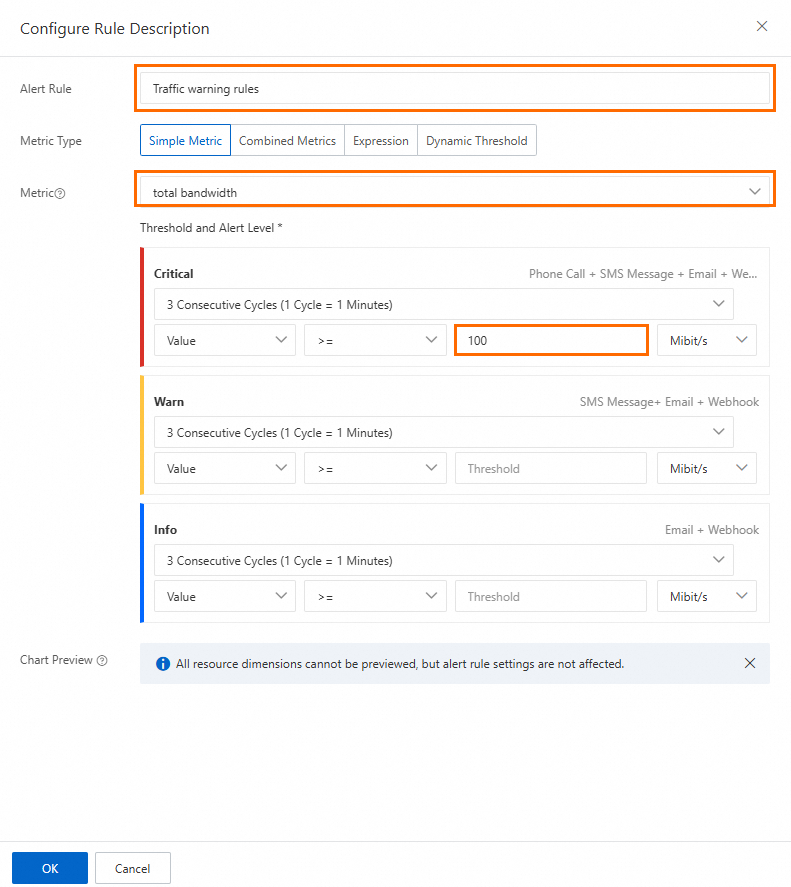
Click OK.
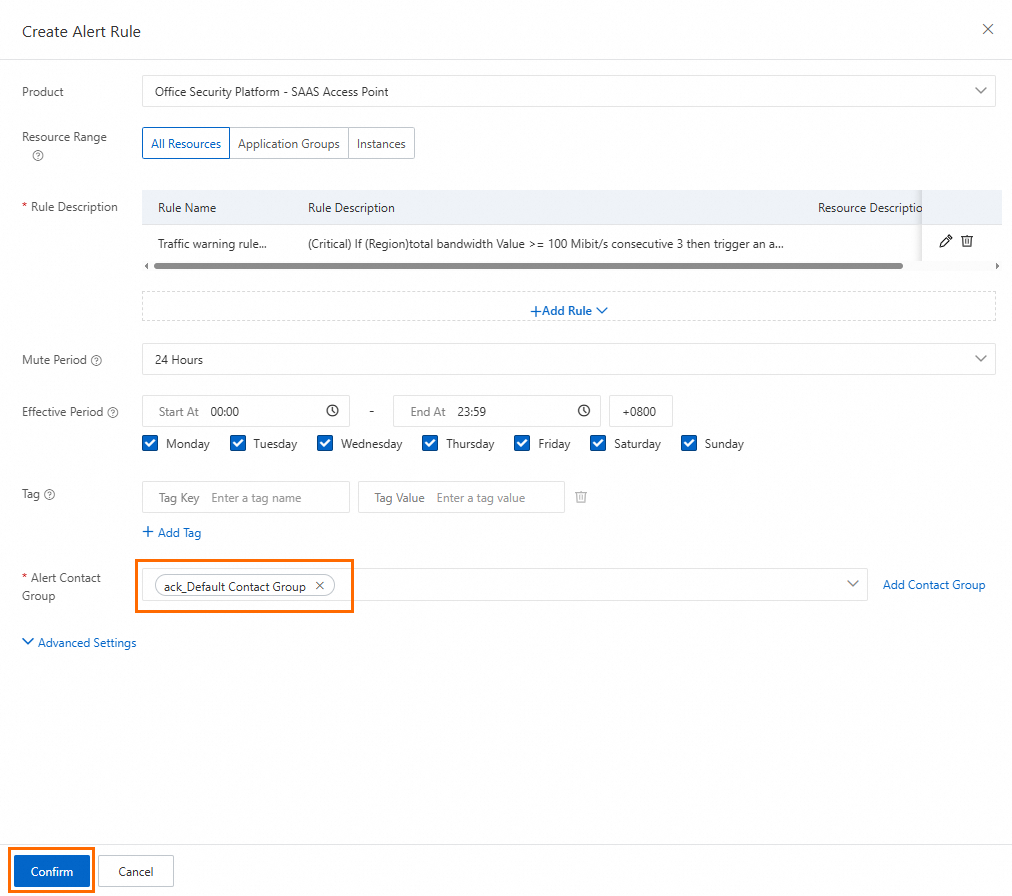
Specify the Alert Contact Group parameter, retain other settings, and then click Confirm.
Configure an alert rule for connectors
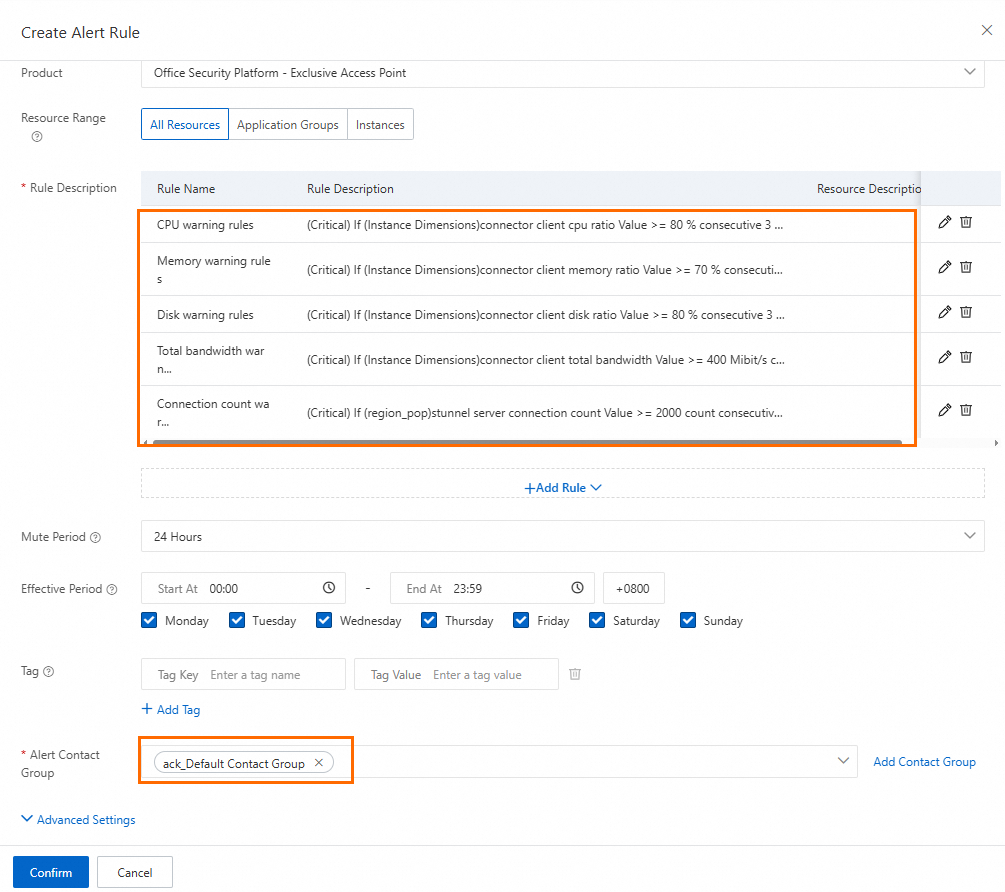
Connectors allow connections between the local network of an enterprise and resources outside Alibaba Cloud and allow access between business resources. We recommend that you configure alert rules to monitor system resources such as CPU, memory, and disk resources and to generate alerts when the CPU load is high or memory is insufficient. This helps ensure the stability and performance of connectors.
Click the Office Security Platform - Exclusive Access Point tab and click Create Alert Rule.
In the Create Alert Rule panel, choose .
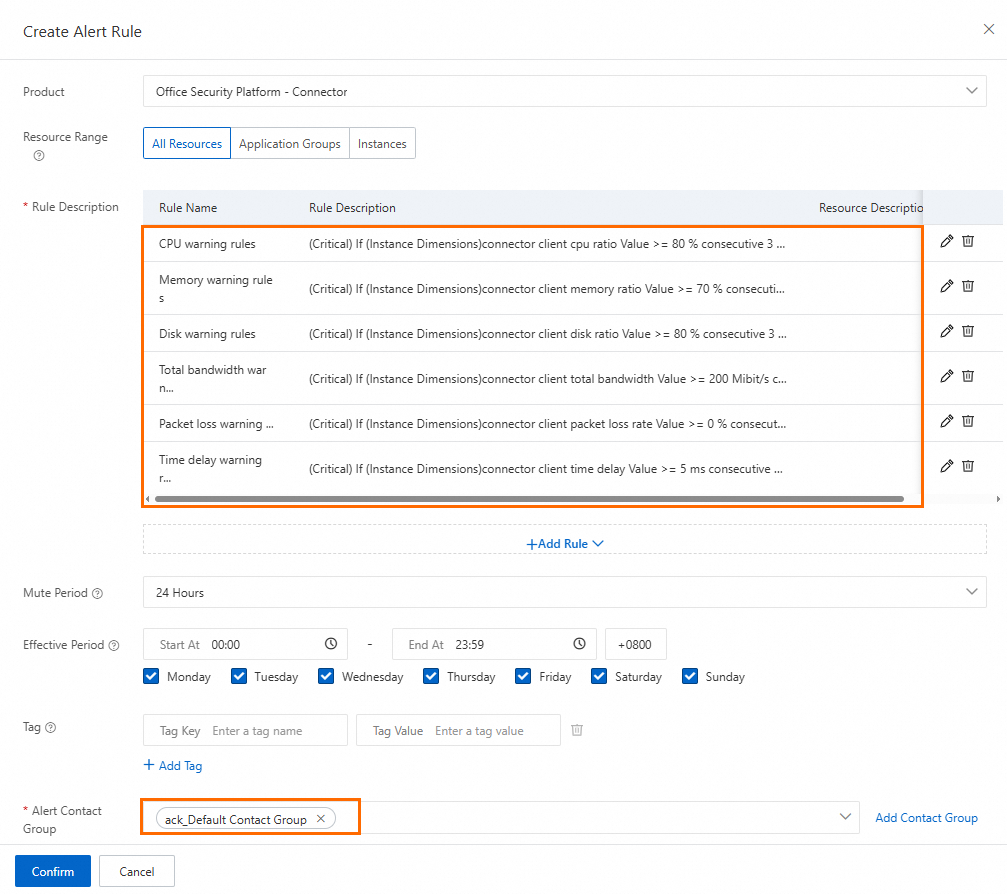
In the Configure Rule Description panel, specify the Alert Rule parameter and configure parameters in the Metric section based on your business requirements.
Specify the Alert Contact Group parameter, retain other settings, and then click Confirm.
Configure an alert rule for dedicated access points
Dedicated access points support secure access in scenarios in which users work from home, work in office areas, or work remotely and scenarios that require large bandwidth and low latency. We recommend that you configure alert rules to monitor both bandwidth usage and system resources such as CPU and memory resources. This helps provide stable and quality network environments for users.
Click the Office Security Platform - Exclusive Access Point tab and click Create Alert Rule.
In the Create Alert Rule panel, choose .
In the Configure Rule Description panel, specify the Alert Rule parameter and configure parameters in the Metric section based on your business requirements.
Specify the Alert Contact Group parameter, retain other settings, and then click Confirm.
View alert rules
Click the required tab and click View Alert Rules.
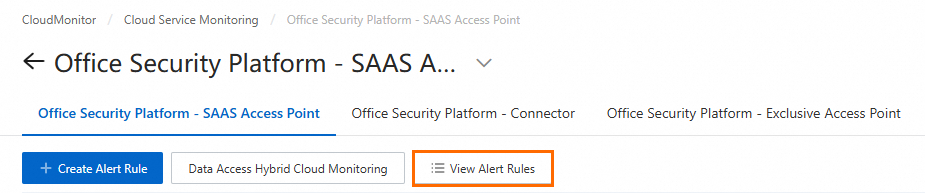
On the Alert Rules page, view all alert rules that are configured for your resources. You can view rule details, alert history, and alert contacts. You can also manage rules, such as editing, deleting, disabling, and copying rules.
Configure an event subscription policy
If a system event or metric of a resource meets an alert condition, CloudMonitor automatically sends an alert notification to the specified alert contacts. You can also use the event subscription feature to configure custom alert notifications. For example, you can subscribe to system events or threshold-triggered events, merge and denoise alerts, upgrade alert contact groups, specify custom alert notification methods, and push alert notifications to destination channels based on data templates in the JSON format.
Log on to the CloudMonitor console.
In the left-side navigation pane, choose .
NoteYou can also perform the following steps to create a subscription policy by using the System Event menu:
In the left-side navigation pane, choose .
In the Welcome to the New Event Center section, click Create Immediately to create a subscription policy.
On the Subscription Policy tab, click Create Subscription Policy.
On the Create Subscription Policy page, configure the subscription policy for SASE.
Basic Information: Enter a name and description for the subscription policy.
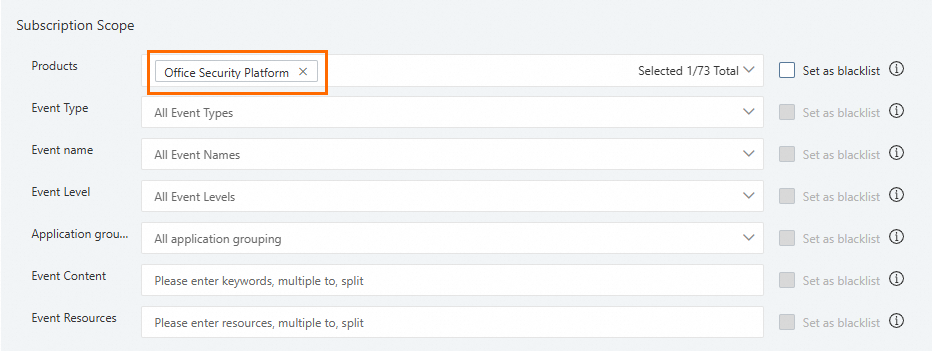
Alert Subscription: Specify the Subscription Type parameter. In the Subscription Scope section, select Office Security Platform for Products and configure other parameters based on your business requirements.
Combined Noise Reduction: Configure the method for reducing the frequency at which alert notifications are sent.
Notification: Create a notification configuration.
Push and Integration: Configure a push channel for alert notifications. Example: Simple Log Service.
Click Submit.
References
For more information about alert rules, see Create alert rules.
For more information about how to modify, enable, and delete alert rules, see Manage alert rules.
For more information about event subscription policies, see Manage event subscription policies.