SAE allows you to set permission rules for specified contacts and configure features such as sending notifications. When permission approval is required or an alert is triggered, SAE sends notifications to the relevant contacts by email, DingTalk Robot, or WeCom Robot. This topic describes how to create, view, edit, and delete contacts in the SAE console.
Background information
An Alibaba Cloud account (main account) can have multiple RAM users (sub-accounts) that correspond to employees, systems, or applications within an enterprise. ARMS contacts are operations and maintenance (O&M) personnel who handle alerts. They can use configured contact methods to view, handle, and resolve these alerts. SAE contacts act as a bridge. By configuring SAE contacts, SAE connects the otherwise independent RAM users and ARMS contacts, which enables information sharing among the three cloud products. The specific process is as follows.
When you set up a contact in SAE, you must enter a username (an Alibaba Cloud account or a RAM user) and a mobile number. You can then match an existing ARMS contact with the SAE contact by using the mobile number. In addition, the name of the ARMS contact is overwritten with the name of the RAM user.
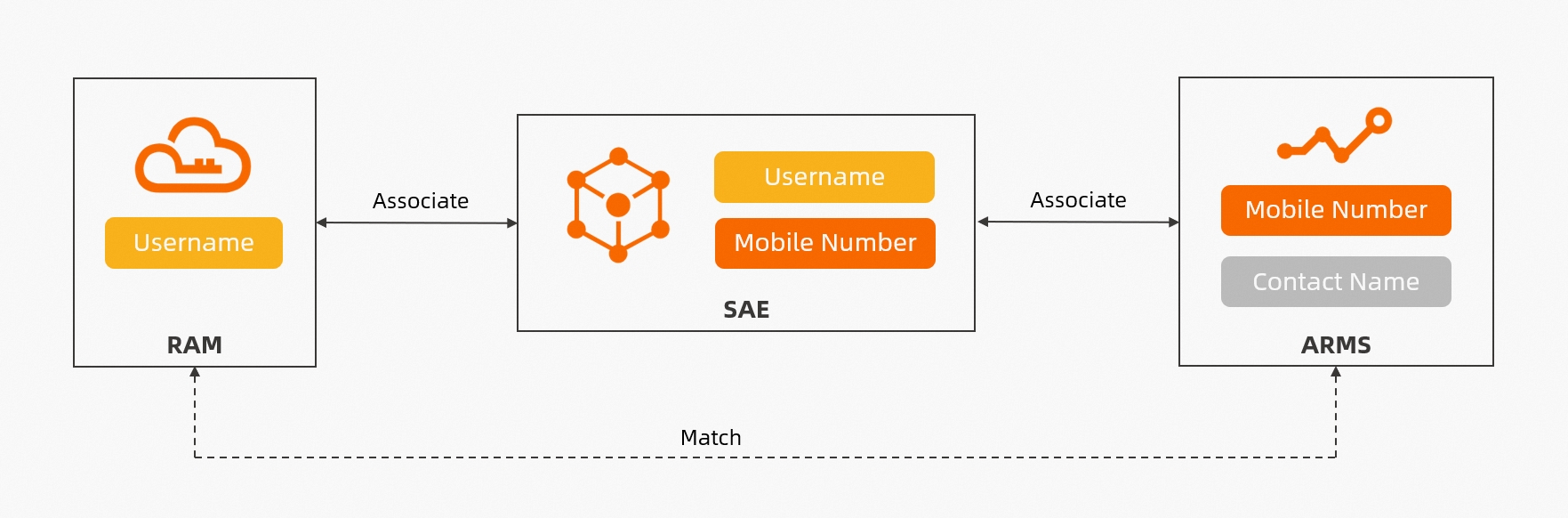
When you create a new contact in SAE, you will encounter the following situations:
-
If a mobile number does not already exist in ARMS, a new ARMS contact is created and associated with the corresponding SAE contact.
-
If a mobile number already exists in an ARMS contact, and that ARMS contact is not already bound to another SAE contact by mobile number under the Alibaba Cloud account (main account), the SAE contact is bound to the ARMS contact.
-
If a phone number already belongs to an ARMS contact that is linked to another SAE contact under the same Alibaba Cloud account (main account), the creation of a new contact fails. You must use a different phone number.
Once the initial binding is complete, as long as a re-binding (merge contacts) is not triggered, changes to the contact information (such as the mobile phone number) in the SAE console will not affect the binding and will overwrite the contact information for the ARMS contact.
The communication information for SAE contacts changes when the information in ARMS is changed. The following points describe what can cause SAE event notifications to fail.
-
Do not manually delete any contact, contact group, or notification policy whose name starts with the
sae:prefix in the ARMS console. -
Be cautious when you modify contact groups in the ARMS console.
Step 1: Grant ListUsers permission to a RAM user
If you are using a RAM user and need to add multiple other RAM users as contacts, follow these steps to grant the ListUsers permission to your RAM user.
If you are using an Alibaba Cloud account, you do not need to grant permissions to the account. You can skip this step.
1. Create a custom permission policy
-
Log on to the RAM console with your Alibaba Cloud account. In the left-side navigation pane, choose . On the Policies page, click Create Policy.
-
On the Create Policy page, click the Script tab, paste the following policy into the editor, and then click Next: Edit Basic Information.
{ "Version": "1", "Statement": [ { "Effect": "Allow", "Action": [ "ram:ListUsers", "ram:GetUser" ], "Resource": "*" } ] } -
On the Edit Basic Information page, enter a Name and Note for the custom permission policy, and then click OK.
2. Grant permissions to a RAM user
-
In the left-side navigation pane, choose . On the Users page, find the RAM user that you want to grant permissions to and click Add Permissions in the Actions column.
-
In the Add Permissions panel, select the permissions that you want to grant.
-
In the Add Permissions panel, select Custom Policy, click the custom permission policy that you created, and then click OK.
After the permissions are granted, you can view all the permissions that are granted to the RAM user on the Permissions tab of the user details page.
Step 2: Create a contact
-
Log on to the SAE console. In the left-side navigation pane, choose .
-
On the Contact Management page, click Create Contact.
-
In the Create Contact panel, configure the parameters as described in the following table and click OK.
Parameter
Description
Username
You can add account information in one of the following ways:
-
Alibaba Cloud account: Manually enter the account information.
-
RAM user: Select a RAM user from the drop-down list.
You can create a maximum of 100 contacts.
Important-
An Alibaba Cloud account can be used to create contacts for all its RAM users and manage all contacts that are created by the RAM users.
-
A RAM user without the
ListUserspermission can add only themself as a contact. If a RAM user has theListUserspermission, the RAM user can add other RAM users as contacts. For more information about how to grant the permission, see Step 1: Grant the ListUsers permission to a RAM user.
Phone Number
Each phone number can be used for only one contact. Enter a valid phone number in mainland China, for example, 1381111****. Phone numbers in Hong Kong (China), Macao (China), and Taiwan (China) are not supported.
Email
Enter the email address to receive notifications. Enter a valid email address, for example, username@example.com.
DingTalk Robot
Enter the webhook URL of the DingTalk Robot. To obtain the webhook URL of a DingTalk Robot, see Obtain the webhook URL of a DingTalk chatbot.
WeCom Robot
Enter the webhook URL of the WeCom Robot. To obtain the webhook URL of a WeCom Robot, see WeCom Robot.
-
Step 3: Manage contacts
After you create contacts, you can query, edit, delete, or merge them on the Contact Management page.
The contact list also includes fields, such as Is approver, DingTalk Robot, and WeCom Robot.
-
Query: You can filter contacts by Username, Phone Number, or Email. By default, contacts are filtered by username. You can select a different filter condition from the drop-down list and enter a specific value in the text box.
-
Edit: In the Actions column, click Edit. In the Edit Contact dialog box, modify the information and then click OK.
-
Delete: In the Actions column, click Delete. In the Delete Contact dialog box, click OK.
ImportantWhen an SAE contact is deleted, the corresponding ARMS contact is also deleted.
-
Merge Contacts: Click Merge Contacts. In the Merge Contacts dialog box, click OK.
This operation links a RAM user to an existing ARMS contact by phone number and overwrites the ARMS contact's name with the RAM username. If the phone number does not exist in ARMS, a new contact is created.