Use the cloud migration feature to migrate data between ApsaraDB RDS for PostgreSQL instances that belong to different Alibaba Cloud accounts. Cross-account migration requires Cloud Enterprise Network (CEN) to establish internal network connectivity between the two instances, which incurs additional fees.
This topic uses an example where the source instance is in Account A and the destination instance is in Account B. The CEN instance is created in Account B.
The cloud migration feature also supports migrations from self-managed PostgreSQL databases on ECS instances or in on-premises data centers.
Prerequisites
Before you begin, ensure that you have:
-
Source and destination RDS instances running the same major PostgreSQL version (PostgreSQL 10 or later)
-
A destination RDS instance that is a primary instance — read-only instances do not support cloud migration
-
A destination RDS instance using cloud disks
-
A destination RDS instance that is empty, with available storage greater than or equal to the data size in the source instance
-
Source and destination instances whose VPC CIDR blocks do not overlap
-
Cross-account permissions granted on the network instances — see Cross-account network instance authorization
Before you start
Same-region vs. cross-region: If both instances are in the same region, skip steps 1c and 1d and go directly to Step 2. Steps 1c and 1d are required only when the instances are in different regions.
Business impact during migration: The destination instance status changes to Migrating Data In while data is being copied. During this time, the source instance remains readable and writable. When you reach the switchover phase, stop writes to the source instance briefly to complete the cutover.
CEN fees: Using CEN incurs additional charges. For pricing details, see Billing overview.
Migrate data between instances across different accounts
Step 1: Configure the CEN instance in Account B
Set up CEN to connect the VPCs of both instances over an internal network.
1a. Create a CEN instance
-
Log on to the CEN console.
-
On the Instances page, click Create Transit Router.
-
In the Create Transit Router dialog box, configure the following parameters and click OK.
Parameter
Description
Name
Enter a name for the CEN instance. The name must be 2–128 characters in length, can contain digits, hyphens (-), and underscores (_), and must start with a letter.
Description
(Optional) Enter a description. The description must be 2–256 characters in length and cannot start with
http://orhttps://.
1b. Add VPCs to the CEN instance
Add both VPCs separately — the source VPC (in Account A) and the destination VPC (in Account B). The steps below describe how to add the source VPC. Repeat the process for the destination VPC, setting Region and Network Instance to the destination instance values and Account to Current Account.
-
On the Instances page, click the ID of the CEN instance you created.
-
On the Basic Information tab, click the
 icon to the right of the VPC count.
-
On the Connect Network Instance page, configure the following parameters and click Create.
Parameter
Description
Instance type
The default value is Virtual Private Cloud (VPC).
Region
Select the region where the source instance resides.
Transit router
If no transit router exists in the region, the system creates one automatically. Select a primary zone and a secondary zone for the transit router.
Account
Select Another Account and enter the UID of Account A. To view the UID, click the user icon in the menu bar.
Attachment Name
Enter a custom name.
Network instance
Select the VPC of the source instance. You can view the VPC ID on the Database Connection page in the ApsaraDB RDS console. After selecting the VPC, choose the vSwitches that correspond to the primary and secondary zones of the transit router.

After adding both VPCs, the result appears as follows:
1c. (Optional) Purchase a cross-region bandwidth plan
Perform this step only if the source and destination instances are in different regions — for example, if the source is in China (Beijing) and the destination is in China (Hangzhou). If both instances are in the same region, skip to Step 2.
-
On the Instances page, click the ID of the CEN instance you created.
-
On the Basic Information tab, click Bandwidth Plans, then click Purchase Bandwidth Plan (Subscription).
-
Configure the following parameters and click Buy Now. Complete the payment.
Parameter
Description
CEN ID
Retain the displayed CEN instance. After purchase, the bandwidth plan is automatically associated with the CEN instance.
Area A
Select one area for cross-region communication. In this example, select Mainland China. The area cannot be changed after purchase.
Area B
Select the other area for cross-region communication. In this example, select Mainland China.
Billing method
Retain the default value Pay-By-Bandwidth.
Bandwidth
Specify the bandwidth in Mbit/s.
Bandwidth package name
Enter a name for the bandwidth plan.
Order time
Select a subscription duration. Optionally enable auto-renewal.
After purchase, the result appears as follows:
1d. (Optional) Set the cross-region bandwidth
Perform this step only if the source and destination instances are in different regions. If both instances are in the same region, skip to Step 2.
-
On the Instances page, click the ID of the CEN instance you created.
-
On the Basic Information tab, click Bandwidth Plans, then click Set Inter-region Bandwidth.
-
On the Connection with Peer Network Instance page, configure the following parameters and click OK.
Parameter
Description
Instance type
Select Inter-region Connection.
Region
Select the region where the source RDS instance resides. In this example, select China (Beijing).
Transit router
CEN automatically identifies the transit router in the source region.
Peer region
Select the region where the destination RDS instance resides. In this example, select China (Hangzhou).
Transit router
CEN automatically identifies the transit router in the destination region.
Bandwidth allocation mode
Select Allocate from Bandwidth Plan or Pay-By-Data-Transfer. In this example, select Allocate from Bandwidth Plan.
Bandwidth plan
Select a bandwidth plan associated with the CEN instance. Required only when Bandwidth allocation mode is set to Allocate from Bandwidth Plan.
Bandwidth
Enter the bandwidth in Mbit/s.
Default line type
Select Platinum or Gold. Platinum is available only when Bandwidth allocation mode is set to Pay-By-Data-Transfer.
After configuration, the result appears as follows:
Step 2: Configure the source RDS instance
Perform the following steps in Account A.
2a. Add an IP whitelist entry
Add the destination VPC's CIDR block to the source instance's IP whitelist so that the destination instance can connect to the source.
To find the destination VPC's CIDR block:
-
Log on to the ApsaraDB RDS console and go to the Instances page. Select the region where the destination instance resides, find the instance, and click its ID.
-
In the left-side navigation pane, click Database Connection. Check the Network Type field to get the VPC CIDR block.
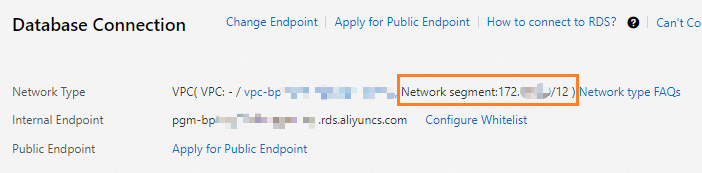
After getting the CIDR block, add it to the source instance's IP whitelist. For details, see Configure an IP address whitelist.
2b. Create a privileged account
Create a privileged account on the source instance for the migration. The account must have the CREATE ROLE, REPLICATION, and pg_monitor permissions.
If a privileged account already exists on the source instance, skip this step.
For details, see Create an account. Set Account Type to Privileged Account.
Step 3: Configure the destination RDS instance
Perform the following steps in Account B.
3a. Run a cloud migration assessment
Run a feasibility assessment to verify that the source instance meets migration requirements before migrating data.
-
Log on to the ApsaraDB RDS console and go to the Instances page. Select the region where the destination instance resides, find the instance, and click its ID.
-
In the left-side navigation pane, click Cloud Migration/DR Construction, then click the Feasibility assessment tab.
-
In the Configure Scenario and Source Type step, set Scenario to Migration to Cloud and Source to ApsaraDB RDS Instance. Click Next.
-
In the Configure Destination Instance step, click Next.
-
In the Configure Source Instance step, select all items and click Next. Complete all listed preparation tasks before starting the migration.
-
In the Start Feasibility Assessment step, enter the source instance information.
Parameter
Description
Migration task name
Auto-generated by ApsaraDB RDS. No modification needed.
Source VPC/DNS IP
Enter the internal endpoint of the source RDS instance. See View and change the endpoints and port numbers.
Port of Source Instance
Enter the internal port number of the source RDS instance. See View and change the endpoints and port numbers.
Username
Enter the username of the privileged account on the source instance.
Password
Enter the password of the privileged account.
-
Click Create Feasibility Assessment Task.
During the assessment, the destination instance status changes to Maintaining Instance.
After the assessment completes, view the result in the Migration to Cloud section of the Feasibility assessment tab:
-
Successful: Proceed to the next step.
-
Failed: Click View Report in the Actions column to view and resolve errors. For common errors, see Introduction to cloud migration assessment reports.
3b. Start the cloud migration task
-
In the left-side navigation pane, click Cloud Migration/DR Construction, then click the Migration to Cloud tab. Click Create Cloud Migration Task.
-
In the Create Cloud Migration Task dialog box, select the assessment task with a Successful status from the Associated Assessment Task drop-down list.
ApsaraDB RDS automatically fills in Migration Source Type, Source IP/DNS, Source Port, and Username based on the selected assessment task. No manual configuration is needed.
-
Click Initiate Migration to Cloud. ApsaraDB RDS starts the cloud migration task automatically.
ImportantDuring migration, the destination instance status changes to Migrating Data In. The source instance remains readable and writable. Do not migrate data from or to the source instance, restart the source instance, or change its specifications during this time.
3c. Switch workloads to the destination instance
-
Click the link in the Cloud Migration Phase column to monitor the task progress.
-
When the task enters the incremental data synchronization phase, click the switchover button in the Actions column.
-
In the Switchover dialog box, stop writes to the source instance using one of the following methods:
-
Stop application writes: Configure your application to stop writing data to the source instance.
-
Set the source instance to read-only:
-
Change the rds_force_trans_ro_non_sup parameter to on. See Modify the parameters of an ApsaraDB RDS for PostgreSQL instance.
-
Run the following statement to terminate all existing sessions:
SELECT pg_terminate_backend(pid) FROM pg_stat_activity
WHERE usename not in ('replicator', 'monitor', 'pgsql', 'aurora') AND pid != pg_backend_pid();
-
-
-
Select all check boxes and click Switch Now. Wait for the migration to complete.