Performance metrics are essential for routine database maintenance and troubleshooting. ApsaraDB RDS for MySQL provides multi-dimensional monitoring metrics and visualizations. It also supports anomaly detection and root cause analysis to help you quickly identify and resolve issues.
Features
On the Performance Trend page, you can view the following metrics:
|
Metric category |
Metrics |
|
Basic metrics |
CPU/Memory utilization, Physical memory, Disk utilization, Storage usage, Physical storage usage, Temporary tables, Network traffic, IOPS utilization, IOPS. |
|
Database metrics |
sessions, Connection usage, transactions per second (TPS)/queries per second (QPS), Executions, SelectScan, Threads, slow queries, Prepared statements. |
|
InnoDB storage engine |
InnoDB Buffer Pool hit rate, InnoDB Buffer Pool dirty blocks, InnoDB Buffer Pool request rate, InnoDB Data read/write throughput, InnoDB row locks, InnoDB memory pages, Disk flushes, Rows sorted per second, InnoDB Row Operations, InnoDB Redo log writes, InnoDB Redo log write requests. |
|
MyISAM storage engine |
MyISAM Key Buffer read/write/utilization rate, MyISAM read/write requests. |
|
Replication |
Node replication thread status, Node replication delay. Note
The Replication metrics are supported only for instances of High-availability Edition and Cluster Edition. |
View performance trends
Go to the Instances page. In the top navigation bar, select the region in which the RDS instance resides. Then, find the RDS instance and click the ID of the instance.
-
In the left-side navigation pane, choose .
-
On the Dashboard page, you can perform the following operations:
-
Query metrics by time range
Select a time range to view the corresponding monitoring metrics. You can only query monitoring data from the last 30 days.
On the Quick Time tab, set the start time and end time.
-
Enable real-time mode
Click the
 icon before the time range selection box to enable real-time mode. The system automatically refreshes the monitoring metrics every 5 seconds. This allows you to view real-time changes in database performance.
 -
Change the monitoring frequency
Set Data Granularity to view metric trends at different time granularities, such as 5 seconds, 30 seconds, or 1 minute.
-
View metric descriptions
In a metric trend chart, click the
 icon next to a metric to view its sub-metrics and their descriptions.
 -
Diagnose and analyze metrics
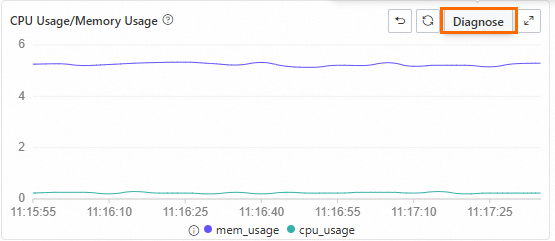
In any metric trend chart, drag the pointer to select a time range to zoom in on that period. Click the Diagnose button on the chart to analyze the metric for the selected time range.
-
Switch nodes
For ApsaraDB RDS for MySQL instances of the Cluster Edition, select one or more nodes to view and compare their metrics.
NoteClick Old Version in the upper-right corner of the Standard Monitoring page to return to the previous version of the Performance Trend page.
-
Appendix: Previous Performance Trend page
Go to the Instances page. In the top navigation bar, select the region in which the RDS instance resides. Then, find the RDS instance and click the ID of the instance.
-
In the left-side navigation pane, choose .
-
On the Performance Trends page, view performance trends for various metrics within the selected time range.
-
Click More Metrics to select the metrics that you want to view.
-
In any metric trend chart, drag the pointer to select a time range, and then click Diagnose to analyze the metric's performance within that time range.
-
Click Details in a metric's trend chart to expand it. You can also change the time range to view the metric's trends over different periods.
-
Select the event levels to display. When the system detects an event of a selected level, it displays the event in the MySQL CPU Utilization/Memory Usage and Session charts.
Click an event in a trend chart to view its diagnosis result in the event details list.
Event levels include Critical, Warning, Optimization, and Info. When an event is triggered, an event card appears in the trend chart. The card shows the event type, such as Time Series Anomaly Detection for Monitoring Metrics or Elastic Scaling Event, and its time range.
-
-
On the Performance Trend Comparison tab, compare performance trends for the same metric across different time ranges.
Click More Metrics to select the metrics that you want to compare.
-
On the Custom Charts tab, create performance monitoring dashboards to suit your business needs. Each dashboard can display multiple key metrics in a single chart, simplifying troubleshooting and analysis.
-
Click Add Monitoring Dashboard, enter a Dashboard Name, and then click OK.
-
Click Add Node and Metrics, select the target nodes and the metrics to view, and then click the
 icon.
icon. -
Click Confirm.
-
-
On the Exception Detection tab, view anomaly detection and prediction results for core metrics. For more information, see Performance Anomaly Detection.
Click More Metrics to select the metrics for exception detection.
-
On the Instance Topology tab, view the database instance's topology.
-
References
-
Common performance issues:
-
Use Autonomy Services to optimize and diagnose database performance. For more information, see Performance optimization and diagnosis.