This topic describes how to use Data Transmission Service (DTS) to migrate data from a self-managed MySQL database connected over Express Connect, VPN Gateway, or Smart Access Gateway to an ApsaraDB RDS for MySQL instance. DTS supports schema migration, full data migration, and incremental data migration. You can combine these migration types to migrate your self-managed MySQL database to the cloud with minimal downtime.
Prerequisites
-
The self-managed MySQL database version is 5.1, 5.5, 5.6, 5.7, or 8.0.
-
The destination ApsaraDB RDS for MySQL instance must have more available storage space than the source database.
-
Your on-premises network is connected to Alibaba Cloud through Express Connect, VPN Gateway, or Smart Access Gateway.
NoteFor more information about the connection solutions, see Overview of preparations. This topic does not describe the solutions in detail.
Usage notes
-
During a full data migration, DTS consumes read and write resources on the source and destination databases, increasing their load. If your databases have poor performance, low specifications, or high workloads (for example, if the source database has many slow SQL queries or tables without primary keys, or if deadlocks occur in the destination database), the increased load can strain your databases or even cause service interruptions. Perform the data migration during off-peak hours, such as when the CPU utilization of both databases is below 30%.
-
If a source table lacks a primary key or a unique constraint and contains non-unique data, duplicate data may be created in the destination database.
-
For columns with the FLOAT or DOUBLE data type, DTS reads their values by using the
ROUND(COLUMN,PRECISION)function. If the precision is not explicitly defined, DTS migrates FLOAT values with a precision of 38 digits and DOUBLE values with a precision of 308 digits. Verify that these precisions meet your business requirements. -
If a source database name violates ApsaraDB RDS naming conventions, you must create a compliant database in the destination instance before configuring the task. Otherwise, DTS creates the database automatically.
NoteFor more information about naming conventions and how to create a database, see Create a database and accounts.
-
If a data migration task fails, DTS automatically attempts to resume it. Before you switch your business workloads to the destination instance, make sure to stop or release the task. This prevents an automatically resumed task from overwriting data in the destination instance with data from the source database.
Billing
|
Migration type |
Task configuration fee |
Internet traffic fee |
|
Schema migration and full data migration |
Free of charge. |
DTS charges an Internet traffic fee when the Access Method of the destination database is set to Public IP Address. Billing overview. |
|
Incremental data migration |
Charged. Billing overview. |
Migration types
-
Schema migration
DTS migrates the schema definitions of selected objects to the destination instance. DTS supports schema migration for tables, views, triggers, stored procedures, and stored functions.
Note-
During schema migration, DTS converts the DEFINER attribute to INVOKER for views, stored procedures, and functions.
-
Because DTS does not migrate user information, you must grant read and write permissions to the invoker to call views, stored procedures, and functions in the destination database.
-
-
Full data migration
DTS migrates all existing data from the selected objects in your self-managed MySQL database to the destination ApsaraDB RDS for MySQL instance.
NoteDuring a full data migration, concurrent INSERT operations can cause table fragmentation in the destination instance. After the migration is complete, the table space in the destination database is larger than that in the source database.
-
Incremental data migration
After the full data migration, DTS reads the binary log (binlog) of the source self-managed MySQL database to capture and synchronize data changes to the destination ApsaraDB RDS for MySQL instance. Incremental data migration enables a smooth, minimal-downtime migration to the cloud.
SQL operations for incremental migration
|
Operation type |
SQL statement |
|
DML |
INSERT, UPDATE, DELETE, REPLACE |
|
DDL |
|
Account permissions
|
Database |
Schema migration |
Full data migration |
Incremental data migration |
|
Self-managed MySQL database |
SELECT |
SELECT |
REPLICATION SLAVE, REPLICATION CLIENT, SHOW VIEW, and SELECT |
|
ApsaraDB RDS for MySQL instance |
Read and write permissions |
Read and write permissions |
Read and write permissions |
To create a database account and grant permissions:
-
For a self-managed MySQL database, see Create an account for a self-managed MySQL database and configure binary logging.
-
For an ApsaraDB RDS for MySQL instance, see Create a database and accounts and Modify the permissions of a standard account on an ApsaraDB RDS for MySQL instance.
Before you begin
Procedure
-
Log on to the DTS console.
NoteIf you are automatically redirected to the Data Management (DMS) console, you can click the
 icon in the lower-right corner and then click
  to return to the classic DTS console.
 -
In the left-side navigation pane, click Data Migration.
-
At the top of the Migration Tasks page, select the region of the destination cluster.
-
In the upper-right corner of the page, click Create Data Migration Task.
-
Configure the source and destination databases.
Category
Parameter
Description
N/A
Task name
DTS automatically generates a task name. We recommend specifying a descriptive name for easier identification. Task names do not need to be unique.
Source database
Instance type
Select User-Created Database Connected over Express Connect, VPN Gateway, or Smart Access Gateway.
Instance region
Select the region of the Virtual Private Cloud (VPC) that is connected through Express Connect, VPN Gateway, or Smart Access Gateway.
Peer VPC
Select the VPC connected to your on-premises network.
Database type
Select MySQL.
IP address
Enter the endpoint of the self-managed MySQL database.
Port
Enter the service port of the self-managed MySQL database. The default port is 3306.
Database account
Enter the database account for the self-managed MySQL database. For information about the required permissions, see Account permissions.
Database password
Enter the password for the database account.
NoteAfter you enter the source database information, you can click Test Connectivity next to Database Password to verify that the information is correct. If the information is correct, the message Passed is displayed. If the message Failed is displayed, click Diagnose next to the Failed message and adjust the source database information based on the prompts.
Destination database
Instance type
Select RDS Instance.
Instance region
Select the region of the destination RDS instance.
RDS instance ID
Select the ID of the destination RDS instance.
Database account
Enter the database account for the destination RDS instance. For information about the required permissions, see Account permissions.
Database password
Enter the password for the database account.
NoteAfter you enter the destination database information, you can click Test Connectivity after Database Password to verify that the entered information is correct. If the information is correct, a Passed message is displayed. If a Failed message is displayed, click Diagnose after Failed and adjust the destination database information based on the prompts.
Encryption
Select Non-encrypted or SSL-encrypted based on your requirements. If you select SSL-encrypted, you must enable SSL encryption for the RDS instance beforehand. For more information, see Configure SSL encryption.
NoteThe Encryption parameter is available only for regions in the Chinese mainland and the China (Hong Kong) region.
-
After you complete the configuration, click Set Whitelist and Next.
If the source or destination database is an Alibaba Cloud database instance, such as ApsaraDB RDS for MySQL or ApsaraDB for MongoDB, DTS automatically adds the IP addresses of the DTS service for the corresponding region to the instance's whitelist. If the source or destination database is a self-managed database on an ECS instance, DTS automatically adds the IP addresses of the DTS service for the corresponding region to the security group rules of the ECS instance. You must also ensure that the self-managed database does not restrict access from the ECS instance. If the database is deployed in a cluster on multiple ECS instances, you must manually add the IP addresses of the DTS service for the corresponding region to the security group rules of each of the other ECS instances. If the source or destination database is a self-managed database in an on-premises data center (IDC) or a database from another cloud service provider, you must manually add the IP addresses of the DTS service for the corresponding region to allow access from the DTS servers. For the IP addresses of the DTS service, see IP address ranges of DTS servers.
WarningAdding the public CIDR blocks of DTS servers, whether automatically or manually, may introduce security risks. By using this product, you acknowledge and accept these potential risks. You are responsible for implementing basic security measures, including but not limited to using strong passwords, restricting open ports, using authentication for internal API calls, regularly reviewing and restricting unnecessary network segments, or connecting through private networks such as Express Connect, VPN Gateway, or Smart Access Gateway.
-
Select the migration types and objects.
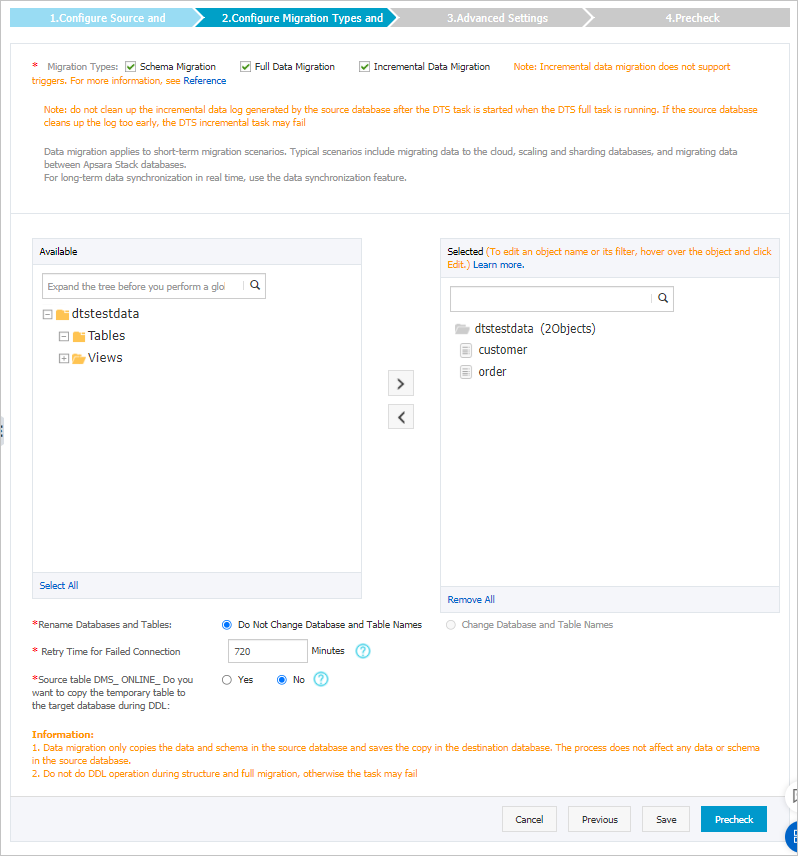
Setting
Description
Migration types
-
To perform only a full migration, select both Schema Migration and Full Data Migration.
-
To perform a zero-downtime migration, select Schema Migration, Full Data Migration, and Incremental Data Migration.
ImportantIf you do not select Incremental Data Migration, do not write new data to the source database during the full data migration to ensure data consistency.
Migration objects
In the Available box, click the objects that you want to migrate and click the
 icon to move them to the Selected Objects box.Important
-
You can select objects to migrate at the database, table, and column levels.
-
By default, object names are retained after migration. If you need to rename an object in the destination database, use the object name mapping feature. For more information, see Object name mapping.
-
If you rename an object by using the object name mapping feature, other objects that depend on it may fail to migrate.
Object name mapping
If you need to rename a migrated object in the destination instance, use the object name mapping feature. For more information, see Object name mapping.
Connection retry duration
If a connection to the source or destination database is interrupted, DTS retries to connect for a default of 720 minutes (12 hours). You can customize this duration. If DTS successfully reconnects within the specified time, the migration task resumes. Otherwise, the task fails.
NoteYou are charged for the DTS instance while it attempts to reconnect. To avoid unnecessary charges, set an appropriate retry duration or release the DTS instance promptly if the source and destination databases are released.
Replicate temporary tables created during online DDL operations in DMS
If you use Data Management (DMS) to perform online DDL operations on the source database, you can choose whether to migrate the temporary tables that are generated.
-
Yes: Migrates the data in the temporary tables that are generated by online DDL operations.
NoteIf a large amount of temporary table data is generated by online DDL operations, the migration task may experience high latency.
-
No: Does not migrate the data in the temporary tables. Only the original DDL data from the source database is migrated.
NoteThis option may cause table locks on the destination database.
-
-
After you complete the configuration, click Precheck and Start in the lower-right corner of the page.
Note-
Before the migration task starts, DTS runs a precheck. The task can start only after it passes the precheck.
-
If the precheck fails, click the
 icon next to the failed item to view details.
-
Fix the issues as prompted and run the precheck again.
-
If you do not need to fix the warning items, you can select Ignore and then click Ignore Warnings and Rerun Precheck to run the precheck again.
-
-
-
After the task passes the precheck, click Next.
-
In the Confirm Settings dialog box that appears, select a Instance Class and select the Data Transmission Service (pay-as-you-go) Service Terms checkbox.
-
Click Buy and Start to begin the migration.
-
Schema migration + Full data migration
Allow the task to complete automatically. Stopping it manually may result in incomplete data.
-
Schema migration + Full data migration + Incremental data migration
The migration task does not stop automatically. You must stop it manually.
ImportantChoose an appropriate time to stop the task manually, such as during off-peak hours or when you are ready to switch your business to the destination cluster.
-
Wait until the migration task enters the Incremental Data Migration phase and the status shows Undelayed. Then, stop writing data to the source database for several minutes. During this time, the status of Incremental Data Migration may show a latency.
-
Wait for the Incremental Data Migration status to show Undelayed again. Then, manually stop the migration task.

-
-
-
Switch your workloads to the destination ApsaraDB RDS for MySQL instance.