Configure role-based SSO between AD FS (IdP) and Alibaba Cloud (SP), using an AD FS environment deployed on a Windows Server 2012 R2 ECS instance.
Background information
Your company uses Active Directory (AD) to manage employees and AD FS to federate with enterprise applications, including Alibaba Cloud. An AD administrator controls employee access to Alibaba Cloud accounts through user group memberships. In this example, your company has two Alibaba Cloud accounts (Account1 and Account2) with Admin and Reader permissions. Alice belongs to the AD groups Aliyun-<account-id>-ADFS-Admin and Aliyun-<account-id>-ADFS-Reader, and the goal is to enable role-based SSO for her to both accounts.
-
<account-id>is the ID of either Account1 or Account2. Alice belongs to four AD groups total: Admin and Reader for each account. -
The AD configuration in this topic is guidance only. Alibaba Cloud does not provide support for Microsoft AD configuration. To set up AD FS, Build an AD domain on a Windows instance.
How it works
The following figure illustrates the sign-on flow.
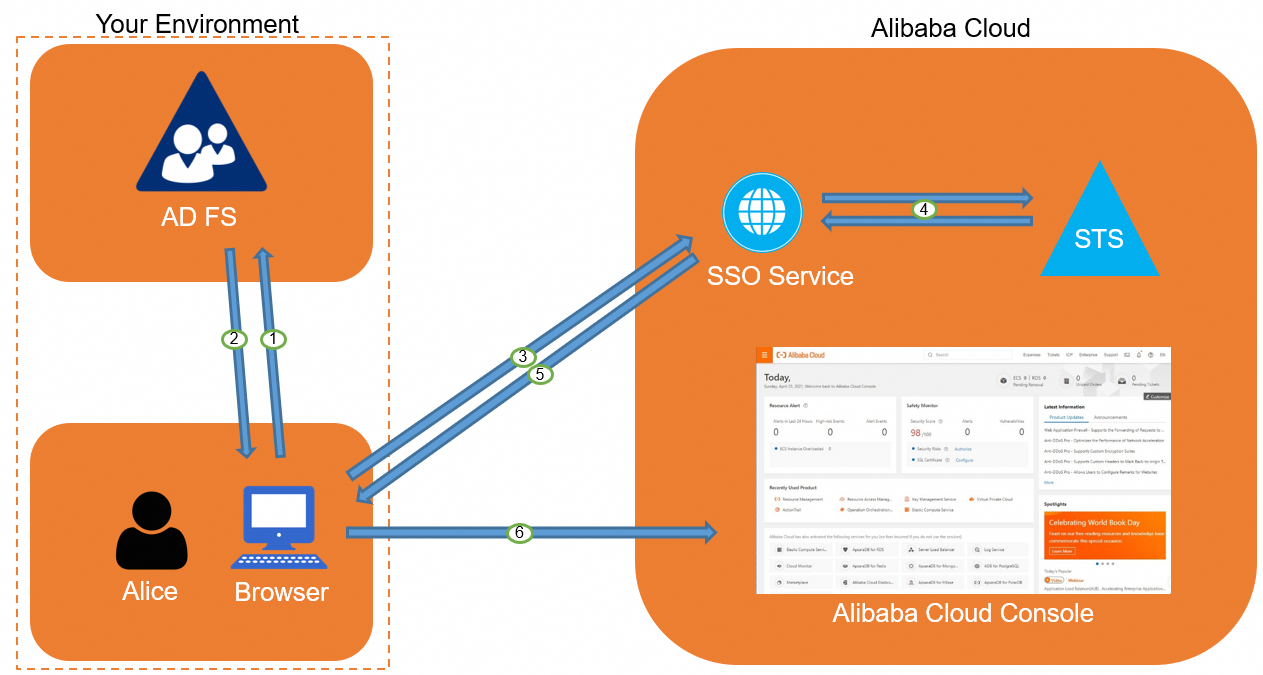
After federation is configured, employees like Alice can sign in to the Alibaba Cloud console through SSO without needing separate Alibaba Cloud credentials. Overview of SAML-based role SSO.
Step 1: Configure Alibaba Cloud to trust AD FS
-
On the RAM console, create an identity provider (IdP) named ADFS and provide its metadata. The AD FS metadata URL is
https://<ADFS-server>/federationmetadata/2007-06/federationmetadata.xml.NoteReplace
<ADFS-server>with the domain name or IP address of your AD FS server.Configure SAML settings for role-based SSO on the Alibaba Cloud SP.
NoteIf the metadata file exceeds the size limit, you can reduce its size by deleting all content within the
<fed:ClaimTypesRequested>and<fed:ClaimTypesOffered>tags. -
In Alibaba Cloud account Account1, create two RAM roles (ADFS-Admin and ADFS-Reader) that trust an IdP. Select the ADFS IdP that you just created. Grant the
AdministratorAccessandReadOnlyAccesspolicies to the two roles, respectively. -
Repeat this process in Account2 to create an IdP and RAM roles with the same names (ADFS, ADFS-Admin, and ADFS-Reader). Grant the
AdministratorAccessandReadOnlyAccesspolicies to the roles, respectively.
After this configuration, your Alibaba Cloud accounts trust the user identity and role information in SAML requests from AD FS.
Step 2: Configure AD FS to trust Alibaba Cloud
In AD FS, a SAML SP is called a relying party. Set up Alibaba Cloud as a relying party in AD FS:
-
On Server Manager, click the Tools menu and select AD FS Management.
-
On the AD FS Management console, start the Add Relying Party Trust wizard.
On the Welcome page, select claims-aware and click Start.
-
Provide the SAML SP metadata for Alibaba Cloud role-based SSO. The metadata URL is
https://signin.alibabacloud.com/saml-role/sp-metadata.xml.On the Select Data Source page, select Import data about the relying party published online or on a local network. In the Federation metadata address (host name or URL) text box, enter the metadata URL and click Next.
-
Complete the wizard with the default settings.
Step 3: Configure SAML assertion attributes
AD FS must include the NameID, Role, and RoleSessionName attributes in the SAML assertion. Configure these with issuance transform rules.
-
NameIDMap the Windows account name in AD to the
NameIDattribute:-
Right-click the relying party and select Edit Claim Rules.
-
Add an issuance transform rule.
NoteIssuance transform rules map user attributes to SAML assertion attributes. Add a rule to issue the AD Windows account name as the
NameID. -
For Claim rule template, select Transform an Incoming Claim, and then click Next.
-
Configure the rule with the following settings and click Finish.
-
Claim rule name: NameID
-
Incoming claim type: Windows account name
-
Outgoing claim type: Name ID
-
Outgoing name ID format: Persistent Identifier
-
Select Pass through all claim values.
AD FS then sends the
NameIDin the following format:<NameID Format="urn:oasis:names:tc:SAML:2.0:nameid-format:persistent"> YourDomain\rolessouser </NameID> -
-
-
RoleSessionNameMap the User Principal Name (UPN) in AD to the
RoleSessionNameattribute:-
Click Add Rule.
-
From the Claim rule template list, select Send LDAP Attributes as Claims, and then click Next.
-
Configure the rule with the following settings and click Finish.
-
Claim rule name: RoleSessionName
-
Attribute store: Active Directory
-
For LDAP Attribute, select User-Principal-Name. You can also select other attributes, such as email, based on your requirements.
-
For Outgoing claim type, enter
https://www.aliyun.com/SAML-Role/Attributes/RoleSessionName.
-
AD FS then sends the
RoleSessionNamein the following format:<Attribute Name="https://www.aliyun.com/SAML-Role/Attributes/RoleSessionName"> <AttributeValue>rolessouser@example.com<AttributeValue> </Attribute> -
-
RoleTransform AD group memberships into Alibaba Cloud role names using custom rules:
-
Click Add Rule.
-
From the Claim rule template list, select Send Claims Using a Custom Rule, and then click Next.
-
Configure the rule with the following settings and click Finish.
-
Claim rule name: Get AD Groups
-
Custom rule:
c:[Type == "http://schemas.microsoft.com/ws/2008/06/identity/claims/windowsaccountname", Issuer == "AD AUTHORITY"] => add(store = "Active Directory",types = ("http://temp/variable"), query = ";tokenGroups;{0}", param =c.Value);
NoteThis rule retrieves AD group memberships and stores them in http://temp/variable.
-
-
Click Add Rule.
-
Repeat the preceding steps to add another custom rule, and then click Finish.
-
Claim rule name: Role
-
Custom rule:
c:[Type == "http://temp/variable", Value =~ "(?i)^Aliyun-([\d]+)"] => issue(Type = "https://www.aliyun.com/SAML-Role/Attributes/Role",Value = RegExReplace(c.Value, "Aliyun-([\d]+)-(.+)", "acs:ram::$1:role/$2,acs:ram::$1:saml-provider/<provider-name>"));NoteReplace
<provider-name>with the name of the identity provider that you created in Step 1: Configure Alibaba Cloud to trust AD FS as a SAML IdP. In this example, the name is ADFS.
This rule maps AD groups matching Aliyun-<account-id>-ADFS-Admin or Aliyun-<account-id>-ADFS-Reader to corresponding RAM roles in Alibaba Cloud.
-
The IdP then returns the SAML assertion in the following format:
<Attribute Name="https://www.aliyun.com/SAML-Role/Attributes/Role"> <AttributeValue>acs:ram::<account-id>:role/ADFS-Admin,acs:ram::<account-id>:saml-provider/<provider-name></AttributeValue> </Attribute> -
Verify the results
-
Go to the AD FS SSO portal at
https://<ADFS-server>/adfs/ls/IdpInitiatedSignOn.aspx, select the Alibaba Cloud application, and then enter your username and password.NoteReplace
<ADFS-server>with the domain name or IP address of your AD FS server. If the page is unavailable, enable it by running the following PowerShell command:Set-AdfsProperties -EnableIdpInitiatedSignonPage $True.On the AD FS sign-in page, you see the message "You are not signed in" with two options: Sign in to this site and Sign in to one of the following sites. Select Sign in to one of the following sites, choose a target site such as Aliyun from the drop-down list, and click Sign in.
-
On the Alibaba Cloud role-based SSO page, select a role to assume and click Log On.
NoteIf you belong to only one mapped AD group, you log on directly without selecting a role.
If you belong to multiple mapped AD groups, a role selection page lists the available Alibaba Cloud accounts and roles (ADFS-Reader, ADFS-Admin). Select the target account and role, then click Log On.