This document is an introduction to Quick Tracking and technical integration and is not used as a sales basis. For specific products and technical services purchased by an enterprise, the commercial purchase contract shall prevail.
Overview
Retention, usually refers to the proportion of users who continue to use the product after a period of time after using the product for the first time, is an important indicator of user stickiness and product value.
Retention analysis allows you to flexibly define "initial behaviors" (such as registration and first launch) and "subsequent behaviors" (such as next-day login and placing orders within 7 days) based on business scenarios and product development stages, so as to accurately calculate retention rates in different cycles. Enterprises can use this analysis to gain insight into active user trends, identify key nodes of churn, and optimize operational strategies accordingly-such as strengthening the new user experience, designing targeted recall mechanisms, and improving the awareness of core functions-and ultimately achieve real growth from "pulling new" to "retaining people".
In addition, the retained analysis results can be used to generate reports with one click, and can be directly added to the self-made data dashboard. This facilitates real-time monitoring, collaborative analysis, and decision-making.
Retention rate: the ratio of the number of users who complete the initial behavior within a specified period of time to the number of initial users.
Retention after T: Number of active users on T day, number of active users on T + N day /number of active users on T day * 100%.
Scenarios
Retention analysis can solve
Measure the change in the stickiness of the product to users over time, and verify whether the user target group has completed the estimated behavior event within the expected time. For example, observe the retention of new users one day or seven days after the activity is launched to determine the effect of the activity.
Observe the continued appeal of core product features. For example, select "Play Short Video" for the initial behavior and "Start" for the subsequent behavior to understand the retention of the app when users open it for the second time.
Take "statistics on user retention from different sources" as an example, you can perform the following steps to analyze:
Analysis Subject: Login User
Definition Retention: Initial and Subsequent Behaviors Select the Application Launch event
Select Group: Source Type for Channel Attributes
Set time range
Click "Start Analysis"

Operating Instructions
Page Composition
The retention analysis feature consists of the following components:
Historical query list: You can select queries that are saved in history.
Information configuration area: You can set events, metrics, attributes, groups, and time.
Analysis Results section: You can view visual charts and detailed data.
Select Analysis Body 
The retention analysis supports concatenating user behaviors by device ID, account ID, or entity ID. By default, the device ID is selected.
Device ID: the unique ID generated by QuickTracking for each device
Account ID: the unique ID of the user account that you specify by calling the operation
Entity ID: the user ID that is generated by Quick Tracking. You can use ID-Mapping to associate the device ID with the account ID on a one-to-one basis. This way, you can connect the account before and after logon.
Custom retention behavior 
1. Click the drop-down to select specific events as the initial behavior and subsequent behavior.
2. Add filter conditions:
Property filtering of events is supported. For more information about the classification description and details, see Appendix 2. Add filtering conditions.
Different filter symbols are supported based on different types of attributes. For more information about the specific filter symbols and symbol definitions, see Add Filter Condition.
Select an attribute group

Retention analysis supports grouping or cross-analysis by attributes (such as channels, regions, and devices). For example, you can compare the retention rates of payment behaviors after user registration in various channels.
Group computational logic description
When no groups are available: calculates the retention rate or the number of users who trigger the initial behavior per day.
For example, on July 4, 2023, the number of people who triggered the "initial behavior" application start (preset) device ID (analysis subject) is 2012, and on July 5, 2023, the number of people who triggered the "subsequent behavior" application start (preset) device ID (analysis subject) is 956, and the retention rate is "subsequent behavior" number (retention number) /"initial behavior" number. The percentage of the number of 2012 who triggered the "initial behavior" after 1 day is 47.51% (retention rate);
And so on the subsequent daily retention rate.
If there are groups: The retention rate or retention number is calculated based on the group value (such as "IOS").
For example, within the calculation period (20230704-20230712), the number of people (retained) and percentage (retention rate) of these analysis subjects (device IDs) that trigger the "initial behavior" application startup (preset) and group value equal to "IOS" and the "subsequent behavior" application startup (preset) and group value equal to "IOS" one day later.
And so on the subsequent daily retention rate.
Add a global filter
 If you select two or more step event metrics, global filtering supports common filtering based on the common attributes of different events. The specific filtering capabilities and settings are the same as the property filtering capabilities of a single event.
Add user groups

You can create a specific group of people by using the Filter User Group feature to achieve the data representation of a specific group of people. For more information about how to create a user group, see Crowd Insight.
Select Time Range 
Time range and time granularity, "relative period" and "fixed period" two methods, relative mode provides the default time is the past 7 days, displayed by day partition.
The relative period of time is based on the date range pushed forward by an anchor point and will change over time. It has three dimensions: the past X days, weeks, and months. You can also customize the time filter conditions for the past X days, weeks, and months. The day is a complete natural day, and the week is selected from Monday to Sunday, and the month is the natural month (from the 1st to the last day of each month)
The detailed rules are as follows:
A. Past n days: Push forward the complete n days based on the current time.
B. Past n weeks: Push forward n complete weeks based on the current time. If the current time is the last day of the week, the past n weeks include the week in which the current time is located. Example: If the current time is the 7.20 (Tuesday), then the past week is 7.12-7.18 (Monday to Sunday). If the current time is the 7.18 (Sunday), then the past week is 7.12-7.18.
C. Past n Months: Push forward n complete months based on the current time. If the current time is the last day of the month, then the past n months include the month in which the current time is located. Example: If the current time is 7.20, then the past month is 6.1-6.30; If the current time is 6.30, then the past month is 6.01-6.30.
"Fixed period" You can directly select the start date in the calendar box, and click OK to select the current time range for data analysis (the maximum selection range of a fixed period is 366 days)
View analysis charts and detailed data
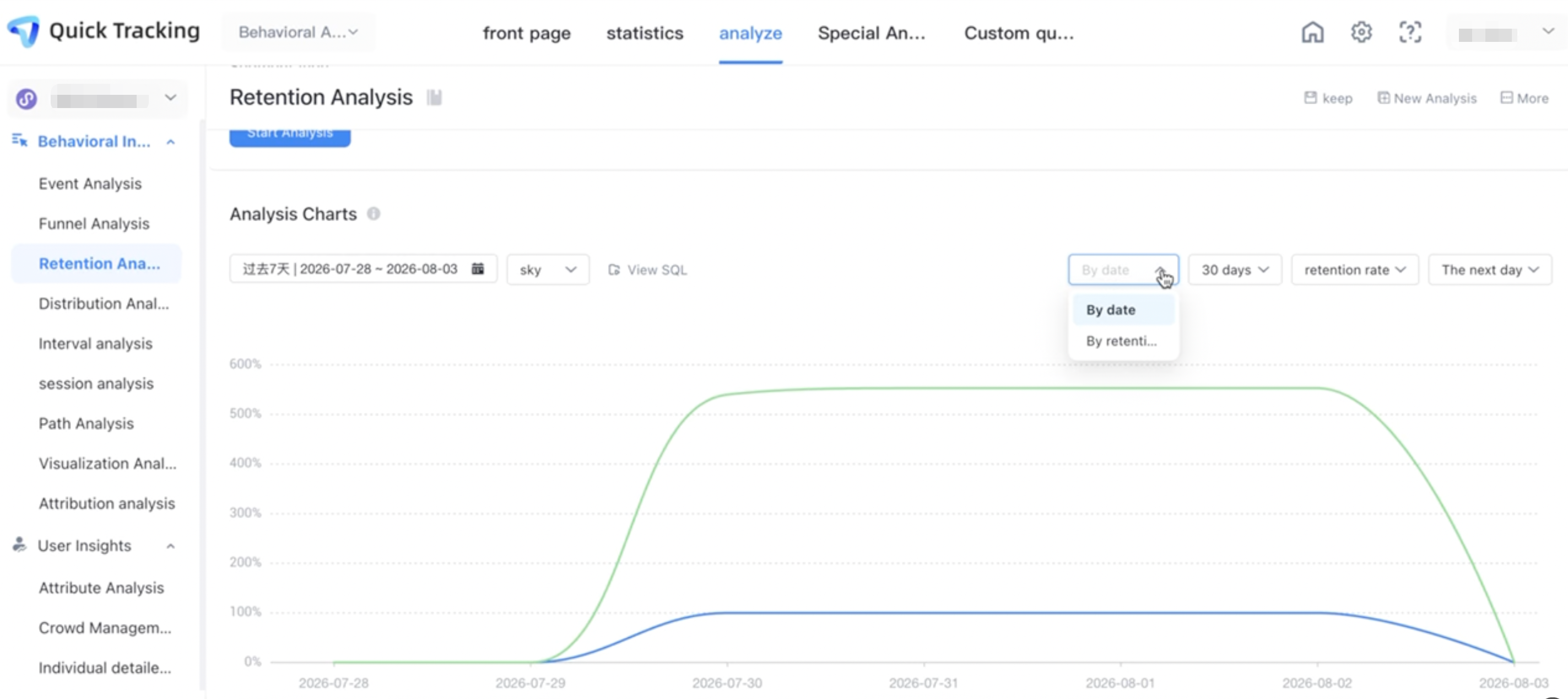
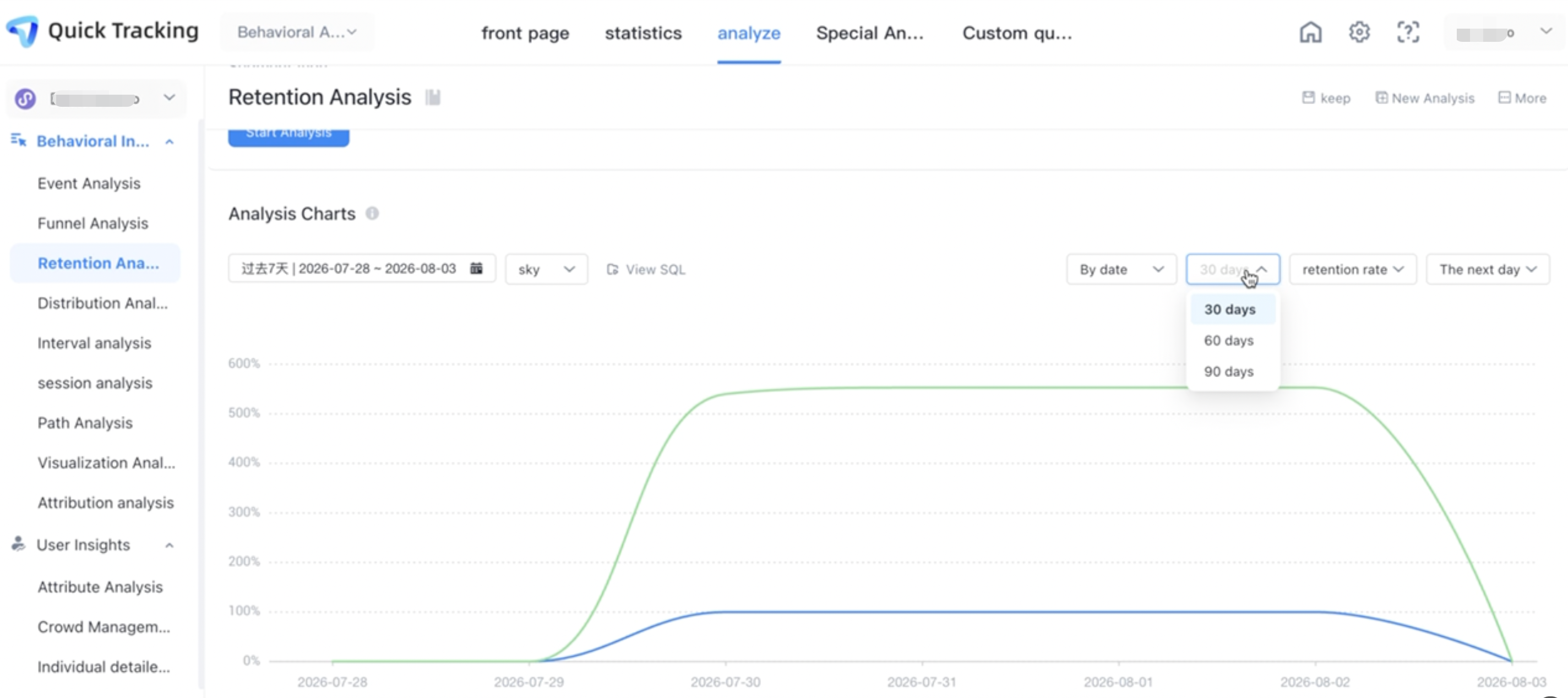
After you set query conditions and click Start Analysis, you can view the analysis results and retention (retention rate and retention number) trend charts.
You can filter and analyze data by date or by retention days.
By date: Click the toggle in the upper right corner to view the retention rate after T days (the rate at which users have a subsequent behavior on the T day after the initial behavior);
By Retention Days: Click in the upper-right corner to switch to a day within the date range (such as 2025-11-24). The values analyzed are the retention rate and retention number of the next day, second day, third day, and fourth day of the date (2025-11-24).
The retention filter is supported in the 30-day, 60-day, and 90-day date ranges.
Save common metrics for subsequent re-query. You can click the Save button in the upper-right corner.
Detail Data
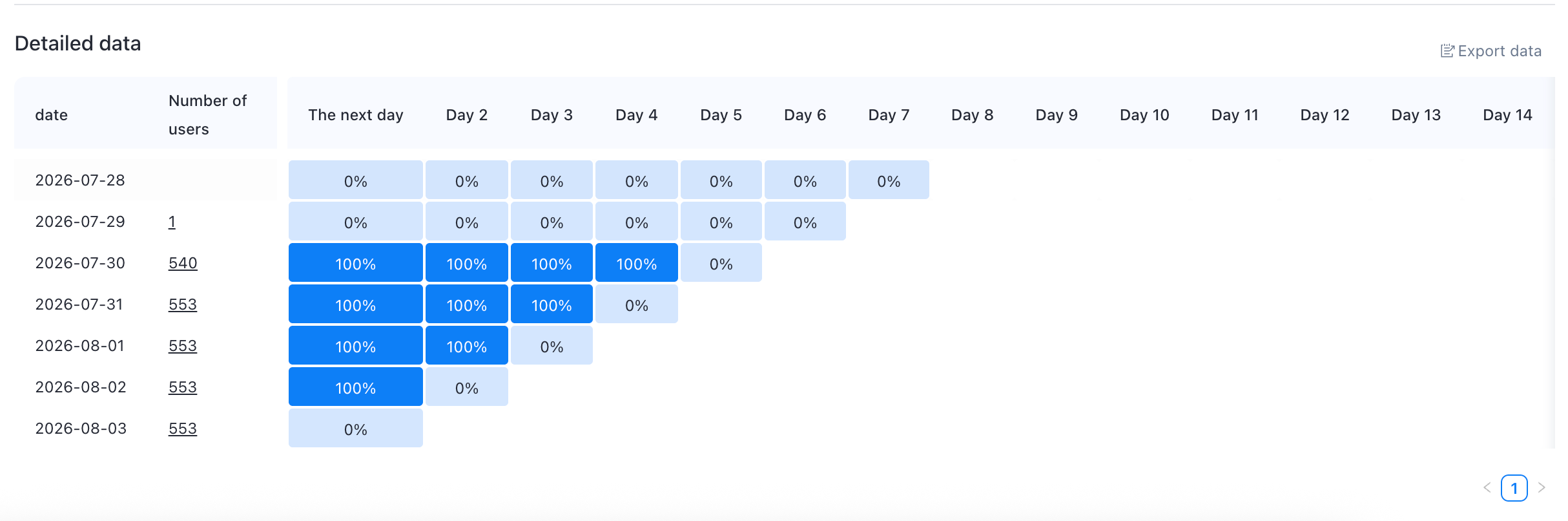
Detailed data: the detailed data of the statistical results.
Retention table view supports switching between "Retention Number" and "Retention Rate" to show the number of retained users and retention rate after T days.
The Number of Users column displays the number of deduplication devices /logon users that have the initial behavior.
Click "Export Data" in the upper right corner to download the Excel file.
Save Data to Report 
1. Enter a report name
2. Select the time period for saving the report.
-Impact of different time periods on reports
Select a relative time period. The report date can be queried according to the time selected on the kanban.
Select a fixed period, the report date will not change according to the kanban selection time
No period is selected, the report date follows the time selected on the kanban
3. Click the OK button to save the data to the report list.
Add a report to the dashboard
For an already saved report, you can choose to add the report to the kanban: 
Enter Report Name
Select the added kanban
Select the type of display you want the chart to display.
Select the display layout of the chart in the self-made kanban
Advanced settings can be selected according to the kanban rules to be displayed.
Click "OK"
Retention Analysis computational logic
1 . Custom retention meaning
N-day retention refers to whether a user who triggers an event on a certain day triggers the event again N days later.
For business goals, user retention can be further defined to clarify the user's initial behavior and subsequent behavior.
Initial behavior: Only devices or logon users that have triggered this event on the current day can participate in subsequent custom retention calculations. You can set specific event attributes and attribute values through the conditional filtering function to delineate more detailed user groups.
Follow-up behavior: A user is counted as a retained user only after a follow-up behavior is triggered. You can set specific event attributes and attribute values through the conditional filtering function to set stricter return visit behavior.
Note: If a user triggers the initial behavior and subsequent behavior multiple times, only one time on the day /week /month is counted, which is the number of deduplication devices /login users.
2. Confirm the retention interval
You can select the time range in which the initial behavior occurs and observe the retention status of users after 1 day, 2 days, 7 days, 14 days, and 30 days.
For example, if user A triggers the initial behavior on May 1 and the subsequent behavior is triggered two days later, three days later, six days later, and seven days later, the user A is counted as a retained user for the corresponding number of days.
05.02 (after 1 day) | 05.03 (after 2 days) | 05.04 (after 3 days) | 05.05 (after 4 days) | 05.06 (after 5 days) | 05.07 (after 6 days) | 05.08 (after 7 days) |
X | Y | Y | X | X | Y | Y |
3 . Set conditions for retention
You can use different filtering conditions to limit retention. The filtering logic is as follows:
You can filter events by event filter or global filter.
Global filter conditions act on initial and subsequent behaviors
If an event filter condition and a global filter condition are configured, the filter condition logic is: event filter condition&global filter condition
For example, when analyzing the re-purchase and retention of cosmetics A by female users aged 18-35 in Zhejiang Province, you can set the initial behavior to "successful payment", the return behavior to "successful payment", and the screening criteria to "province=Zhejiang&age group=18-35 &product ID=cosmetics A".
4. Comparative analysis of retention
Add a group filter to the query condition to compare the comparison retained under different group values
Supports preset attributes and global attributes to group retention.
Group conditions act on initial and subsequent behavior
If a user meets multiple grouping conditions within a time range, it is classified into multiple groups.
5. Interpret the retention metrics
Initial behavioral users: the number of deduplication devices and logon users whose initial behavioral users occurred on a given day, week, or month
Retained Number: the number of deduplication devices /logon users that have undergone subsequent actions after N days, weeks, and months.
Retention rate: refers to the proportion of retained users who have subsequent behaviors after N days /weeks /months in the initial behavior users.