This document is an introduction to the use of Quick Tracking products and technical integration instructions and is not used as a sales basis. For specific products and technical services purchased by an enterprise, the commercial purchase contract shall prevail.
The crowd management module mainly creates 2 functions for crowd management and crowd
This feature is the "crowd management in behavior analysis" feature. It has the same logic as the user profile-crowd management feature, but the application scenarios are different.
This function is only used for crowd management and insight analysis in the application specified by "Behavior Analysis"
The user profile-crowd management feature is used for cross-application crowd management and insight analysis.
Crowd creation
Overview
You can create a group by using Rule Creation or Import Creation. A group can be used as an object for insight analysis or as a condition for creating other groups.
Creation Method
There are two ways to create a crowd:
Rule creation: You can use a visual template to select and manually create audiences. You can use tags, behaviors, attributes, and existing audiences to create audiences.
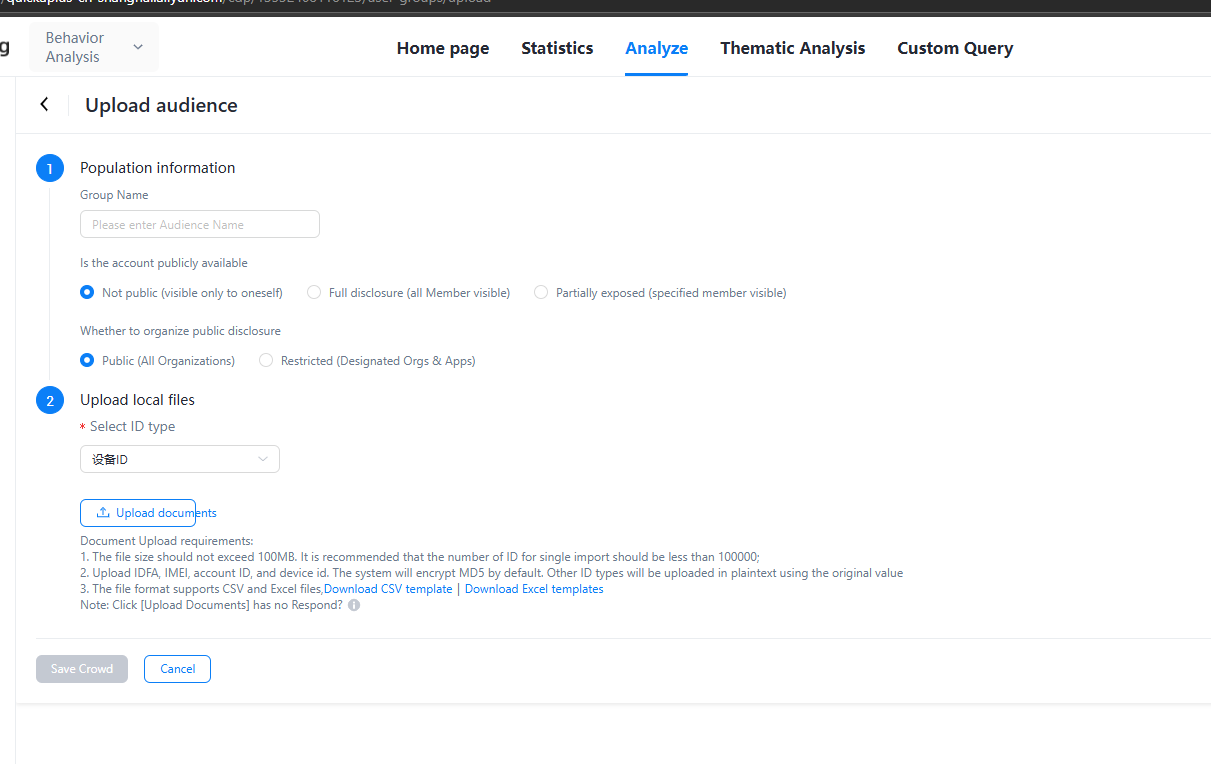
Import: You can upload existing groups of people by using a local file. The uploaded population will be matched with the existing users, and the matching will be written and generated. Subsequent analysis and selection can be performed.
Create a rule
You can use the following five types of conditions to create a crowd: tag, crowd, behavior, attribute, and behavior sequence. You can calculate the intersection, union, or difference between the five types of conditions. The difference is calculated by subtracting the preceding conditions from the following conditions. Up to 20 custom combination rules are supported.
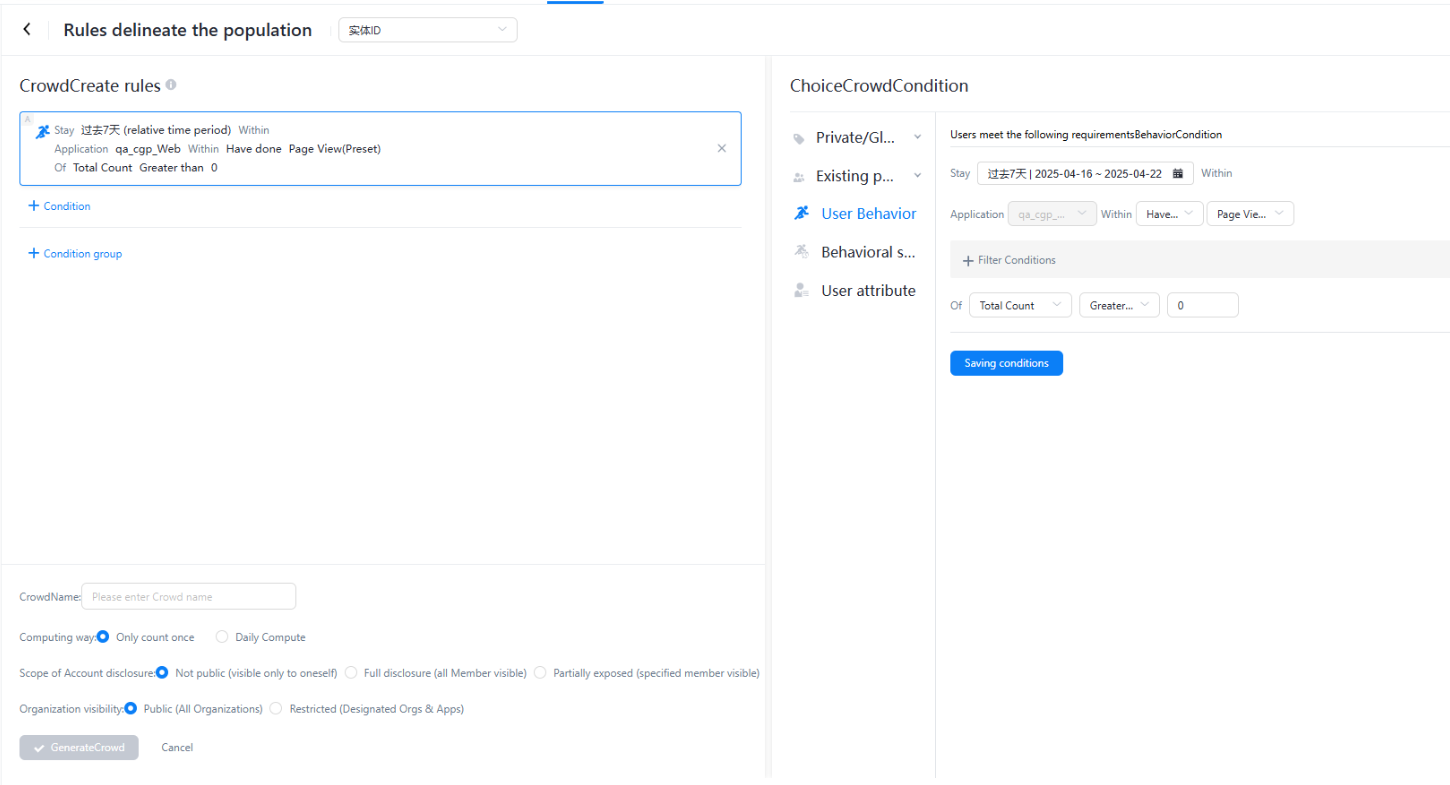
Private or global tags: The tags generated by the user profile-tag system can be directly added to the crowd selection. If the selected tags have tag values, you must filter the specified tag values in this step to complete the selection.
Existing crowd: the crowd that has been generated in User Profile-Crowd Management. This can be used as a condition for a new crowd based on the filtering rules and other conditions.
User behavior: You can also directly select the behavior data of an application in the organization. For example, you can select users who have clicked to buy.
User Attributes: You can also filter the attributes of a user in the organization, such as members and channel sources.
Behavior sequence: The user population filter condition can also filter the behavior sequence of a user under an application within a specified time range, such as starting an application and clicking on a product.
After screening the required crowd conditions, you can use the condition intersection, merge, difference set to complete the crowd rules;
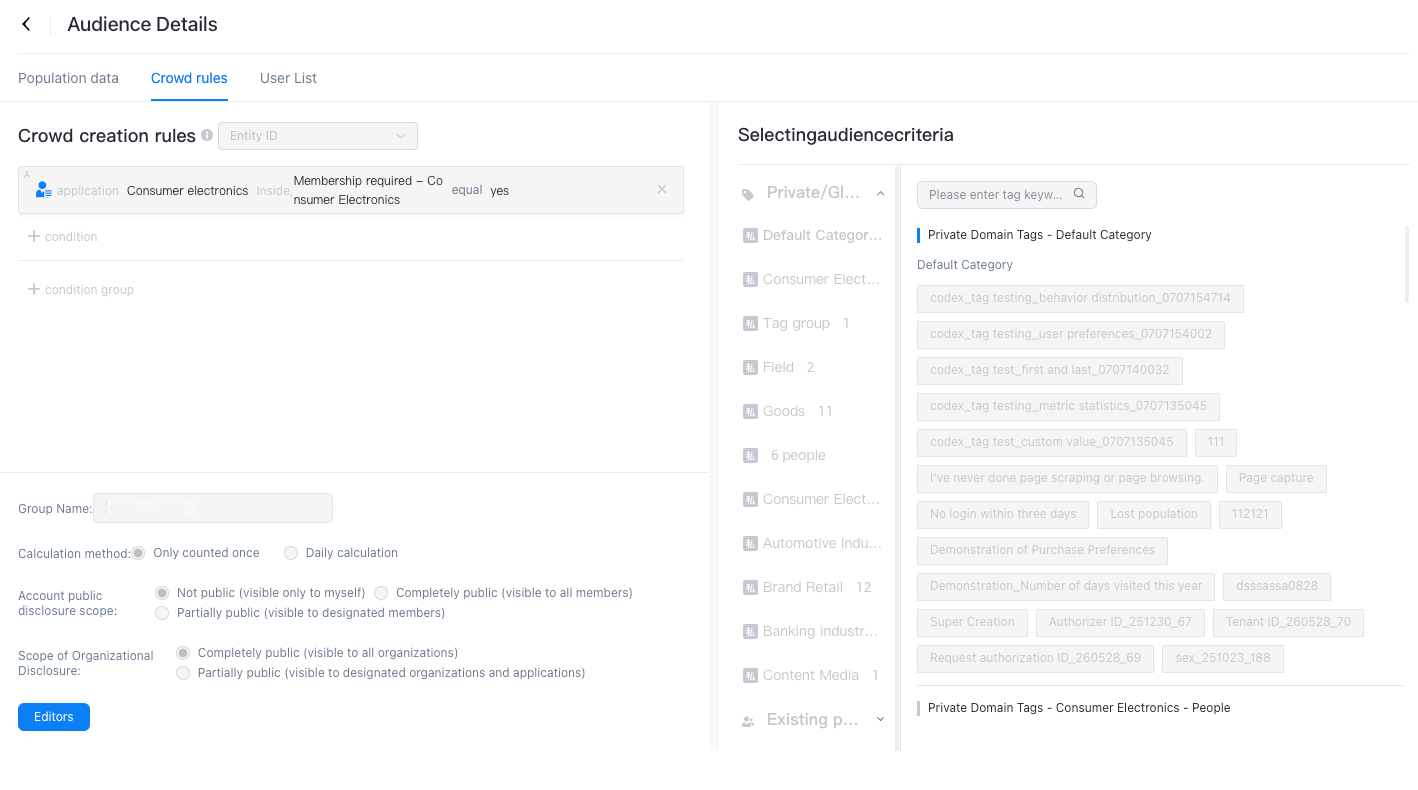
Crowd Name: Enter a public name.
Calculation method: You can select a calculation method based on the update frequency of the group. You can select a calculation method based on the calculation method of the group.
Daily computing: A computing event is triggered immediately after the computing event is created, and the computing event starts in the early morning every day. The computing event can be generated before 9:00 p.m.
Only Calculate Once: The calculation is triggered immediately after the creation. In the background computing, refresh the page to view the results.
Account Disclosure Scope: You can select one of the following methods: Not Public (visible only to you), Full Public (visible to all members), and Partial Public (visible to specified members). This way, you can determine whether the group needs to be displayed to other users in the organization. You can also use the group to perform other analysis operations.
Organization Disclosure Scope: Select Full Disclosure (visible to all organizations) or Partial Disclosure (visible to specified organizations and applications)
Generated Crowd: After you save the generated Crowd, you can view the generated Crowd on the Crowd Management.
Import and Create
The user can upload the existing crowd through the local file bag. The uploaded population will be matched with the existing users, and the matching will be written and generated. Users can perform subsequent analysis and circle people.
The operation method is as follows:
Download the crowd import template, obtain relevant crowd information from the local, and select the disclosure scope and ID type.
The ID type will be selected to affect the subsequent analysis of the population. Please select it according to the actual situation.
After saving the crowd, you can see the crowd in the crowd management
Crowd management
Overview
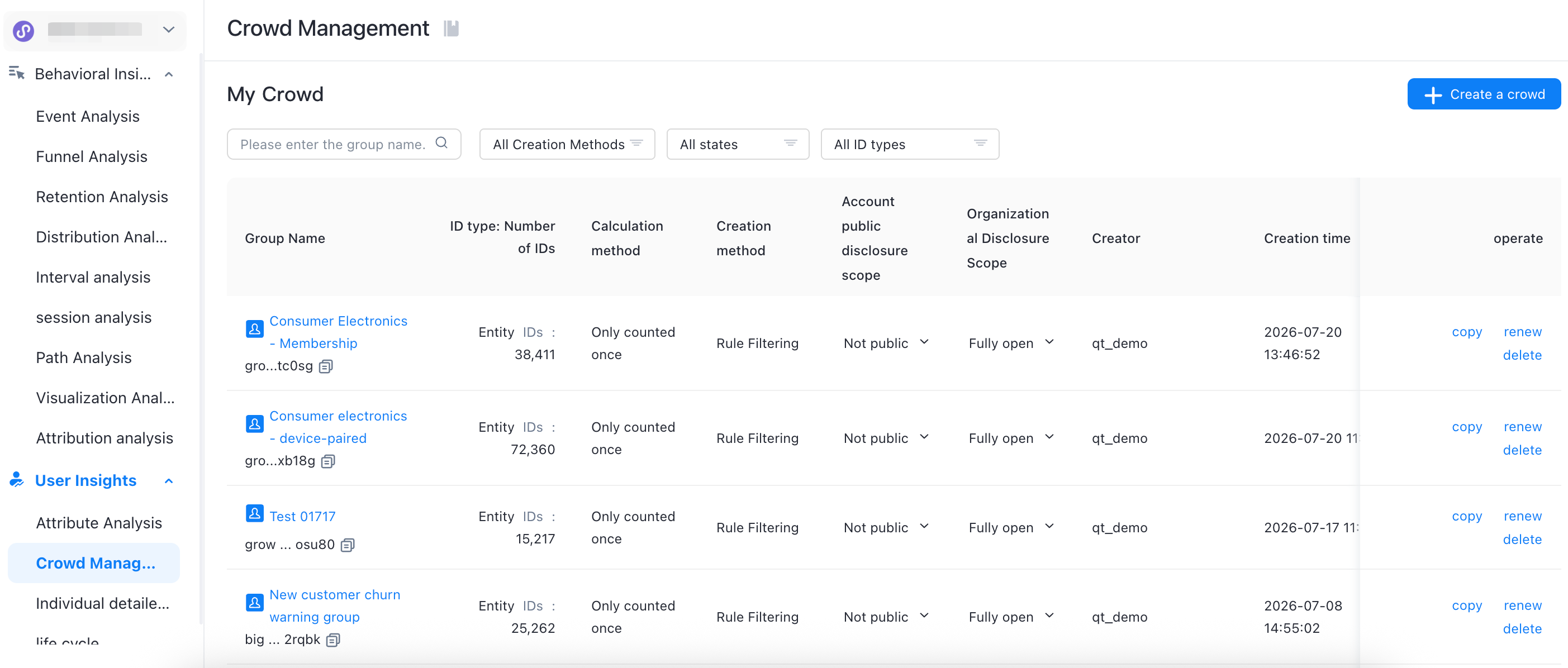
In Crowd Management, you can view the crowd that you create and the crowd that others disclose to you.
In this crowd list, you can perform the following operations:
Crowd Screening
You can filter groups and user IDs based on the group name, creation method, and status.
Crowd Details
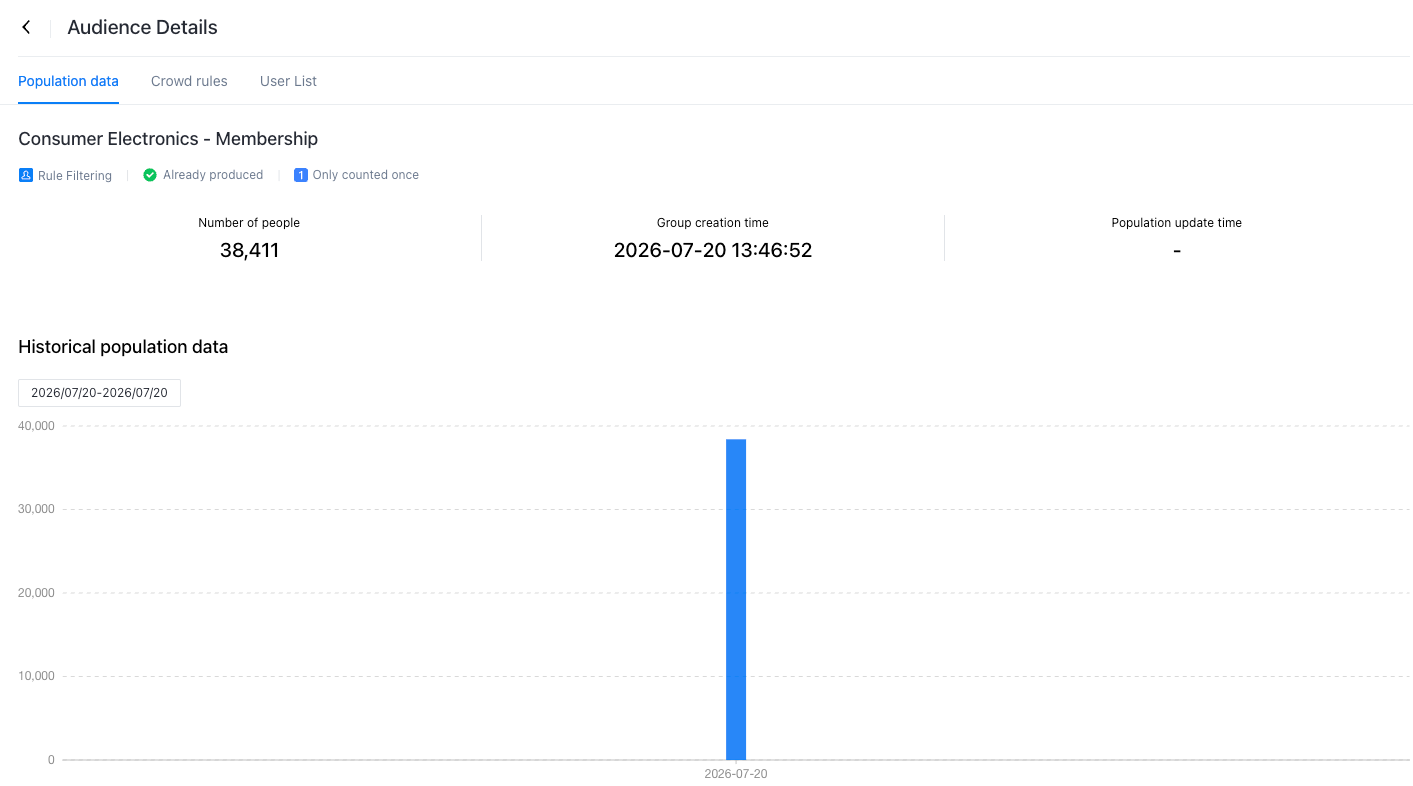
Crowd data
Provides the creation time, completion status, calculation rules, and historical data of the group. If the historical data is calculated every day, the daily output data of the group is provided. If the historical data is calculated only once, the historical data is manually updated.
Create a rule
The creation rule of the group is provided in detail. If you want to change the rule, you can use the group rule to complete the change of the group condition.
User List
Complete the calculation of specific user information under the group in the list, including entity ID, account ID, device ID, and other user and system attributes. Click Export to export the complete user list for other platform operation scenarios, such as sending text messages, pushing, and manual callback.
Crowd Delete
If you do not need to use the group, you can delete the group by deleting it.