An organization administrator can configure global settings for reports, including font settings, whether automatic linkage is enabled by default, and whether users can copy preview links in edit mode. You can also configure query control features to remember query conditions across the organization and manage available functions in view mode. This topic describes how to configure these settings.
Access
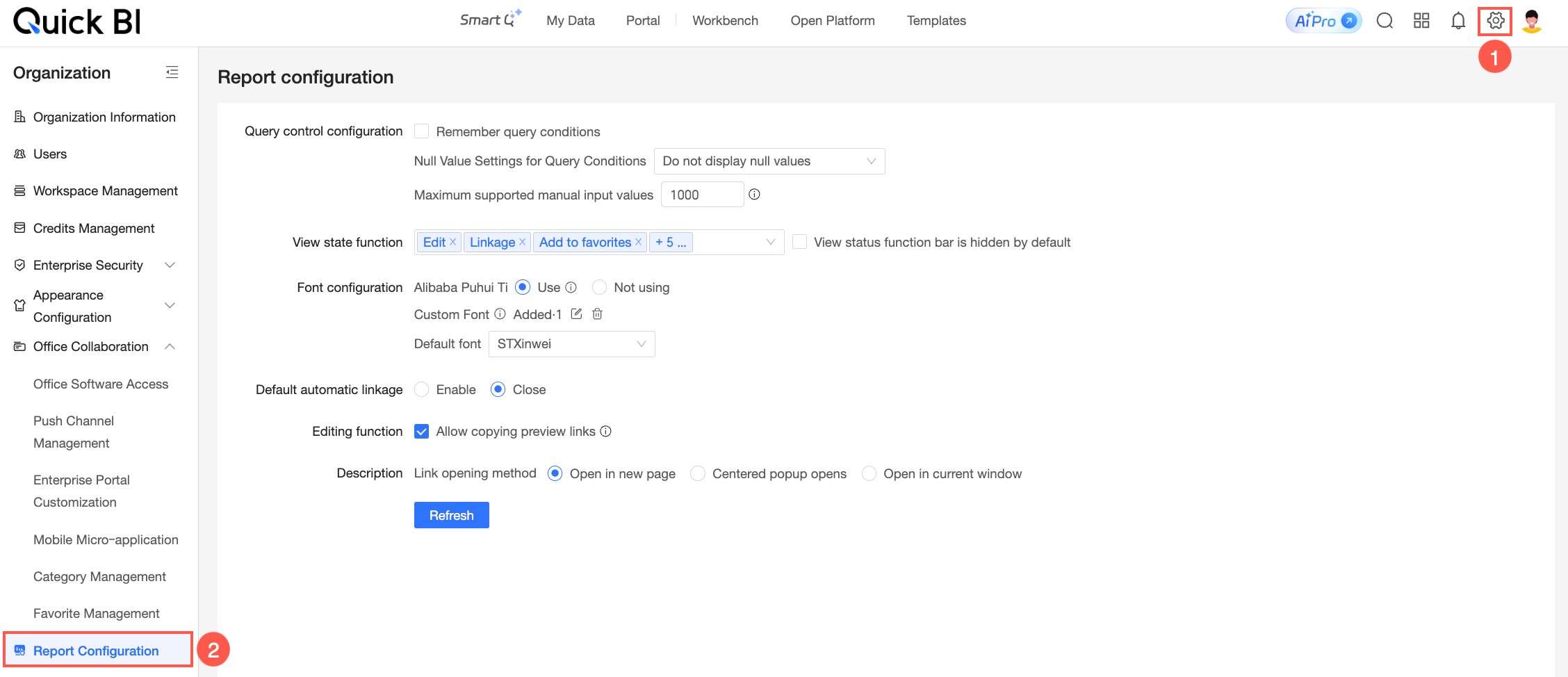
From the product homepage, open the Report Configuration page as shown below.
Query Control Configuration
Parameters

In the Query control configuration section, select Remember query conditions.
When this option is enabled, the system saves the query conditions a user sets after they click Query. The next time the user opens the report, their previous selections appear in the query control.
In the Query control configuration section, you can configure how to handle null values with the options Display null values, Do not display null values, or Configure whether to display null values in each query condition.
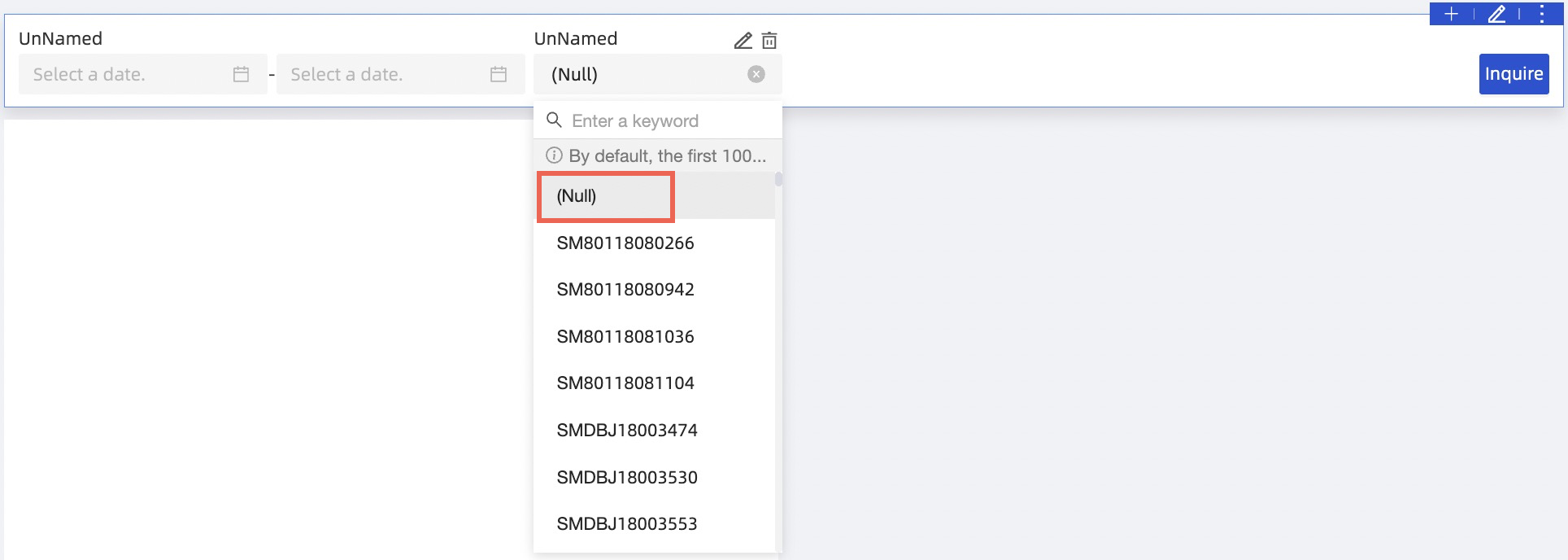
If you select Display null values, any null values will appear in the drop-down lists of all query controls when users view a report.
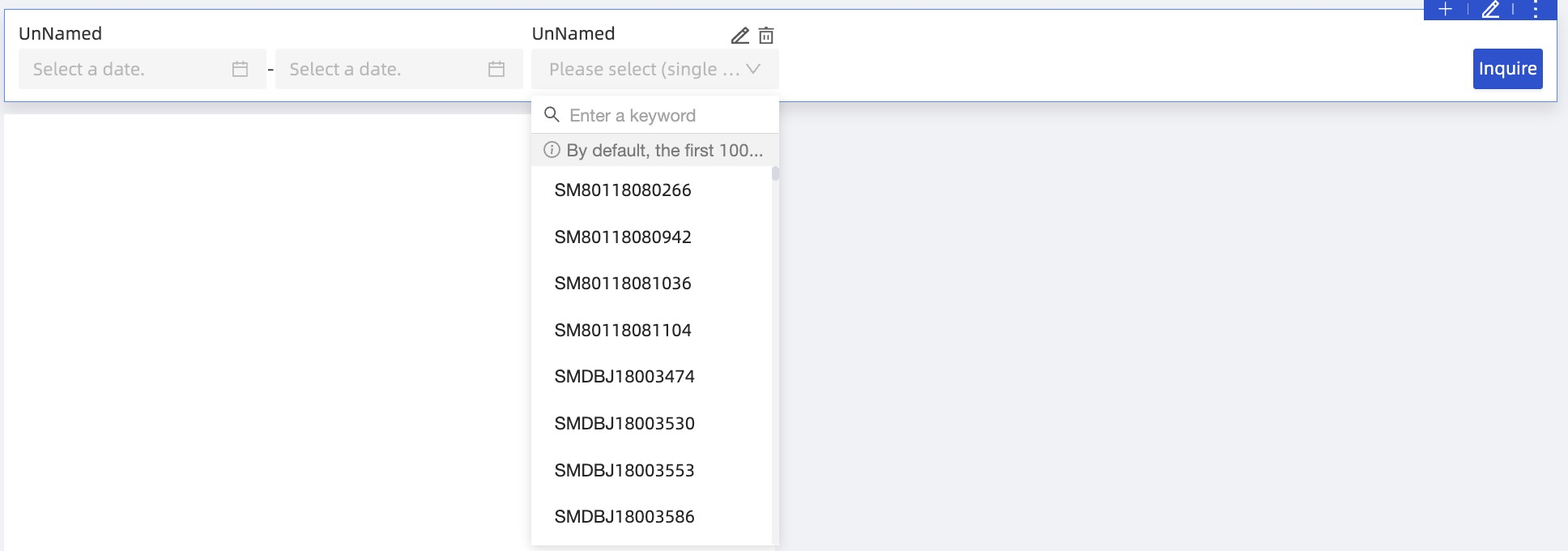
If you select Do not display null values, all null values are filtered out from the enumerated values in query controls.
If you select Configure whether to display null values in each query condition, you can set the Whether to display null values for enumerations of query conditions option for each individual query control.
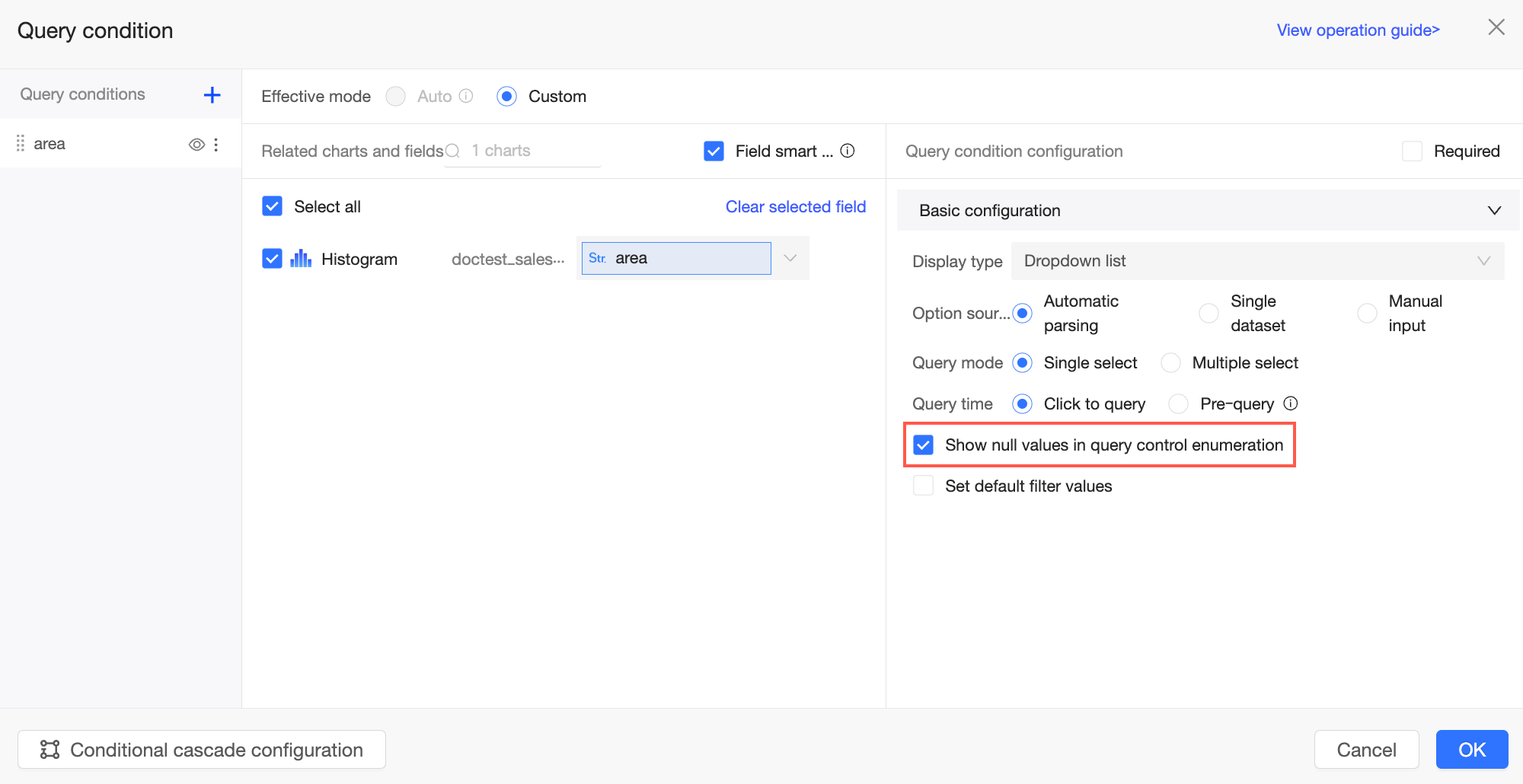
If you select the Whether to display null values for enumerations of query conditions checkbox, null values are displayed in the drop-down list for that specific query control. If you clear the checkbox, null values are hidden.
In the Query control configuration section, you can set the Upper limit of manually entered values.
 Note
The default value is 1,000 and the maximum is 10,000.
Avoid setting a high limit, as it may cause query failures for some databases.
View Mode Functions
Parameters
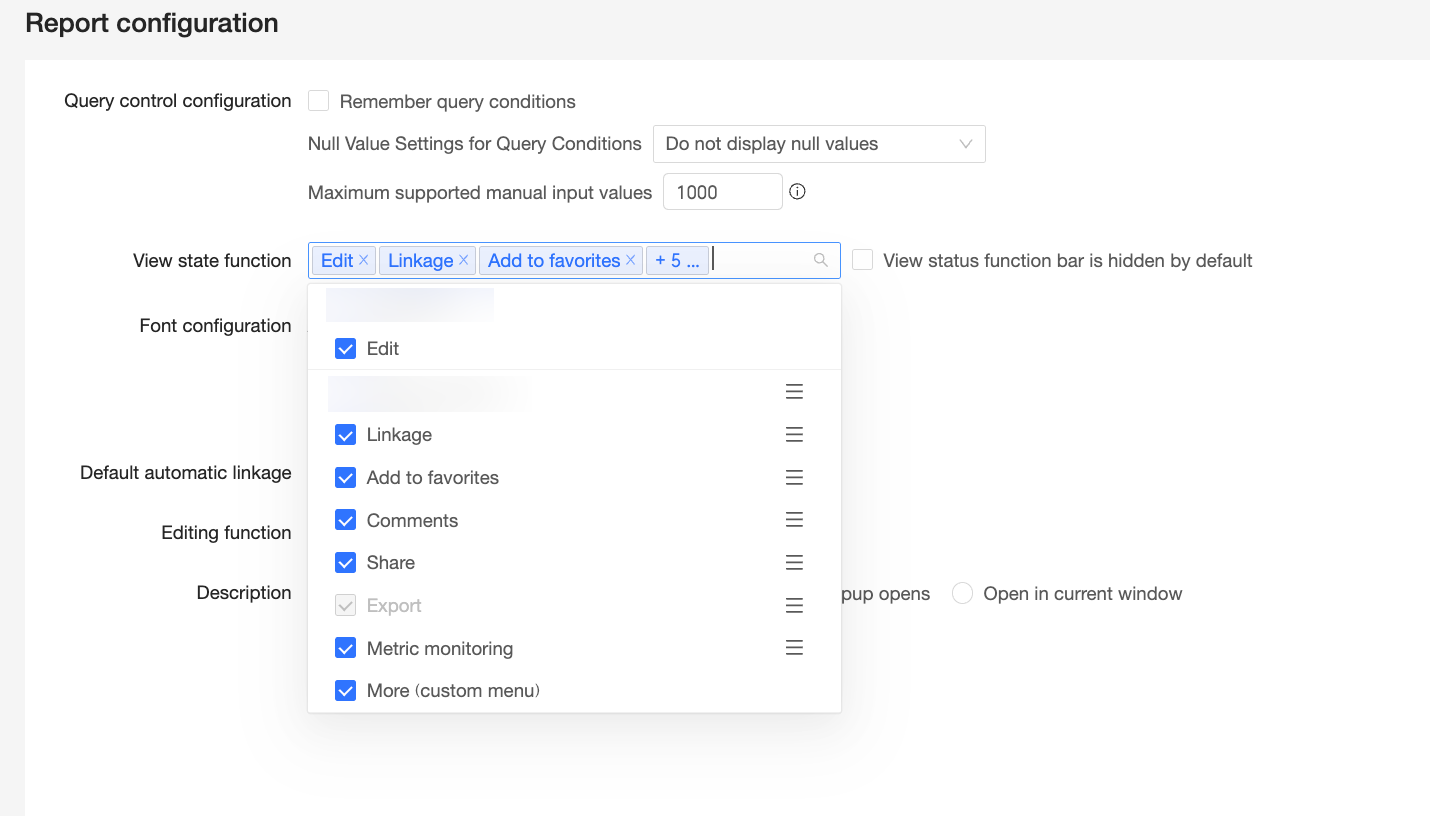
In the View mode functions section, select the actions that users can perform when viewing a dashboard report. To disable an action, clear its checkbox. The following options are available for view mode:
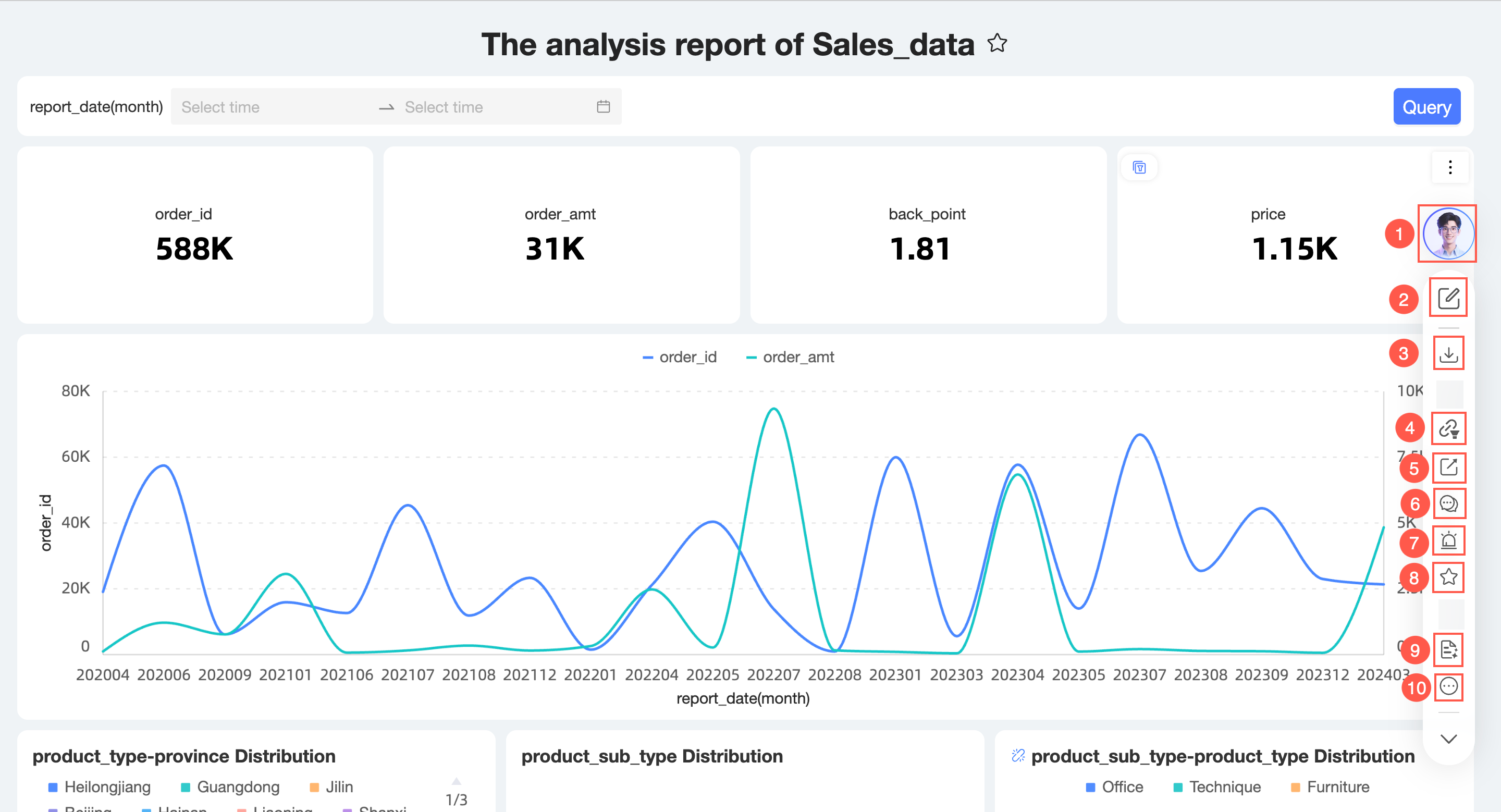
①: Edit
②: Linkage
NoteThe Linkage button appears in view mode only when a linkage action is active on the page.
③: Favorites
④: Comments
⑤: Share
⑥: Export
NoteThe Export function is enabled or disabled on the Configuration Panel > Enterprise Security > Data Security > Export Control page and cannot be changed here.
⑦: Metric Monitoring (Alerts)
⑧: More (Custom Menu)
The following figure shows the toolbar when all functions are enabled:
You can drag and drop the functions to reorder them.
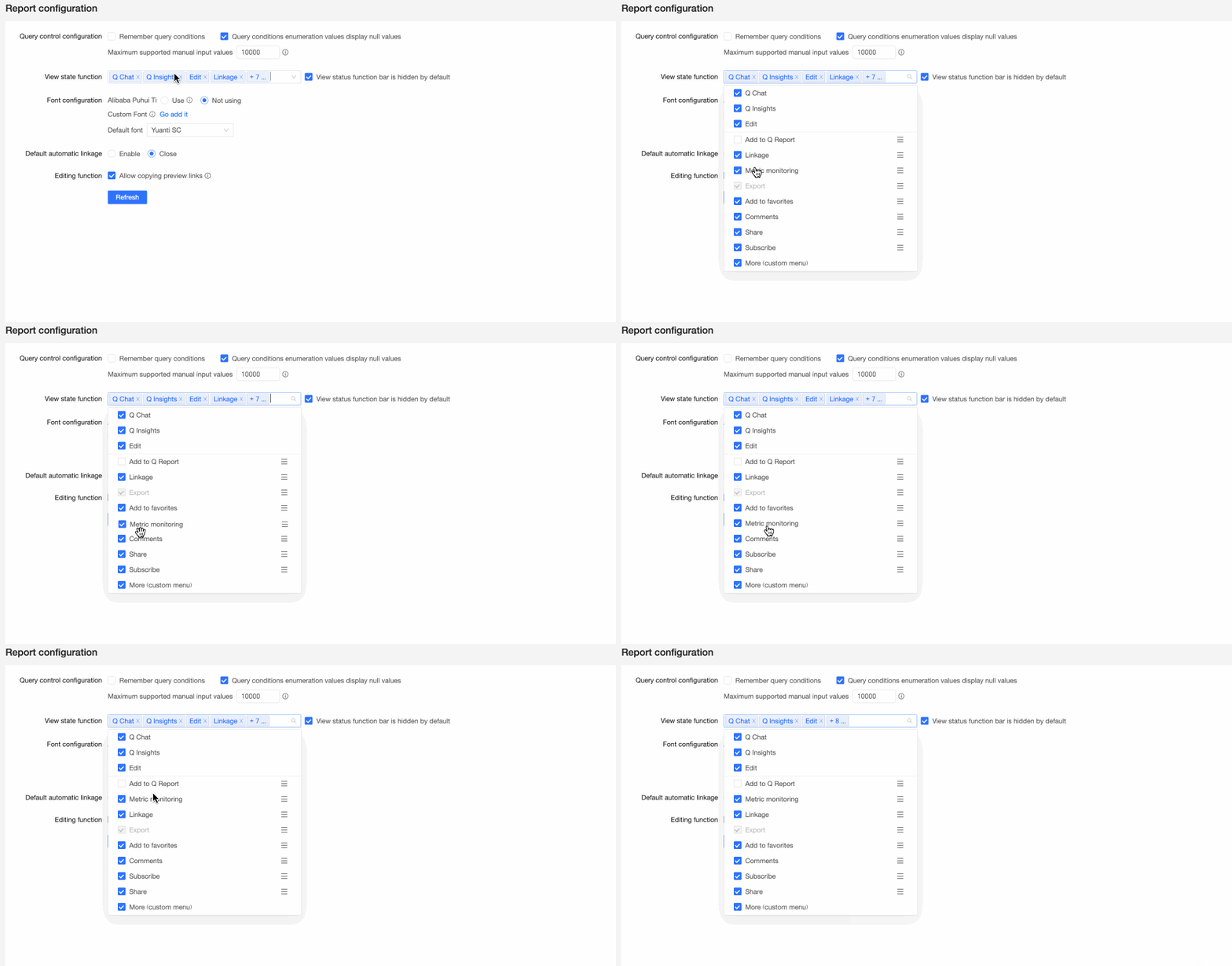
If you select Hide functions in view mode by default, the function toolbar is collapsed by default when a user enters the dashboard preview page.

You can click the
 icon to expand the toolbar and view more functions.

Font Configuration
Parameters
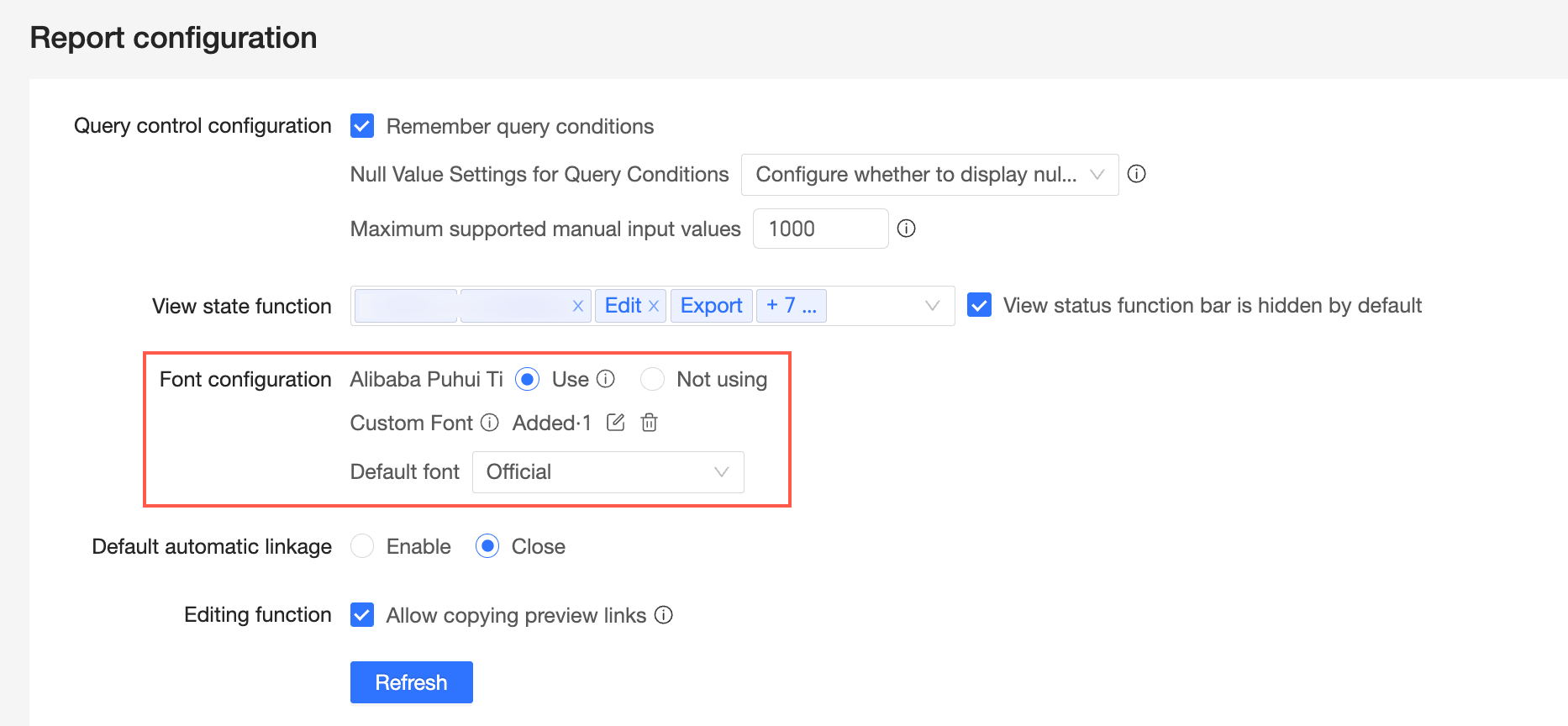
Alibaba PuHuiTi
To use the Alibaba PuHuiTi font, select the Use checkbox. After you enable it, Alibaba PuHuiTi will be available as an option in the page font style settings.
NoteUsing this font may affect report performance.
Custom Font
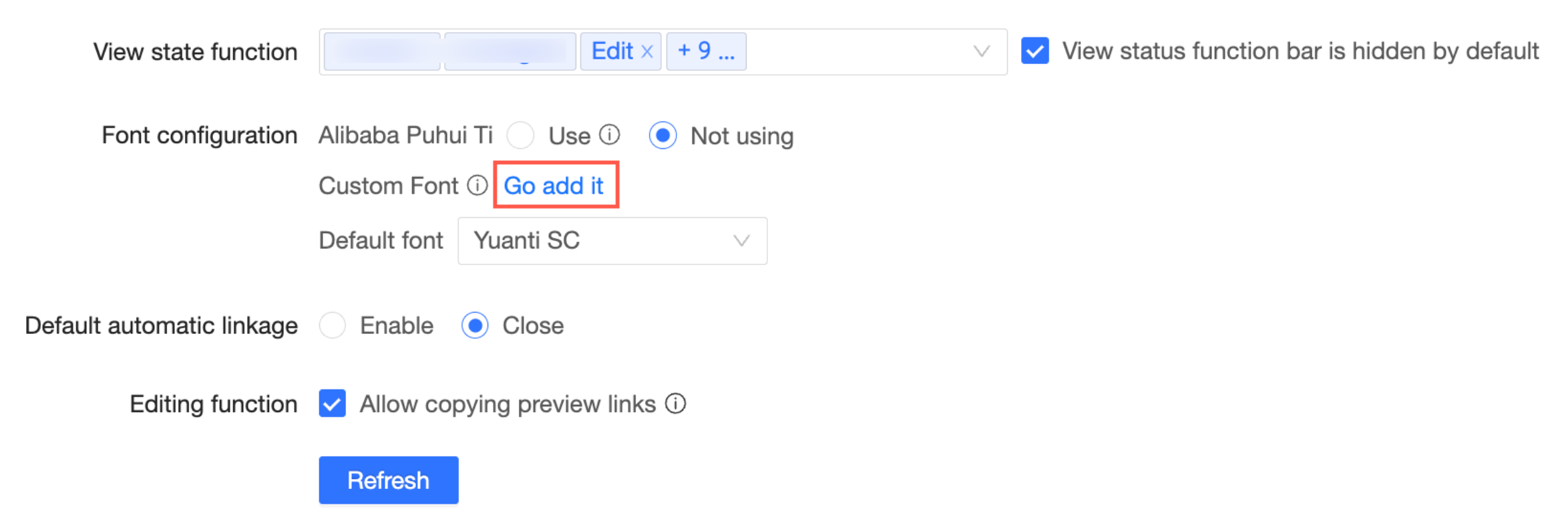
If you need to use local font packages in Quick BI, add and manage them as follows:
If you have not yet added any custom fonts, click Add to open the Custom Font Management window.
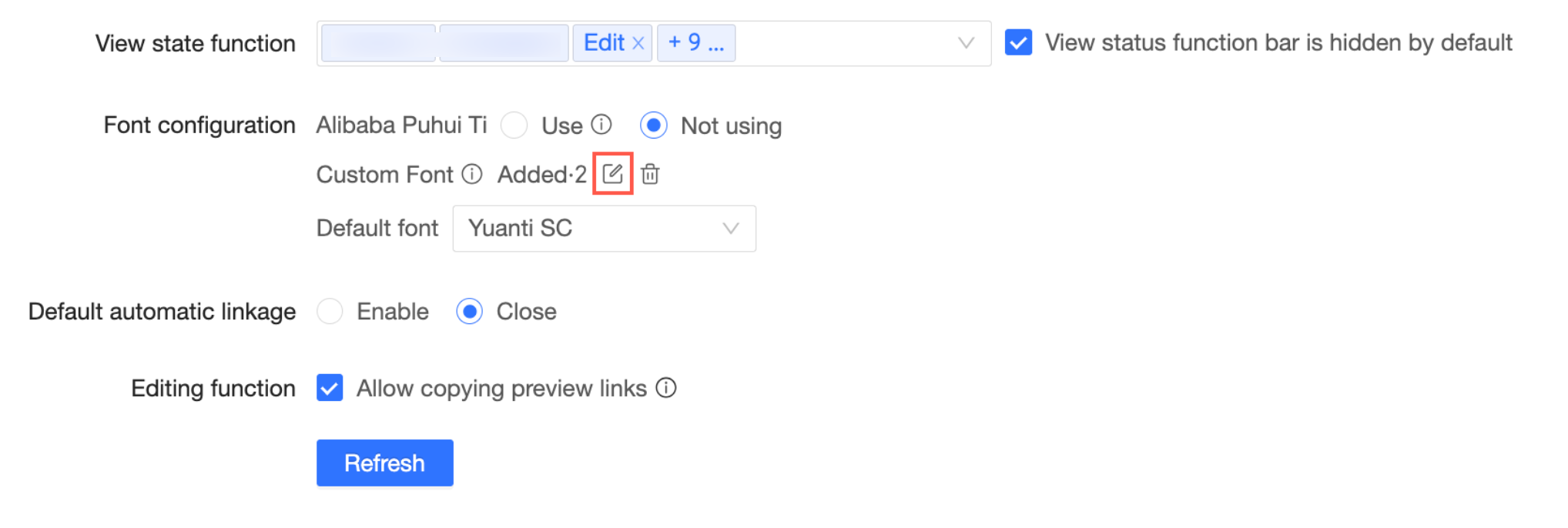
If you have already added custom fonts, click the
 icon next to Added to open the Custom Font Management window.
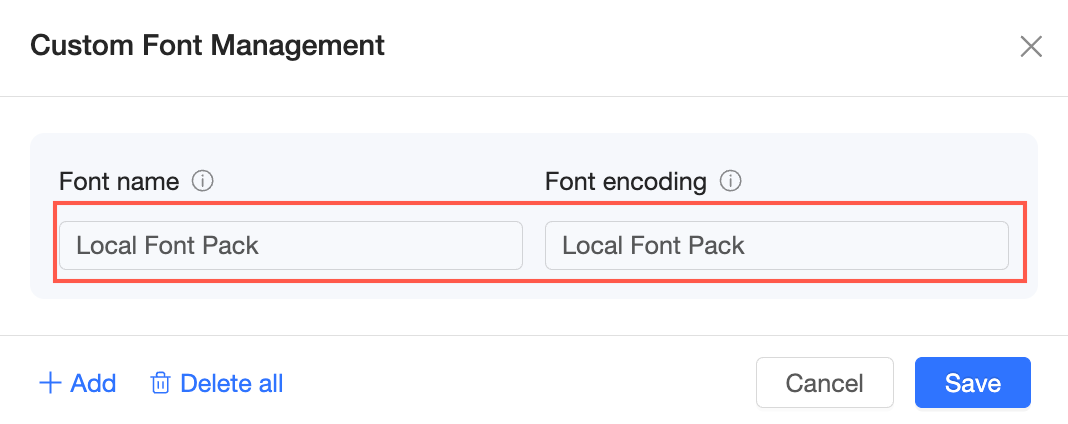
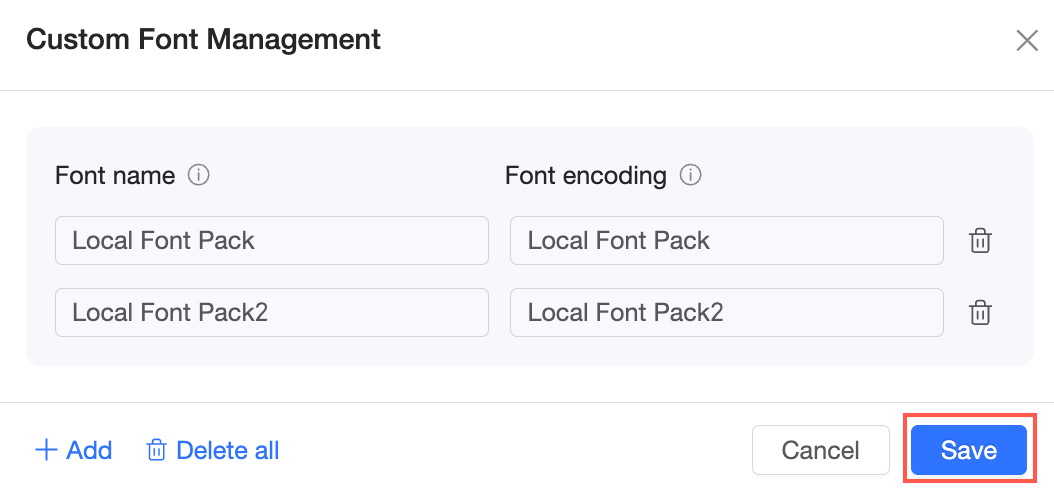
In the Custom Font Management window, enter the Font name and Font code.
NoteThe custom font name appears in the font selection options for all reports.
The font code is used to match the corresponding font package on your client. If the font is not installed on your client or the font code does not match, the selected font is not applied, and the system falls back to the default Quick BI font.
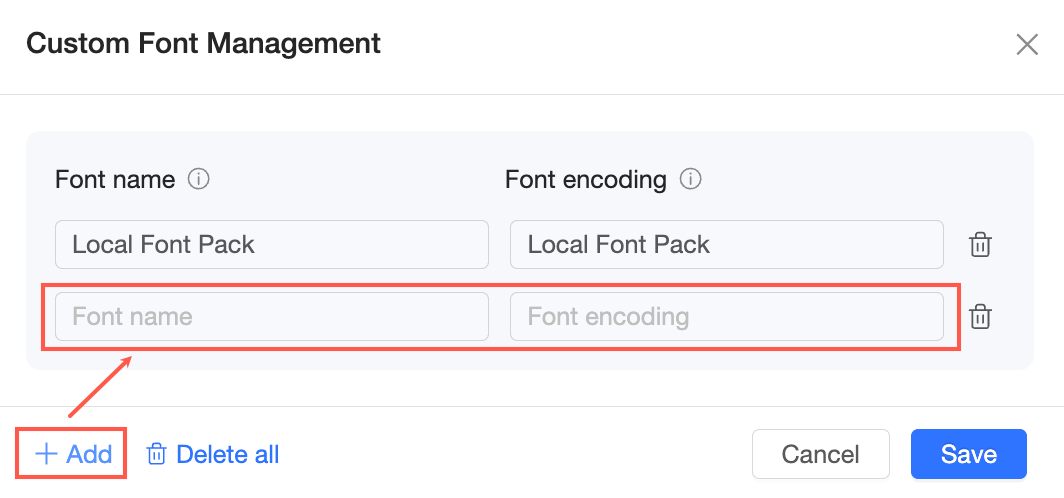
To add multiple fonts, click Add to continue adding custom fonts.
When you are finished, click Save.
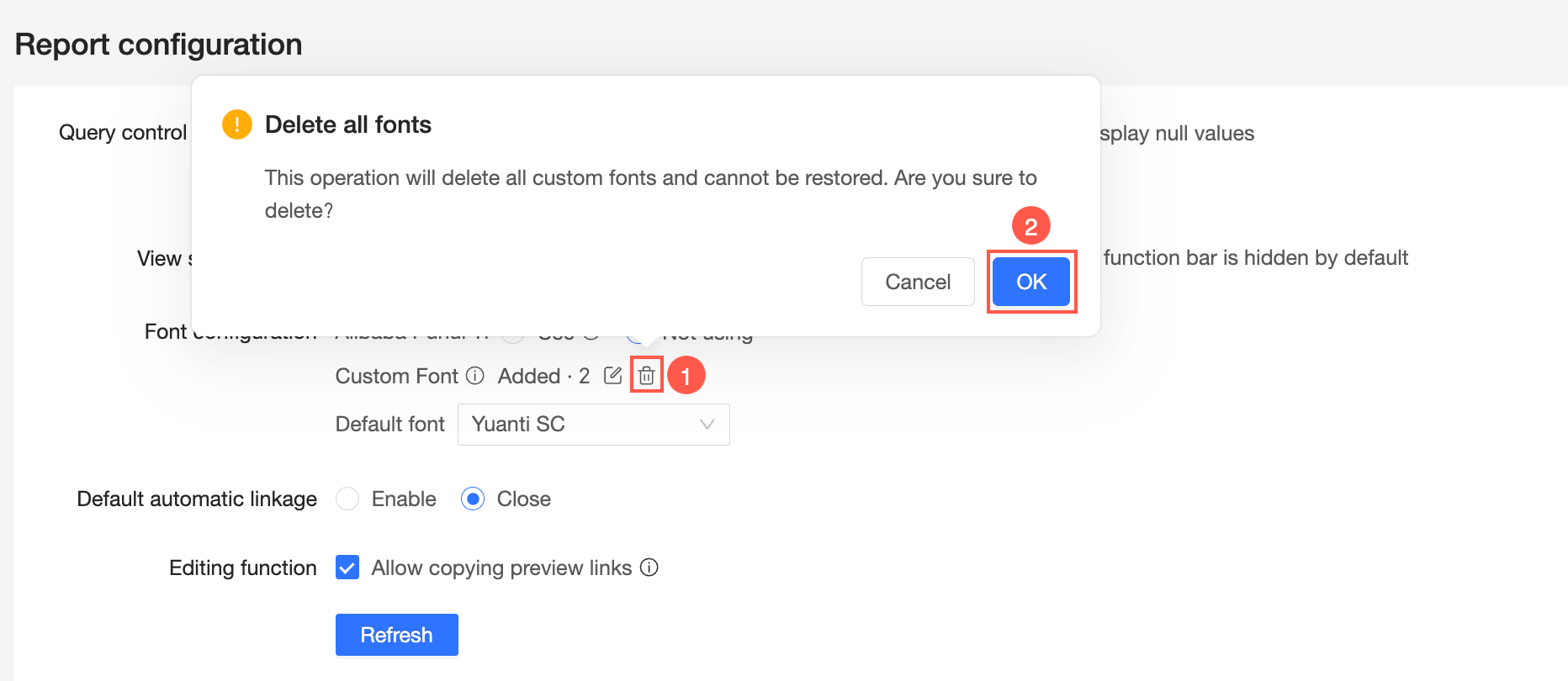
To delete all custom fonts, click the
 icon next to Added on the report configuration page, and then click OK in the confirmation dialog box.
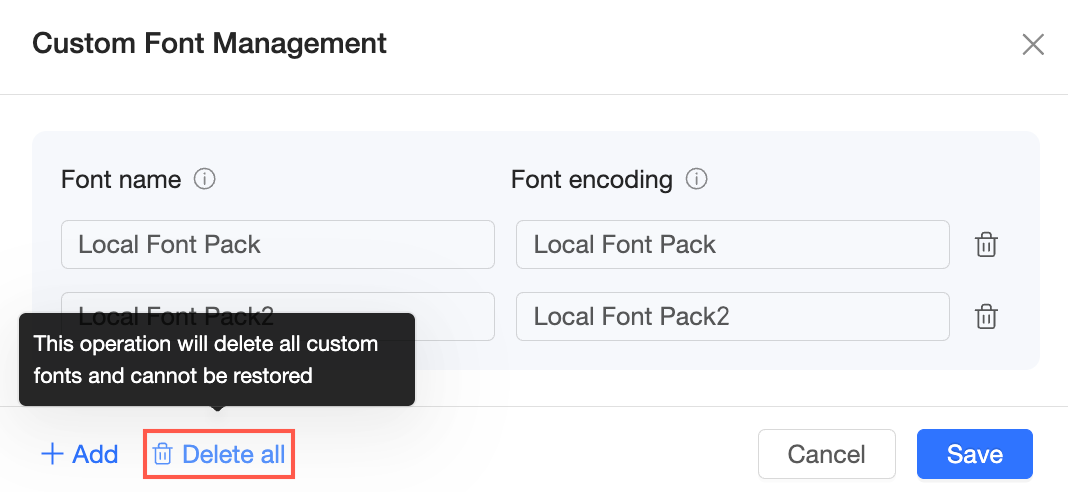
Alternatively, you can click Delete All in the Custom Font Management window.
NoteThis action deletes all custom fonts and cannot be undone.
To delete a single custom font, open the Custom Font Management window, click the
icon next to the font you want to remove, click OK in the confirmation dialog box, and then click Save.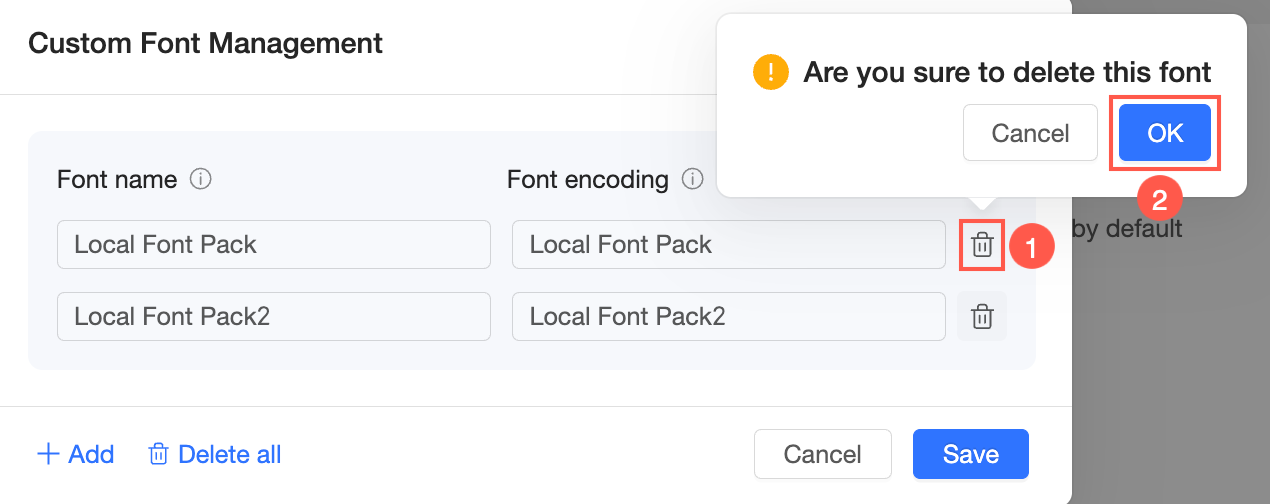
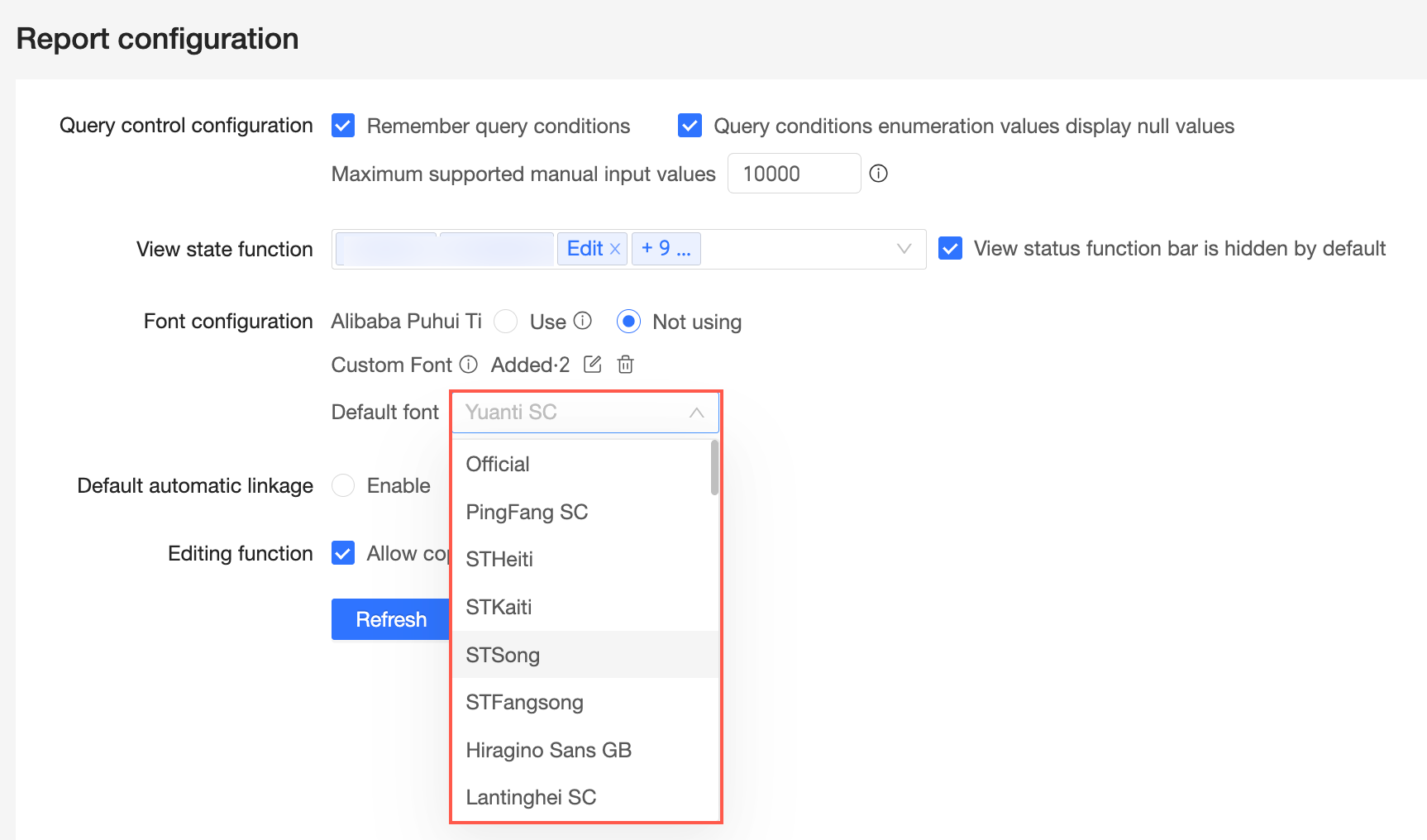
Default Font
You can set a Default Font style. Once set, this font becomes the default font option for all report pages.
Default Automatic Linkage
Parameter
You can enable or disable Default Automatic Linkage. When Default Automatic Linkage is enabled at the organization level, automatic linkage is also enabled by default at the dashboard level.

For detailed instructions on how to configure automatic linkage, see Configure automatic linkage.
Edit Mode Functions
Parameter
You can select the Allow copying of preview links option.
You can share a preview link to have others verify content that you have saved but not yet published. The Copy Link button is located in the upper-right corner of the dashboard edit page when you enter Preview mode.

For detailed instructions on how to copy a preview link, see Copy a preview link.
Field Description
Parameters
You can configure the link open mode for field descriptions as Open in new window, Open in centered dialog box, or Open in current window.

If you select Open in new window, the field description link opens in a new page.
If you select Open in centered dialog box, the field description link opens in a dialog box on the current page. You can set the default size of the dialog box.
 Note
The dialog box size setting applies only to the PC end.
If you select Open in current window, the field description link opens in the current window, replacing the current page.