Export Quick BI dashboard visualizations and analysis results in Excel, image, or PDF format.
Prerequisites
-
A dashboard is created. Create a dashboard.
-
The target chart component is added and the dashboard is published. Publish a dashboard.
-
In the dashboard page settings, ensure that Allow Download is selected and Hide Global Download Button is cleared.
NoteIf Hide Global Download Button is selected, global export is unavailable in preview mode.

PC
PC supports global export (entire dashboard) and single chart export.
Global Export
A global export saves the entire dashboard for sharing or archiving.
-
In the Workbench, find the target dashboard and click Preview.

-
Click the
 icon in the lower-right corner.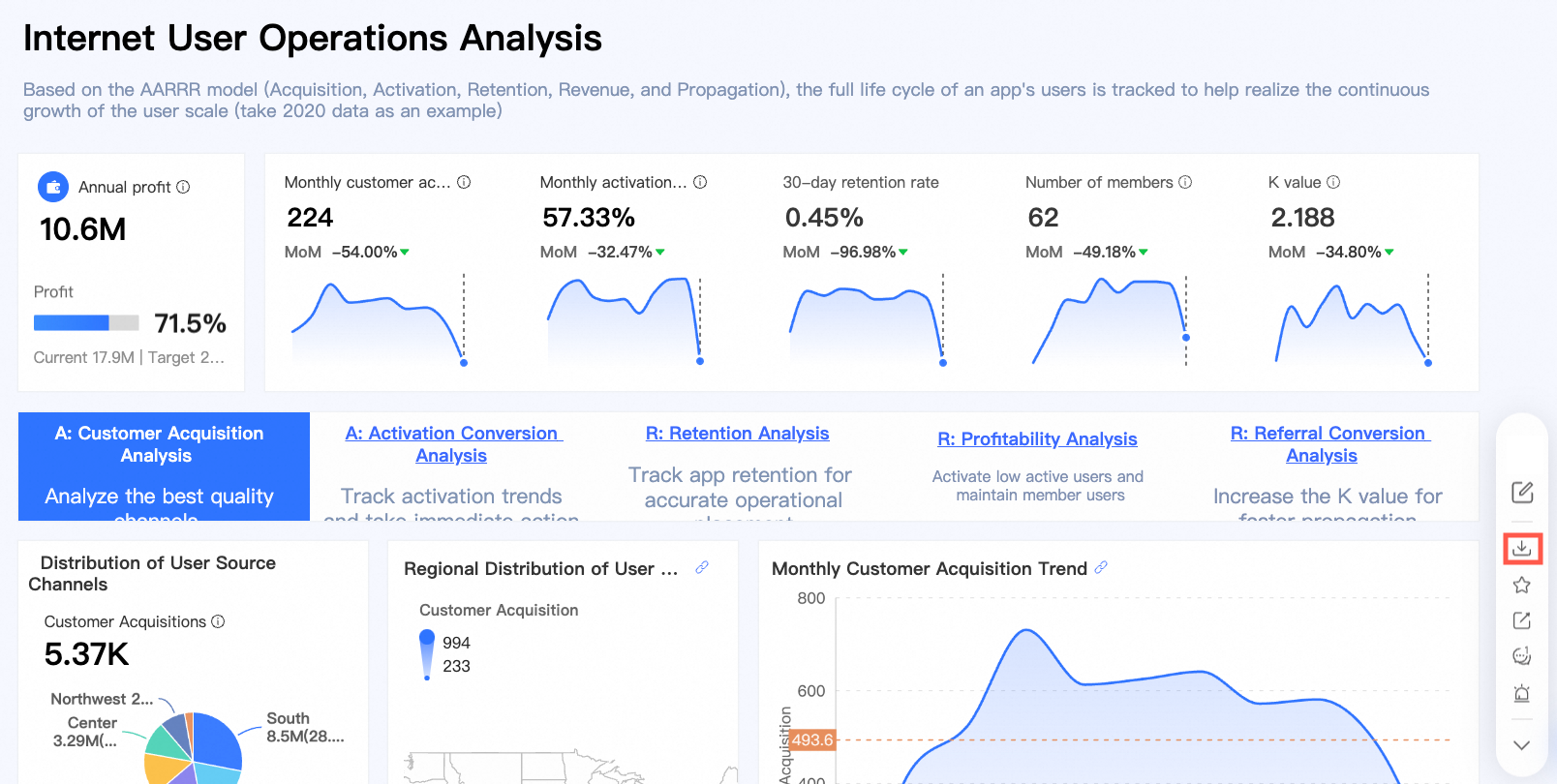
-
Click Export to configure the export parameters.
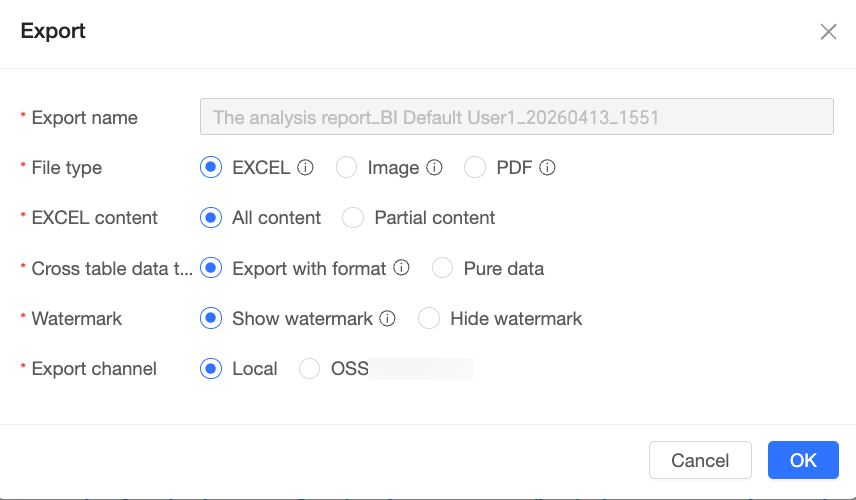
Parameter
Description
Export name
Auto-generated based on naming rules configured by the administrator in Data Security > Export Control.
File format
Supported formats: Excel, image, and PDF.
Note-
Administrators configure supported export formats in Data Security. For more information, see Export Control.
-
Excel supports exporting chart component data only. For best compatibility, open the exported file with Excel.
-
Image and PDF formats do not support embedded components (such as embedded pages) or images requiring cross-domain access. For more information, see Export FAQ.
Excel content
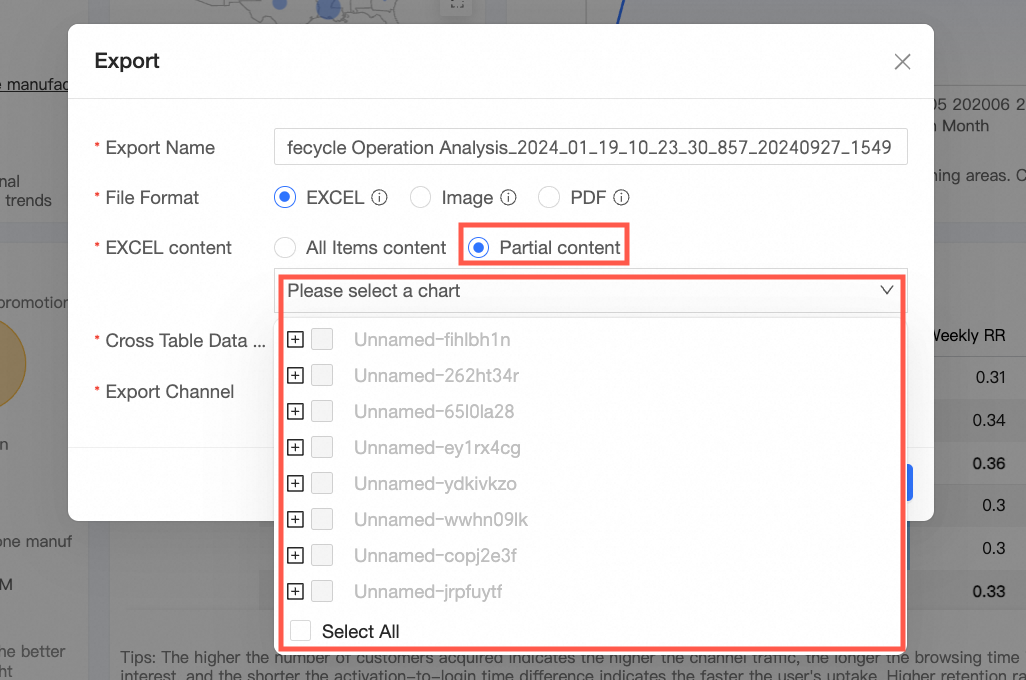
Two export modes are available: Export All and Partial Export.
-
Export All: exports data from all charts in the dashboard.
-
Partial Export: lets you select specific charts to export.
Crosstab data type
The data format for the exported crosstab. Choose between With Format and Raw Data.
-
If you select With Format, the Excel file preserves data formats and styles of the crosstab and detail table.
-
If you select Raw Data, the Excel file contains only raw data.
Note-
This option is available only when you export a crosstab and select Excel as the file format.
-
Maximum 10,000 records per Excel export.
-
Complex formatting may not be fully preserved in With Format mode due to Excel format rule limitations.
-
Both types export the same data volume. Export time varies by machine and data size. For files exceeding 500,000 cells, use Raw Data.
Watermark
Select Show Watermark or Hide Watermark.
NoteThis option is available only when you select Excel as the file format.
Export channel
Export to your Local machine or an OSS server.
NoteOSS export is available only if a server is configured for your organization.
-
Single Chart Export
A single chart export saves one specific chart for focused analysis.
-
On the dashboard preview page, hover over the target chart, click the
 icon in the upper-right corner, and select Export.
-
Configure the export parameters.
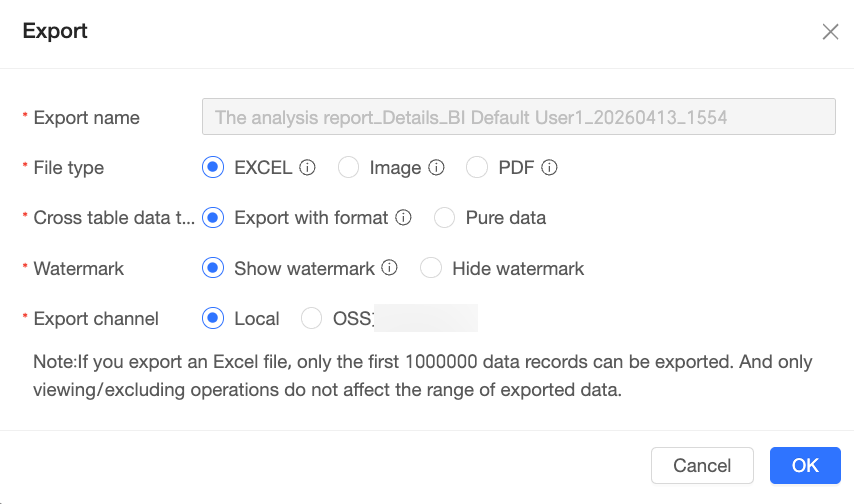
Parameter
Description
Export name
Auto-generated based on naming rules configured by the administrator in Data Security > Export Control.
File format
Supported formats: image, PDF, and Excel.
Note-
Administrators configure supported export formats in Data Security. For more information, see Export Control.
-
Excel supports exporting chart component data only. For best compatibility, open the exported file with Excel.
-
Image and PDF formats do not support embedded components (such as embedded pages) or images requiring cross-domain access. Export FAQ.
Crosstab data type
The data format for the exported crosstab. Choose between With Format and Raw Data.
-
If you select With Format, the Excel file preserves data formats and styles of the crosstab and detail table.
-
If you select Raw Data, the Excel file contains only raw data.
Note-
This option is available only when you export a crosstab and select Excel as the file format.
-
Maximum 10,000 records per Excel export.
-
Complex formatting may not be fully preserved in With Format mode due to Excel format rule limitations.
-
Both types export the same data volume. Export time varies by machine and data size. For files exceeding 500,000 cells, use Raw Data.
Watermark
Select Show Watermark or Hide Watermark.
NoteThis option is available only when you select Excel as the file format.
Export channel
Export to your Local machine or an OSS server.
NoteOSS export is available only if a server is configured for your organization.
-
Export FAQ
-
Why are the images or background images in my chart not exported?
Open browser developer tools and check the console for a "No Access-Control-Allow-Origin" error. This indicates cross-domain access is not configured for the images. Configure cross-domain access on the image resource server.
 If no error is present, verify the image link is directly accessible.
 -
Why is my embedded page not exported?
Embedded pages cannot be exported.