This topic describes how an organization administrator can add Alibaba Cloud accounts to a Quick BI organization. An organization administrator can add a single account or multiple accounts in bulk.
Prerequisites
You must have an Alibaba Cloud account. For more information, see Obtain information about your Alibaba Cloud account.
Background Information
Quick BI defines the following user types and roles at the organization level:
-
User Types
At the organization level, there are three user types:
-
developer: Includes corporate IT staff, data analysts, and data operations personnel.
-
analyst: A business user who analyzes data without needing deep technical skills.
Analysts analyze data by creating assets such as dashboards and spreadsheets.
-
viewer: A user who only views reports, such as an executive or a frontline business employee. Viewers can access dashboards, spreadsheets, and BI portals through URLs or subscriptions.
-
-
User Roles
-
Organization roles
Quick BI provides three pre-defined organization roles and supports custom organization roles.
-
organization administrator: Manages organization information, status, and members. They can also assign this role to other users.
We recommend assigning this role to 1 to 3 individuals, typically a project manager (PM) or BI platform administrators.
-
permission administrator: Manages permissions for resources within the organization. We recommend assigning this role to 1 to 3 individuals, typically BI platform administrators.
-
standard user: A user who is not an organization administrator or permission administrator.
-
custom organization role: Create custom roles based on your business needs. For more information, see Role Management.
-
-
Workspace roles
Quick BI provides four pre-defined workspace roles and supports custom workspace roles.
-
workspace administrator: Has create (edit), use, and view permissions for all modules. This is the most privileged role in a workspace. Workspace administrators can also manage permissions and assets for other members in the workspace.
-
workspace developer: Has create (edit), use, and view permissions for all modules.
-
workspace analyst: Has create (edit) and view permissions for BI portals, dashboards, large-screen dashboards, spreadsheets, ad hoc analysis, self-service data retrieval, and data preparation modules. This role also has view permissions for data entry and data sources, and use and view permissions for datasets.
-
workspace viewer: Has view permissions for all modules.
-
custom workspace role: Create custom roles based on your business needs. For more information, see Role Management.
-
-
Limits
Only an organization administrator can add an Alibaba Cloud account as an organization user.
This feature is available only in Quick BI Professional Edition and Enterprise Edition.
Notes
When you add accounts in bulk, you must upload a file to Quick BI:
We recommend that you use the Chrome browser to upload the file.
We recommend that you download the bulk import template and fill in user information as required.
To prevent upload failures, ensure that the file does not contain any of the following issues:
The account already exists in the organization.
The alias already exists in the organization.
The user group path does not exist.
The Excel file contains more than 5,000 rows.
The order of any column has been changed, except for columns with the tag_ prefix.
The number of users to be added exceeds the license limit.
For information about the license limits of different Quick BI editions, see Billing methods.
Add a single Alibaba Cloud Account
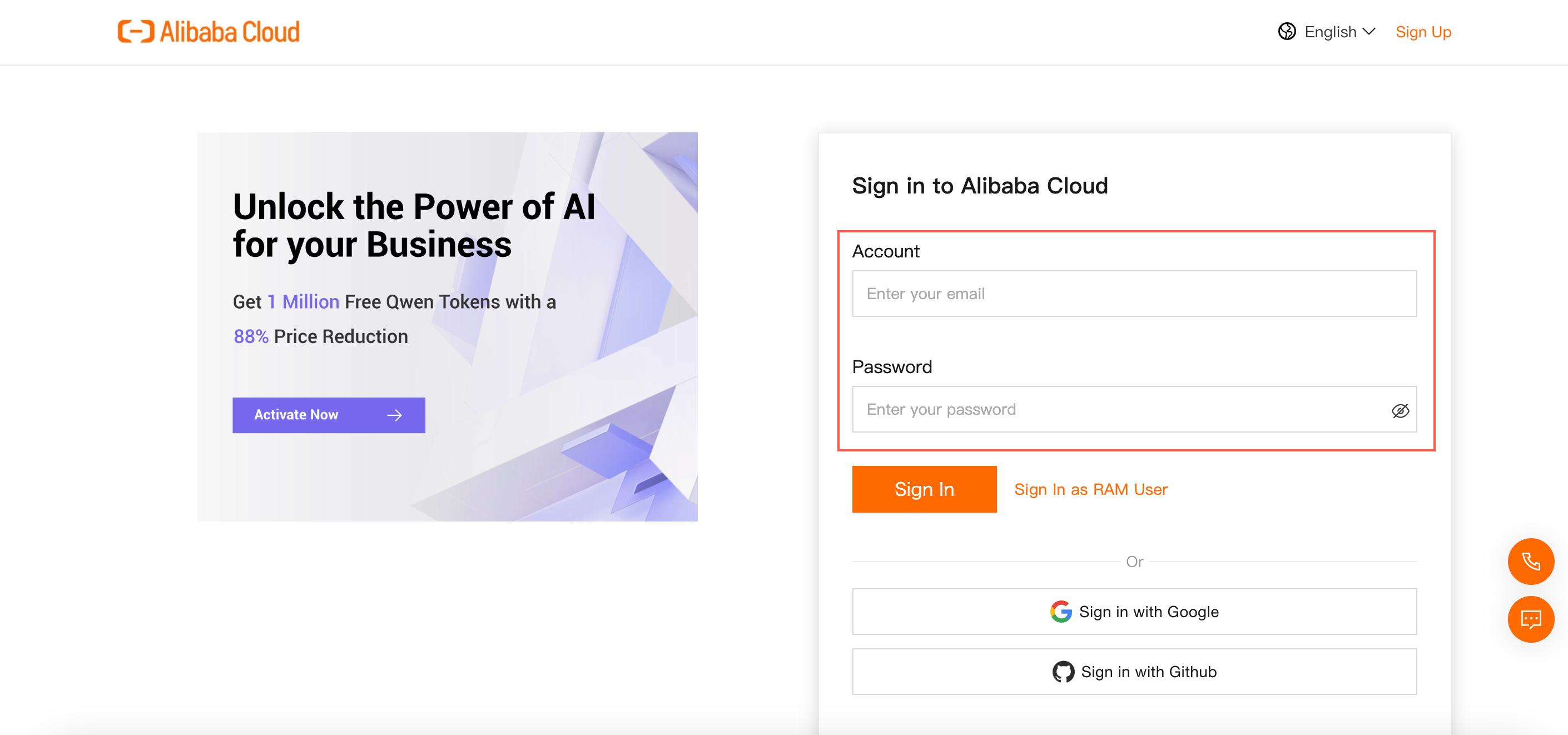
Log on to the Quick BI console.
On the Quick BI homepage, navigate to the User Management page.
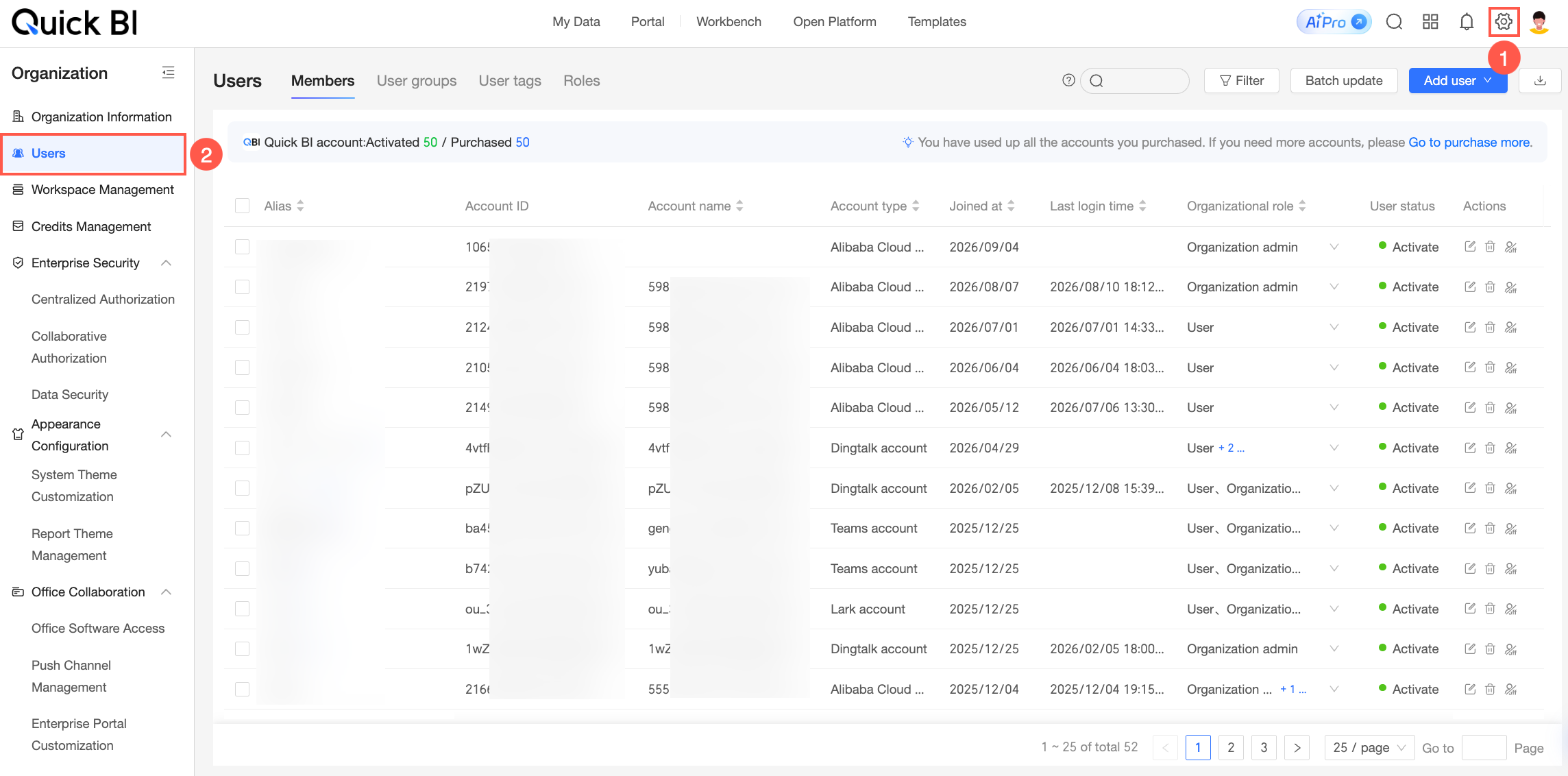
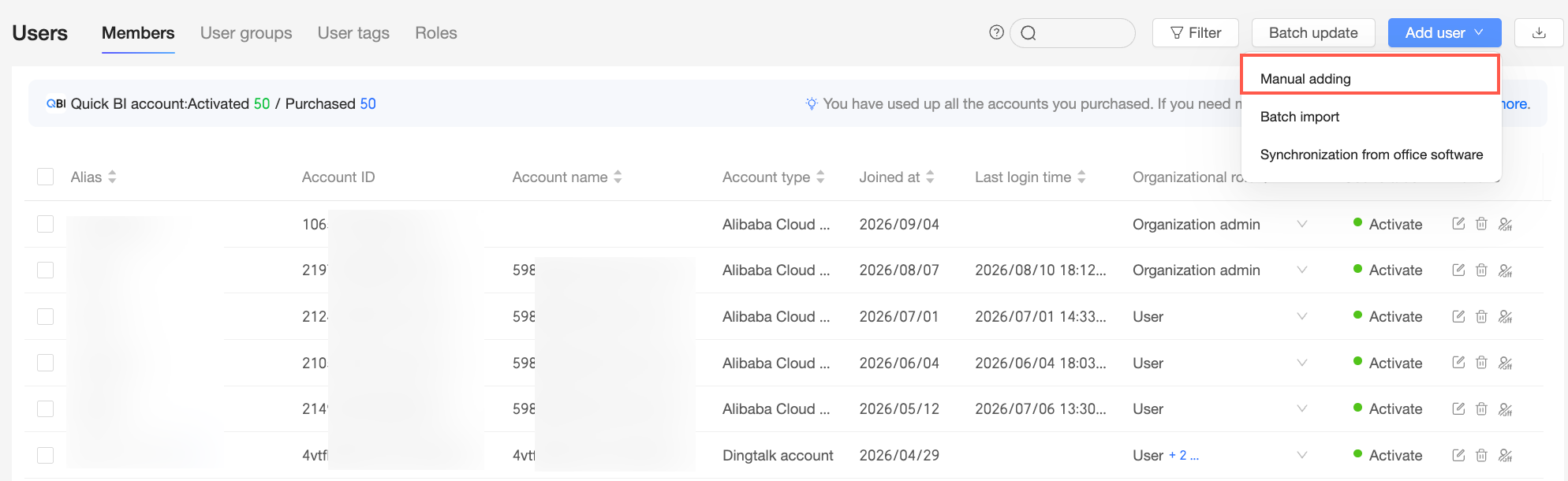
In the upper-right corner of the Members tab, choose .
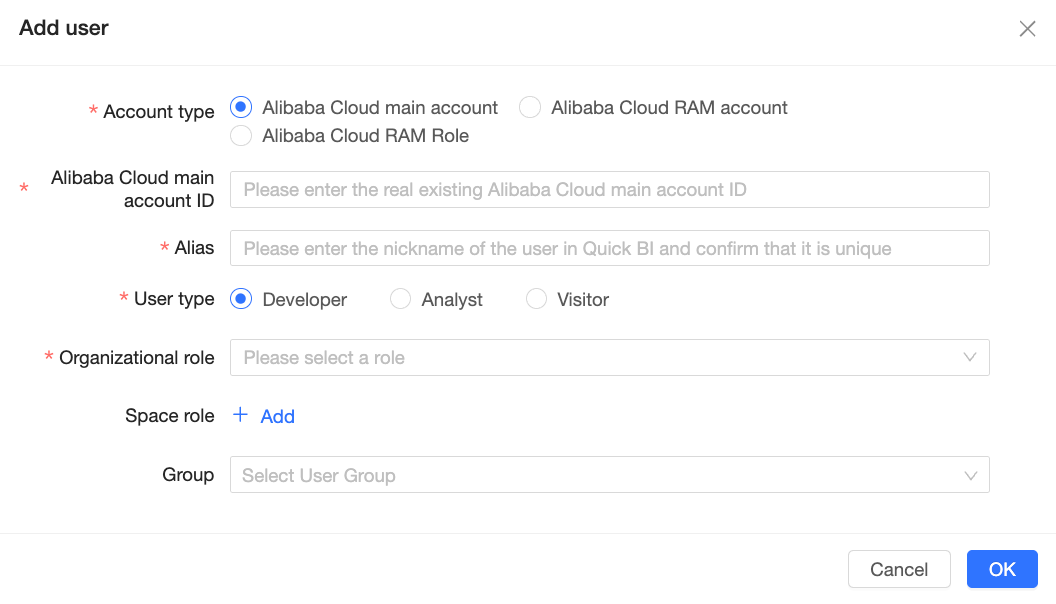
In the Add User dialog box, set Account type to Alibaba Cloud account and configure the following parameters.
Parameter
Required
Description
Alibaba Cloud account ID
Yes
The ID of the Alibaba Cloud account to add. For more information, see Obtain information about your Alibaba Cloud account.
Alibaba Cloud account name
No
The account name is automatically retrieved after you enter the account ID. You cannot manually enter or modify it.
Alias
Yes
The alias of the Alibaba Cloud account in Quick BI. You can customize the alias.
The alias can be up to 50 characters in length and can contain letters, digits, Chinese characters, underscores (_), slashes (/), backslashes (\), vertical bars (|), parentheses (), and brackets [].
User type
Yes
Valid values: Developer, Analyst, and Visitor.
Developer: Enterprise IT personnel, data analysts, and data operations personnel.
Visitor: Users who only view reports, such as bosses and leaders, or frontline business personnel who only view data results. Visitors can view the content of dashboards, workbooks, and sites via URLs or subscriptions.
Organization role
Yes
The user's role in the organization. For details about each role, see the Background information section above.
Custom organization roles: You can customize organization roles based on your business needs. For more information, see Role Management.
Workspace role
No
The user's role in the workspace. For details about each role, see the Background information section above.
Custom workspace role: You can customize workspace roles based on your business needs. For more information, see Role Management.
User group
No
The user group to which the Alibaba Cloud account belongs.
Click OK to add the organization user.
Add Alibaba Cloud Accounts in Bulk
Log on to the Quick BI console.
On the Quick BI homepage, navigate to the User Management page.
In the upper-right corner of the Members tab, choose .
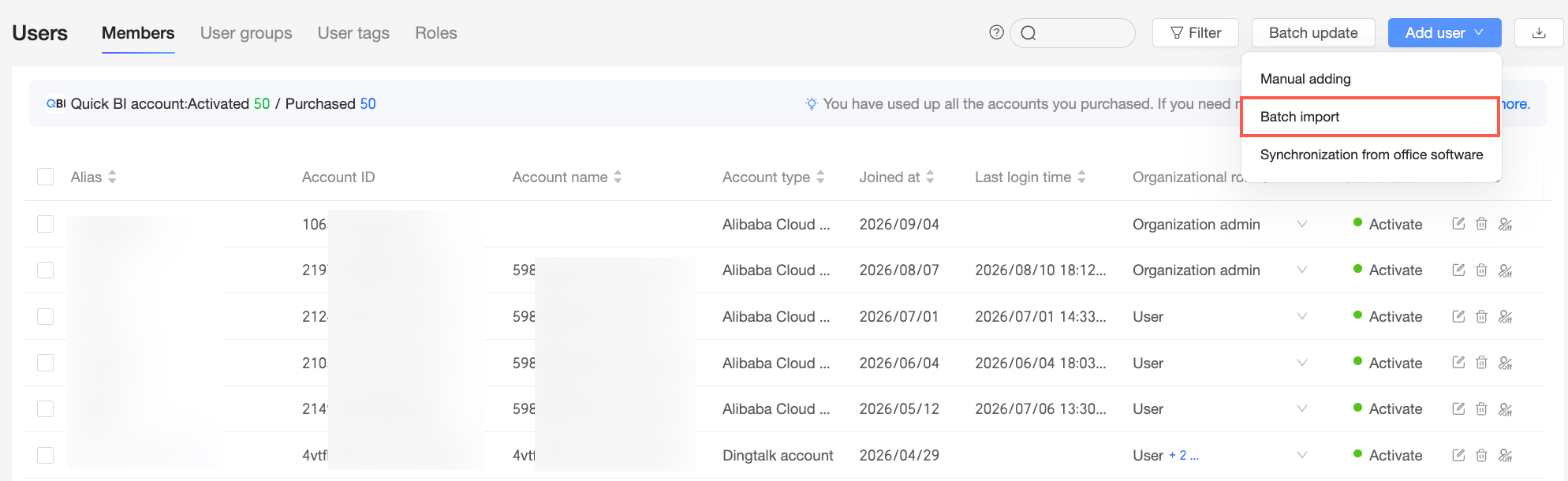
In the Bulk Add Users dialog box, click Download template for bulk user import.
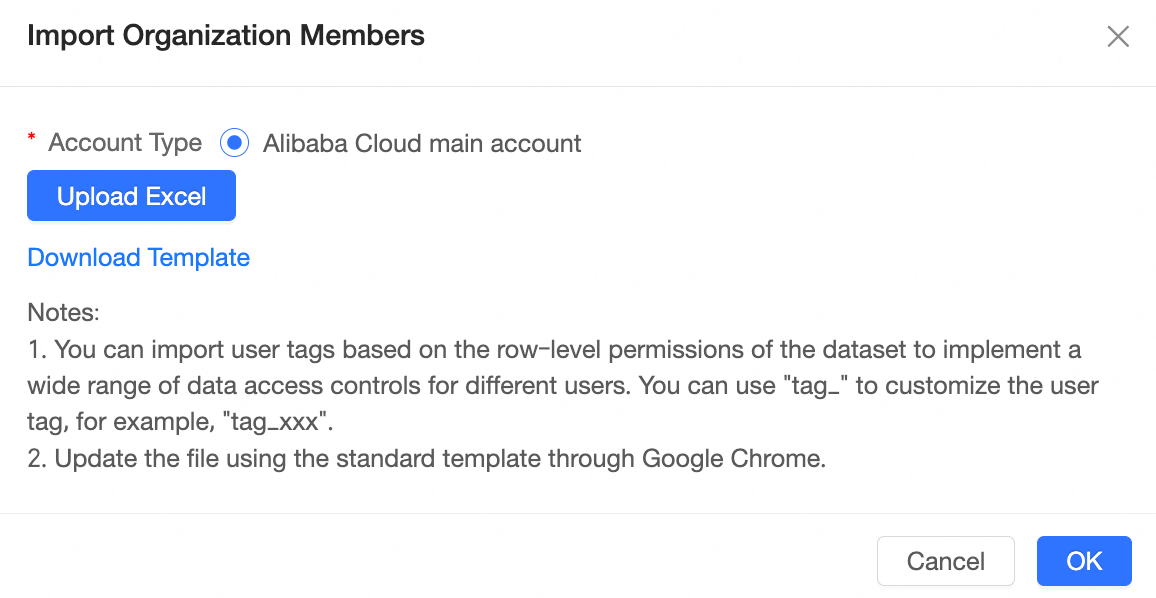
Enter the user information into the template and save the file.
The following table describes the key fields in the file.
Field name
Required
Description
Account ID
Yes
The ID of the Alibaba Cloud account.
Alias
Yes
The alias of the Alibaba Cloud account in Quick BI. You can customize the alias.
The alias can be up to 50 characters in length and can contain letters, digits, Chinese characters, underscores (_), slashes (/), backslashes (\), vertical bars (|), parentheses (), and brackets [].
User type
Yes
Valid values: Developer, Analyst, and Visitor.
User role
Yes
The user's role in the organization. For details about each role, see the Background information section above.
Custom organization roles: You can customize organization roles based on your business needs. For more information, see Role Management.
Email
No
The email address that is associated with the Alibaba Cloud account.
Phone number
No
The phone number that is associated with the Alibaba Cloud account.
User group
No
The user group to which the Alibaba Cloud account belongs.
tag_example
No
You can add custom user tags. The name of a custom tag column must start with the tag_ prefix, such as tag_example.
Valid values:
$ALL_MEMBERS$: Grants permissions to access all data.
A specific value, such as north. This grants permissions to access data for the North region.
NoteIf a tag corresponds to multiple permission values, separate the values with a comma (,), for example, North,East.
Click Select Excel File to upload the user information file.
When you upload an attachment, we recommend that you download the template for adding users in bulk and fill in the user information in the attachment according to the template requirements.
Change the order of any column except the tag_ column.
For the license limitations for each version of Quick BI, see Billing method.
Click OK.
Log on with an Alibaba Cloud Account
After you add an Alibaba Cloud account as an organization user, you can use the account's account name and password to log on to the Quick BI console.