This topic describes how to purchase, upgrade, renew, and view information about overdue payments.
Starting with version V6.0.3, accounts are interoperable between the Alibaba Cloud International Website (www.alibabacloud.com) and the Alibaba Cloud China Website (www.aliyun.com). This lets you purchase resources from either website. You can switch the region and zone to select the edition that you want to purchase.
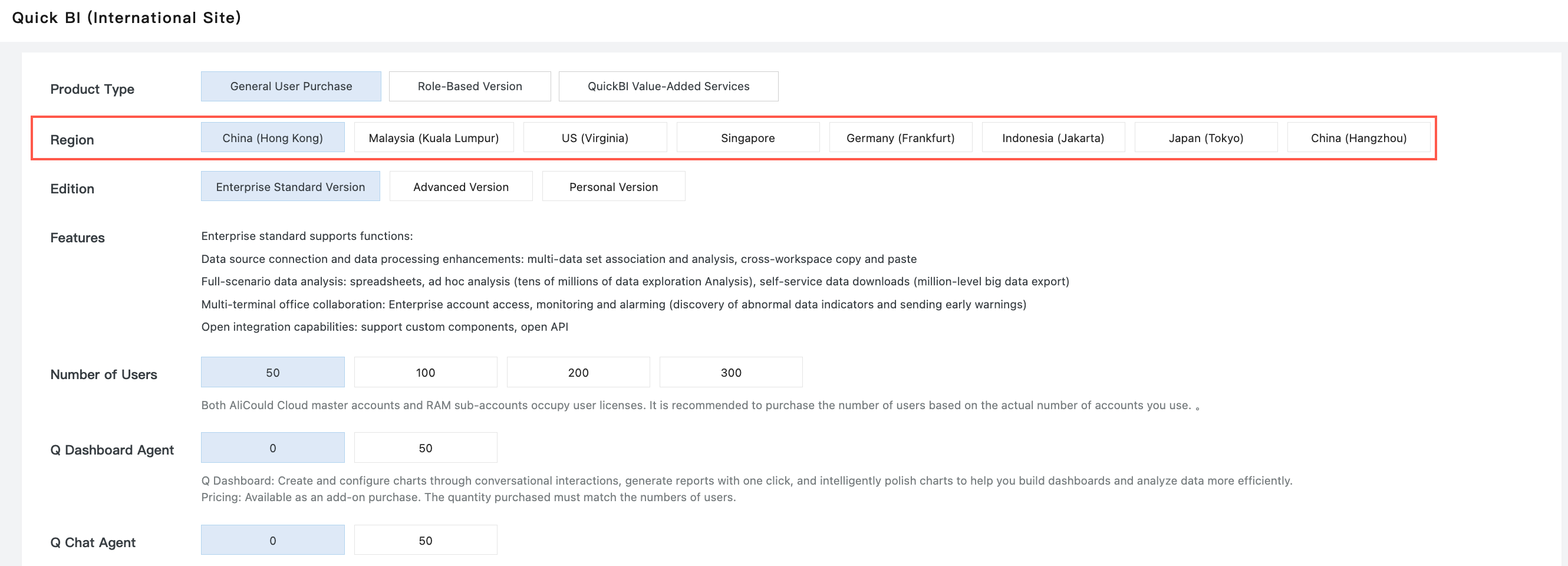
The Alibaba Cloud International Website offers four editions: Personal, Advanced, Professional, and Role-based Professional. For more information about the pricing and billing methods for each edition, see Billing Methods for Quick BI — International Website.
The Alibaba Cloud China Website offers four editions: Personal, Advanced, Professional, and Professional (New). The Professional and Professional (New) editions provide identical features but differ in their billing methods. For pricing and billing methods for each edition, see Billing Methods for Quick BI — China Website.
First purchase
Before you purchase Quick BI, determine the number of users that you need.
A user can be either a RAM user or an Alibaba Cloud account. However, RAM users cannot purchase Quick BI. You must use an Alibaba Cloud account to make the purchase.
If you want to purchase Quick BI for both an Alibaba Cloud account and a RAM user, you must purchase two user licenses.
First-time users can purchase multiple user licenses in a single order.
Procedure
Go to the Quick BI purchase page.
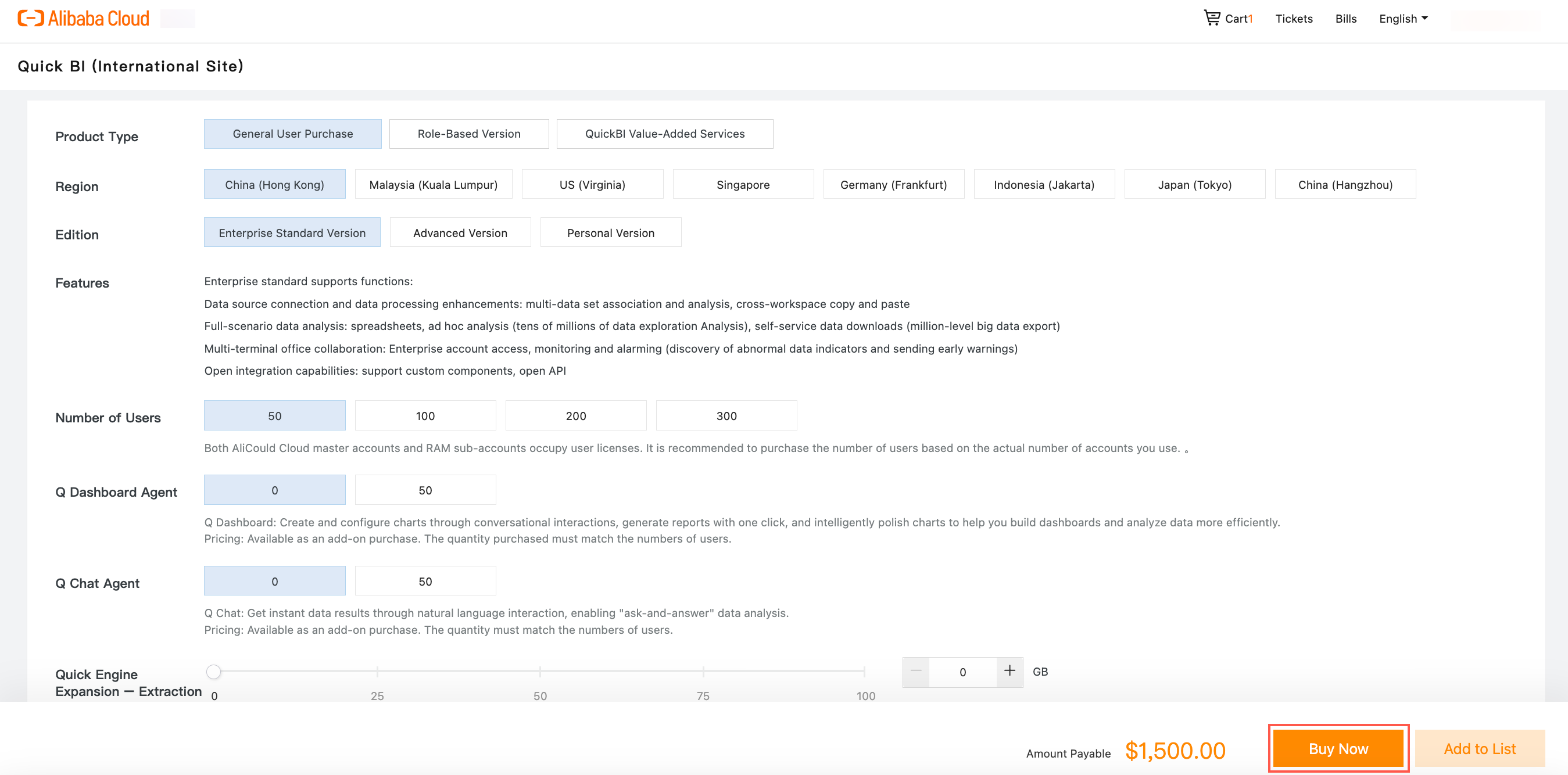
Select the number of users and the subscription duration.
Confirm the price and click Buy Now.
Enter your username and logon password, and then click Log On.
NoteIf you do not have an Alibaba Cloud account, click Register for free and follow the on-screen instructions to create an account.
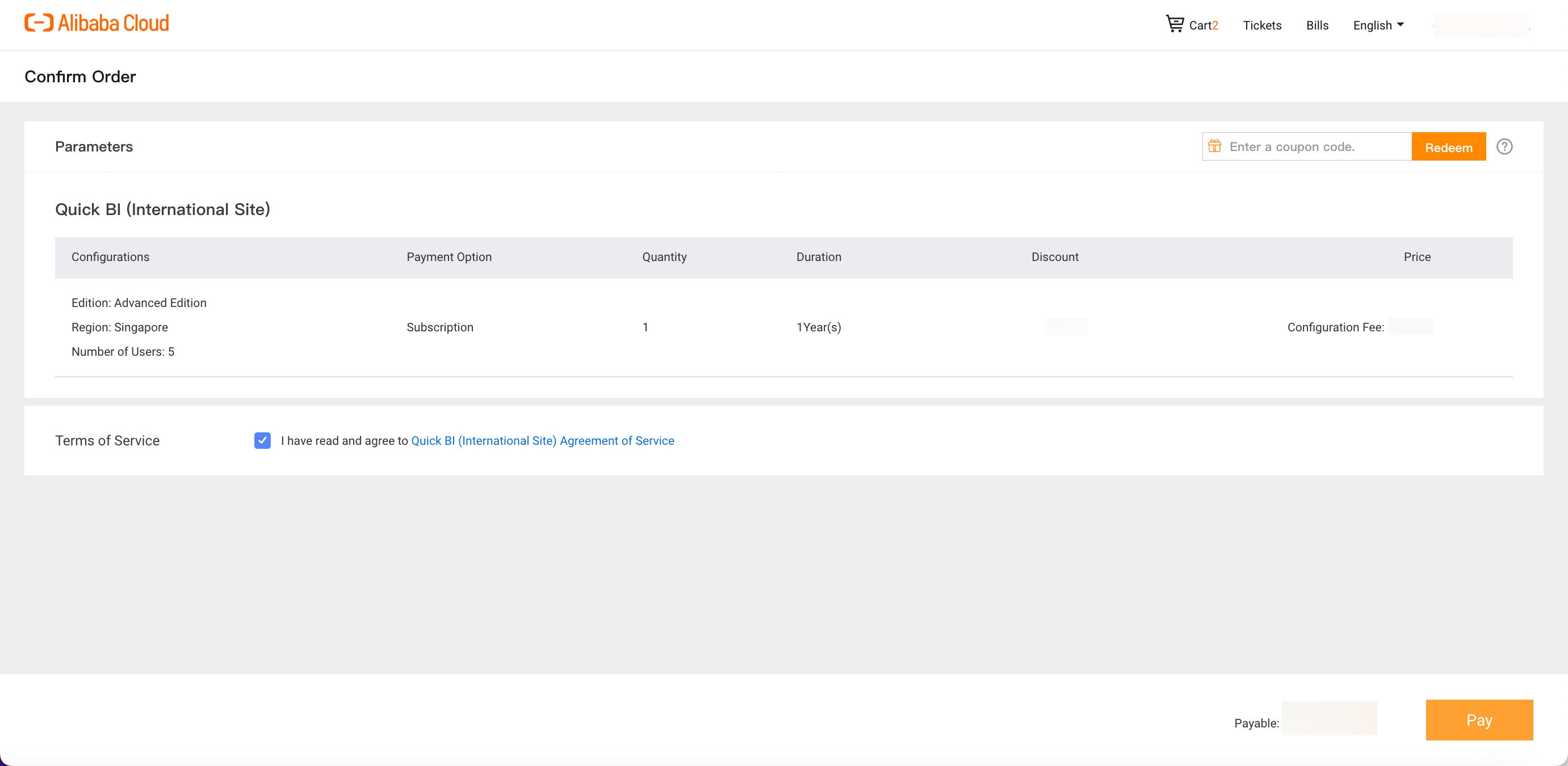
Confirm your order details and click Pay.
Purchase an upgrade
Only paying root accounts can purchase or upgrade Quick BI versions.
Log on to the Quick BI console.
On the Quick BI console home page, hover over the profile icon in the upper-right corner and click Upgrade.
Review the purchase information. If the information is correct, click Buy Now.
On the Confirm Order page, review the order details. Select the checkbox to agree to the Quick BI Service Agreement and then click Pay.
Follow the on-screen instructions to complete the payment.
Switch editions
To switch from the Professional Edition to the Advanced Edition, you must first unsubscribe from the Professional Edition and then purchase the Advanced Edition.
Log on to the Alibaba Cloud Management Console.
On the console home page, hover over Tickets in the top navigation bar and click Submit Ticket.
Select Quick BI.
You can enter keywords to search for the product name.
Alternatively, you can click View All Products and select Quick BI.
On the ticket submission page, enter a description of the problem and fill in the other required fields. After you submit the ticket, contact customer service through the conversation window. You must provide the product name, instance ID, and order ID, and state your reason for unsubscribing.
After you successfully unsubscribe, purchase the Advanced Edition from the Quick BI purchase page.
After you unsubscribe, your data is retained for 7 days. You must complete the new purchase within this period.
Renewal
If your instance has an overdue payment, it is at risk of being stopped. The system sends reminders and notifications about the overdue payment. To avoid service disruption, renew your subscription promptly.
After your subscription expires, your product resources are retained for 7 days. You must renew your subscription within this period. If you fail to do so, the system automatically releases your resources, and all your data is permanently lost.
For more information about resource release and retention, see the Overdue Payments section.
Procedure
Log on to the Quick BI console.
Click Renew and select a subscription duration.
Click Pay to complete the renewal.
Overdue payments
Quick BI expiration reminder
When your subscription expires, your product resources are immediately released. Your data is retained for 7 days.
You can repurchase the product to continue using the service.
For more information about how to repurchase, see First purchase.
Quick BI resource release rules
Your resources are released immediately after your subscription expires. Your data is retained for 7 days after the release.
You can repurchase the product after the resources are released.
For more information about adding users, see Prerequisites.