Log on to the Quick Audience console by using your Alibaba Cloud account or a RAM user.
Use Chrome 60 or later.
-
Logon issues
-
If you log on with your Alibaba Cloud account:
-
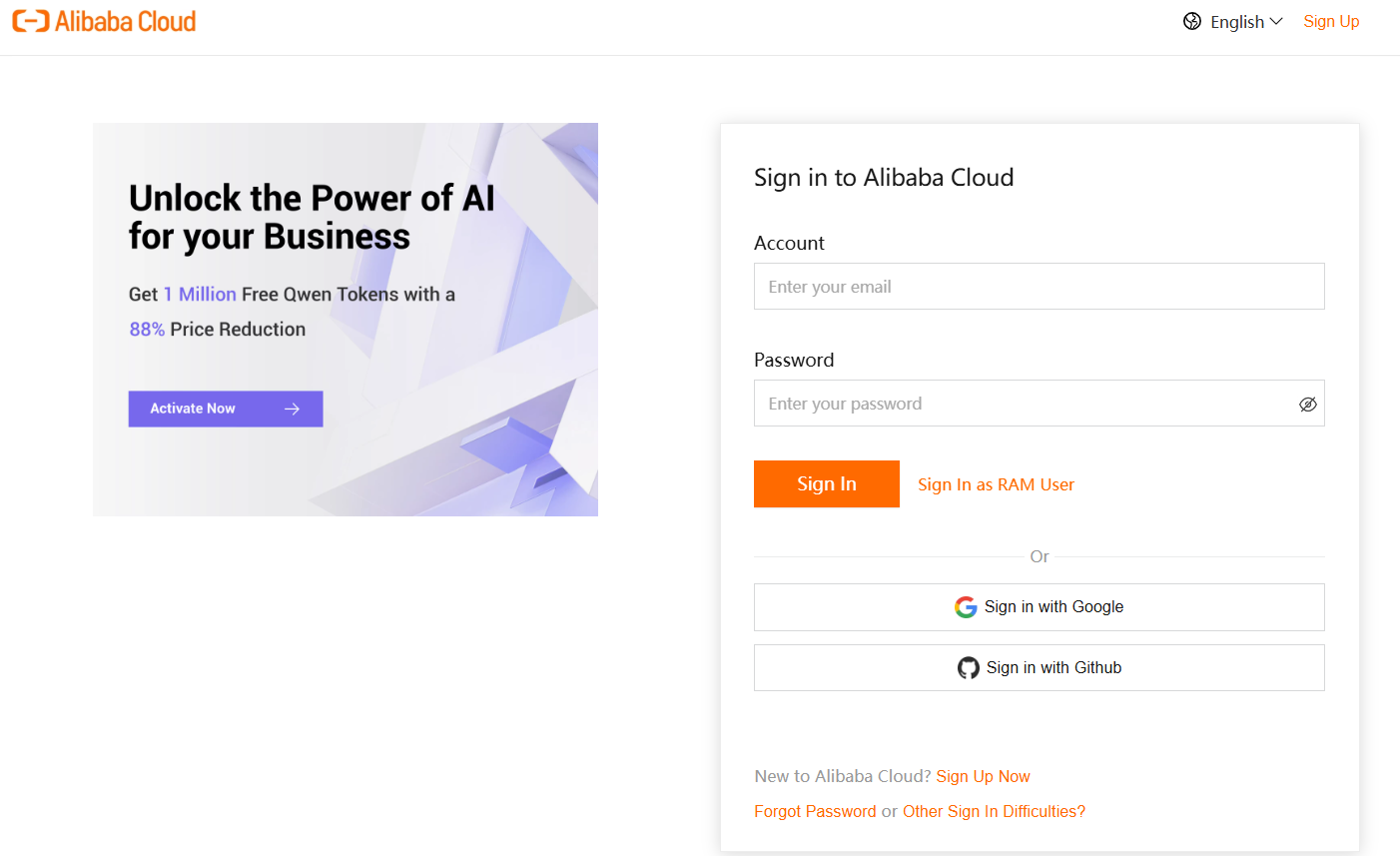
Click Logon Link Quick Audience Logon Link.
-
Enter your Alibaba Cloud account and password, and click Log On.
-
-
If you use a RAM user to create a RAM user,
-
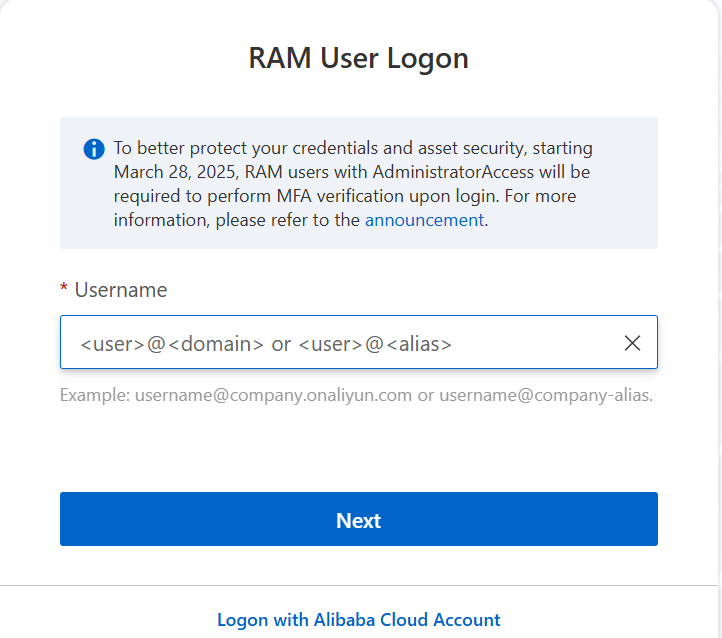
Click Quick Audience Logon Link Logon Link. In the preceding figure, click RAM User Logon.
-
Enter your RAM user and click Next.
-
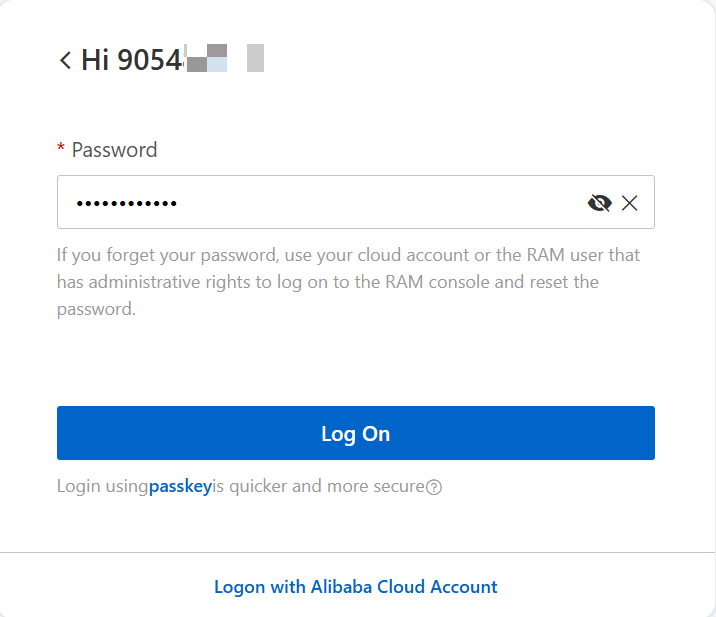
Enter the password and click Log On.
-
-
-
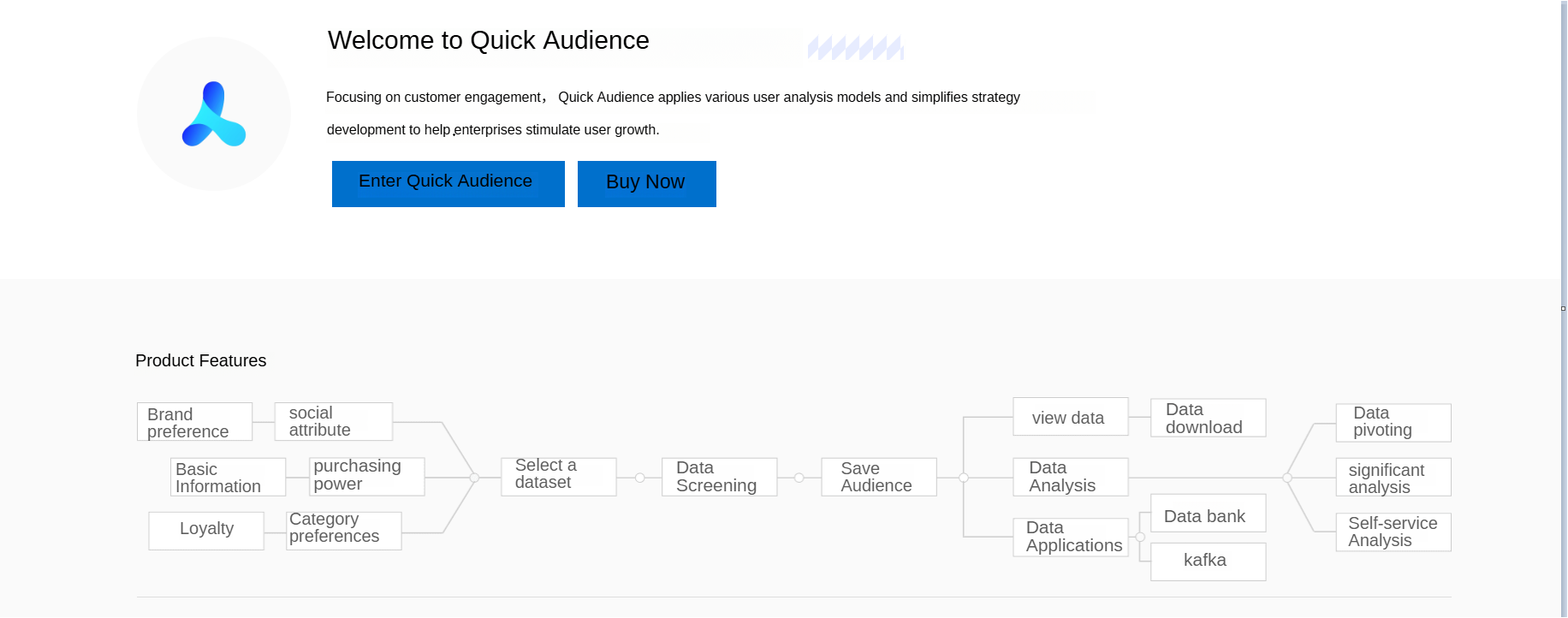
As shown in the following figure, click Quick Audience to go to the homepage.
 Note
NoteNew customers are directed to the new homepage by default. Existing customers land on the old homepage and must switch to the new version manually.
-
If you are on the homepage of the previous version, you can access the previous User Insight and User Marketing modules from there. To switch to the new version, in the upper-right corner of the page, choose Experience New Version > Experience Now.
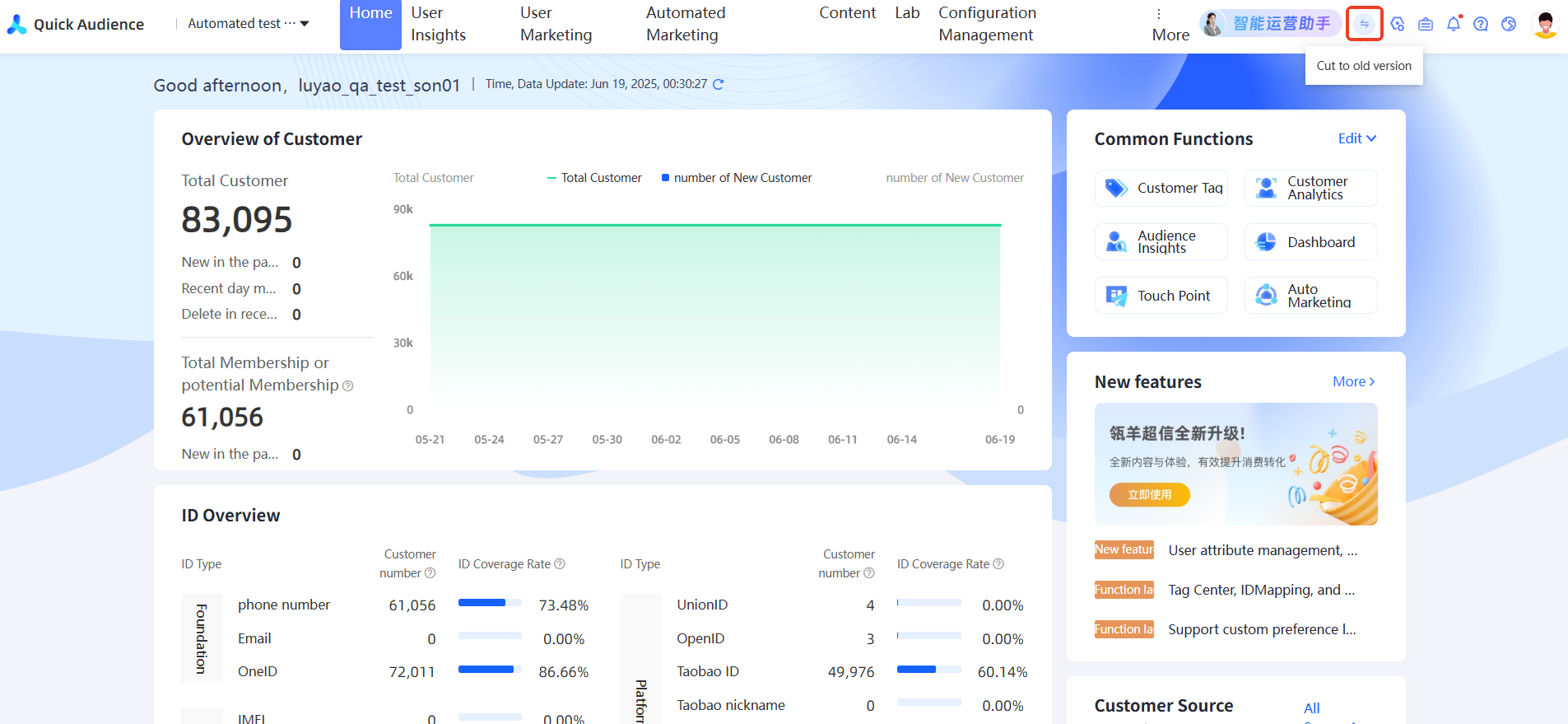
-
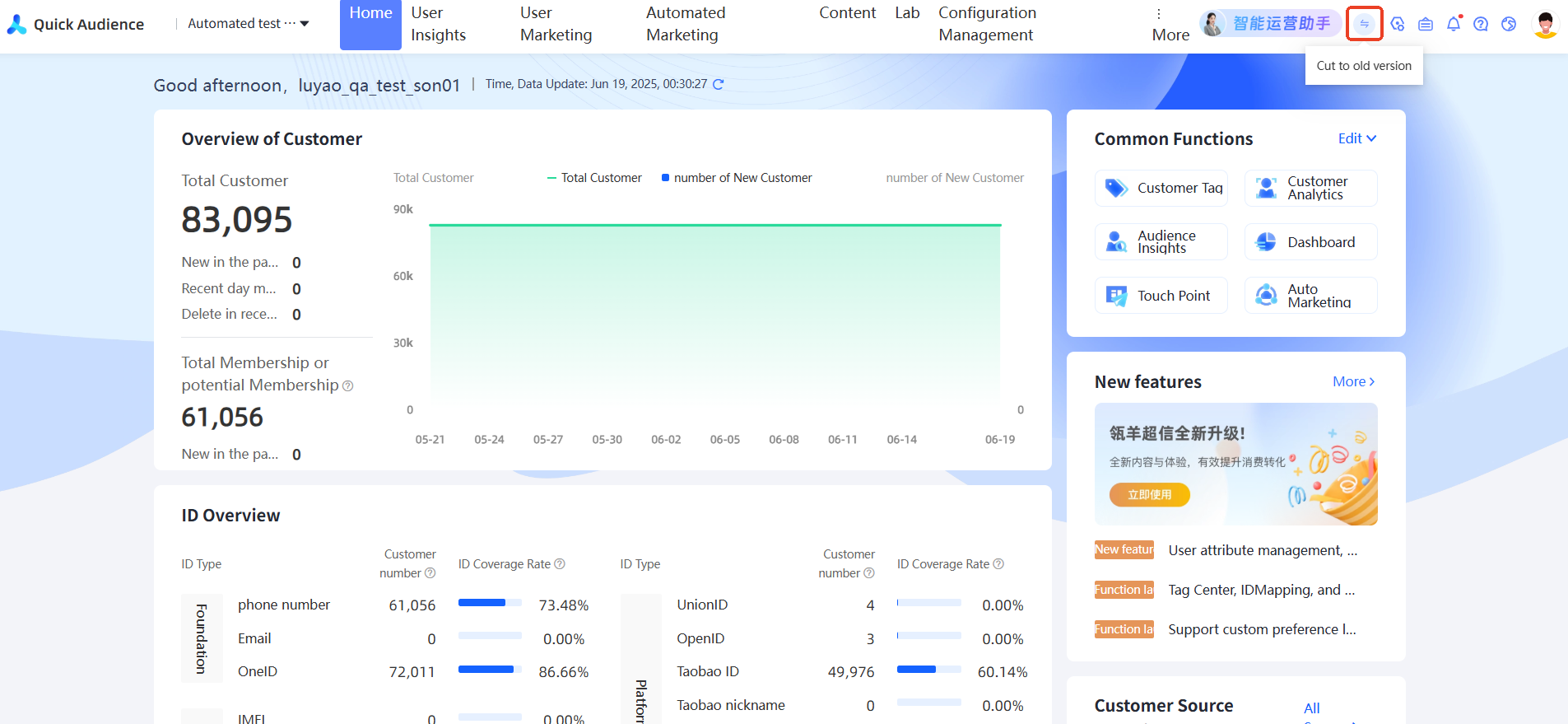
On any page, you can switch between workspaces by using the drop-down menu in the upper-left corner.
FAQ
Which browsers does Quick Audience support?
A: We recommend Chrome 60 or later for full Quick Audience feature support.
How do I authorize other accounts to use Quick Audience?
You can use Quick Audience by using your Alibaba Cloud account or by Creating A RAM User.
After an account is added to a workspace and assigned a role, that account can use Quick Audience within the permissions of the assigned role.
You can grant permissions to an organization or workspace administrator. For more information, see Organization Member Management and Workspace Member Management.
Why am I still prompted that the logon name or logon password is incorrect after I have entered the correct account password?
Answer: If the logon name or password is incorrect after you enter the account password on the logon page:
-
Try logging in again to make sure you entered it correctly.
-
If the format of your account is <Username >@< Default Domain Name> or <Username >@< Enterprise Alias>, the account is a RAM user. You must click RAM User Logon to log on to the RAM console. When you enter an account, make sure that the full account contains all the characters after the @ symbol.
-
If you forget your account or password, you can click Forgot Password or Forgot Member Name to retrieve the account or password.
Can I switch between the new version (V4) and the old version (V3)?
A: Yes. For customers migrating from V3 to V4, a version switch is available. On any page of the User Insights, User Marketing, or Analytics Kanban modules, the top navigation bar displays a switch entry.
You can also open two browser tabs to use the new and old versions side by side.