Organization administrators and workspace administrators can add workspace members and assign roles to control what operations each member can perform within the workspace.
Members can be Alibaba Cloud accounts or RAM users (sub-accounts) created under an Alibaba Cloud account.
Add a single workspace member
In the upper-right corner  of the page, choose Workspace Management > Workspace Management > Workspace Member Management.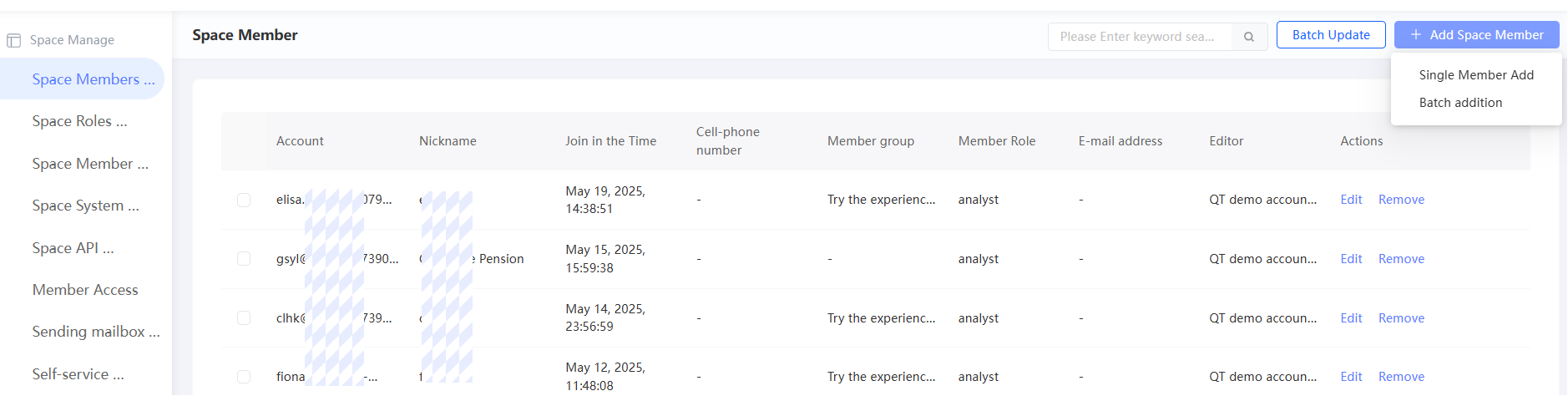
In the upper-right corner, choose Add Space Member > Add Single Member.
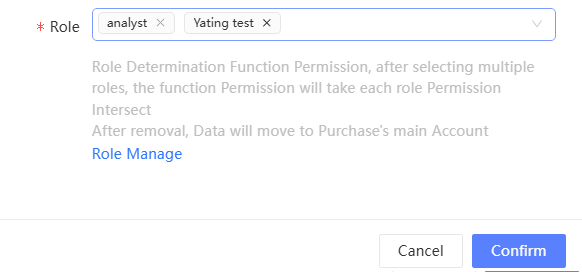
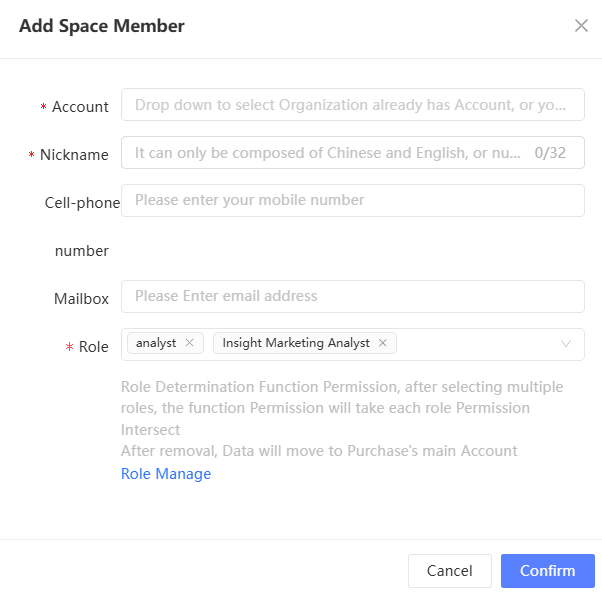
In the dialog box, select an organization member account, or enter an account or nickname that has not been added to the organization. Then select the roles to assign. You can assign multiple roles — the member receives the combined permissions of all selected roles.
The nickname must be unique within the organization and can match the account name. If the account contains @, use the characters before @ (excluding @) as the nickname.
Click OK.
Batch add workspace members
When you add multiple members at a time, they are automatically assigned the default workspace role. For more information about how to configure default roles, see Workspace Role Management.
In the upper-right corner of the page, choose Workspace Management > Workspace Management > Workspace Member Management.
In the upper-right corner, choose Add Space Members > Batch Add.
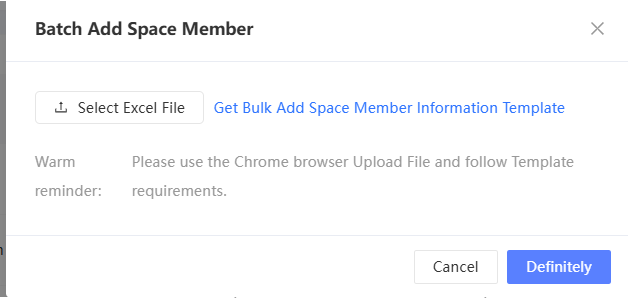
In the dialog box, upload an Excel file containing the member accounts and nicknames to add. Accounts can be existing organization members or accounts not yet in the organization. Click Obtain Template for Batch Adding Organization Member Information to download the template.
Nicknames can contain Chinese characters, English letters, digits, and underscores (_), but cannot consist of digits only. A nickname must be 1 to 32 characters long, unique within the organization, and can match the account name. If the account contains @, use the characters before @ (excluding @) as the nickname.
Click OK.
Manage workspace members
After a member is added, they appear in the workspace member list with their nickname, member group, and role.
If no nickname is set for an account, the system uses the account name as the nickname. If the account contains @, the characters before @ (excluding @) are used as the nickname.
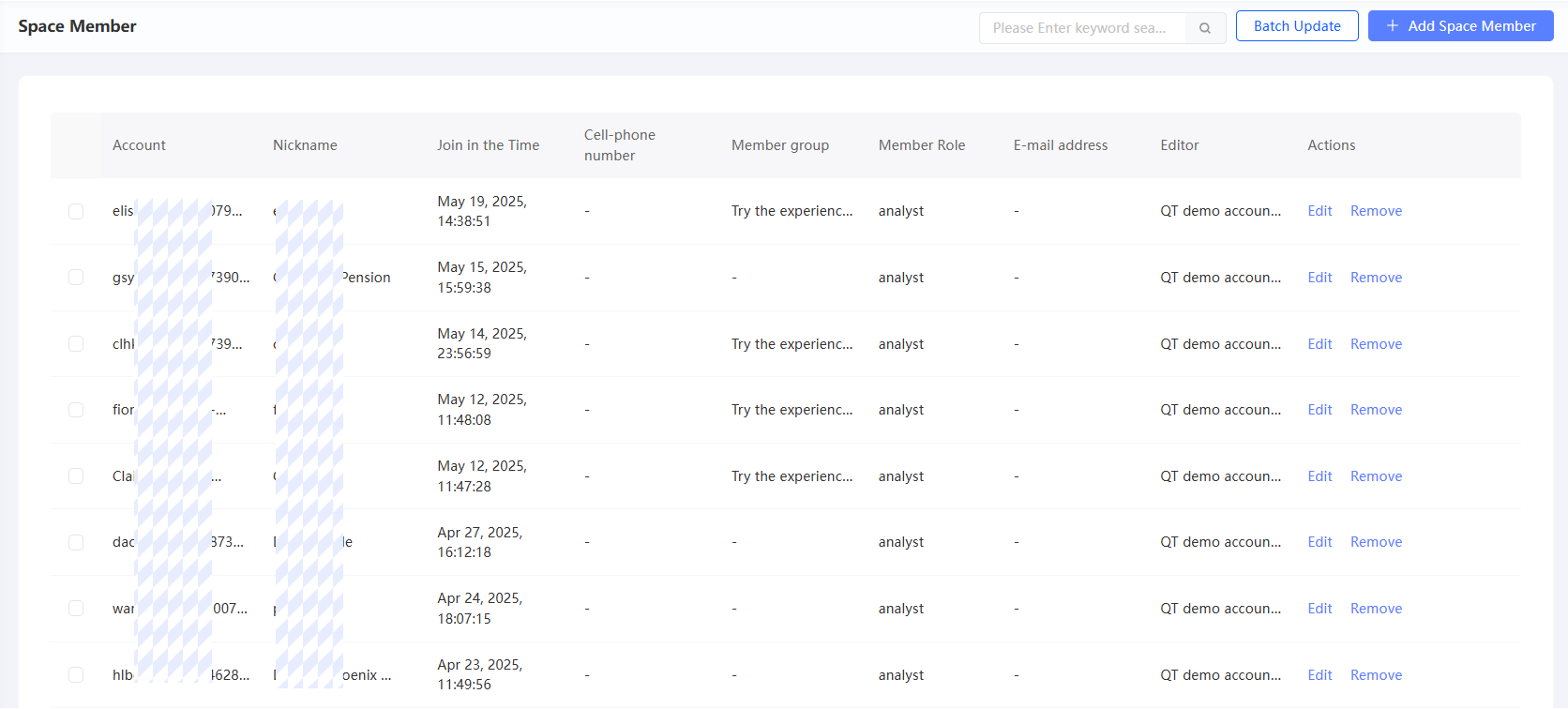
The organization administrator has the highest permissions across all workspaces. By default, the organization administrator appears in the member list but cannot be managed.
Review the member list periodically to remove members who have left the team or changed roles. The following operations are available:
Edit: Click the
 icon. In the dialog box, modify the member's nickname or add and remove roles, then click OK.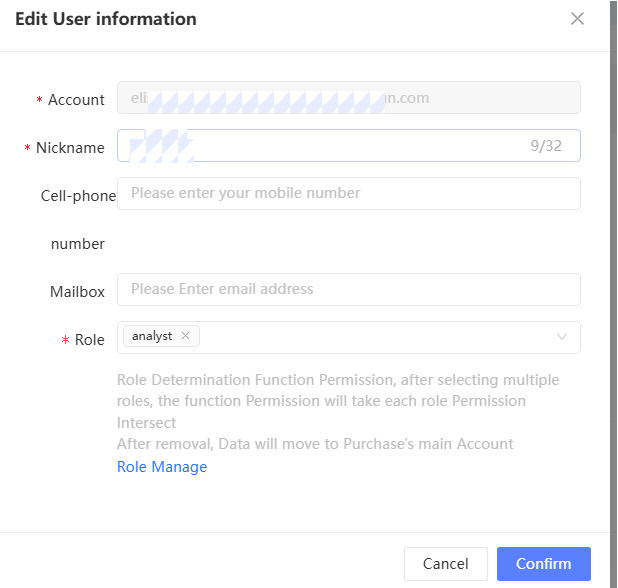
-
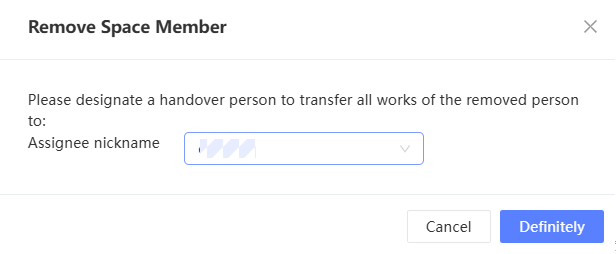
Remove: Click the
 icon. In the dialog box, select another member to take ownership of the removed member's work, then click OK. The member is removed from the workspace and their work is transferred to the selected member.
 Note
NoteIf the member belongs only to this workspace, they are also removed from the organization.
-
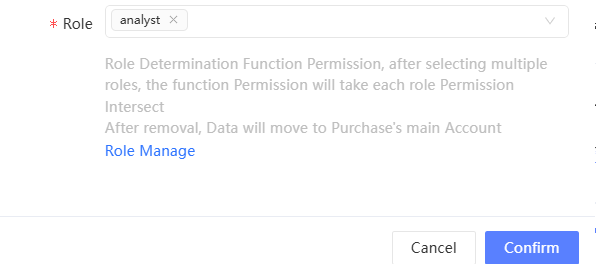
Role settings: Select one or more members and click Role Settings. In the dialog box, select a role and click OK.
When you select a role, the system compares each member's current permissions with those of the selected role. If a member already has all the permissions of that role, you are prompted whether to add the role. If you click Cancel, the role is not added to the member. Other members can still have the role added. If you click Continue to Add, the role is added to all the selected members.
-
Role recycling: Select one or more members and click Role recycling. In the dialog box, select roles and click OK.
If a member has the selected role, the role is reclaimed. If the member does not have the selected role, or it is the member's only role, the role is not reclaimed.