If you need multiple operation members to operate the console, you need to use the function of organization member management. Organization member management includes adding and managing organization members, setting up organization administrators, adding organization members to a workspace, setting up their roles in the workspace, and removing members from the organization.
The added member can be an Alibaba Cloud account or a RAM User created under an Alibaba Cloud account.
Add a single organization member
When you add an organization member, you can specify whether the member is an organization administrator. If you are not set as an organization administrator, you add them to at least one space.
In the upper-right corner
 of the page, choose Organizations > Members.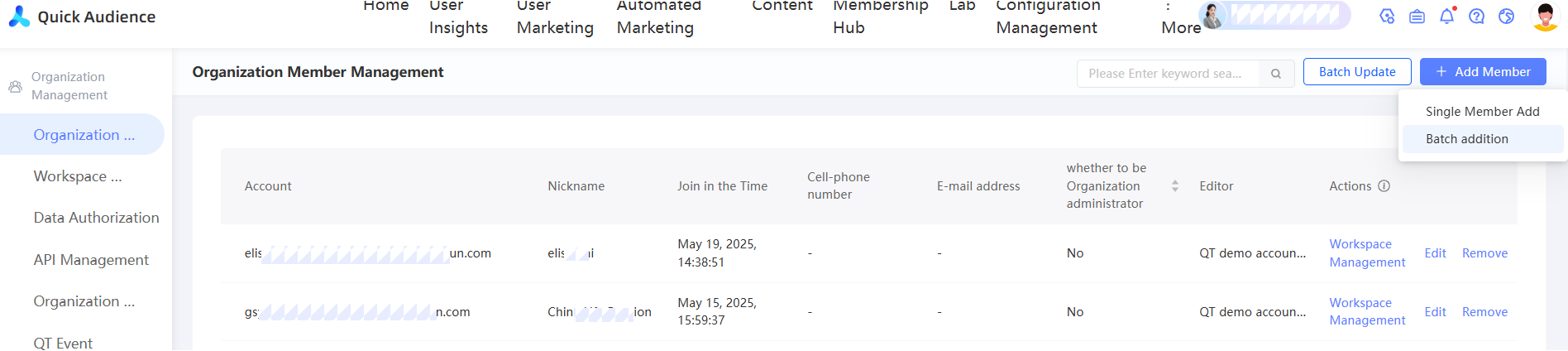
In the upper-right corner, choose Add Member > Add Member.
In the dialog box that is added, enter an Alibaba Cloud account and a nickname.
NoteThe nickname must be unique in the organization and can be the same as the account. If the account contains @, we recommend that you use the character before @ (excluding @).
Set whether it is an organization administrator. If it is an organization administrator, all spaces are automatically added, as shown in the following figure.
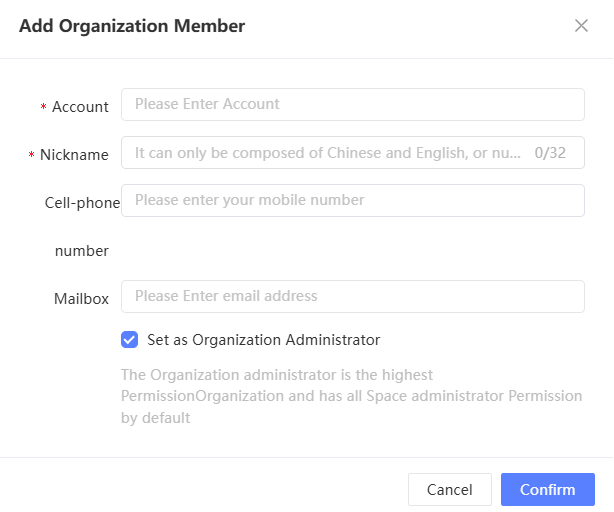
If you are not an organization administrator, add them to at least one space and choose a role. You can select multiple roles. The member has the permissions of multiple roles.
Click Add Role to add a row of spaces and roles. The member is added to one more space. Click Remove to remove the workspace and role.
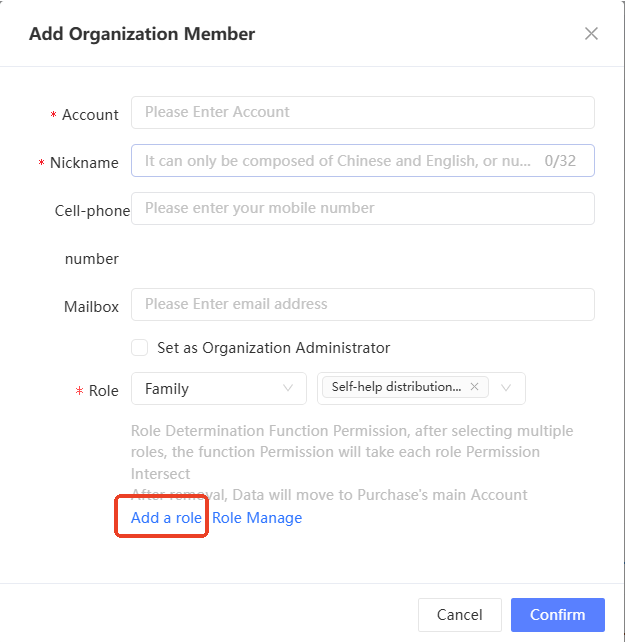
Click OK.
Add multiple members at a time
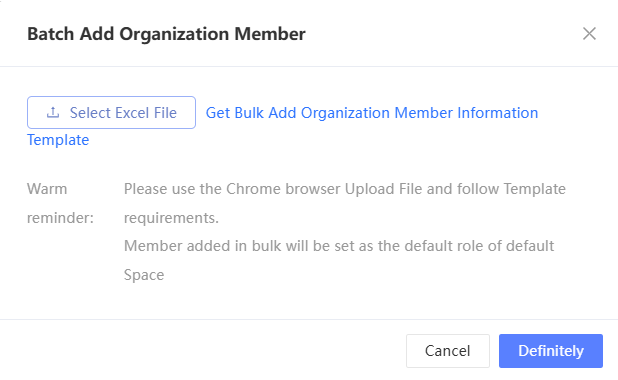
When you add multiple organization members at a time, the added members are automatically assigned the default role in the default workspace. For more information about the default workspace and default role settings, see Workspace Management and Workspace Role Management.
In the upper-right corner of the page, click
Organizations and choose Organization Members. In the upper-right corner, choose Add Members > Batch Add.
In the pop-up window, upload an Excel file that contains the member accounts and nicknames that you want to add. You can click Obtain Template for Batch Adding Organization Member Information to obtain the template.
NoteThe nickname can be Chinese, English, digits, and underscores (_). It cannot be pure digits. It must be 1 to 32 characters in length. It must be unique in an organization and can be the same as the account. If the account contains @, we recommend that you use the characters before @ (excluding @).
Click OK.
Management organization members
After an organization member is added, the member is displayed in the organization member list. The information such as their nicknames and whether they are organization administrators is displayed, as shown in the following figure.
If you do not set a nickname for an account, the system will use the account as the nickname by default. If the account contains @, the characters before @ (excluding @) will be used as the nickname.
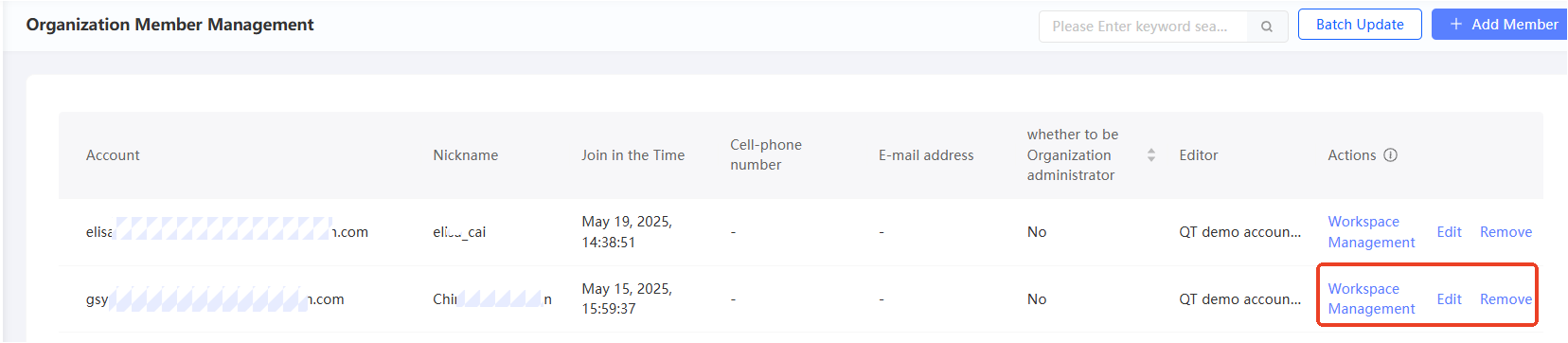
You can perform the following management operations on members:
View workspaces: Click the
 icon. In the dialog box that appears, you can view the workspaces and roles that the member has joined. For organization administrators, all spaces have been added automatically.
 Edit: Click the
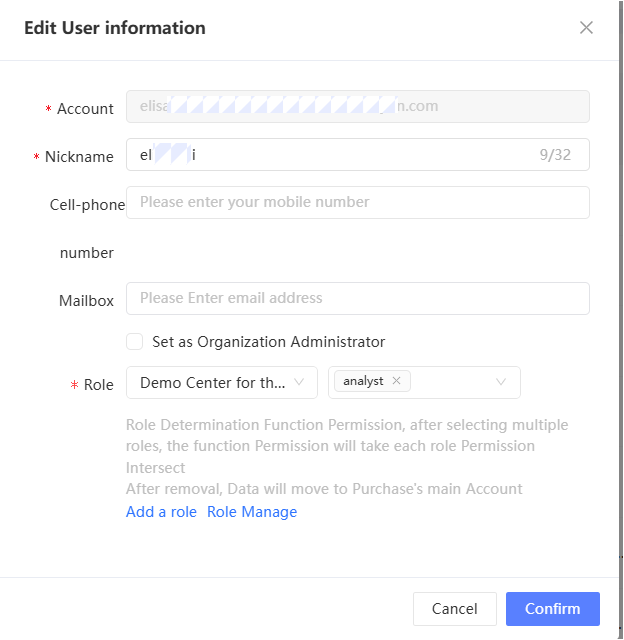
 icon. In the dialog box that appears, modify the workspace and role that the member is added to, or specify whether the member is an organization administrator. The operations are the same as those performed when you add an organization member. Note
As shown in the following figure, when a member who was originally an organization administrator releases the organization administrator role, he needs to add it to at least one space and set its role in the space, and grant the corresponding permissions. The works that have been created in the space still belong to him. For other spaces that are no longer added, all permissions will be reclaimed. If a work has been created in the space, the ownership of the work will be transferred to the Alibaba Cloud master account that purchased Quick Audience.
Remove: Click the
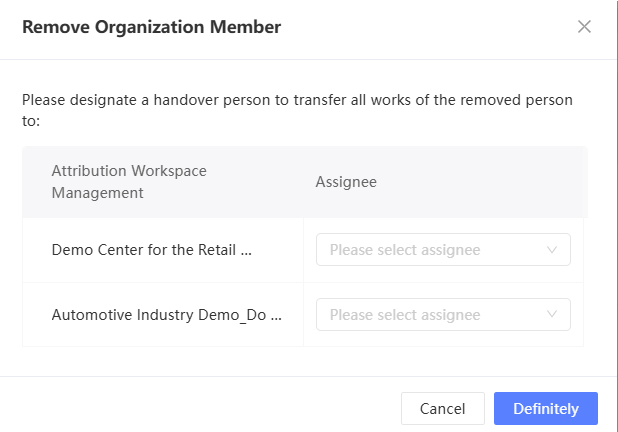
 icon. In the dialog box that appears, select another member in each space as the assignee of the member's work and click OK. The member is removed from the organization and ownership of his work is transferred to the transferee.