To stress test user logon or registration, you can use the file parameter feature in Performance Testing (PTS) to simulate stress testing scenarios for different users. This topic describes how to use file parameters to construct dynamic URLs for stress testing user registration or logon APIs.
Prerequisites
You have activated the PTS service.
Prepare a parameter file in
CSVformat. For more information about the requirements for parameter files, see Parameter file specifications.username,password user1,Password1 user2,Password2 user3,Password3
Overview
To simulate multi-user registration or logon during stress testing, import a parameter file with usernames and passwords into your stress testing scenario. Then, associate the imported parameters when you configure the stress testing API.
For more information about the capabilities of PTS for logon scenarios, see Use cookies to simulate logon scenarios.
This topic describes how to use parameterization to simulate multi-user registration or logon in two scenarios.
Scenario 1: Simulate multi-user registration
Log on to the PTS console, choose , and then click PTS.
Add the parameter file to a data source.
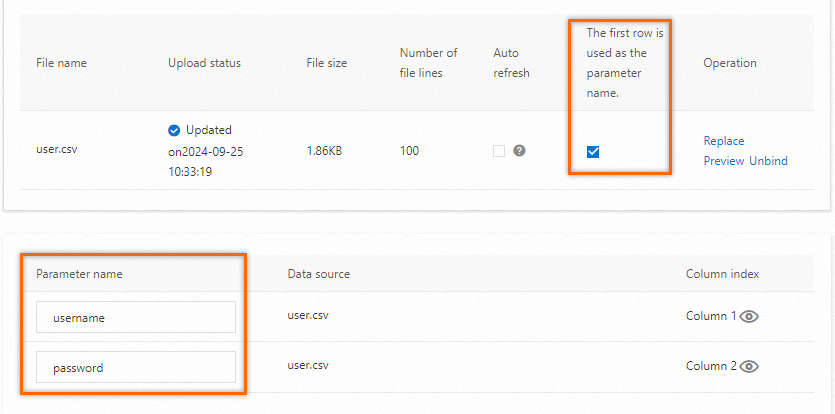
Click Data Sources. On the Files tab, click + Upload File and select an on-premises parameter file that you want to upload.
Select Use First Row as Parameter Name. After you select this option, you do not need to specify the parameter names. The data in the first row is used as the parameter names. When PTS reads the parameter file, PTS ignores the data in the first row. If the data in the first row of the parameter file is not parameter names, you must specify a parameter name for each column based on your business scenario.
Add a data configuration node.
On the Scenario Settings tab, add a stress testing API, click the drop-down arrow next to Add Instruction, and then select Parameter.
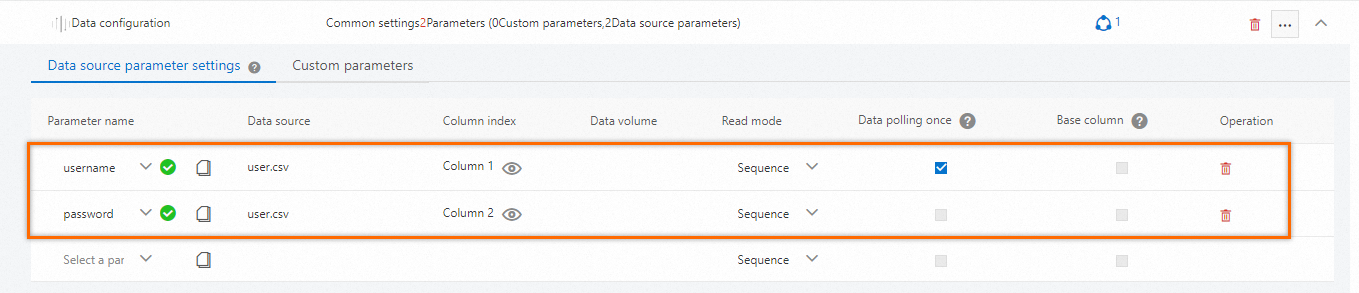
On the Data Source Parameters tab, select existing parameter names.
NoteIf you want to use each row only once to assemble requests, select Use Once. When the required data is polled once, the stress testing scenario stops generating new stress testing requests, regardless of the configured load level.
If you want to recycle parameters during a stress test, do not select Use Once.
You can select Use Once or Baseline Column, but not both for parameters. If you select Use Once, you cannot select Baseline Column.
Configure API parameters.
Stress Testing URL: Enter the URL to test. This example uses
http://web.example.com/register.Request Method: Select
POST.Body Definition: Set
Content-Typetox-www-form-urlencoded. Then, click Text Edit in the upper-right corner of the editing area and enter{"username":"${username}","password":"${password}"}in the text box.
(Optional) Real-world scenarios often require more complex configurations. For more information, see HTTP Node, Parameters, and Instructions.
Configure the pressure mode.
Pressure Source: Select Public Network. If you are testing a service in an Alibaba Cloud internal network, select Alibaba Cloud VPC Network.
Pressure Mode: Select Virtual User Mode. Stress testing in virtual user mode is more suitable for client-initiated scenarios. The RPS Mode measures system throughput from a server-side perspective.
Increment Mode: Select Manual Speed Control.
Maximum Virtual Users: In virtual user mode, enter the maximum number of virtual users, for example, 10.
Total Stress Testing Duration: For example, 1 minute.
You can keep the default values for other parameters.
NoteRunning a stress test incurs fees. Select a reasonable stress level. For more information, see Billing overview and Pressure mode and volume configuration.
(Optional) In Advanced Settings, you can configure Domain Name Binding. This lets you quickly switch the stress testing address between tests.
Debug and start the stress test.
Debug the scenario to verify your configuration and prevent test failures. We recommend debugging the scenario first.
Click Save and Start Test. On the Tips page, select Execute Immediately, select the Confirm that this stress test is authorized and complies with local laws checkbox, and then click Start Stress Test.
Scenario 2: Simulate multi-user logon
Analyze the stress test results
After the stress test ends, the system automatically collects data, such as stress testing scenario metrics, business details, monitoring data, and API sampling logs, to generate a stress test report. You can view the report on the Stress Test Report page. For more information, see View a PTS stress test report. On the Stress Test Report page, you can view the list of stress test reports, which contains metrics such as Stress Test Time, Report ID, Report Name, Stress Testing Duration, Average TPS (Transaction Per Second), Average RT (ms), request success rate, Business Success Rate, and VUM Consumed. In the Actions column, click View to view a detailed report, click Set as Baseline to set the report as a baseline, or click Delete to delete the report.