When performance tests require realistic, varied input -- such as user logon simulation, unique user credentials per virtual user, or rotating API payloads -- hardcoded values fall short. File data sources let you upload a CSV or ZIP file, map its columns to named parameters, and reference those parameters across your test scenario so that each request carries distinct data.
Scope
Parameter nodes are available in PTS and Microservices Engine (MSE) gateway scenarios only. To reference file parameters in other scenario types, use the ${parameter} syntax directly.
File requirements
| Requirement | Details |
|---|---|
| Formats | CSV, or a ZIP archive containing exactly one CSV file |
| Maximum file size | 60 MB |
| Maximum characters per row | 20,000 |
| Header row | Optional. If the first row contains parameter names, select Use First Row as Parameter Name during upload |
Do not rename an XLSX file to .csv by changing the extension. Export it as CSV from a spreadsheet application such as Excel or Numbers, or generate the file programmatically with Apache Commons CSV.Example file format
username,password
user1,Password1
user2,Password2
user3,Password3
If the first row is not a header, specify a parameter name for each column when you configure the data source.
Upload a parameter file
Log on to the PTS console. Go to Performance Test > Create Scenario and click PTS.
Click Data Sources. On the Files tab, click + Upload File and select a local CSV or ZIP file.
Select Use First Row as Parameter Name if the first row contains column headers. PTS reads that row as parameter names and skips it during test execution. If the first row contains test data, leave this option cleared and specify a name for each column manually.
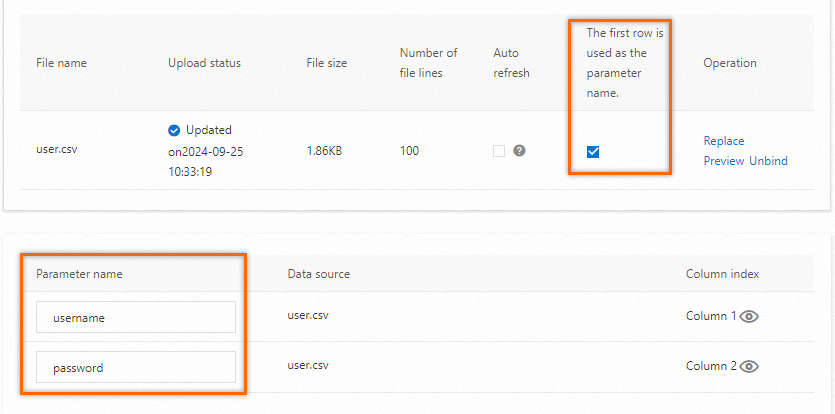
Click Save.
Add a parameter node to your scenario
On the Scenario Settings tab, add a stress testing API. Click the drop-down arrow next to Add Instruction and select Parameter.
On the Data Source Parameters tab, select the parameter names to use. Configure how PTS consumes data rows:
Use Once and Baseline Column are mutually exclusive. You can select one or the other, but not both.
Option Behavior Use Once selected Each row is consumed exactly once. When all rows have been used, PTS stops generating new requests regardless of the configured load level. Use this mode when each data record must appear in only one request (for example, one-time-use voucher codes). Use Once not selected (default) PTS recycles the parameter data throughout the test. This keeps the test running at the target load level without data exhaustion. Baseline Column Designates one parameter as the alignment anchor across multiple files. The file that contains the baseline column drives the read order. 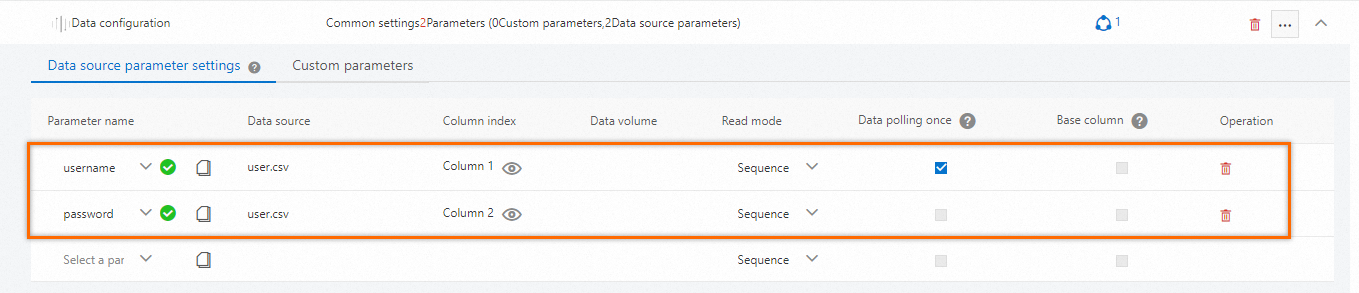
(Optional) On the Custom Parameters tab, define additional parameters that are not sourced from a file.
Work with multiple parameter files
The Data Source Parameters tab of a parameter node accepts columns from multiple files combined into a single parameter set.
| Scenario | Guidance |
|---|---|
| Row-aligned data across files | Designate one parameter as the Baseline Column. The file containing that column becomes the benchmark file and controls the read order for all files. |
| No baseline or Use Once selected | PTS assigns a random parameter as the baseline column. |
| Strict one-to-one mappings | Store parameters with row-level dependencies (for example, a username paired with its password) in a single file. Splitting them across files risks misaligned rows, which produces empty field values and may affect the stress testing data. |
For more details on how PTS reads multi-file parameters under different load modes, see PTS read method of multi-file parameters in virtual user or RPS mode.
Reuse a session parameter
You can copy a parameter from a business session and inject it into a downstream request body.
On the PTS Scenario page, click Parameters in the lower section.
On the Session Parameters tab, click the
 icon next to a parameter in a business session to copy the parameter content.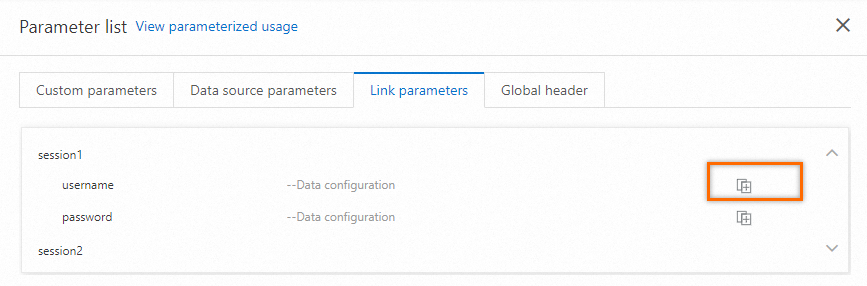
Open the Body Definition tab of the target API and paste the reference into the text editor. Combine strings, parameters, and functions as needed in the request body.