When Managed Service for Prometheus triggers an alert, you may need to notify your team through DingTalk. Add a custom chatbot to a DingTalk group and connect its webhook URL to a notification policy to route alert messages to the group automatically.
Application Real-Time Monitoring Service (ARMS) no longer supports the legacy alert feature. Use the current alert management feature to create DingTalk chatbots. See DingTalk chatbots.
Prerequisites
Before you begin, make sure that you have:
The DingTalk desktop client installed on your PC
A DingTalk group where you want to receive alert notifications
Step 1: Add a custom chatbot and get the webhook URL
Open the DingTalk desktop client and go to the group where you want to receive alerts. Click the Group Settings icon in the upper-right corner.
In the Group Settings panel, click Group Assistant.
In the Group Assistant panel, click Add Robot.
In the ChatBot dialog box, click the + icon on the Add Robot card, then click Custom.
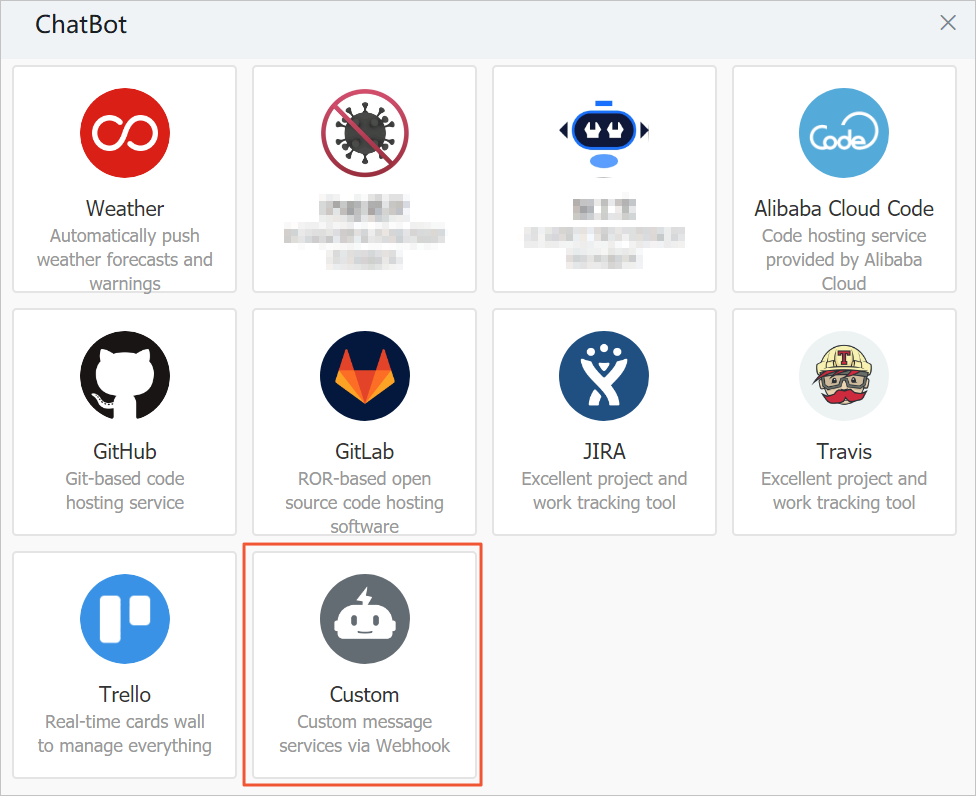
In the Robot details dialog box, click Add.
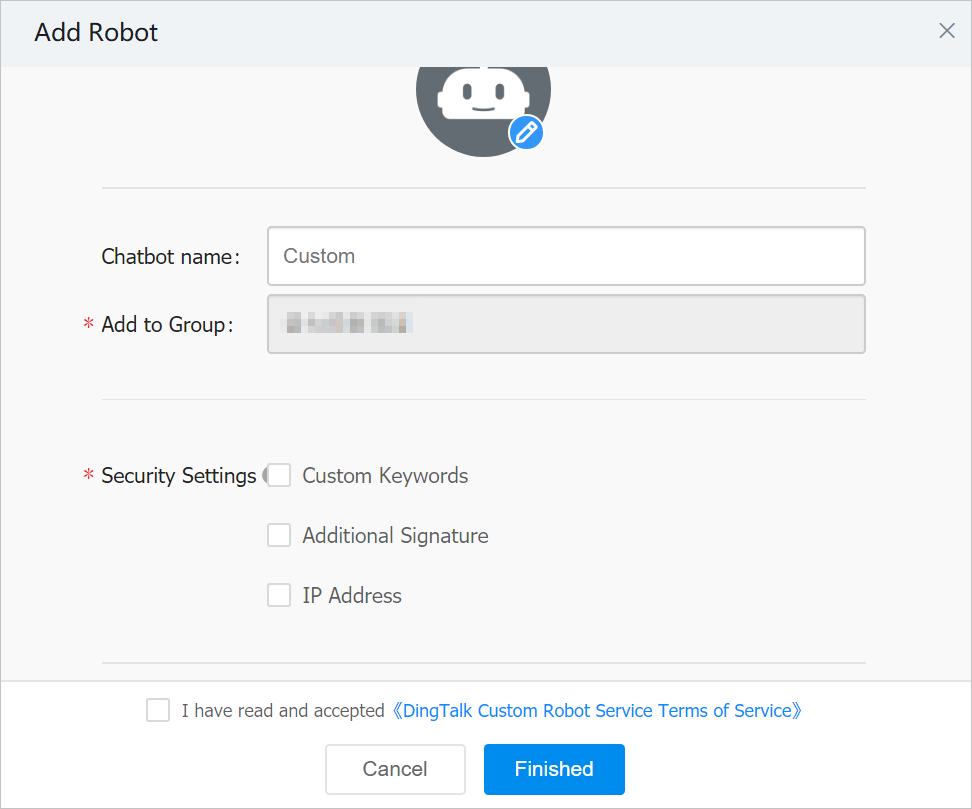
In the Add Robot dialog box, configure the chatbot:
Edit the profile picture and enter a name for the chatbot.
In the Security Settings section, select at least one security option.
ImportantYou must select Custom Keywords in the Security Settings section and set at least
AlarmandDispatchas keywords. Otherwise, you cannot receive alert notifications.Read and select I have read and accepted DingTalk Custom Robot Service Terms of Service.
Click Finished.
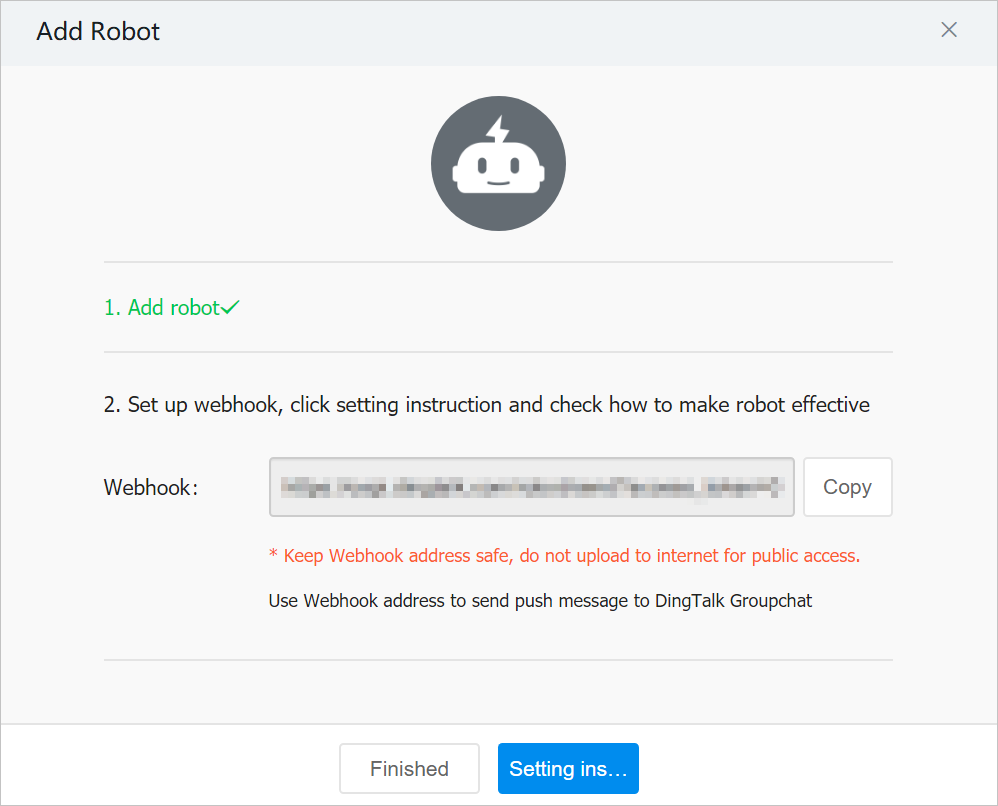
In the Add Robot dialog box, click Copy to save the webhook URL, then click Finished.
Step 2: Connect the webhook URL to a notification policy
After you get the webhook URL, link it to a contact and configure a notification policy to route alerts to the DingTalk group. The following steps outline the end-to-end flow: create a contact with the webhook URL, optionally organize contacts into a group, and then assign the contact or group to a notification policy.
Create or edit a contact. In the DingTalk Chatbot field, paste the webhook URL you copied in Step 1. See Create and manage contacts.
(Optional) Create or edit a contact group and add the contact that has the webhook URL. See Create and manage contact groups.
Create or edit a notification policy. Select the contact or contact group from the Contact drop-down list, then set Notification Method to DingTalk. See Create and manage a notification policy.
Verify the configuration
After you complete the setup, the DingTalk group receives alert notifications whenever Managed Service for Prometheus triggers an alert. The following figure shows an example notification:
