Contacts receive alert notifications by phone call, text message, or email when a notification policy rule is triggered.
Create a contact
-
Log on to the Managed Service for Prometheus console. In the left navigation pane, choose .
-
On the Contact tab, click Create Contact in the upper-right corner.
-
In the dialog box that appears, enter a name for the contact, configure the following parameters as required, and then click Confirm.
Parameter
Description
Name
The name of the contact.
Phone number
The phone number for receiving alert notifications by phone call and text message.
NoteOnly verified phone numbers can be used for phone call notifications. For more information, see Verify mobile numbers.
Email
The email address for receiving alert notifications.
Contact group
The group to which the contact belongs.
Resend method for failed phone notifications
The fallback method when a phone call notification fails.
You can set a global default on the Contact tab. For more information, see Default contact configuration.
ImportantYou must specify at least one of the following: a phone number, an email address, or a DingTalk chatbot. Each phone number or email address can be assigned to only one contact to ensure that alert notifications are delivered promptly.
Verify mobile numbers
Only verified mobile numbers can be used for phone call notifications.
-
Log on to the Managed Service for Prometheus console. In the left navigation pane, choose .
-
On the Contact tab, verify the mobile numbers for one or more contacts.
-
To verify the mobile number for a single contact, click Not Verified below the unverified mobile number.
-
To verify the mobile numbers for multiple contacts, select the contacts and click Verify Mobile Numbers.
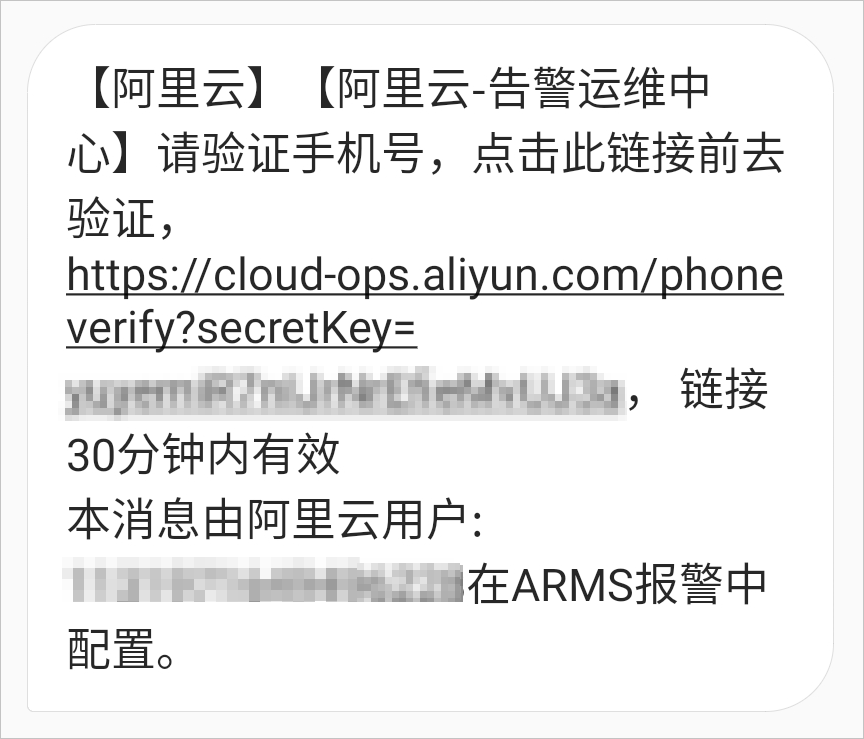
The system sends a text message to each contact for verification.
-
-
Open the link from the text message in your browser.
-
On the verification page, confirm the mobile number and click Verification.
Default contact configuration
Set a default resend method for failed phone notifications.
-
On the Contact tab, choose .
-
In the dialog box, select a resend method and click Confirm.
The resend method includes three options: Do not resend, Make another phone call, and Send a text message notification.
Manage contacts
On the Contact tab, search for, edit, or delete contacts:
-
Search for a contact: In the search box on the left side of the Contact tab, enter a keyword from the contact name and click the
 icon.
icon. -
Edit a contact: Click Actions in the Edit column, edit the information in the dialog box, and then click Confirm.
-
Delete a contact: Click Actions in the Delete column, and then click Confirm in the confirmation dialog box.
-
Delete multiple contacts: Select the contacts, click Batch Delete in the lower-left corner, and then click Confirm in the confirmation dialog box.