Data Disaster Recovery (DBS) supports logical backups for PolarDB for MySQL. This topic walks you through configuring a DBS backup plan for your PolarDB for MySQL cluster.
Prerequisites
Before you begin, make sure you have:
A DBS backup plan with Database Type set to MySQL and Backup Method set to Logical Backup. See Create a backup plan
(Required for incremental backup only) Binary logging enabled on your PolarDB for MySQL cluster. See Enable binary logging
Billing
DBS charges based on the volume of backup data stored. For pricing details, see Backup storage costs.
If you have a large or predictable backup volume, a DBS storage plan (subscription) is more cost-effective than pay-as-you-go.
Releasing your PolarDB cluster does not stop the backup plan or its charges. To stop billing, release the backup plan separately. See Release or unsubscribe from a backup plan.
Configure the backup plan
The configuration has five stages:
Set the backup source and destination.
Select the backup objects (databases or tables).
Set the backup schedule.
Set the data retention period.
Run the precheck and start the plan.
Step 1: Open the backup plan
Log on to Data Management (DMS) 5.0.
In the top navigation bar, choose Security and disaster recovery (DBS) > Data Disaster Recovery (DBS) > Backup Plan.
In simple mode, hover over the
 icon in the upper-left corner, then choose All Features > Security and disaster recovery (DBS) > Data Disaster Recovery (DBS) > Backup Plan.
On the Backup Schedules page, find the backup schedule you want to configure and click Configure Backup Schedule in the Actions column.

Step 2: Configure the backup source and destination
On the Configure Backup Source and Destination page, fill in the parameters below, then click Next.
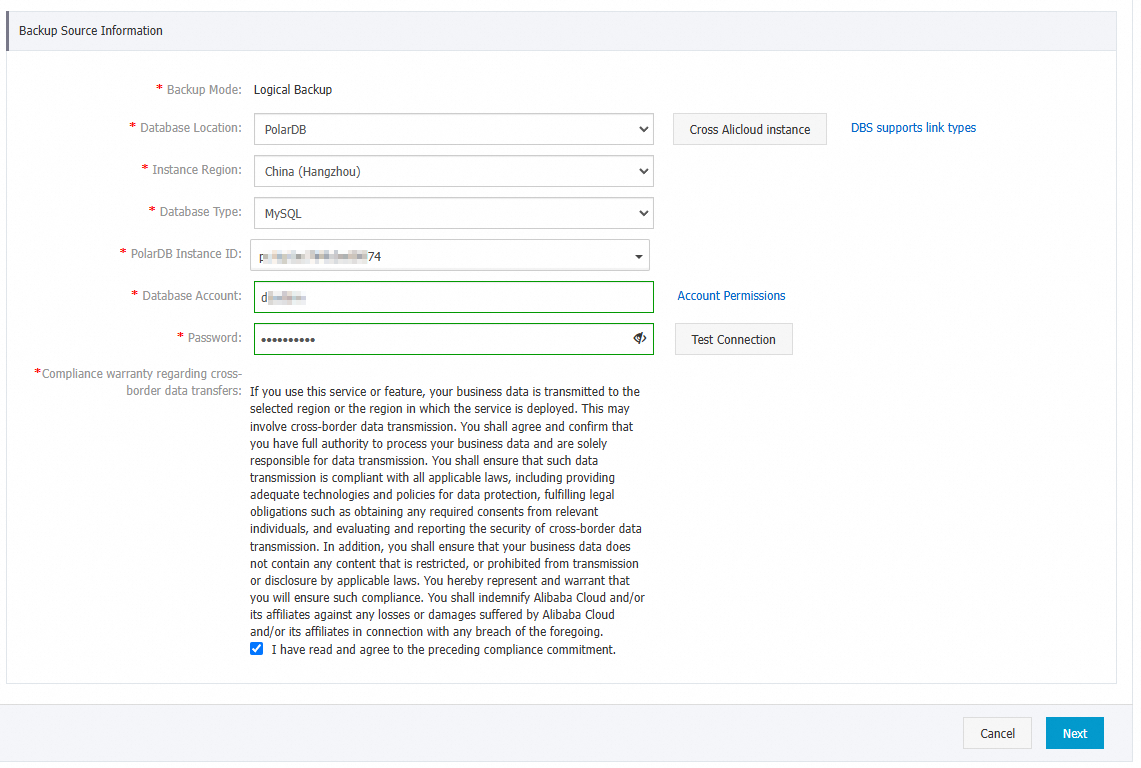
Backup source
| Parameter | Description |
|---|---|
| Backup Plan Name | A name for the backup schedule. DBS generates a name automatically — replace it with something descriptive. Names don't need to be unique. |
| Backup Method | Defaults to the method selected when you purchased the plan. This example uses Logical Backup. |
| Location of Database | Select PolarDB. |
| Instance Region | The region where the source PolarDB instance resides. |
| Database Type | Defaults to MySQL. |
| PolarDB Instance ID | The PolarDB for MySQL instance to back up. |
| Database Account | An account with the required backup permissions. See Account permissions. |
| Password | The password for the database account. Click Test Connection to verify the credentials. |
| Compliance warranty regarding cross-border data transfers | Read and select the check box to agree. |
Backup destination
| Parameter | Description |
|---|---|
| Backup Destination Storage Type | DBS Storage (recommended) or OSS For User. See the storage type comparison below. |
| Storage Method | Encrypted (recommended): data is encrypted using Advanced Encryption Standard (AES) 256 with OSS server-side encryption. Non-encrypted: encryption is disabled. |
Choosing a storage type
| DBS Storage | OSS For User | |
|---|---|---|
| Setup | No bucket needed | Create an OSS bucket in advance. See Create a bucket in the console. |
| Storage class | Managed by DBS | OSS Standard only |
If you select OSS For User, also configure the Object Storage Service (OSS) Bucket Name parameter.
Step 3: Select backup objects
On the Edit Backup Objects page, move the databases or tables to back up into the Selected box, then click Next.
Back up specific tables, a single database, or multiple databases. Click Select All in the lower-left corner to select everything.
The available backup objects depend on the database type. See Supported database types and features.
Backup jobs do not automatically include newly created databases. To back up a new database, add it to the backup plan configuration. See Modify backup objects.
Step 4: Set the backup schedule
On the Configure Backup Time page, configure the schedule, then click Next.
| Parameter | Description |
|---|---|
| Full Backup Frequency | Periodic Backup or Single Backup. Selecting Periodic Backup requires setting Full Data Backup Recurrence and Start At. |
| Full Backup Period | The day(s) of the week to run full backups. Select at least one day. |
| Full Backup Start Time | The start time. Set this to an off-peak window (for example, 01:00). |
| Incremental Backup | Enable to capture ongoing changes between full backups. Requires binary logging on PolarDB for MySQL. Only available when Full Backup Frequency is set to Periodic Backup. |
| Maximum number of parallel threads for full backup | Controls backup concurrency. Reduce this value to minimize impact on the database during backup. |
| Backup network speed limit | Bandwidth throttling for the backup job. Default is 0 (no limit). |
If a full backup is still running when the next scheduled backup is due, DBS skips the next backup.
Step 5: Set the retention period
On the Edit Lifecycle page, specify how long to keep full backup data in DBS Storage.
If you enabled Incremental Backup in the previous step, also set a retention period for incremental backup data. For details on lifecycle management, see How to manage the lifecycle.
Step 6: Run the precheck and start
Click Precheck in the lower-right corner.
After the precheck passes, click Start Task in the Precheck dialog box.
The backup plan is active when its Status changes to Running.
If the backup plan shows an abnormal status or error, troubleshoot it promptly. See How to fix an abnormal DBS backup plan. For further help, join the DBS customer consultation DingTalk group (ID: 35585947).
FAQ
Why can't I find my backup plan ID on the Backup Plans page?
The backup plan ID only appears after the plan is created. If you haven't created one yet, see Create a backup plan.
Why am I still being charged after releasing my PolarDB cluster?
DBS backup plans are billed independently of the cluster. Releasing the cluster does not stop the backup plan or its charges. To stop billing, release the backup plan separately. See Release or unsubscribe from a backup plan.
Why did the "Enable Binlog in Source Database" precheck fail?
Binary logging is not enabled on your PolarDB for MySQL cluster. Log on to the PolarDB console and enable it before retrying. See Enable binary logging.