After you purchase a Cloud Drive for Enterprises (CDE) instance, you can modify the enterprise information and change the super administrator for the drive based on your business requirements.
Prerequisites
CDE is activated and a CDE instance is purchased. For more information, see Get started with CDE.
Procedure
When you change the super administrator, if the phone number or email address that you enter has not been registered with your drive, the system automatically creates an account.
Log on to the Drive and Photo Service (PDS) console and go to the Enterprise Drive Management page.
Find the target drive, move your mouse over the
 icon in the Actions column, and then click Manage.
On the enterprise information page, modify the enterprise name in the Basic Information section and change the super administrator (including the name and phone number/email address) in the Super Administrator section.

FAQ
Make sure that the new super administrator has already been registered with your drive.
If you want to modify the login credentials of the existing super administrator, perform the following steps:
Log on to CDE.
Click Admin console in the upper-right corner.
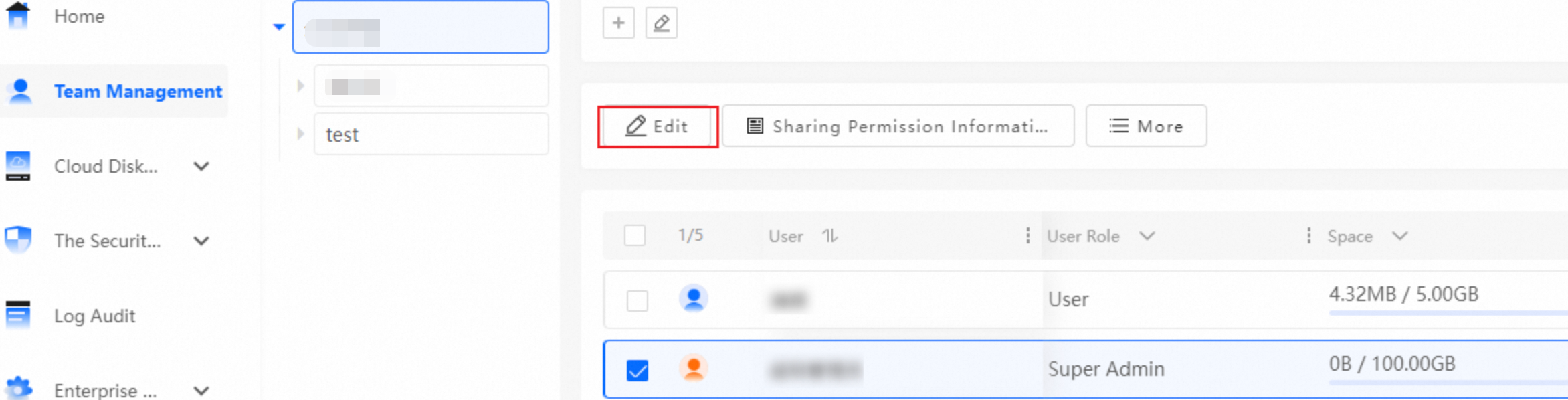
In the left-side navigation pane, click Team Management.
Select the super administrator and click Edit to modify the phone number or email address.