This topic explains how regular users can manage historical file versions, including recovery, retention, marking, and deletion.
Prerequisites
To utilize the historical version feature, make sure the administrator has activated it in the management console. For more information, see enabling the historical version feature.
Feature description
View file versions
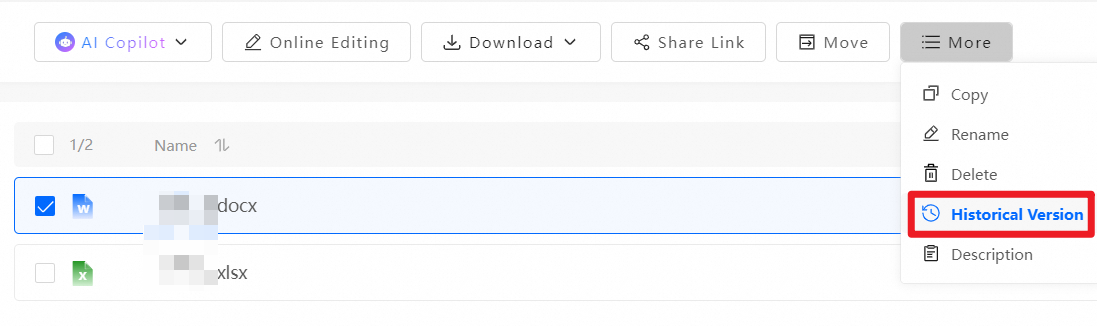
In the user interface, select the target file. From the More menu, click File Versions to view all of its version records.
The following is a concise guide suitable for help documents or operational guides:
Manage file versions
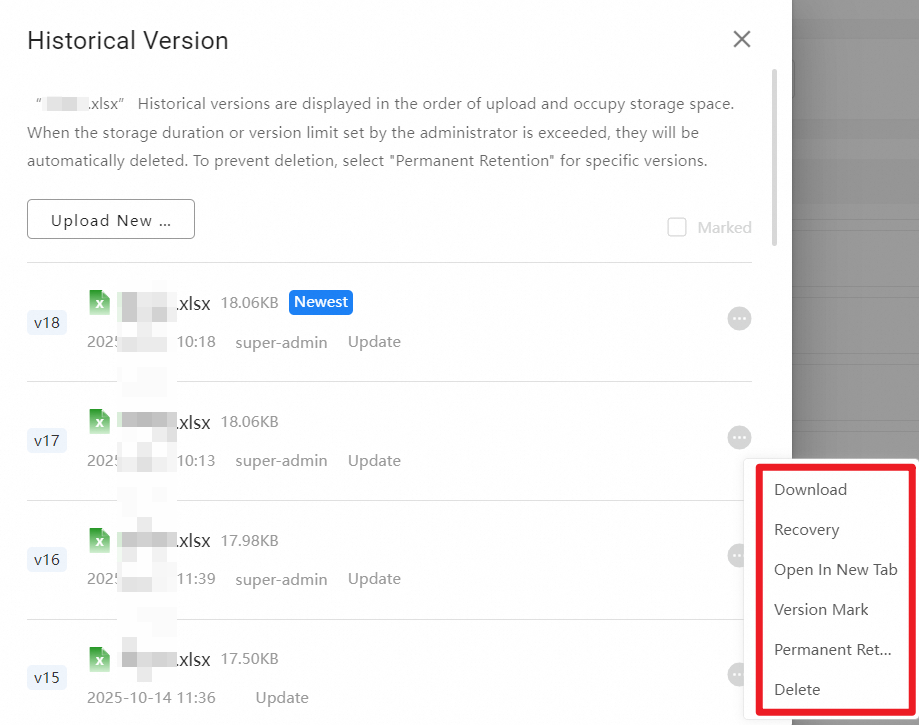
On the File Versions page, you can perform the following operations:
Download: Select any version and click Download to save it to your local computer.
Restore: Select any version except the latest one and click Restore. The selected version becomes the new latest version.
Open in new tab: Select any version and click Open In New Tab to preview its content online.
Mark version: Add a custom description or note to any version for easier identification and management.
Retain permanently: Set any version to be retained permanently. This action exempts the version from the maximum number of versions and the retention period. You can permanently retain up to 50 versions for a single file.
Delete: Delete any version except the latest one.
- Important
This operation cannot be undone. Deleted versions are not moved to the recycle bin. Proceed with caution.