This topic describes the file upload feature and its limitations.
Features
Instant upload: If a file with the same content already exists in the cloud drive, it uploads instantly.
Drag-and-drop upload: After you log on to your cloud drive, you can select multiple local files and drag them into a folder to upload them.
Concurrent uploads: You can run up to 10 upload tasks simultaneously.
Customizable upload speed: You can set a maximum bandwidth for concurrent uploads to manage network usage.
Automatic retries: If an error occurs during an upload, the system automatically retries the operation.
Anonymous upload via shared links: External users can upload files with a shared link without signing in.
Click the Upload button and select File or Folder from the drop-down menu.
Support for handling same-name file upload conflicts: When you upload a file or folder, if a file or folder with the same name already exists, you can choose to "Skip", "Overwrite", or "Keep Both".
Skip: Does not upload the local file or folder with the same name. The existing file or folder in the cloud is kept.
Overwrite: Replaces the existing file or folder in the cloud with the local file or folder of the same name.
Keep Both: Keeps both the cloud and local files or folders. The system automatically appends a timestamp (for example,
_20240614_141353) to the name of the uploaded file or folder to differentiate it from the original.
Upload settings
Administrator
Log in to the Cloud Drive for Enterprises (CDE) admin console with an administrator account. Choose Enterprise Settings->File Settings to configure upload settings.
Select the types of files that can be uploaded, or customize the allowed file types.
Customize the size limit for uploaded files.
Select how to handle uploads for files with duplicate names.
Click the Edit button in the upper-right corner to modify the allowed upload file types and the maximum upload size per file.
Regular user
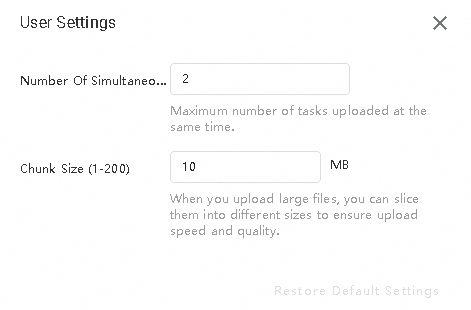
Log in to CDE as a regular user. In the upper-right corner, choose Avatar->User Settings to configure the File Transfer Settings.
Desktop client

In the File Transfer Settings area on the User Settings page, click the Edit button in the upper-right corner to configure the following settings:
Download location
Ask where to save each file before downloading
Maximum number of concurrent uploads and downloads (1–10)
Maximum upload speed
Maximum download speed
Web client
Permission dependencies
Upload
Cloud settings
Scenario | Permission template dependency | Custom permission list |
Upload and overwrite | All permissions | List, Preview, Upload, Download, Edit Online, Share, Move, Copy, Rename, Delete, Create File/Folder |
Upload without overwriting | SystemFileUploader | List, Upload, Create File/Folder |
File/folder upload | SystemFileUploader | List, Upload, Create File/Folder |
Local settings
Ensure you have read and write permissions for the $HOME directory.
Ensure you have read permissions for the upload directory.
Upload limits
The maximum upload size for a single file is 500 GB on the PC client, 500 GB on the web client, and 100 GB on the mobile app.